> ## Documentation Index
> Fetch the complete documentation index at: https://docs.usedatabrain.com/llms.txt
> Use this file to discover all available pages before exploring further.

# Production-Ready Embedding Guide

> Complete step-by-step guide to embedding DataBrain dashboards in production

This guide walks you through everything you need to embed DataBrain dashboards in a production environment with proper authentication, security, and customization.

## What You'll Build

By the end of this guide, you'll have:

* ✅ A secure backend endpoint that generates guest tokens
* ✅ A frontend application with embedded DataBrain dashboards
* ✅ Row-level security for multi-tenant access control (optional)
* ✅ Customized dashboard appearance matching your brand
* ✅ Production-ready authentication flow

**Requirements:** Basic knowledge of REST APIs, frontend frameworks, and environment variables

## Quick Navigation

Jump to any section:

* [Prerequisites](#prerequisites)
* [Architecture Overview](#architecture-overview)
* [Step 1: Create Workspace & Dashboard](#step-1-create-workspace--dashboard)
* [Step 2: Create Data App](#step-2-create-data-app)
* [Step 3: Backend Integration](#step-3-backend-integration)
* [Step 4: Frontend Integration](#step-4-frontend-integration)
* [Step 5: Testing & Deployment](#step-5-testing--deployment)
* [Next Steps](#next-steps)

## Prerequisites

Ensure you have the following before starting:

| Requirement           | Description                                                   | Link                                                                         |
| --------------------- | ------------------------------------------------------------- | ---------------------------------------------------------------------------- |
| **DataBrain Account** | Sign up for a free account                                    | [app.usedatabrain.com](https://app.usedatabrain.com/users/sign-up)           |
| **Data Source**       | Connected database or data warehouse                          | [Data Sources Guide](/guides/onboarding-and-configuration/add-a-data-source) |
| **Backend Server**    | For secure token generation (Node.js, Python, Go, .NET, etc.) | -                                                                            |
| **Frontend App**      | React, Vue, Angular, or vanilla JS application                | -                                                                            |

## Architecture Overview

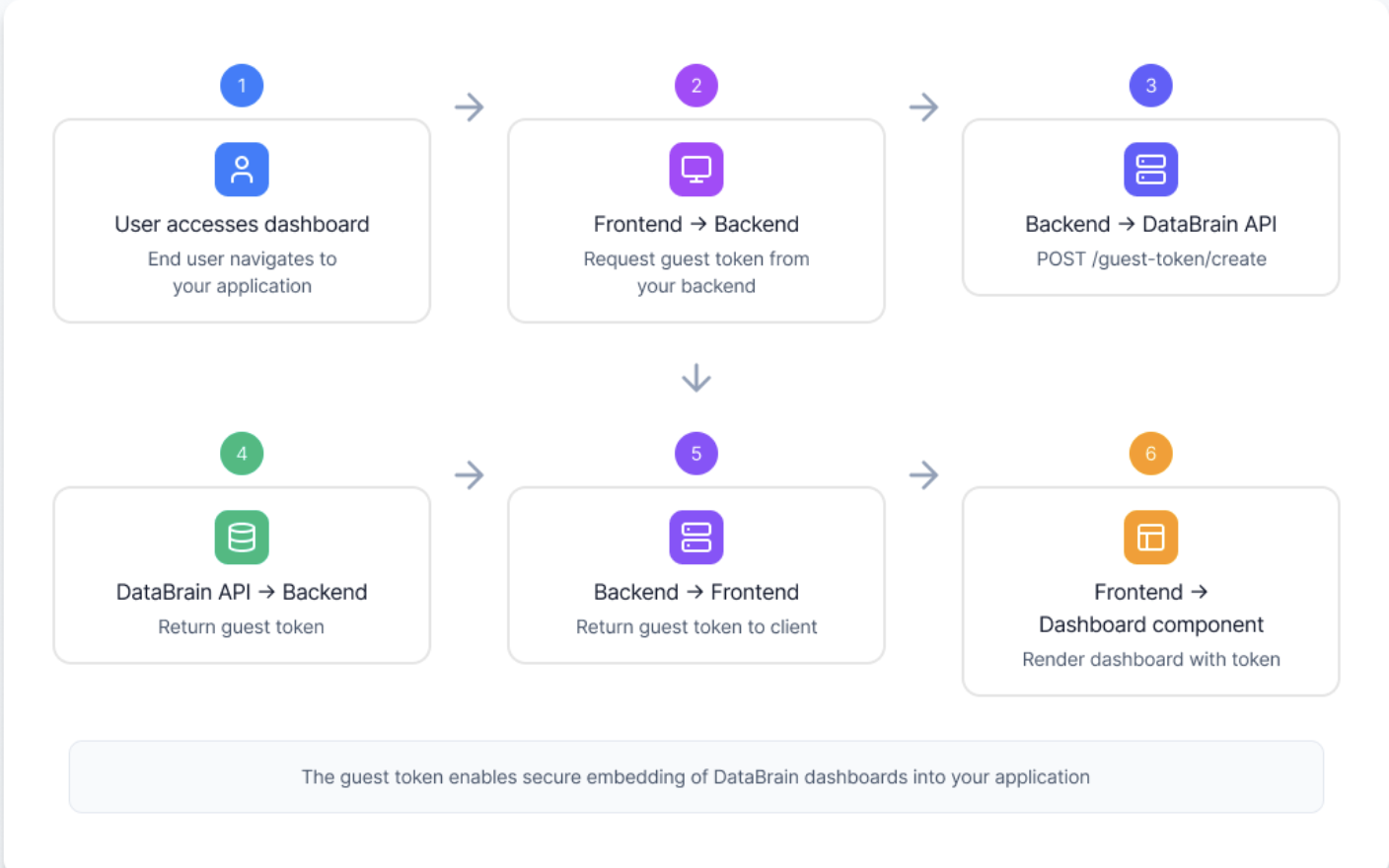
**Flow Diagram:**

<img src="https://mintcdn.com/databrainlabs-bef6850a/7xuGAY2XAwczNwE1/Flow-diagram.png?fit=max&auto=format&n=7xuGAY2XAwczNwE1&q=85&s=c6aa74d463f296dd06690e5e6806f159" alt="Create Architecture Diagram Pn" title="Create Architecture Diagram Pn" style={{ width:"100%" }} width="1408" height="880" data-path="Flow-diagram.png" />

<Details>
  <summary>Understanding the Architecture (Optional Reading)</summary>

  Here's how the embedding architecture works:

  <Steps>
    <Step title="User Login">
      End user logs into your application
    </Step>

    <Step title="Request Token">
      Your frontend requests a guest token from your backend
    </Step>

    <Step title="Generate Token">
      Your backend calls DataBrain API to generate a guest token

      ```bash theme={"dark"}
      POST https://api.usedatabrain.com/api/v2/guest-token/create
      ```
    </Step>

    <Step title="Return Token">
      DataBrain API returns guest token to your backend, which passes it to frontend
    </Step>

    <Step title="Embed Component">
      Frontend passes token to the dbn-dashboard web component

      ```html theme={"dark"}
      <dbn-dashboard token="guest-token" dashboard-id="dashboard-id" />
      ```
    </Step>

    <Step title="Fetch Dashboard">
      Component fetches dashboard data from DataBrain using the guest token
    </Step>

    <Step title="Render">
      Dashboard renders with user-specific data and permissions
    </Step>
  </Steps>
</Details>

## Step 1: Create Workspace & Dashboard

### 1.1 Create a Workspace

<Steps>
  <Step title="Navigate to Workspaces">
    Go to the DataBrain platform and click "Create Workspace"
  </Step>

  <Step title="Configure Workspace">
    * Enter workspace name
    * Select workspace type (standard or private)
    * Configure initial settings
  </Step>
</Steps>

<Card title="Create Workspace Guide" icon="plus" href="/guides/onboarding-and-configuration/create-a-workspace">
  Detailed workspace creation guide
</Card>

### 1.2 Connect Data Source

<Steps>
  <Step title="Add Data Source">
    Click "Add Data Source" in your workspace
  </Step>

  <Step title="Select Database Type">
    Choose from 18+ supported databases
  </Step>

  <Step title="Enter Credentials">
    Provide connection details (host, port, credentials)
  </Step>

  <Step title="Test Connection">
    Verify the connection works
  </Step>

  <Step title="Configure Tenancy">
    Set up multi-tenancy if needed
  </Step>
</Steps>

<Card title="Data Sources Guide" icon="database" href="/guides/onboarding-and-configuration/add-a-data-source">
  Connect your database
</Card>

### 1.3 Create Dashboard

<Steps>
  <Step title="Create Dashboard">
    Click "New Dashboard" in your workspace
  </Step>

  <Step title="Add Metrics">
    Create charts, tables, and KPIs using the visual builder
  </Step>

  <Step title="Add Filters">
    Configure dashboard-level filters for interactivity
  </Step>

  <Step title="Customize Layout">
    Arrange metrics and adjust sizing
  </Step>

  <Step title="Save Dashboard">
    Save and note your dashboard ID
  </Step>
</Steps>

<Card title="Create Dashboard Guide" icon="table-columns" href="/guides/onboarding-and-configuration/create-a-dashboard">
  Build your first dashboard
</Card>

<Check>
  **Step 1 Complete!**

  Before moving to Step 2, verify you have:

  * Created a workspace in DataBrain
  * Successfully connected at least one data source
  * Built and saved a dashboard with metrics
  * Noted your dashboard ID for later use
</Check>

## Step 2: Create Data App

A Data App packages your dashboards for embedding with security and configuration.

### 2.1 Navigate to Data Apps

Go to **Data → Data Apps** in your workspace

### 2.2 Create New Data App

<Steps>
  <Step title="Click New Data App">
    Start creating a new Data App
  </Step>

  <Step title="Configure Basic Settings">
    ```json theme={"dark"}
    {
      "name": "customer-analytics-app",
      "description": "Analytics for customer portal",
      "workspace": "your-workspace-name"
    }
    ```
  </Step>

  <Step title="Select Dashboards">
    * Choose the dashboards you want to expose through the Data App for embedding.
    * Browse and select one or more dashboards from your workspace.
    * Only selected dashboards can be accessed via guest tokens.
    * Save the Data App to generate and use their embed IDs in embedding.
    * **Tip:** Add only relevant dashboards to keep access secure and organized.
  </Step>

  <Step title="Configure Settings">
    * Set default permissions
    * Configure multi-tenancy
    * Set token expiry defaults
  </Step>

  <Step title="Save and Get API Token">
    Copy your API token - you'll need this for generating guest tokens
  </Step>
</Steps>

<Warning>
  **Store your API token securely!** Never commit it to version control or expose it in frontend code. Use environment variables.
</Warning>

### 2.3 Find Your Dashboard ID

<Steps>
  <Step title="Open Data App">
    Navigate to your Data App
  </Step>

  <Step title="Find Dashboard Section">
    Look for the dashboards list
  </Step>

  <Step title="Copy Embed ID">
    Each dashboard has a unique ID (e.g., `sales-dashboard-2024`)
  </Step>
</Steps>

<Card title="Finding Embed IDs" icon="magnifying-glass" href="/developer-docs/helpers/dashboard-id">
  Detailed guide on locating IDs
</Card>

<Check>
  **Step 2 Complete!**

  Before moving to Step 3, verify you have:

  * Created a Data App in your workspace
  * Added your dashboard(s) to the Data App
  * Copied and securely stored your API token
  * Have your Data App name ready (e.g., `customer-analytics-app`)
</Check>

## Step 3: Backend Integration

Set up your backend to generate guest tokens securely.

### 3.1 Store API Token

Add your DataBrain API token to environment variables:

<CodeGroup>
  ```bash .env theme={"dark"}
  DATABRAIN_API_TOKEN=dbn_live_abc123...
  DATABRAIN_API_URL=https://api.usedatabrain.com
  DATA_APP_NAME=customer-analytics-app
  ```

  ```yaml docker-compose.yml theme={"dark"}
  environment:
    - DATABRAIN_API_TOKEN=dbn_live_abc123...
    - DATA_APP_NAME=customer-analytics-app
  ```

  ```json Kubernetes ConfigMap theme={"dark"}
  apiVersion: v1
  kind: Secret
  metadata:
    name: databrain-secrets
  type: Opaque
  stringData:
    api-token: "dbn_live_abc123..."
    data-app-name: "customer-analytics-app"
  ```
</CodeGroup>

### 3.2 Implement Token Generation

Create an API endpoint to generate guest tokens:

<CodeGroup>
  ```javascript Node.js/Express theme={"dark"}
  // routes/databrain.js
  const express = require('express');
  const router = express.Router();

  router.post('/guest-token', async (req, res) => {
    try {
      const { userId } = req.user; // From your auth middleware
      
      const response = await fetch(
        `${process.env.DATABRAIN_API_URL}/api/v2/guest-token/create`,
        {
          method: 'POST',
          headers: {
            'Authorization': `Bearer ${process.env.DATABRAIN_API_TOKEN}`,
            'Content-Type': 'application/json'
          },
          body: JSON.stringify({
            clientId: userId,
            dataAppName: process.env.DATA_APP_NAME,
            expiryTime: 3600000 // 1 hour
          })
        }
      );
      
      const data = await response.json();
      
      if (!response.ok) {
        throw new Error(data.error?.message || 'Failed to generate token');
      }
      
      res.json({ token: data.token });
    } catch (error) {
      console.error('Token generation error:', error);
      res.status(500).json({ error: 'Failed to generate token' });
    }
  });

  module.exports = router;
  ```

  ```python Python/FastAPI theme={"dark"}
  from fastapi import APIRouter, HTTPException, Depends
  from pydantic import BaseModel
  import httpx
  import os

  router = APIRouter()

  class TokenResponse(BaseModel):
      token: str

  @router.post("/guest-token", response_model=TokenResponse)
  async def get_guest_token(current_user: User = Depends(get_current_user)):
      try:
          async with httpx.AsyncClient() as client:
              response = await client.post(
                  f"{os.getenv('DATABRAIN_API_URL')}/api/v2/guest-token/create",
                  headers={
                      "Authorization": f"Bearer {os.getenv('DATABRAIN_API_TOKEN')}",
                      "Content-Type": "application/json"
                  },
                  json={
                      "clientId": str(current_user.id),
                      "dataAppName": os.getenv('DATA_APP_NAME'),
                      "expiryTime": 3600000  # 1 hour
                  }
              )
              
              if response.status_code != 200:
                  raise HTTPException(status_code=500, detail="Token generation failed")
              
              data = response.json()
              return TokenResponse(token=data["token"])
              
      except Exception as e:
          raise HTTPException(status_code=500, detail=str(e))
  ```

  ```go Go/Gin theme={"dark"}
  package handlers

  import (
      "bytes"
      "encoding/json"
      "net/http"
      "os"
      
      "github.com/gin-gonic/gin"
  )

  type TokenRequest struct {
      ClientID    string `json:"clientId"`
      DataAppName string `json:"dataAppName"`
      ExpiryTime  int    `json:"expiryTime"`
  }

  type TokenResponse struct {
      Token string `json:"token"`
  }

  func GetGuestToken(c *gin.Context) {
      userID := c.GetString("userID") // From auth middleware
      
      reqBody := TokenRequest{
          ClientID:    userID,
          DataAppName: os.Getenv("DATA_APP_NAME"),
          ExpiryTime:  3600000, // 1 hour
      }
      
      jsonData, _ := json.Marshal(reqBody)
      
      req, _ := http.NewRequest(
          "POST",
          os.Getenv("DATABRAIN_API_URL")+"/api/v2/guest-token/create",
          bytes.NewBuffer(jsonData),
      )
      
      req.Header.Set("Authorization", "Bearer "+os.Getenv("DATABRAIN_API_TOKEN"))
      req.Header.Set("Content-Type", "application/json")
      
      client := &http.Client{}
      resp, err := client.Do(req)
      if err != nil {
          c.JSON(500, gin.H{"error": "Token generation failed"})
          return
      }
      defer resp.Body.Close()
      
      var tokenResp TokenResponse
      json.NewDecoder(resp.Body).Decode(&tokenResp)
      
      c.JSON(200, tokenResp)
  }
  ```

  ```csharp C#/.NET theme={"dark"}
  using Microsoft.AspNetCore.Mvc;
  using System.Net.Http;
  using System.Text;
  using System.Text.Json;

  [ApiController]
  [Route("api/[controller]")]
  public class DataBrainController : ControllerBase
  {
      private readonly IHttpClientFactory _httpClientFactory;
      private readonly IConfiguration _configuration;

      public DataBrainController(
          IHttpClientFactory httpClientFactory,
          IConfiguration configuration)
      {
          _httpClientFactory = httpClientFactory;
          _configuration = configuration;
      }

      [HttpPost("guest-token")]
      public async Task<IActionResult> GetGuestToken()
      {
          var userId = User.FindFirst(ClaimTypes.NameIdentifier)?.Value;
          
          var requestBody = new
          {
              clientId = userId,
              dataAppName = _configuration["DataBrain:AppName"],
              expiryTime = 3600000
          };

          var client = _httpClientFactory.CreateClient();
          var request = new HttpRequestMessage(HttpMethod.Post,
              $"{_configuration["DataBrain:ApiUrl"]}/api/v2/guest-token/create");
          
          request.Headers.Add("Authorization", 
              $"Bearer {_configuration["DataBrain:ApiToken"]}");
          request.Content = new StringContent(
              JsonSerializer.Serialize(requestBody),
              Encoding.UTF8,
              "application/json");

          var response = await client.SendAsync(request);
          
          if (!response.IsSuccessStatusCode)
          {
              return StatusCode(500, "Token generation failed");
          }

          var result = await response.Content.ReadAsStringAsync();
          var tokenData = JsonSerializer.Deserialize<TokenResponse>(result);
          
          return Ok(tokenData);
      }
  }
  ```
</CodeGroup>

#### Verify Token Generation

Test your endpoint to ensure tokens are being generated correctly:

<CodeGroup>
  ```bash cURL theme={"dark"}
  curl -X POST http://localhost:3000/api/databrain/guest-token \
    -H "Authorization: Bearer your-app-auth-token" \
    -H "Content-Type: application/json"

  # Expected Response:
  # {
  #   "token": "eyJhbGciOiJIUzI1NiIsInR5cCI6IkpXVCJ9..."
  # }
  ```

  ```javascript Postman/JavaScript theme={"dark"}
  // Test in your browser console or Postman
  fetch('http://localhost:3000/api/databrain/guest-token', {
    method: 'POST',
    credentials: 'include'
  })
    .then(res => res.json())
    .then(data => console.log('Token:', data.token))
    .catch(err => console.error('Error:', err));
  ```
</CodeGroup>

<Details>
  <summary>Advanced: Add Row-Level Security (Multi-Tenant Apps)</summary>

  ### 3.3 Advanced Token Configuration

  Add Row-Level Security (RLS) and filters:

  ```javascript theme={"dark"}
  // With RLS and app filters
  const tokenRequest = {
    clientId: userId,
    dataAppName: process.env.DATA_APP_NAME,
    params: {
      // Row-level security
      rlsSettings: [{
        metricId: 'sales-metric',
        values: {
          customer_id: userCustomerId,
          region: userRegion
        }
      }],
      // Dashboard app filters
      dashboardAppFilters: [{
        dashboardId: 'sales-dashboard',
        values: {
          date_range: {
            startDate: '2024-01-01',
            endDate: '2024-12-31'
          },
          region: userRegion
        },
        isShowOnUrl: false
      }]
    },
    // Permissions
    permissions: {
      isEnableDownloadMetrics: true,
      isEnableUnderlyingData: false,
      isEnableManageMetrics: false
    },
    expiryTime: 3600000
  };
  ```

  <Card title="Token Body Reference" icon="list" href="/developer-docs/helpers/token-body">
    Complete token configuration options
  </Card>
</Details>

<Check>
  **Step 3 Complete!**

  Before moving to Step 4, verify you have:

  * Environment variables configured with API token
  * Backend endpoint created for token generation
  * Successfully tested token generation (returns valid JWT)
  * Tokens are secured server-side (never exposed to frontend)
</Check>

## Step 4: Frontend Integration

### 4.1 Install Package

```bash theme={"dark"}
npm install @databrainhq/plugin
```

### 4.2 Create Dashboard Component

<Details>
  <summary>Framework-Specific Integration Guides</summary>

  <CodeGroup>
    ```javascript React theme={"dark"}
    import { useEffect, useState } from 'react';
    import '@databrainhq/plugin/web';

    function AnalyticsDashboard() {
      const [token, setToken] = useState(null);
      const [loading, setLoading] = useState(true);
      const [error, setError] = useState(null);

      useEffect(() => {
        async function fetchToken() {
          try {
            const response = await fetch('/api/databrain/guest-token', {
              method: 'POST',
              credentials: 'include' // Include auth cookies
            });
            
            if (!response.ok) {
              throw new Error('Failed to fetch token');
            }
            
            const data = await response.json();
            setToken(data.token);
          } catch (err) {
            setError(err.message);
          } finally {
            setLoading(false);
          }
        }

        fetchToken();
      }, []);

      if (loading) {
        return <div>Loading dashboard...</div>;
      }

      if (error) {
        return <div>Error loading dashboard: {error}</div>;
      }

      return (
        <div className="dashboard-container">
          <dbn-dashboard 
            token={token}
            dashboard-id="sales-dashboard"
            enable-download-csv
            enable-download-all-metrics
          />
        </div>
      );
    }

    export default AnalyticsDashboard;
    ```

    ```javascript Vue theme={"dark"}
    <template>
      <div class="dashboard-container">
        <div v-if="loading">Loading dashboard...</div>
        <div v-else-if="error">Error: {{ error }}</div>
        <dbn-dashboard 
          v-else
          :token="token"
          dashboard-id="sales-dashboard"
          enable-download-csv
          enable-download-all-metrics
        />
      </div>
    </template>

    <script>
    import { ref, onMounted } from 'vue';
    import '@databrainhq/plugin/web';

    export default {
      name: 'AnalyticsDashboard',
      setup() {
        const token = ref(null);
        const loading = ref(true);
        const error = ref(null);

        onMounted(async () => {
          try {
            const response = await fetch('/api/databrain/guest-token', {
              method: 'POST',
              credentials: 'include'
            });
            
            if (!response.ok) {
              throw new Error('Failed to fetch token');
            }
            
            const data = await response.json();
            token.value = data.token;
          } catch (err) {
            error.value = err.message;
          } finally {
            loading.value = false;
          }
        });

        return { token, loading, error };
      }
    };
    </script>
    ```

    ```typescript TypeScript/Next.js theme={"dark"}
    import { useEffect, useState } from 'react';
    import type { NextPage } from 'next';
    import '@databrainhq/plugin/web';

    declare global {
      namespace JSX {
        interface IntrinsicElements {
          'dbn-dashboard': any;
        }
      }
    }

    const Analytics: NextPage = () => {
      const [token, setToken] = useState<string | null>(null);
      const [loading, setLoading] = useState(true);
      const [error, setError] = useState<string | null>(null);

      useEffect(() => {
        async function fetchToken() {
          try {
            const response = await fetch('/api/databrain/guest-token', {
              method: 'POST'
            });
            
            if (!response.ok) {
              throw new Error('Token fetch failed');
            }
            
            const data = await response.json();
            setToken(data.token);
          } catch (err) {
            setError((err as Error).message);
          } finally {
            setLoading(false);
          }
        }

        fetchToken();
      }, []);

      if (loading) return <div>Loading...</div>;
      if (error) return <div>Error: {error}</div>;

      return (
        <dbn-dashboard
          token={token}
          dashboard-id="sales-dashboard"
        />
      );
    };

    export default Analytics;
    ```
  </CodeGroup>
</Details>

**Basic Implementation (All Frameworks):**

```html theme={"dark"}
<dbn-dashboard 
  token={token}
  dashboard-id="sales-dashboard"
  enable-download-csv
  enable-download-all-metrics
/>
```

<Details>
  <summary>Optional: Customize Dashboard Appearance</summary>

  ### 4.3 Add Customization

  ```javascript theme={"dark"}
  <dbn-dashboard 
    token={token}
    dashboard-id="sales-dashboard"
    // Downloads
    enable-download-csv
    enable-download-all-metrics
    // UI Options
    is-hide-chart-settings={false}
    options-icon="download"
    // Custom messages
    custom-messages={JSON.stringify({
      tokenExpiry: "Your session expired. Please refresh the page.",
      tokenAbsent: "Unable to load dashboard. Please try again."
    })}
    // Theme
    theme={JSON.stringify({
      general: {
        primaryColor: '#0066CC',
        backgroundColor: '#FFFFFF',
        fontFamily: 'Inter, system-ui, sans-serif'
      },
      chart: {
        colors: ['#0066CC', '#00C2B8', '#FF6B6B', '#4ECDC4']
      }
    })}
    // Event handler
    handle-server-event="handleDashboardEvents"
  />
  ```

  <Card title="Component Options" icon="sliders" href="/developer-docs/helpers/options">
    All customization options
  </Card>
</Details>

<Check>
  **Step 4 Complete!**

  Before moving to Step 5, verify you have:

  * Installed `@databrainhq/plugin` package
  * Created a dashboard component in your frontend
  * Dashboard successfully fetches token from your backend
  * Dashboard renders with data from DataBrain
</Check>

## Step 5: Testing & Deployment

### 5.1 Test Locally

<Steps>
  <Step title="Start Backend">
    Ensure your backend token endpoint is running
  </Step>

  <Step title="Start Frontend">
    Run your frontend development server
  </Step>

  <Step title="Verify Dashboard Loads">
    Check that the dashboard renders correctly
  </Step>

  <Step title="Test Interactions">
    * Click on charts
    * Apply filters
    * Download CSV
    * Test responsive behavior
  </Step>
</Steps>

### 5.2 Environment Variables

Set up environment variables for each environment:

<CodeGroup>
  ```bash Development theme={"dark"}
  DATABRAIN_API_TOKEN=dbn_test_...
  DATABRAIN_API_URL=https://api.usedatabrain.com
  DATA_APP_NAME=my-app-dev
  ```

  ```bash Production theme={"dark"}
  DATABRAIN_API_TOKEN=dbn_live_...
  DATABRAIN_API_URL=https://api.usedatabrain.com
  DATA_APP_NAME=my-app-prod
  ```
</CodeGroup>

<Check>
  **🎉 Congratulations! You're Production-Ready**

  Your embedded analytics are now live! You've successfully:

  * Created DataBrain workspace and dashboards
  * Set up secure backend token generation
  * Integrated dashboard into your frontend
  * Deployed to production

  **What's next?** Explore multi-tenancy, SSO, and advanced customization below.
</Check>

## Next Steps

<CardGroup cols={2}>
  <Card title="Multi-Tenancy" icon="users" href="/developer-docs/multi-tenant-access-control">
    Implement row-level security
  </Card>

  <Card title="SSO Integration" icon="shield" href="/developer-docs/sso-login">
    Set up single sign-on
  </Card>

  <Card title="Advanced Customization" icon="palette" href="/developer-docs/helpers/options">
    Deep dive into options
  </Card>

  <Card title="Solution Patterns" icon="lightbulb" href="/developer-docs/solutions-alchemy/dashboard-for-multiple-clients">
    Common implementation patterns
  </Card>
</CardGroup>