> ## Documentation Index
> Fetch the complete documentation index at: https://docs.usedatabrain.com/llms.txt
> Use this file to discover all available pages before exploring further.

# End User Dashboard Creation

> Description of your new file.

1. **Create a Datamart**

Create a Datamart in "Data Studio" page. Kindly refer the below link on how to create datamarts:

<Card title="Create a Datamart" href="https://docs.usedatabrain.com/guides/datasources/create-a-datamart" />

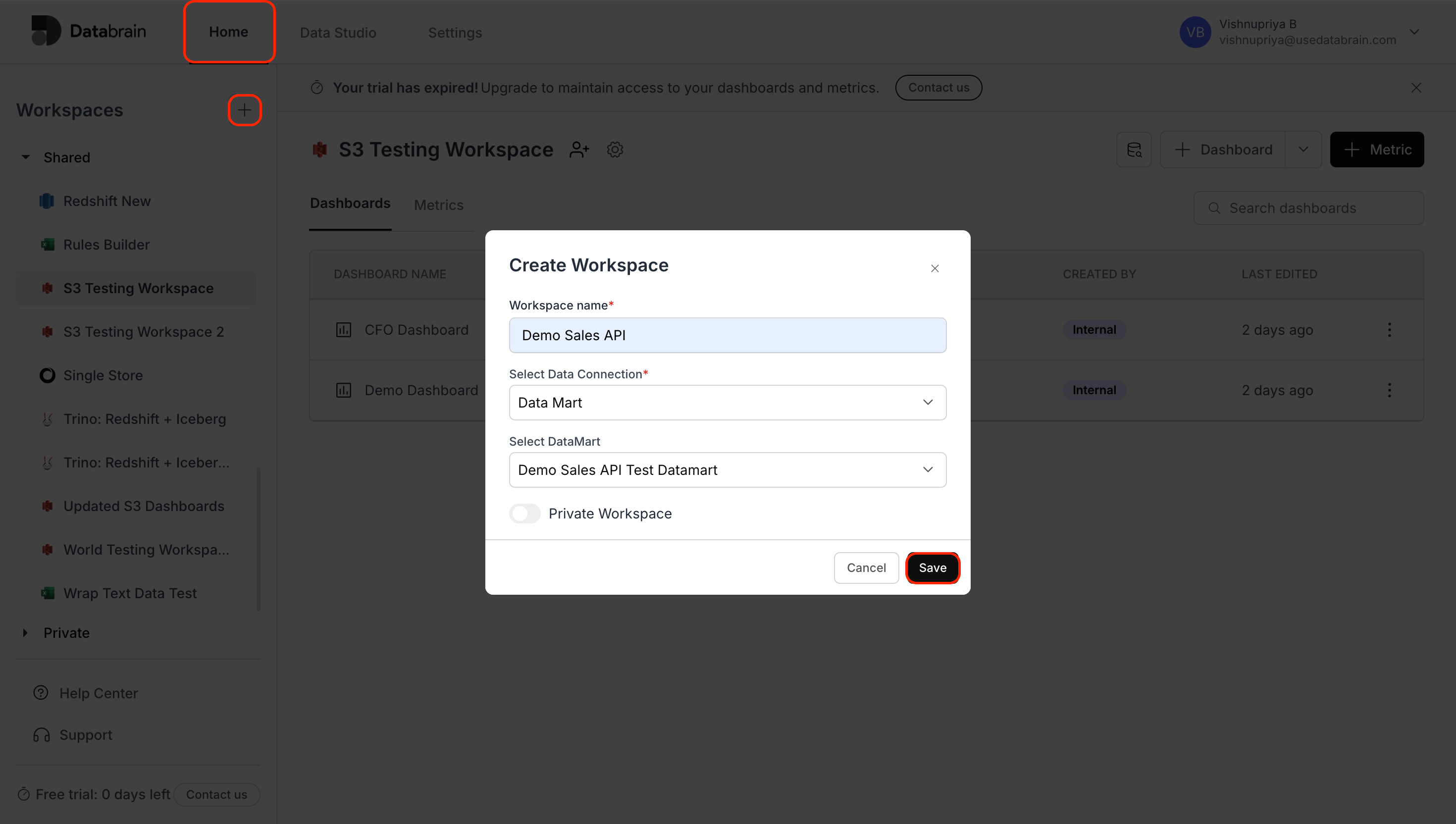
2. **Create a Workspace with Datamart connection**

<img src="https://mintcdn.com/databrainlabs-bef6850a/yk8EQLYu_KUA98_N/WorkspacewithDatamart.png?fit=max&auto=format&n=yk8EQLYu_KUA98_N&q=85&s=29f9c43912bae4e904211521bce1e97a" alt="Workspace with Datamart " width="2940" height="1664" data-path="WorkspacewithDatamart.png" />

For more details, kindly refer the below link:
<Card title="Workspace" href="https://docs.usedatabrain.com/guides/workspace/multi-datasource-workspace" />

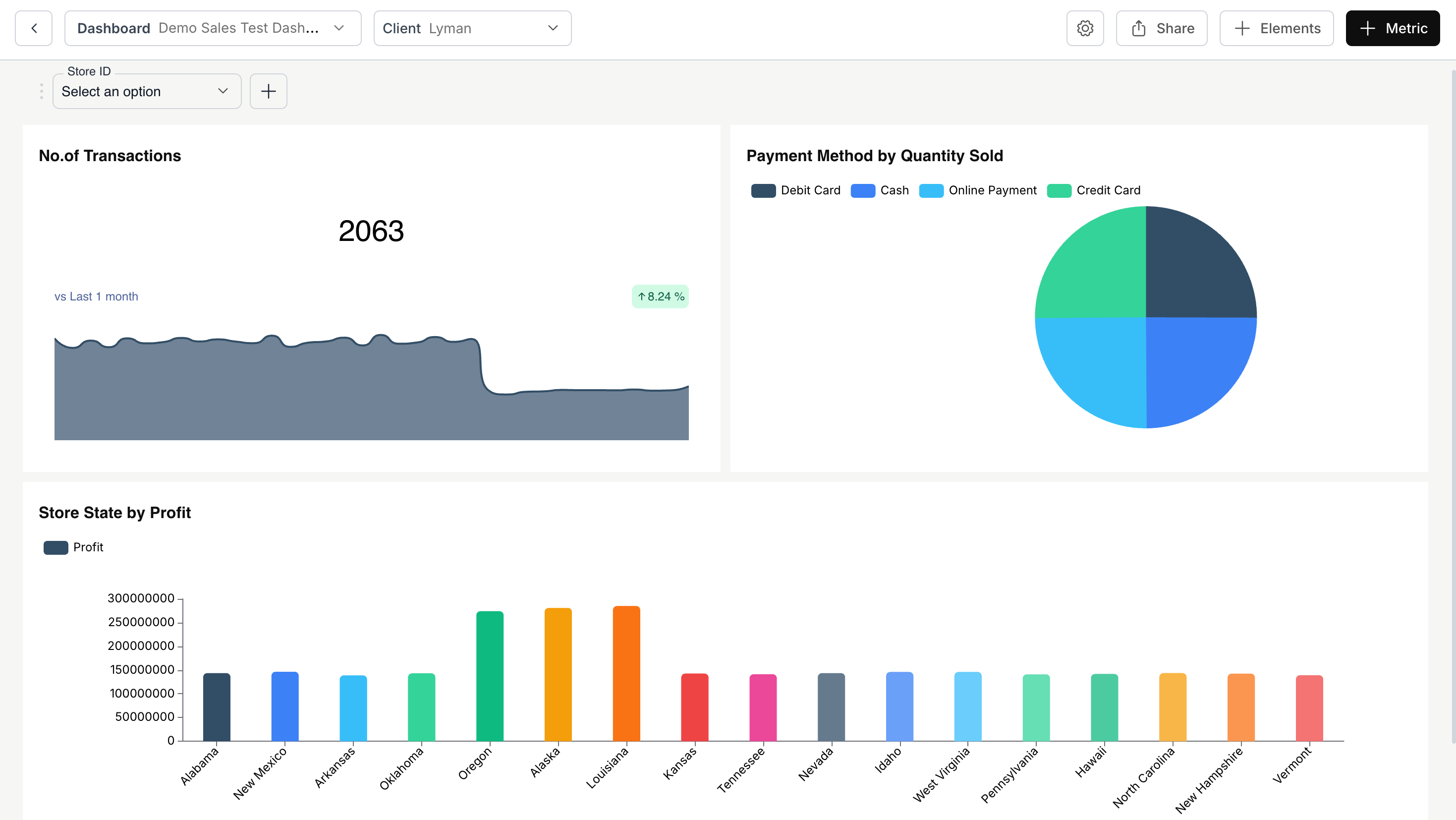
3. \*\*Create a Dashboard \*\*

<img src="https://mintcdn.com/databrainlabs-bef6850a/yk8EQLYu_KUA98_N/CreateDashboard.png?fit=max&auto=format&n=yk8EQLYu_KUA98_N&q=85&s=867b8b3a31ba8282529bbf485e72f1af" alt="Create Dashboard " width="2938" height="1654" data-path="CreateDashboard.png" />

For more details, kindly refer the below link:
<Card title="Create a Dashboard" href="https://docs.usedatabrain.com/guides/workspace/create-a-dashboard" />

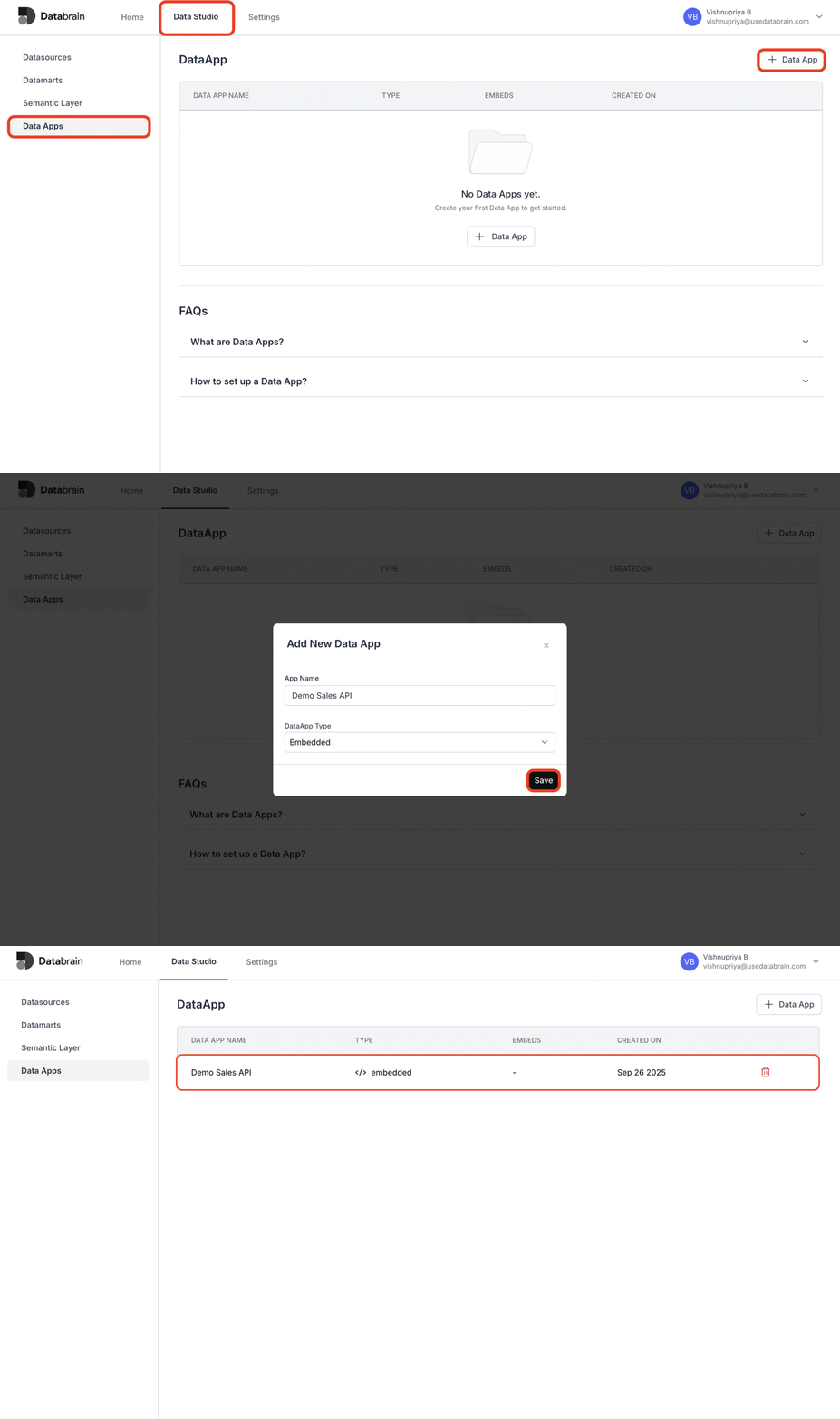
4. **Create a DataApp**

<img src="https://mintcdn.com/databrainlabs-bef6850a/yk8EQLYu_KUA98_N/CreateaDataApp.gif?s=4d186825b45a342b0c90c85415574872" alt="Createa Data App" width="1630" height="919" data-path="CreateaDataApp.gif" />

For more details, kindly refer the below link:
<Card title="Create a Data App" href="https://docs.usedatabrain.com/guides/workspace/create-a-dashboard" />

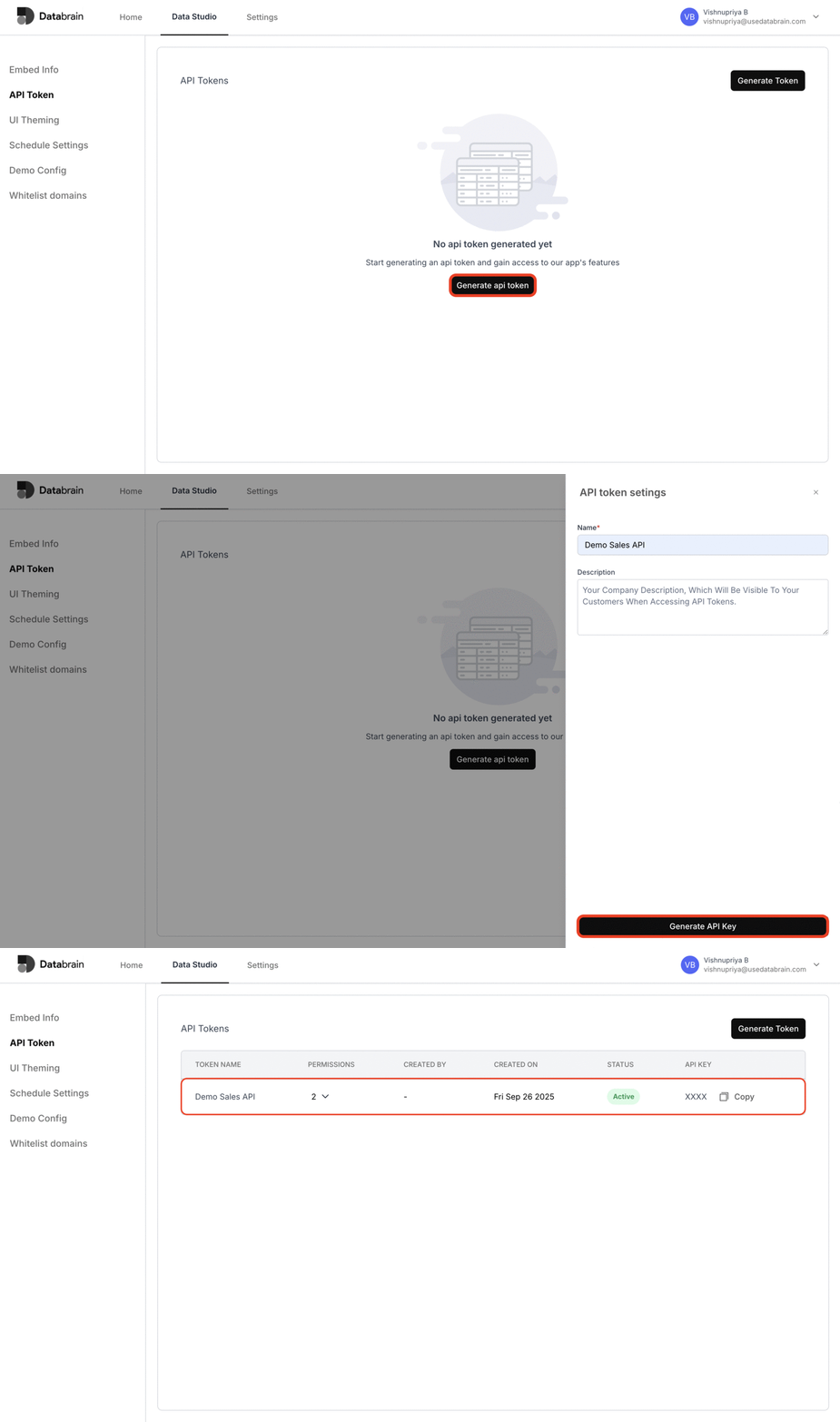
5. **Generate API Token**

* Navigate to the Data App.
* In the "API Token" section, generate the API token by specifying the name of company and description (optional)

<img src="https://mintcdn.com/databrainlabs-bef6850a/yk8EQLYu_KUA98_N/GenerateAPIToken.gif?s=5e0aafab2f5526effdf68edb3dc4c2ad" alt="Generate API Token " width="1629" height="920" data-path="GenerateAPIToken.gif" />

**API Methods**

**Cloud Databrain:**

```http theme={"dark"}
POST https://api.usedatabrain.com/api/v2/dataApp/embed/{method_path}
```

**Self-hosted Databrain:**

```http theme={"dark"}
POST <SELF_HOSTED_URL>/api/v2/dataApp/embed/{method_path}
```

6. **Create a Dashboard**

```http theme={"dark"}
POST https://api.usedatabrain.com/api/v2/dataApp/dashboardEmbed/create
```

```http theme={"dark"}
POST <SELF_HOSTED_URL>/api/v2/dataApp/dashboardEmbed/create
```

```json theme={"dark"}
{
  "dashboardId": "id",
  "clientId": "102", 
  "templateDashboardId": "demo-sales-test-dashboard", // dashboard id to clone filters
  "metadata": {"created_at": "2025-09-25", "name":"lyman's dashboard", "descriptions":"created for 102 client id, it's end user dashboard embed"}, // metadata of dashboard	
  "workspaceName": "Demo Sales API",
  "accessSettings": {
    "datamartName": "Demo Sales API Test Datamart",
    "isAllowAiPilot": true,
    "isAllowEmailReports": false,
    "isAllowManageMetrics": true,
    "isAllowMetricCreation": true,
    "isAllowMetricDeletion": true,
    "isAllowMetricLayoutChange": true,
    "isAllowMetricUpdate": true,
    "isAllowUnderlyingData": false,
	"isAllowCreateDashboardView": false,
    "metricCreationMode": "DRAG_DROP",
    "tableTenancySettings": [
      {
        "clientColumn": "client id",
        "name": "demo_sales"
      }
    ]
  }
}
// database tenancy don't require table list
```

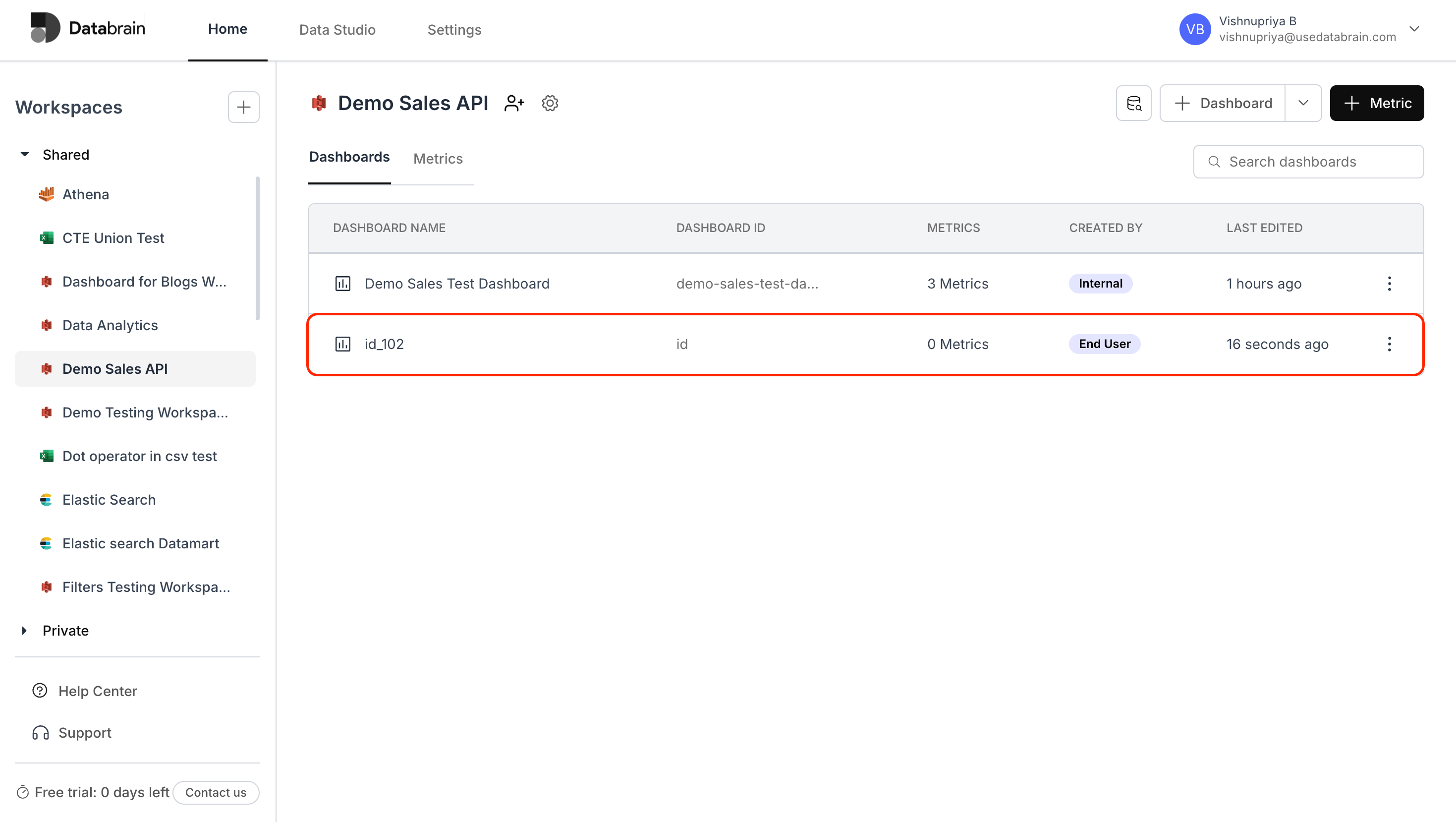
* `dashboardId` – Unique external dashboard ID (must not already exist).
* `workspaceName` – Must match a valid workspace linked to the API token's company.
* `clientId` – Identifier of the client for which the dashboard is being created.
* `templateId` – Optional. External dashboard ID of a template to clone.
* `accessSettings` – Required. Defines permissions and feature access for the embed.

<img src="https://mintcdn.com/databrainlabs-bef6850a/yk8EQLYu_KUA98_N/CreateDashboardAPIResult.png?fit=max&auto=format&n=yk8EQLYu_KUA98_N&q=85&s=0ad4478a579a6de2fafdb836dd3b2e87" alt="Create Dashboard API Result " width="2938" height="1658" data-path="CreateDashboardAPIResult.png" />

7. **Create Guest token by passing Client ID and DataApp Name**

When you need a guest token that you want to use across dashboards and metrics. All you have to do is pass `clientId`, `dataAppName`. If `expiryTime` is not passed, the token will not expire.

## Generating GUEST TOKEN for your Dashboard

### Headers

| Name            | Type   | Description        |
| :-------------- | :----- | :----------------- |
| Authorization\* | String | Bearer (API Token) |

### Request Body

| Name           | Type   | Description                                                                                                                          |
| :------------- | :----- | :----------------------------------------------------------------------------------------------------------------------------------- |
| dataAppName\*  | String | Your Data App Name                                                                                                                   |
| clientId\*     | String | Client ID for whom this guest token is generated. (`"clientId": "None"` if no tenancy is selected for connected datasource/datamart) |
| params         | Object | Additional Params: `dashboard`, `appFilters`                                                                                         |
| expiryTime     | Number | In milliseconds                                                                                                                      |
| datasourceName | String | Datasource name from Data Studio (\*important and supported in multi-datasource connection in workspace)                             |

**Example Response: 200 OK "token": "..."**

```json theme={"dark"}
when the response is successful it returns a token that you can pass to the frontend.
```

<p>
  When the response is successful it returns a token that you can pass to the frontend.
</p>

### Simple Request Body

```json theme={"dark"}
{
  "clientId": "102",
  "dataAppName": "Demo Sales API"
}
```

Once you acquire the guest token, you can seamlessly pass it to your frontend application, where it can be integrated with the web component
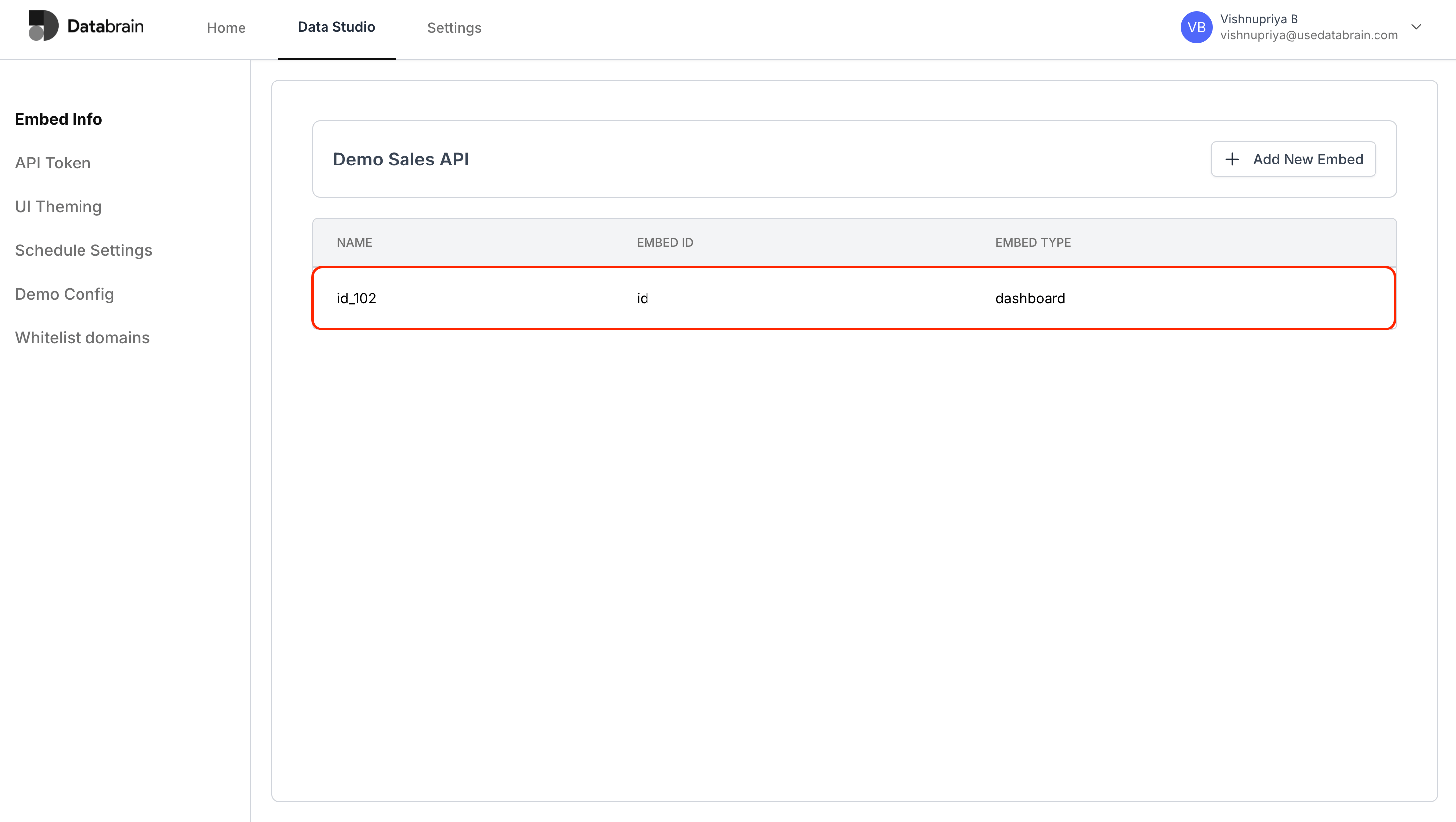
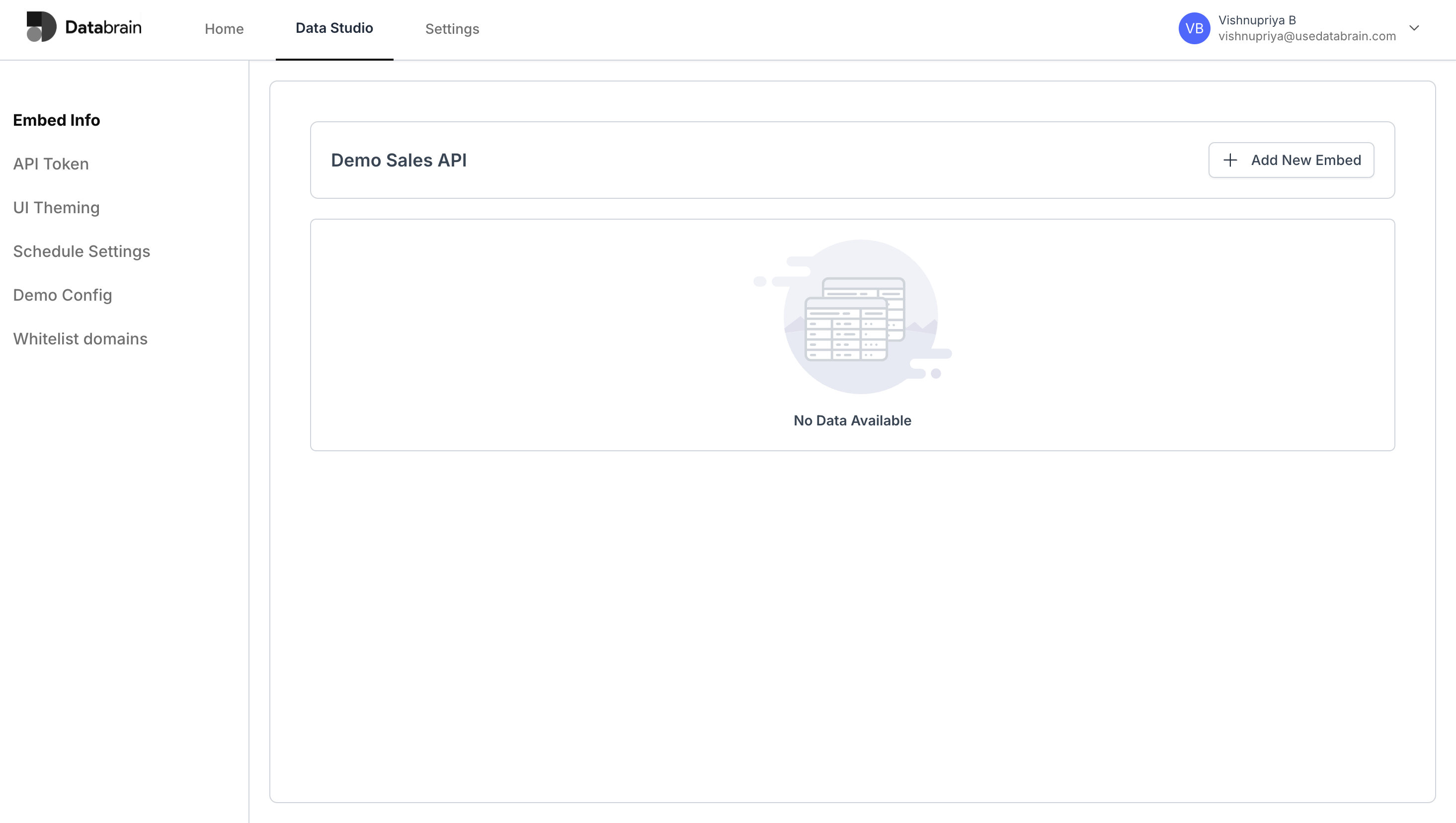
<img src="https://mintcdn.com/databrainlabs-bef6850a/yk8EQLYu_KUA98_N/CreateEmbed.png?fit=max&auto=format&n=yk8EQLYu_KUA98_N&q=85&s=b107beca0b73804f6d3d7d8dbd3d3937" alt="Create Embed " width="2930" height="1654" data-path="CreateEmbed.png" />

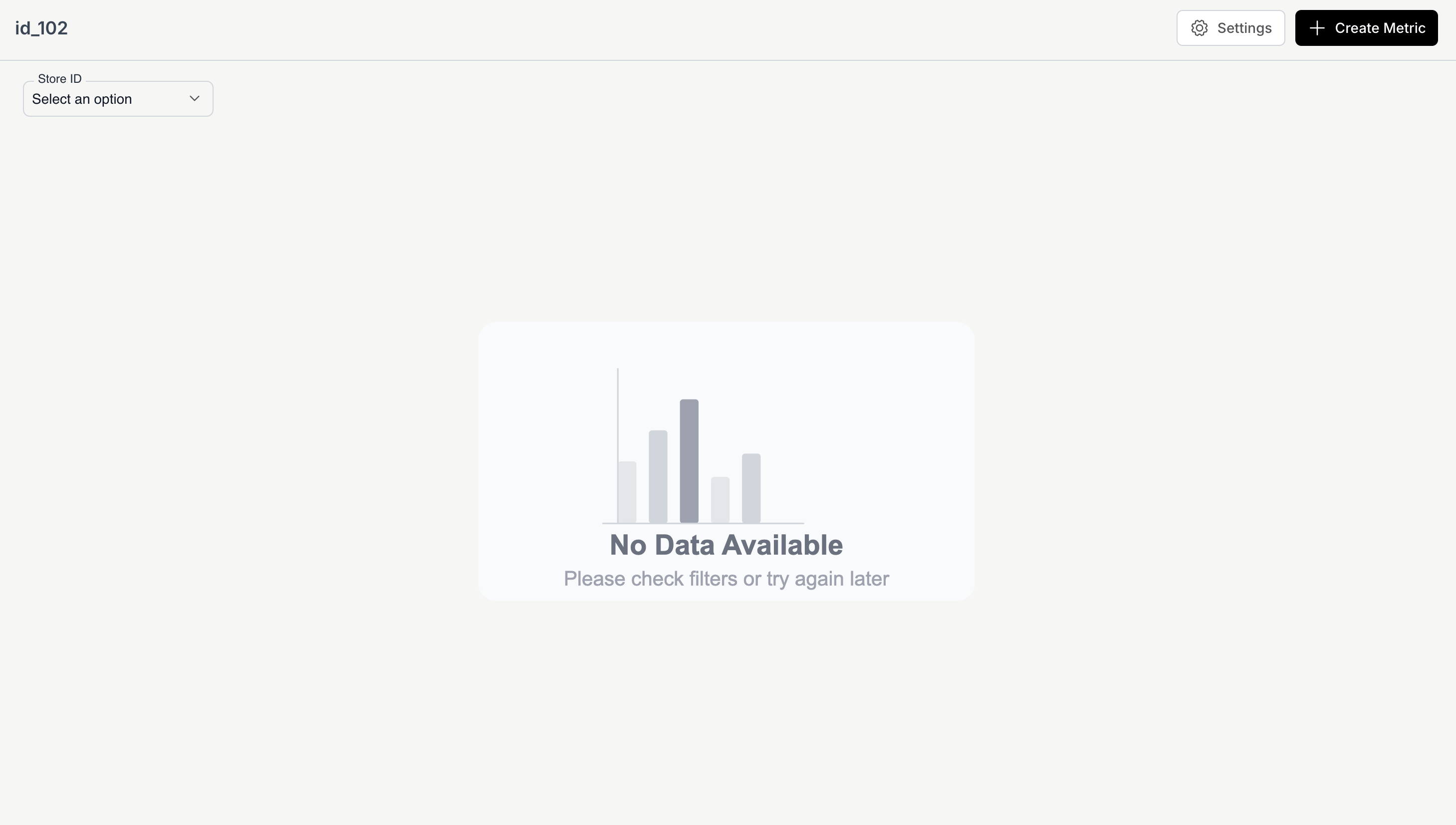
<img src="https://mintcdn.com/databrainlabs-bef6850a/yk8EQLYu_KUA98_N/CreatedDashboardinembed.png?fit=max&auto=format&n=yk8EQLYu_KUA98_N&q=85&s=494d18e981c6466f45485e361c6a6862" alt="Created Dashboard in embed " width="2918" height="1654" data-path="CreatedDashboardinembed.png" />

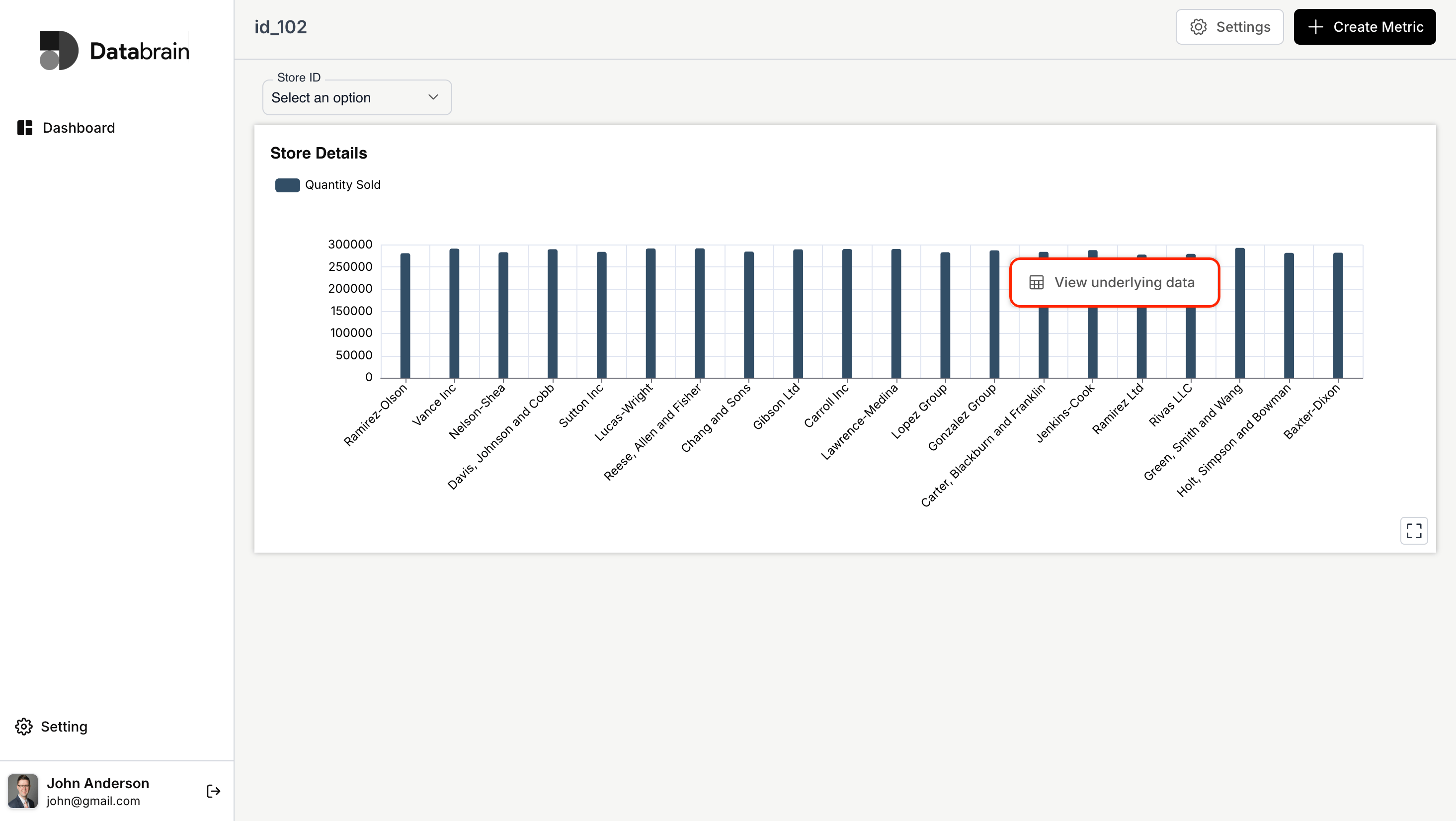
* The created dashboard will mimic the filter behavior of the cloned dashboard if a Template ID is provided.
* Once the dashboard is created, users can start building metrics.
<Accordion title="Dashboard Updation" description="POST /embed/update ">
  ```json theme={"dark"}
  {
    "embedId": "id",
    "accessSettings": {
      "datamartName": "Demo Sales API Test Datamart",
      "isAllowAiPilot": true,
      "isAllowEmailReports": false,
      "isAllowManageMetrics": true,
      "isAllowMetricCreation": true,
      "isAllowMetricDeletion": true,
      "isAllowMetricLayoutChange": true,
      "isAllowMetricUpdate": true,
      "isAllowUnderlyingData": true,
  	"isAllowCreateDashboardView": false,
      "metricCreationMode": "DRAG_DROP",
      "tableTenancySettings": [
        {
          "clientColumn": "client id",
          "name": "demo-sales"
        }
      ]
    }
  }
  ```

  <img src="https://mintcdn.com/databrainlabs-bef6850a/yk8EQLYu_KUA98_N/UpdateDashboardAPIResult.png?fit=max&auto=format&n=yk8EQLYu_KUA98_N&q=85&s=3f6e1e4e1afd6ee2f534cf495ef01a8a" alt="Update Dashboard API Result " width="2930" height="1652" data-path="UpdateDashboardAPIResult.png" />
</Accordion>

<Accordion title="Embedded Dashboard Deletion" description="POST /embed/delete">
  ```json theme={"dark"}
  {
    "embedId": "id"
  }
  ```

  <img src="https://mintcdn.com/databrainlabs-bef6850a/yk8EQLYu_KUA98_N/DeleteDashboardAPIResult.png?fit=max&auto=format&n=yk8EQLYu_KUA98_N&q=85&s=5dc0b7fa6a678763c832d4522d389d29" alt="Delete Dashboard API Result " width="2930" height="1656" data-path="DeleteDashboardAPIResult.png" />
</Accordion>
