> ## Documentation Index
> Fetch the complete documentation index at: https://docs.usedatabrain.com/llms.txt
> Use this file to discover all available pages before exploring further.
# Mixtral
## Step 1: Configure Mixtral
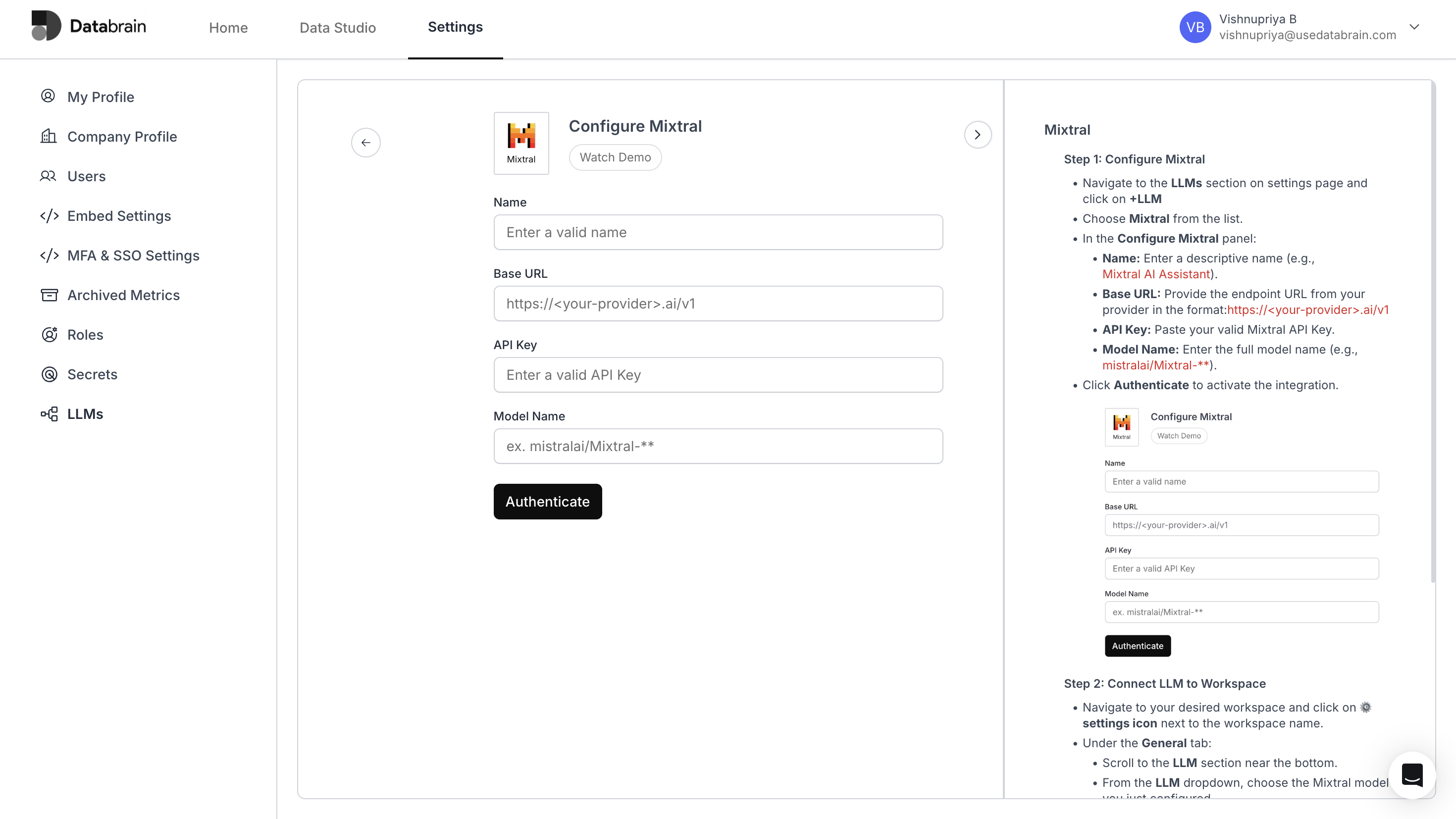
Navigate to the `LLMs` section on the **Settings** page and click on **+LLM**.
Choose **Mixtral** from the list.
In the **Configure Mixtral** panel:
* **Name**: Enter a descriptive name (e.g., *Mixtral AI Assistant*).
* **Base URL**: Provide the endpoint URL from your provider in the format: `https://.ai/v1`
* **API Key**: Paste your valid API Key provided by the Mixtral service provider.
* **Model Name**: Enter the full model name (e.g., *mistralai/Mixtral-*\*\*)
Click **Authenticate** to activate the integration.
 ***
## Step 2: Connect LLM to Workspace
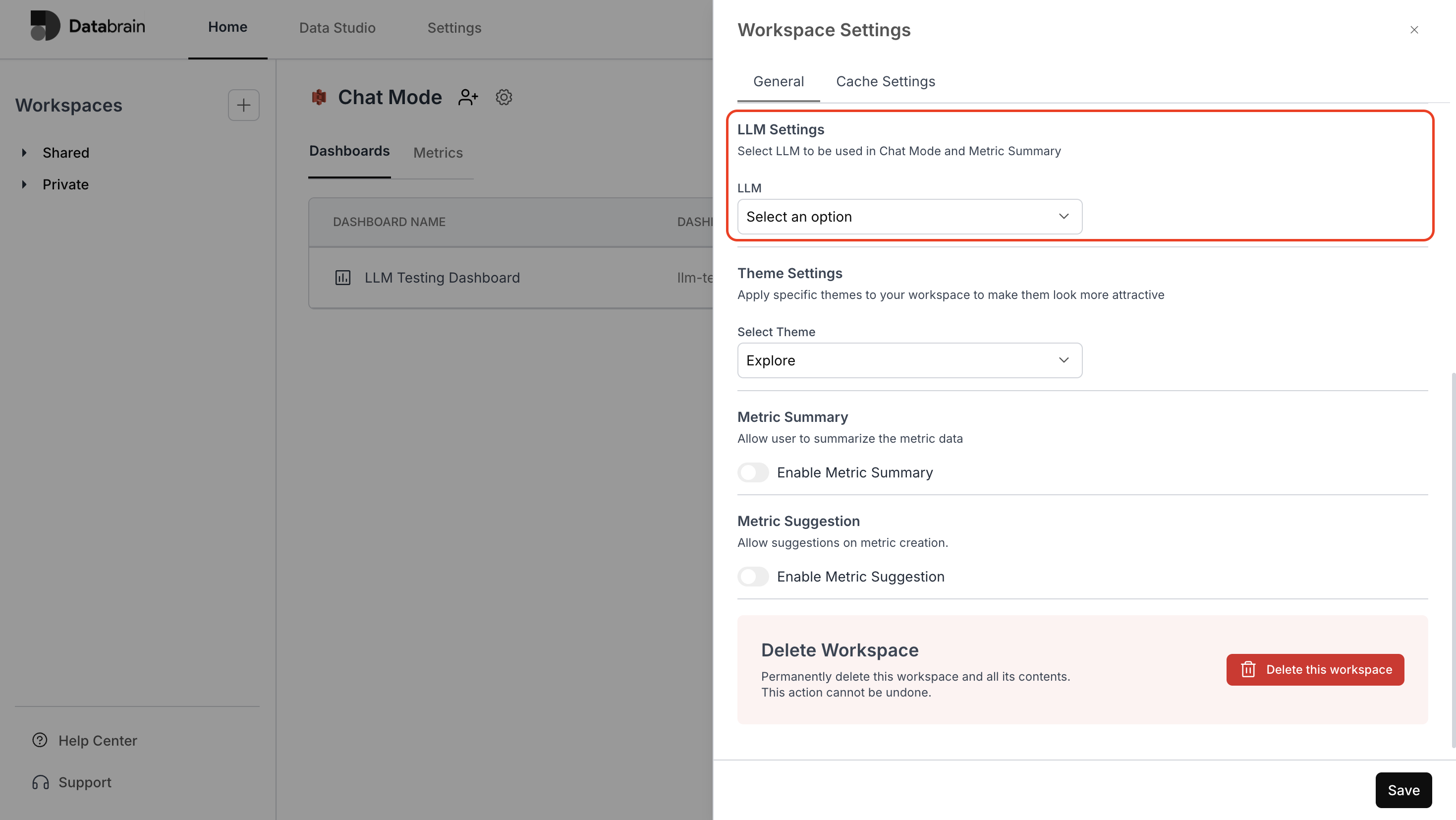
Navigate to your desired workspace and click on `settings icon` next to the workspace name.
Under the **General** tab:
* Scroll to the **LLM** section near the bottom
* From the **LLM** dropdown, choose the Mixtral model you just configured
Optionally enable **Metric Summary** and choose the summary **Type** from the following options:\
Technical and Insight Summary, Forecast and Trend Analysis, Comparative and Anomaly Detection, Custom.
Click **Save** to apply changes.
***
## Step 2: Connect LLM to Workspace
Navigate to your desired workspace and click on `settings icon` next to the workspace name.
Under the **General** tab:
* Scroll to the **LLM** section near the bottom
* From the **LLM** dropdown, choose the Mixtral model you just configured
Optionally enable **Metric Summary** and choose the summary **Type** from the following options:\
Technical and Insight Summary, Forecast and Trend Analysis, Comparative and Anomaly Detection, Custom.
Click **Save** to apply changes.
 You’ve successfully connected Mixtral with your Databrain workspace!\
Your integration is now active — enabling Mixtral-powered LLM capabilities for intelligent insights, automated metric summaries, and seamless data interaction across your dashboards.
You’ve successfully connected Mixtral with your Databrain workspace!\
Your integration is now active — enabling Mixtral-powered LLM capabilities for intelligent insights, automated metric summaries, and seamless data interaction across your dashboards.