> ## Documentation Index
> Fetch the complete documentation index at: https://docs.usedatabrain.com/llms.txt
> Use this file to discover all available pages before exploring further.
# How to embed?
> Learn how to create a data app, generate API tokens, and create guest tokens for embedding Databrain dashboards in your application.
* Navigate to the "Data" section in your app.
* Look for the "Data Apps" option and select it.
* Click on "**New Data App**" button. Provide the required information including naming it and configuring basic settings.
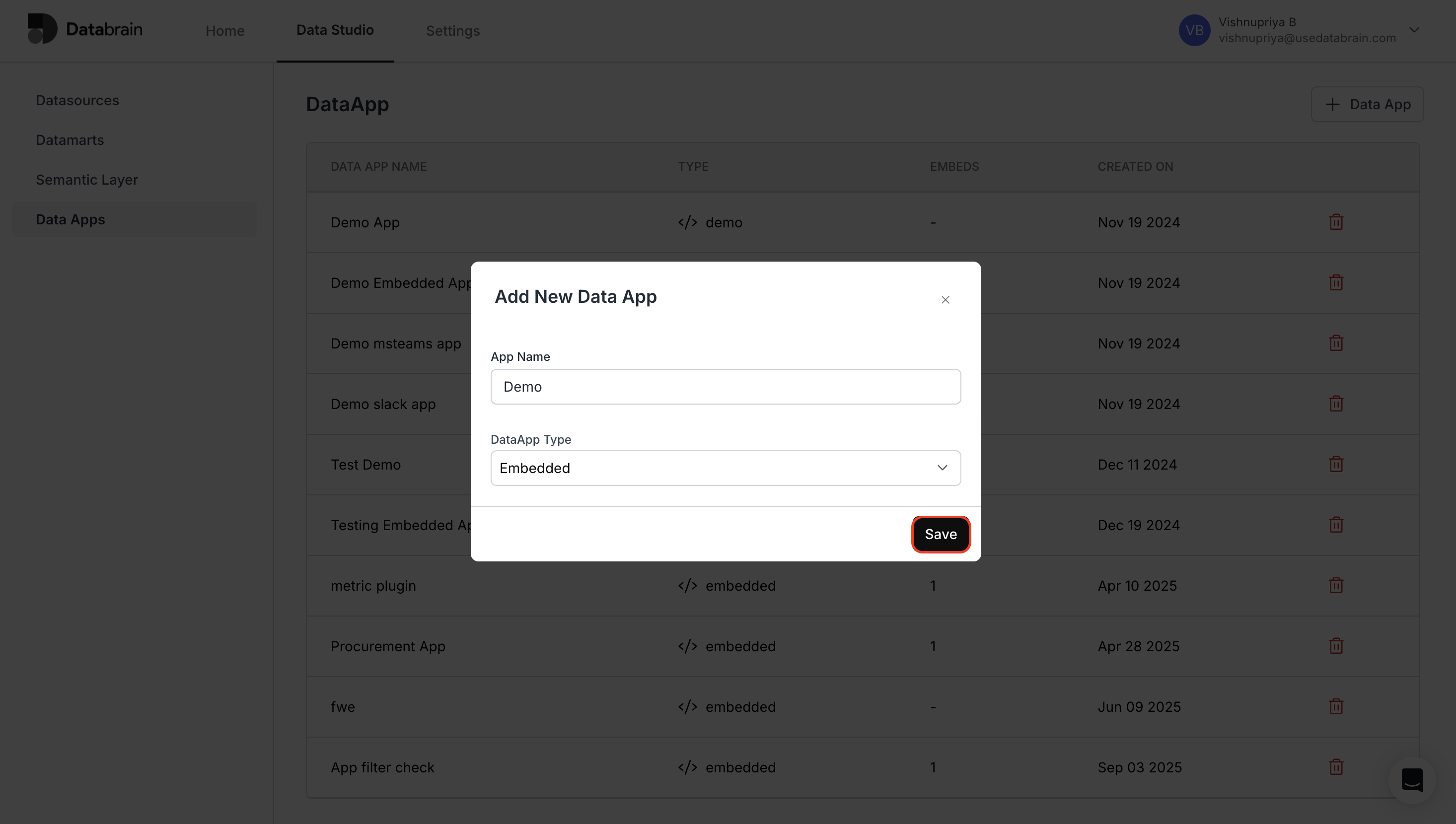 Refer to "[**Dashboard ID**](https://docs.usedatabrain.com/developer-docs/helpers/dashboard-id)" for generating embed ID and refer "[**API TOKEN**](https://docs.usedatabrain.com/developer-docs/helpers/api-token)" for generating api token that will be used to generate "**guest token**" later.
Once API Token is generated, create "**guest token**" with "**client ID**", which is a unique identifier for the client or user you're creating the token for and the **data app name** that you created above in the body.
* Guest tokens are used for allowing temporary, limited access to your Data App.
Refer to "[**Dashboard ID**](https://docs.usedatabrain.com/developer-docs/helpers/dashboard-id)" for generating embed ID and refer "[**API TOKEN**](https://docs.usedatabrain.com/developer-docs/helpers/api-token)" for generating api token that will be used to generate "**guest token**" later.
Once API Token is generated, create "**guest token**" with "**client ID**", which is a unique identifier for the client or user you're creating the token for and the **data app name** that you created above in the body.
* Guest tokens are used for allowing temporary, limited access to your Data App.
.png?fit=max&auto=format&n=YcWuXEGVKvtRd3RR&q=85&s=248353ec28dfcc3ea9cc2f6a12f022df) * Go to postman or any other API platform.
* Set the URL as [**https://api.usedatabrain.com/api/v2/guest-token/create.**](https://api.usedatabrain.com/api/v2/guest-token/create)
* In the Authorization tab, select type as "**Bearer Token**" and in token field add the "**API token**" that you created in your data app.
* Go to postman or any other API platform.
* Set the URL as [**https://api.usedatabrain.com/api/v2/guest-token/create.**](https://api.usedatabrain.com/api/v2/guest-token/create)
* In the Authorization tab, select type as "**Bearer Token**" and in token field add the "**API token**" that you created in your data app.
.png?fit=max&auto=format&n=znOc7hgnjoywo7if&q=85&s=23a64e431d7dd80bba984b72d6e29b11) * You'll need to specify a **Client ID**.
* Click on "**Send**". The generated guest token will be associated with the provided Client ID and data app.
* You'll need to specify a **Client ID**.
* Click on "**Send**". The generated guest token will be associated with the provided Client ID and data app.
.png?fit=max&auto=format&n=pZWHkSn48BGo3DnJ&q=85&s=cc349bbb5a2ab707568eb01cff15c8ec) Use the guest token and the embed ID to test your embed.
Use the guest token and the embed ID to test your embed.
.png?fit=max&auto=format&n=pZWHkSn48BGo3DnJ&q=85&s=c0e4551262bec50df17120bf13a699e2)