> ## Documentation Index
> Fetch the complete documentation index at: https://docs.usedatabrain.com/llms.txt
> Use this file to discover all available pages before exploring further.
# Embedding: Role based Dashboard Filtering
> Dashboard Filtered based on the user role.
**Create a Dashboard Filter**
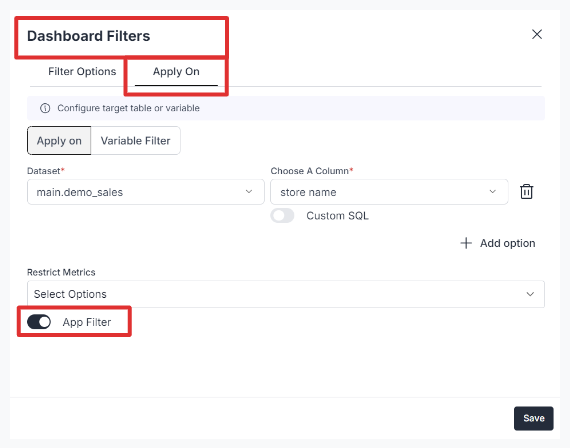
* In your dashboard, create a new ‘Dashboard Filter’.
* In the "Apply On" section, enable the App Filter option.
 **Passing from Guest Token**
* You can link a guest token here to pass the filter values dynamically.
Refer the below document to generate a guest token.
ℹ️ Token
Below is a sample payload structure:
```json theme={"dark"}
{
"clientId": "id",
"workspaceName": "workspacename",
"params": {
"dashboardAppFilters": [
{
"dashboardId": "dashboard-id",
"values": {
"name": "Eric",
"country": ["USA", "CANADA"],
"timePeriod": {
"startDate": "2024-01-01",
"endDate": "2024-03-23"
},
"price": {
"min": 1000,
"max": 5000
}
},
"isShowOnUrl": true
}
]
}
}
```
Make sure the options and values match the data type of the filter for successful integration.
### Example Use Case:
Let’s assume you have three roles:
* Admin
* Editor
* Viewer
And two Dashboard Filters:
* `Country: ["USA", "CANADA", "MEXICO", "CHINA", "INDIA"]`
* `Company: ["ALPHABET", "GOOGLE", "APPLE"]`
And below is the access level of each role:
**Passing from Guest Token**
* You can link a guest token here to pass the filter values dynamically.
Refer the below document to generate a guest token.
ℹ️ Token
Below is a sample payload structure:
```json theme={"dark"}
{
"clientId": "id",
"workspaceName": "workspacename",
"params": {
"dashboardAppFilters": [
{
"dashboardId": "dashboard-id",
"values": {
"name": "Eric",
"country": ["USA", "CANADA"],
"timePeriod": {
"startDate": "2024-01-01",
"endDate": "2024-03-23"
},
"price": {
"min": 1000,
"max": 5000
}
},
"isShowOnUrl": true
}
]
}
}
```
Make sure the options and values match the data type of the filter for successful integration.
### Example Use Case:
Let’s assume you have three roles:
* Admin
* Editor
* Viewer
And two Dashboard Filters:
* `Country: ["USA", "CANADA", "MEXICO", "CHINA", "INDIA"]`
* `Company: ["ALPHABET", "GOOGLE", "APPLE"]`
And below is the access level of each role:
| Role/Dashboard Filters |
Company |
Country |
| Admin |
All Companies |
All Countries |
| Editor |
All Companies |
USA, CANADA, MEXICO |
| Viewer |
Alphabet |
USA |
Now using the information from the table above, you can input the values to generate a guest token according to the specified role.
**Guest token for Admin:**
```json theme={"dark"}
{
"clientId": "id",
"workspaceName": "workspacename",
"params": {
"dashboardAppFilters": [
{
"dashboardId": "dashboard-id",
"values": {
"client": ["ALPHABET", "GOOGLE", "APPLE"],
"country": ["USA", "CANADA", "MEXICO", "CHINA", "INDIA"]
},
"isShowOnUrl": true
}
]
}
}
```
**Guest token for Editor:**
```json theme={"dark"}
{
"clientId": "id",
"workspaceName": "workspacename",
"params": {
"dashboardAppFilters": [
{
"dashboardId": "dashboard-id",
"values": {
"client": ["ALPHABET","GOOGLE","APPLE"],
"country": ["USA","CANADA","MEXICO"]
},
"isShowOnUrl": true
}
]
}
}
```
**Guest token for Viewer:**
```json theme={"dark"}
{
"clientId": "id",
"workspaceName": "workspacename",
"params": {
"dashboardAppFilters": [
{
"dashboardId": "dashboard-id",
"values": {
"client": ["ALPHABET"],
"country": ["USA"]
},
"isShowOnUrl": true
}
]
}
}
```
### Optimizing Large Filters with SQL integration
For filters involving a large number of options (e.g., over 500), manually passing all values becomes inefficient. By integrating SQL, you can dynamically fetch options from your database, simplifying the process and improving efficiency.
The SQL query specified under the "sql" key dynamically fetches the latest values from the specified database table.
### Example Configuration
Let’s modify the earlier example for Admin to demonstrate SQL integration for dynamically fetching filter options:
**Guest token for Admin with SQL Integration:**
```json theme={"dark"}
{
"clientId": "id",
"workspaceName": "workspacename",
"params": {
"dashboardAppFilters": [
{
"dashboardId": "dashboard-id",
"values": {
"client": {
"sql": "SELECT \"name\" FROM \"public\".\"companies\" WHERE \"role\"='admin' ",
"columnName": "name"
},
"country": {
"sql": "SELECT \"name\" FROM \"public\".\"countries\" WHERE isEnabled=true",
"columnName": "name"
}
},
"isShowOnUrl": true
}
]
}
}
```
### Key Benefits
1. **Dynamic Updates:** The SQL query retrieves only the latest relevant options from your database.
* Example: `SELECT "name" FROM "public"."countries" WHERE isEnabled=true` fetches active country names.
2. **Efficiency:** Eliminates the need to manually manage large datasets in the configuration.
3. **Flexibility:** The `columnName` specifies the field in the query result to use as filter values.
4. **Scalability:** Handles thousands of options seamlessly, reducing payload size and improving performance.
### Ideal Use Case
This approach ensures that filters remain efficient, scalable, and user-friendly, with minimal manual effort to keep options up to date.