> ## Documentation Index
> Fetch the complete documentation index at: https://docs.usedatabrain.com/llms.txt
> Use this file to discover all available pages before exploring further.
# Localized Currency Symbols
> This guide provides a practical approach for utilizing Dynamic Property to dynamically display revenue in multiple currencies for different countries.
### Use Case: Representing Revenue in Different Countries
An e-commerce business operating in multiple countries needs to represent revenue in different currencies. The finance team chooses to analyze revenue trends in localized formats by selecting different countries. Here are the steps to implement Dynamic Property for revenue tracking:
### 1. Access Dynamic Property:
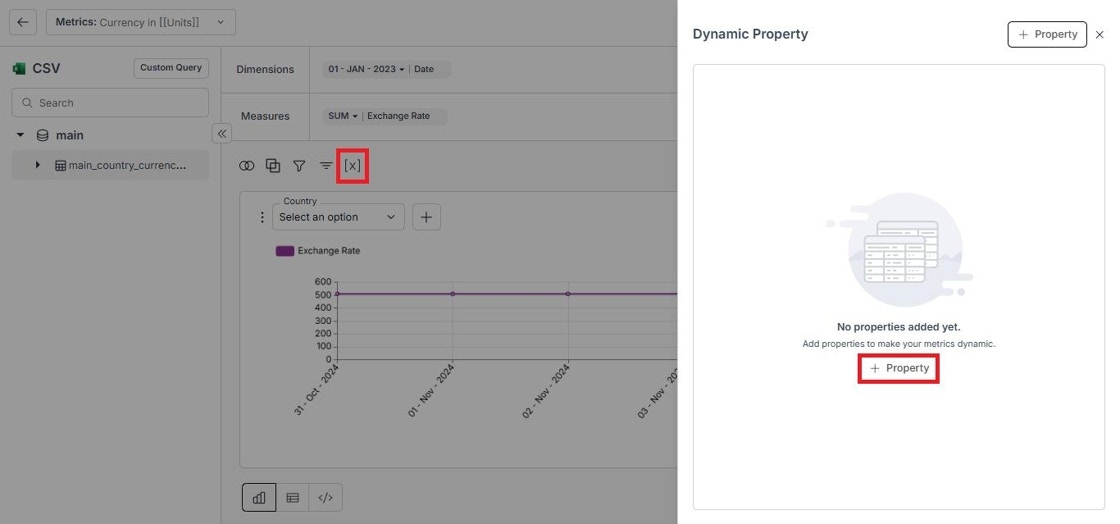
* In the metric creation page, click on `"[X]"` icon near the sort icon.
* This will open the **"Dynamic Property"** panel on the right side of the screen.
* Then, click on **"+Property"** to add a dynamic property to your metric.
 ### 2. Configure Dynamic Property:

* Enter the Property Name and choose between the two Property Types:
* **"Auto"**
* Choose the dataset and the column you want to consider.
* **"Custom"**
* Enter your SQL query to choose your dynamic value and dependent columns, and select the column name.
* In this example, we select the column containing **currency codes** or create a **custom query** and save it as `[[Units]]`.
* Then, select the dependencies: dashboard or metric filter type. (Optional)
* Click **"Create"** to save the property.
### 2. Configure Dynamic Property:
* Enter the Property Name and choose between the two Property Types:
* **"Auto"**
* Choose the dataset and the column you want to consider.
* **"Custom"**
* Enter your SQL query to choose your dynamic value and dependent columns, and select the column name.
* In this example, we select the column containing **currency codes** or create a **custom query** and save it as `[[Units]]`.
* Then, select the dependencies: dashboard or metric filter type. (Optional)
* Click **"Create"** to save the property.
 ### 3. Verify Property Creation
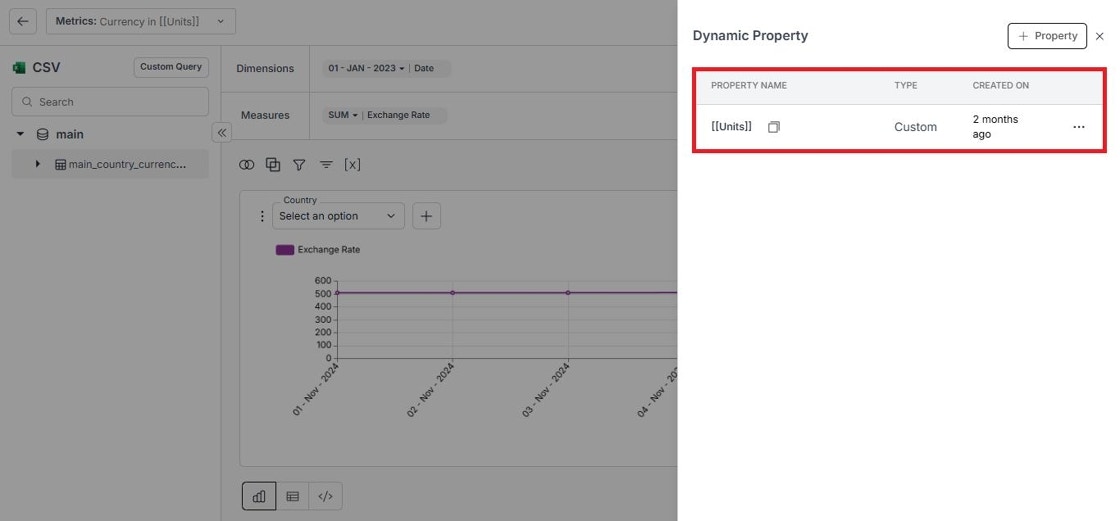
* Check the property listed in the Dynamic Property panel.
* Copy the property name format: \[\[Units]] and close the panel.
### 3. Verify Property Creation
* Check the property listed in the Dynamic Property panel.
* Copy the property name format: \[\[Units]] and close the panel.
 ### 4. Configure formatting options:
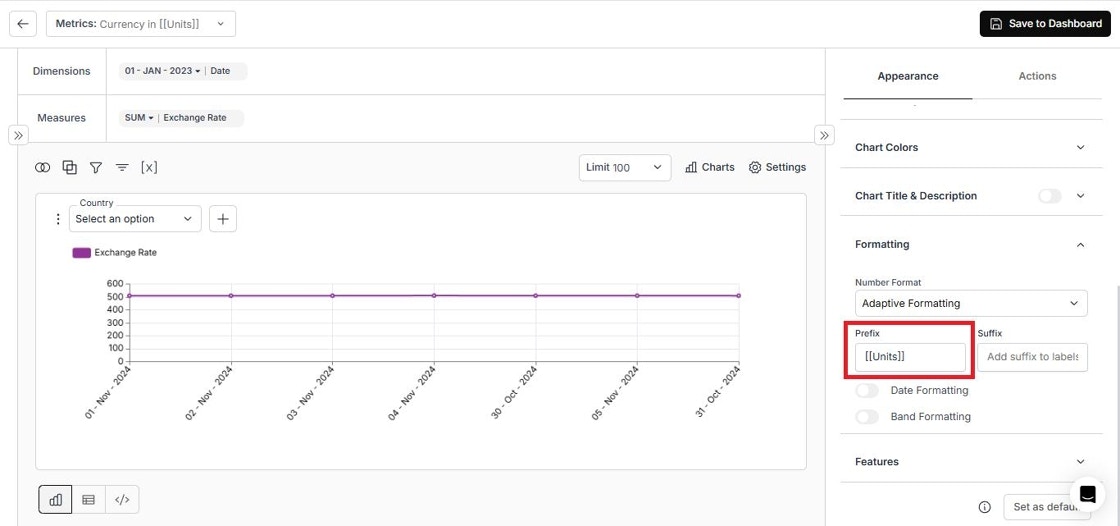
* In the Formatting Section, set the prefix as \[\[Units]]
* This ensures that revenue values in the **Y-axis** display the correct currency code dynamically.
### 4. Configure formatting options:
* In the Formatting Section, set the prefix as \[\[Units]]
* This ensures that revenue values in the **Y-axis** display the correct currency code dynamically.

 ### 5. Save metric to Dashboard
* Click the **"Save to Dashboard"** button.
* Then, use `[[Units]]` in:
* **Metric Title**
* **Metric Description**
* **Metric Long Description**, and
* **Footnote**
### 5. Save metric to Dashboard
* Click the **"Save to Dashboard"** button.
* Then, use `[[Units]]` in:
* **Metric Title**
* **Metric Description**
* **Metric Long Description**, and
* **Footnote**
 ### 6. Verify Dynamic Property Functionality
#### Metric Filter Example:

The `[[Units]]` dynamic property updates the **currency unit** based on the **selected country** in the **metric filter**.
### 6. Verify Dynamic Property Functionality
#### Metric Filter Example:
The `[[Units]]` dynamic property updates the **currency unit** based on the **selected country** in the **metric filter**.
 ### Dashboard Filter Example:

The `[[Units]]` dynamic property updates the **currency unit** based on the **selected country** in the **dashboard filter**.
### Dashboard Filter Example:
The `[[Units]]` dynamic property updates the **currency unit** based on the **selected country** in the **dashboard filter**.
 Please refer the below link on how to create Dynamic Property:
This guide explains the process of using dynamic properties in metric creation. These properties can fetch dynamic values directly from the database, with dependencies on dashboard or metric filters.
Please refer the below link on how to create Dynamic Property:
This guide explains the process of using dynamic properties in metric creation. These properties can fetch dynamic values directly from the database, with dependencies on dashboard or metric filters.