> ## Documentation Index
> Fetch the complete documentation index at: https://docs.usedatabrain.com/llms.txt
> Use this file to discover all available pages before exploring further.
# Invite Users
> Learn how to configure invite users in both app and self-hosted environments.
# App Environment
In the app environment, an admin can invite users with or without configuring email settings. In both cases, the invited user will receive an email notification with a secure login link.
**If email settings are configured:**\
The invitation email will be sent using your configured email service.
**If email settings are not configured:**\
Databrain will automatically send the invitation email.
***
# Self-Hosted Environment
In a self-hosted environment, the admin must configure email settings before inviting users. This ensures that invitation emails are delivered successfully.
* Navigate to the **Settings** page.
* In the **Embed Settings** section, configure the required email settings.
* Click **Authenticate** to save and validate the configuration.
.png?fit=max&auto=format&n=IOxmGGEe0Fs9FxND&q=85&s=471a7ac118d5aa34b84e6528426faf72) ***
# Inviting a User
1. Navigate to the **Invite User** section.
2. Enter the user’s email address.
3. Assign a role — Developer, Editor, or Viewer — and select the workspaces the user should have access to.
4. Click **Invite** to complete the process.
***
# Accept Invitation (Invited User)
The invited user will receive an email containing a login link. By clicking the link, they can log in and access their Databrain account.
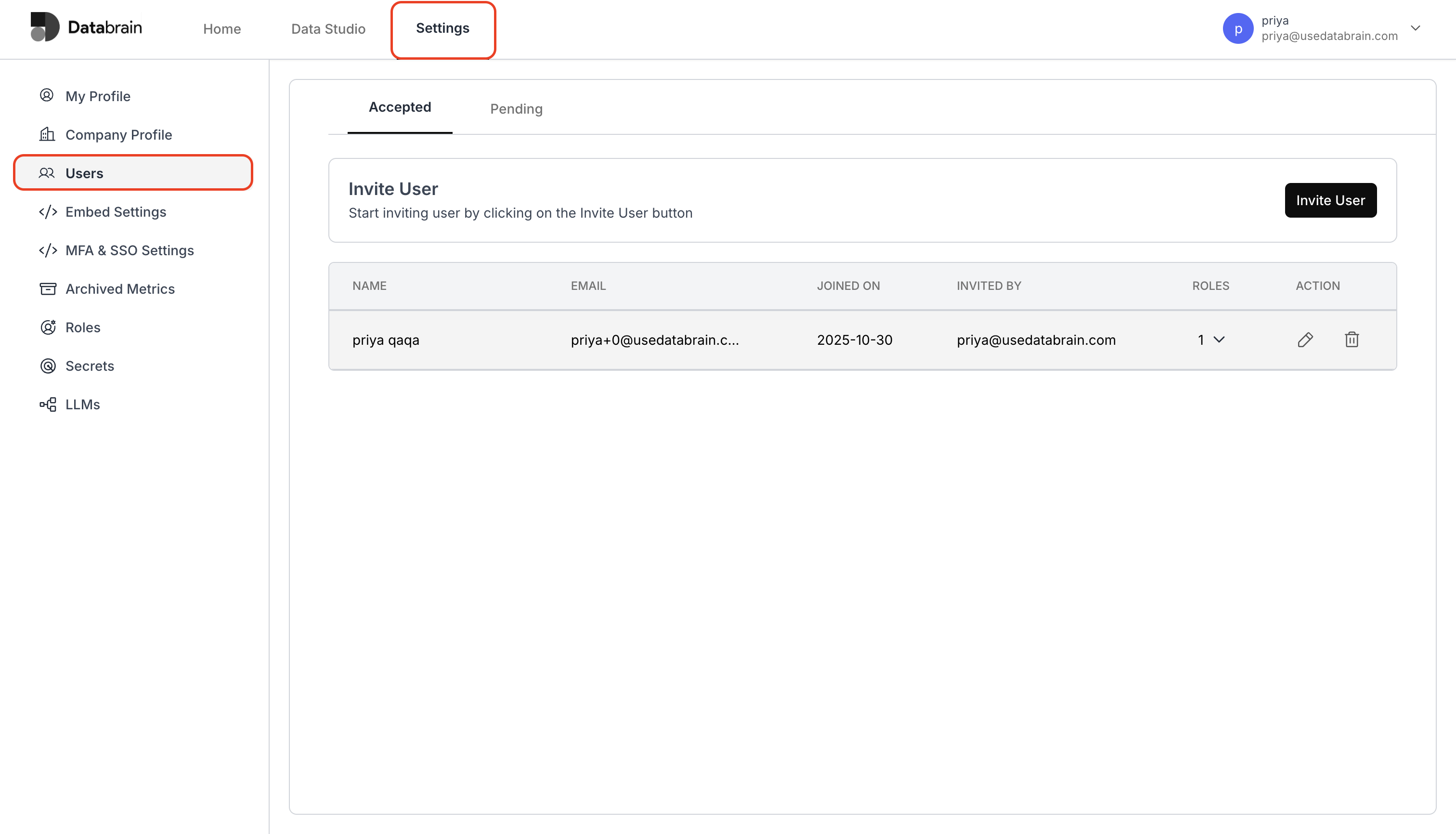
Once the invited user has accepted the invitation, you can view the list of users in **Settings → Users**.
***
# Inviting a User
1. Navigate to the **Invite User** section.
2. Enter the user’s email address.
3. Assign a role — Developer, Editor, or Viewer — and select the workspaces the user should have access to.
4. Click **Invite** to complete the process.
***
# Accept Invitation (Invited User)
The invited user will receive an email containing a login link. By clicking the link, they can log in and access their Databrain account.
Once the invited user has accepted the invitation, you can view the list of users in **Settings → Users**.