> ## Documentation Index
> Fetch the complete documentation index at: https://docs.usedatabrain.com/llms.txt
> Use this file to discover all available pages before exploring further.
# Create/Modify Dashboard Filter
> Dashboard filters allow for more precise data viewing and analysis within your dashboard.
> Take control of your data exploration with Databrain's powerful dashboard filters. Whether you
> need simple dropdowns, dynamic ranges, or complex SQL-based filtering, our comprehensive
> filter system puts precision data analysis at your fingertips. This guide walks you through creating
> and customizing filters that transform how you interact with your dashboards.
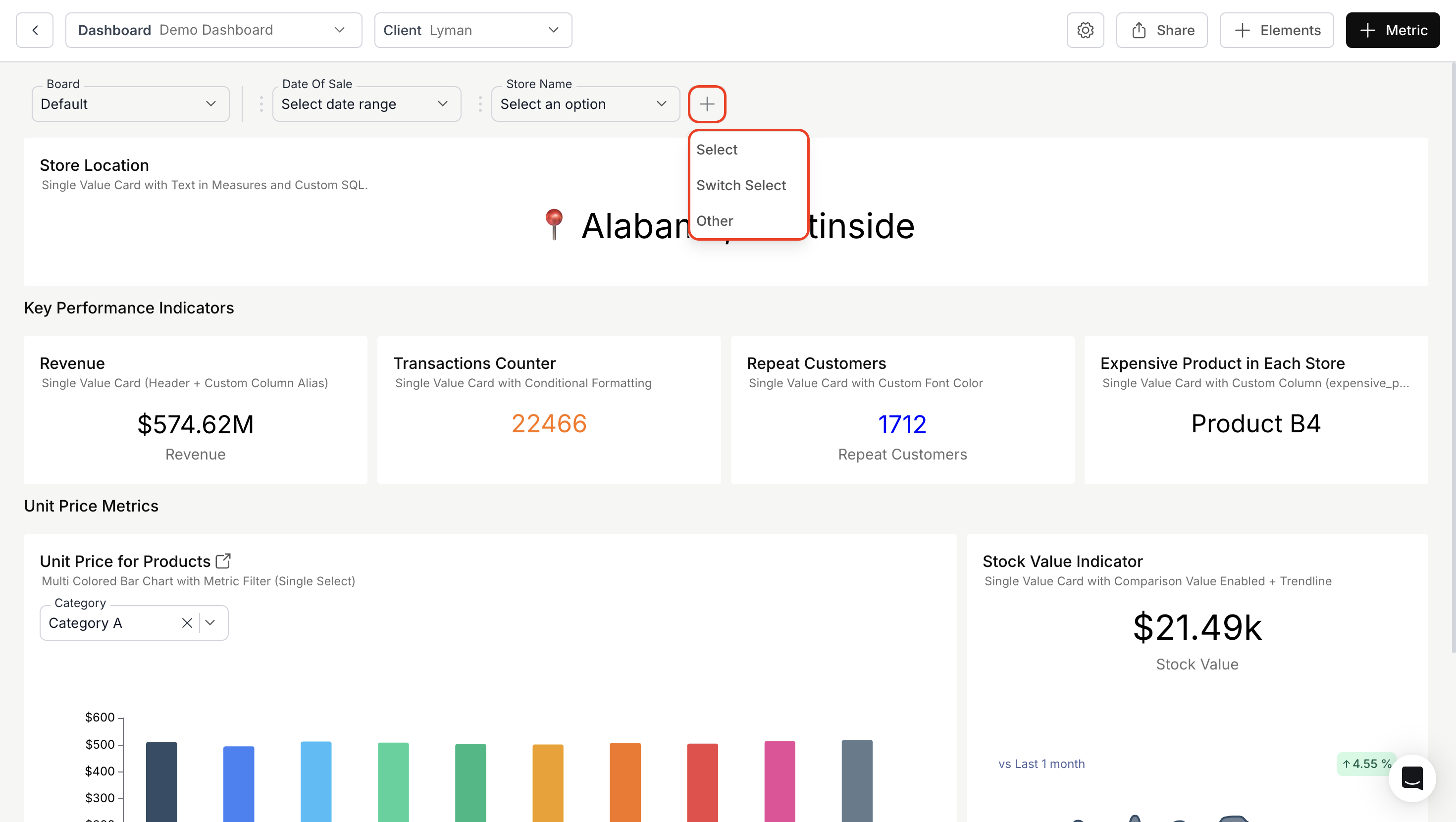
1. **Add Dashboard Filters:**
* Click the "+" icon to add a dashboard filter.
* Choose filter type from the dropdown menu:
* **Select**: Creates filters at the top of your dashboard
* **Switch Select**: Creates compact dropdown filters with labels in the left sidebar **"Filters"** panel
* **Other**: Creates additional filters in the left sidebar **"Filters"** panel
 2. **Configuring a Filter:**
Choose the desired type of filter from the **"Option Type"** radio buttons:
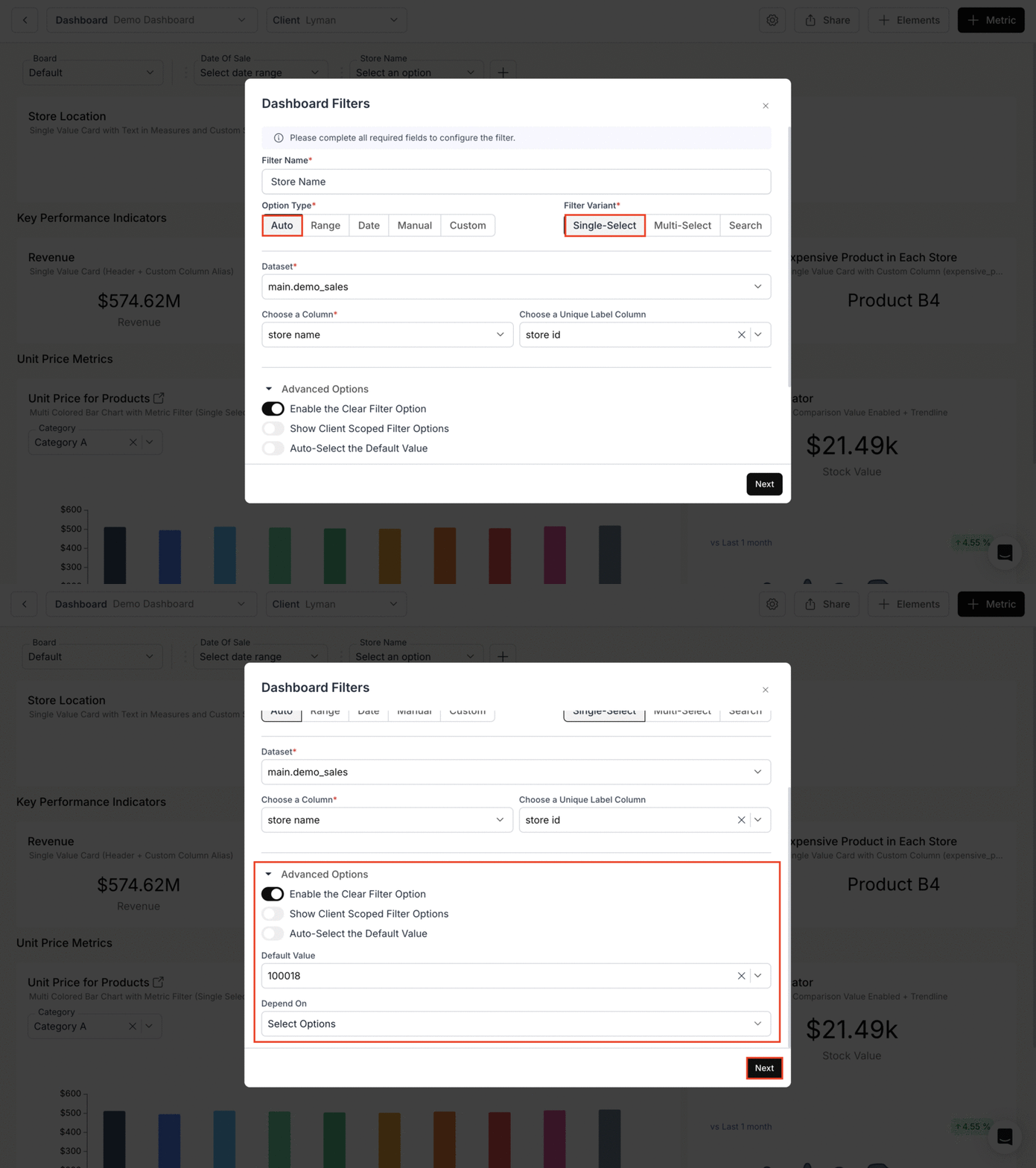
* **Method 1: Auto Filter Type**\
Automatically filters based on existing database columns - best for straightforward data filtering without customization.
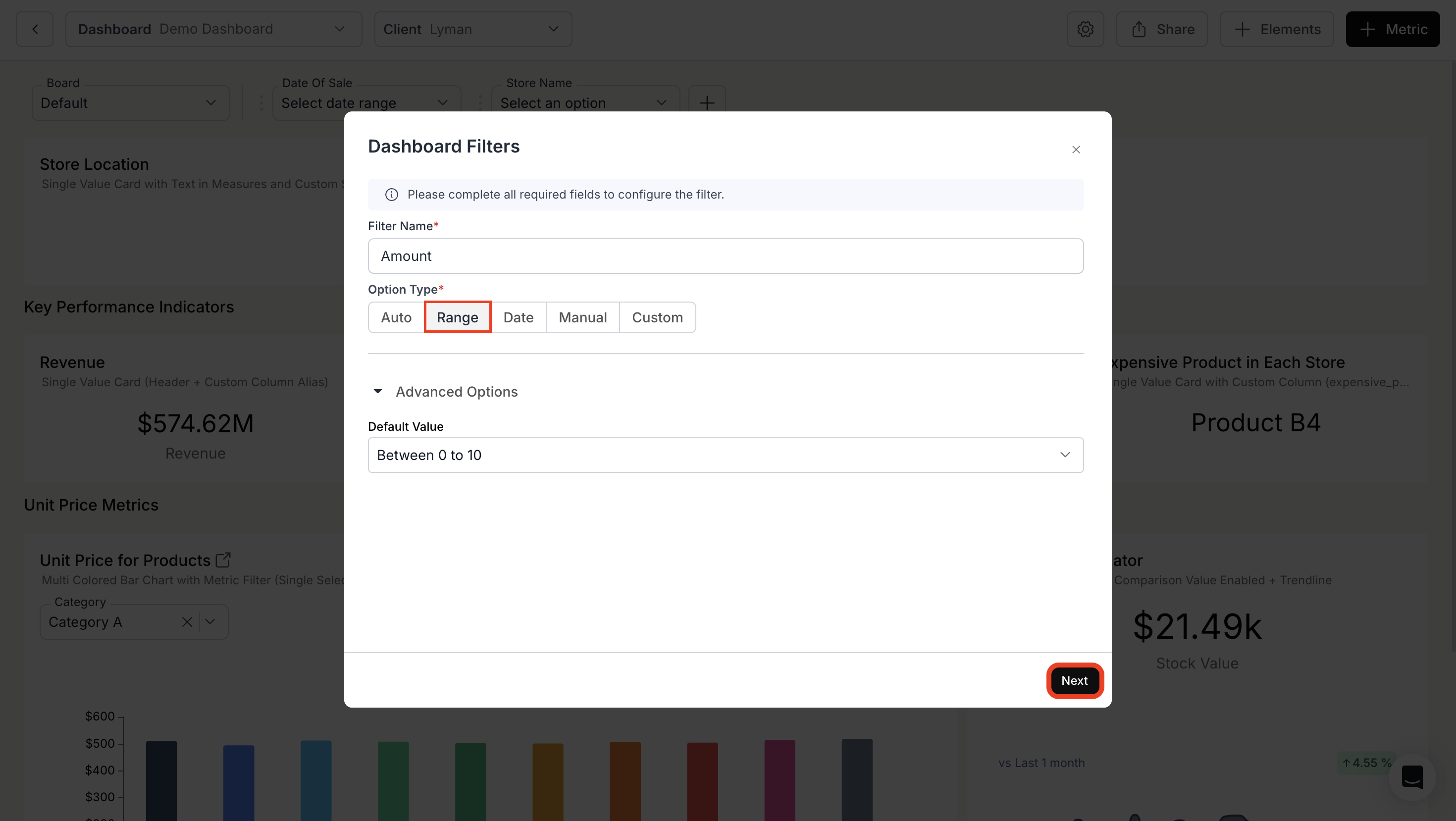
* **Method 2: Range Filter Type**\
Creates min-max sliding selectors - perfect for numerical data like prices, ages, or quantities.
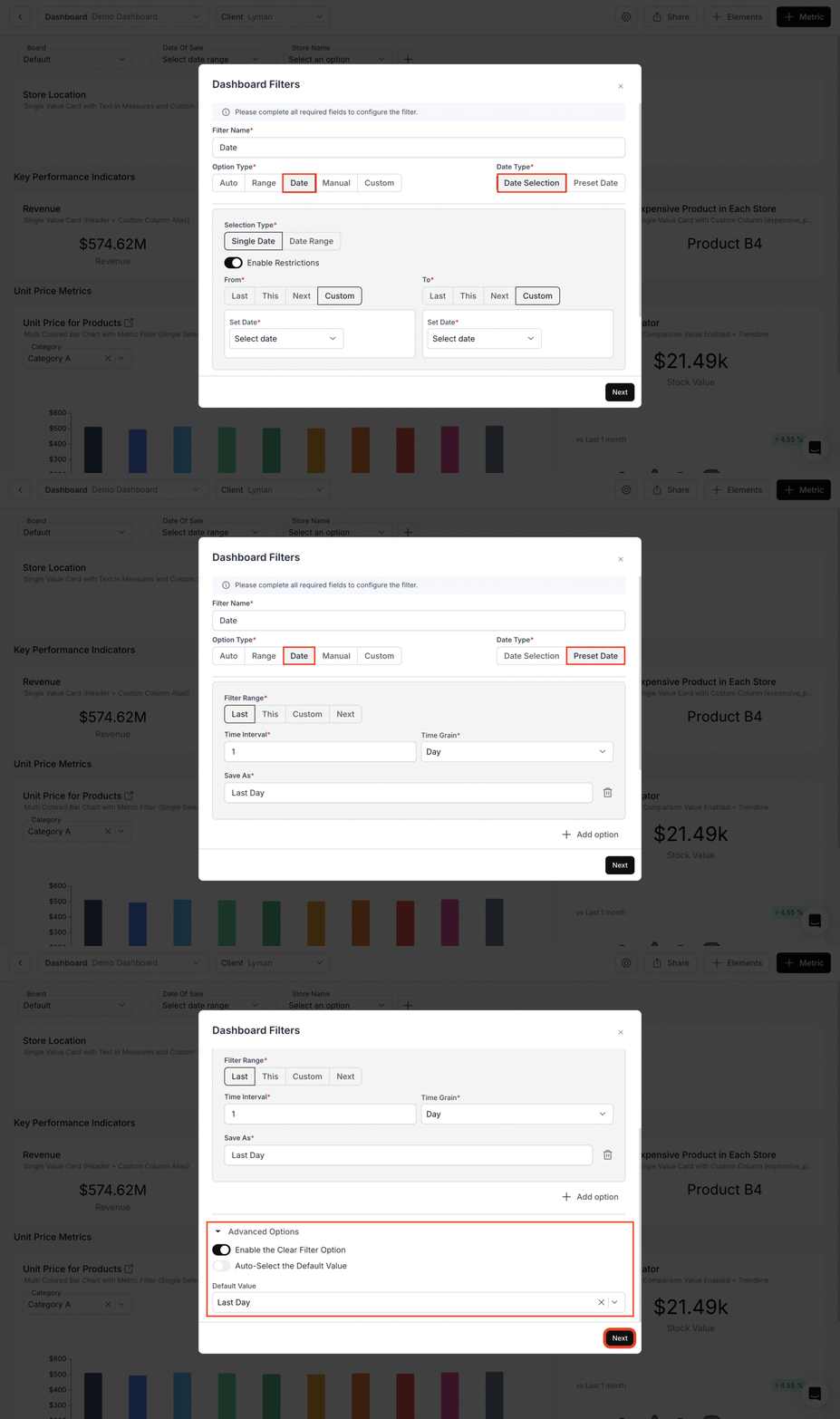
* **Method 3: Date Filter Type**\
Handles all time-based filtering - ideal for selecting date ranges and time periods.
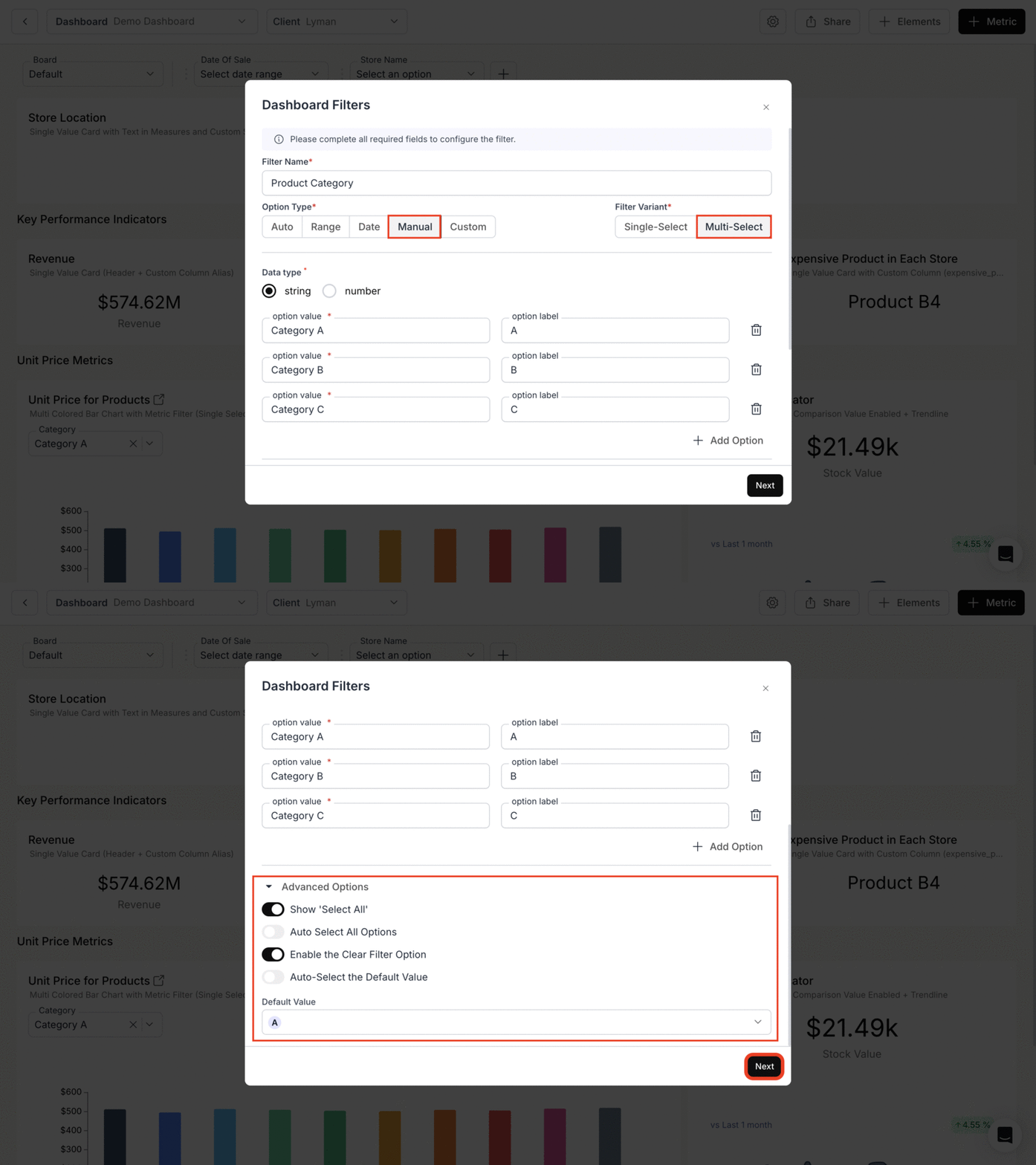
* **Method 4: Manual Filter Type**\
Uses predefined static options - great when you need a fixed list of specific choices.
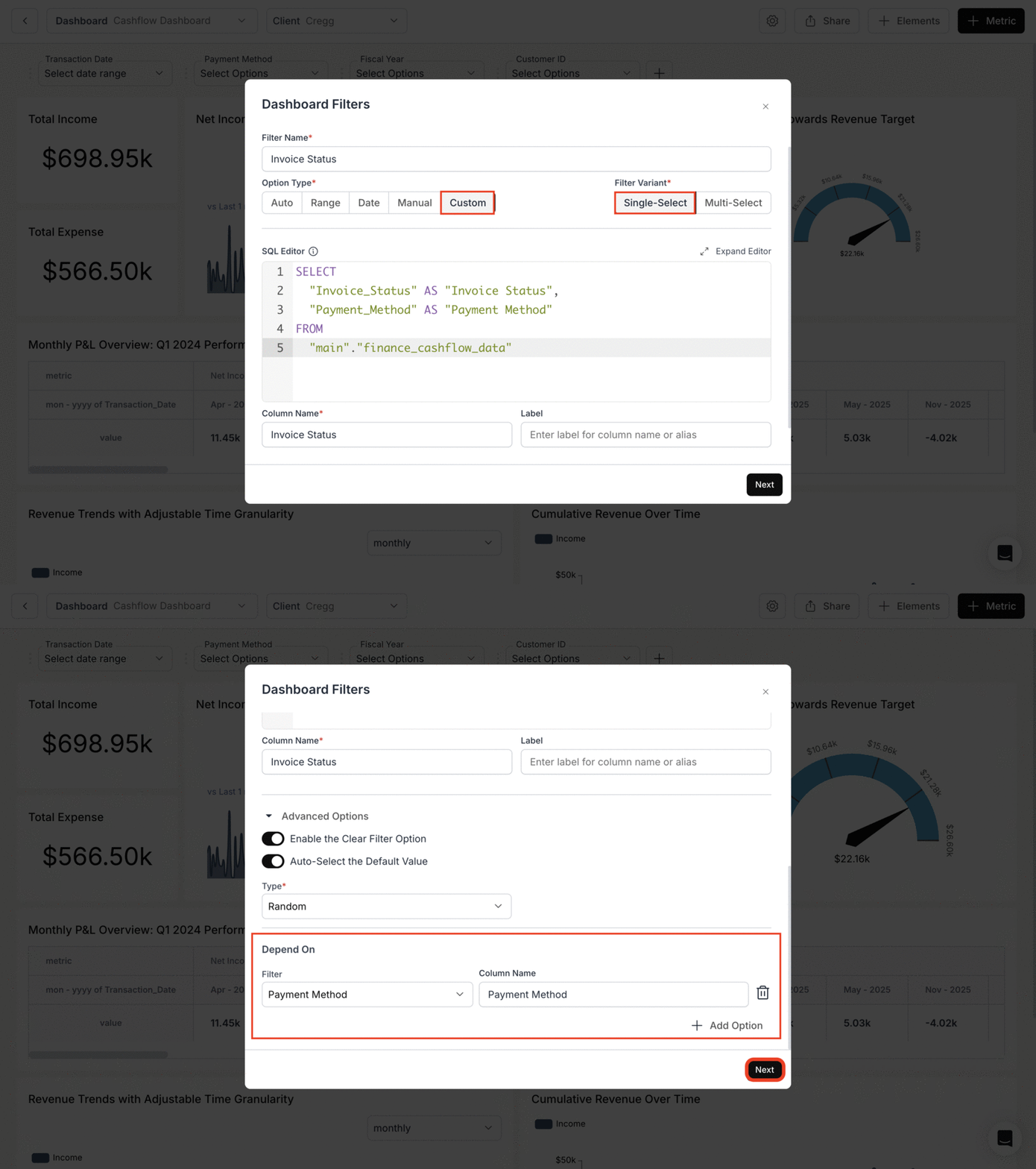
* **Method 5: Custom Filter Type**\
Enables complex SQL-based filtering - essential when you need custom logic or calculations in your filters.
**Common Customization Options**
* **Filter Variant**: Choose between single select, multi-select, or search options
* **Choose a Unique Label Column**
* **Show Client Scoped Filter Options**
* **Auto Select Default Value**
* **Depend On**
**Method 1: Auto Filter Type**
2. **Configuring a Filter:**
Choose the desired type of filter from the **"Option Type"** radio buttons:
* **Method 1: Auto Filter Type**\
Automatically filters based on existing database columns - best for straightforward data filtering without customization.
* **Method 2: Range Filter Type**\
Creates min-max sliding selectors - perfect for numerical data like prices, ages, or quantities.
* **Method 3: Date Filter Type**\
Handles all time-based filtering - ideal for selecting date ranges and time periods.
* **Method 4: Manual Filter Type**\
Uses predefined static options - great when you need a fixed list of specific choices.
* **Method 5: Custom Filter Type**\
Enables complex SQL-based filtering - essential when you need custom logic or calculations in your filters.
**Common Customization Options**
* **Filter Variant**: Choose between single select, multi-select, or search options
* **Choose a Unique Label Column**
* **Show Client Scoped Filter Options**
* **Auto Select Default Value**
* **Depend On**
**Method 1: Auto Filter Type**
 **Method 2: Range Filter Type**
 **Method 3: Date Filter Type**
 **Method 4: Manual Filter Type**
* Manual filter options are entered **one by one** in the UI: for each option, enter a **Value** (the exact value used in the query) and a **Label** (what users see in the dropdown). You do not paste a full JSON structure—add options using the UI (e.g. "Add option" or similar).
**Method 4: Manual Filter Type**
* Manual filter options are entered **one by one** in the UI: for each option, enter a **Value** (the exact value used in the query) and a **Label** (what users see in the dropdown). You do not paste a full JSON structure—add options using the UI (e.g. "Add option" or similar).
 **Method 5: Custom Filter Type**
 3. **Apply on and Variable Filter:**
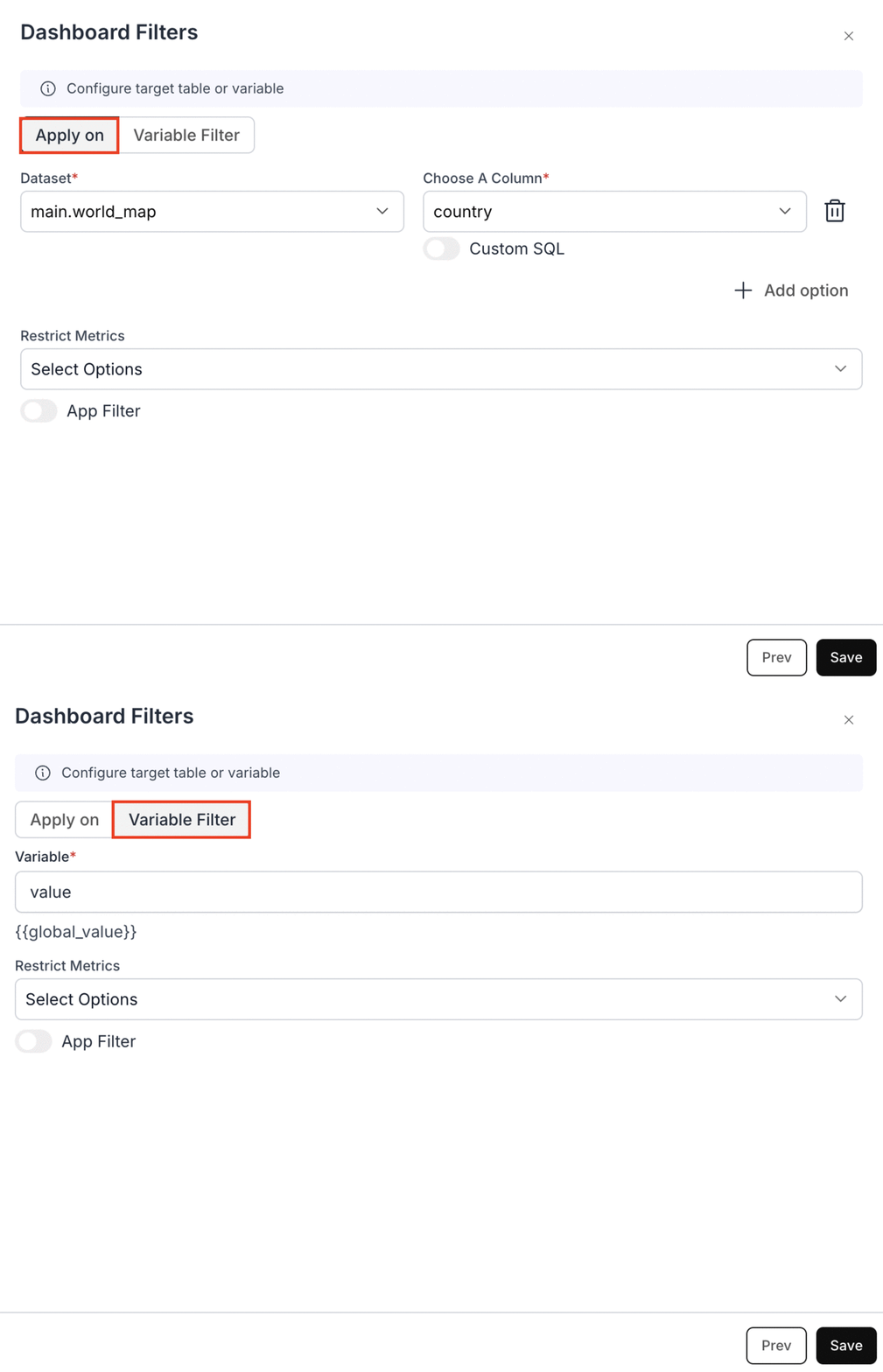 For a more detailed guide on Variable Apply On, kindly refer the below link:
Functioning of Variable Apply On method available in Dashboard Filters.
4. **Modify Dashboard Filter:**
* To modify the configurations of any dashboard filter, click on the **"Edit"** button.
* To remove a filter, select **"Delete"** filter.
For a more detailed guide on Variable Apply On, kindly refer the below link:
Functioning of Variable Apply On method available in Dashboard Filters.
4. **Modify Dashboard Filter:**
* To modify the configurations of any dashboard filter, click on the **"Edit"** button.
* To remove a filter, select **"Delete"** filter.
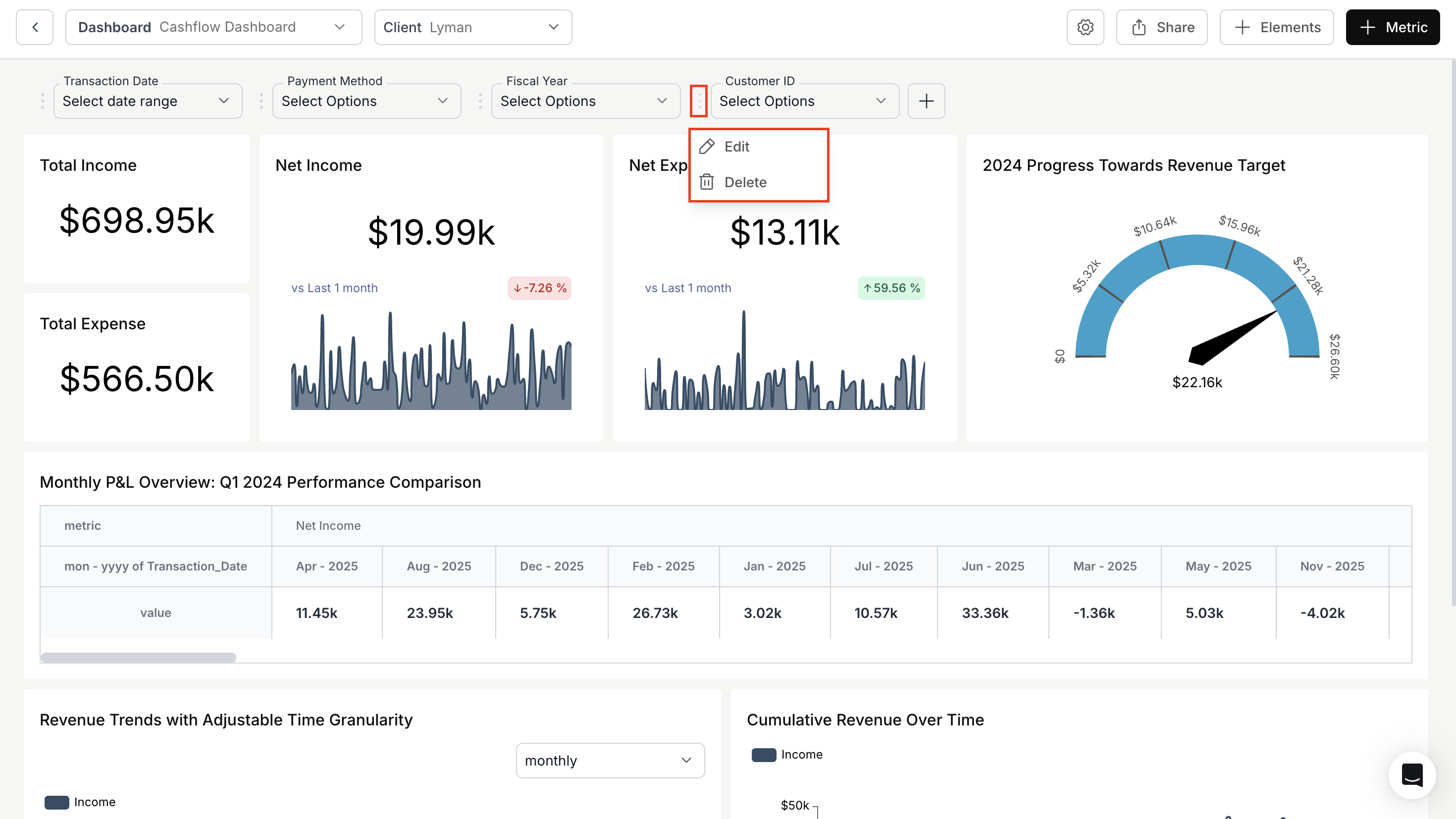 Dashboard Filter created and configured successfully.