> ## Documentation Index
> Fetch the complete documentation index at: https://docs.usedatabrain.com/llms.txt
> Use this file to discover all available pages before exploring further.
# Customize Layout
> Customizing the layout of metrics provides a tailored view to analyze data more effectively
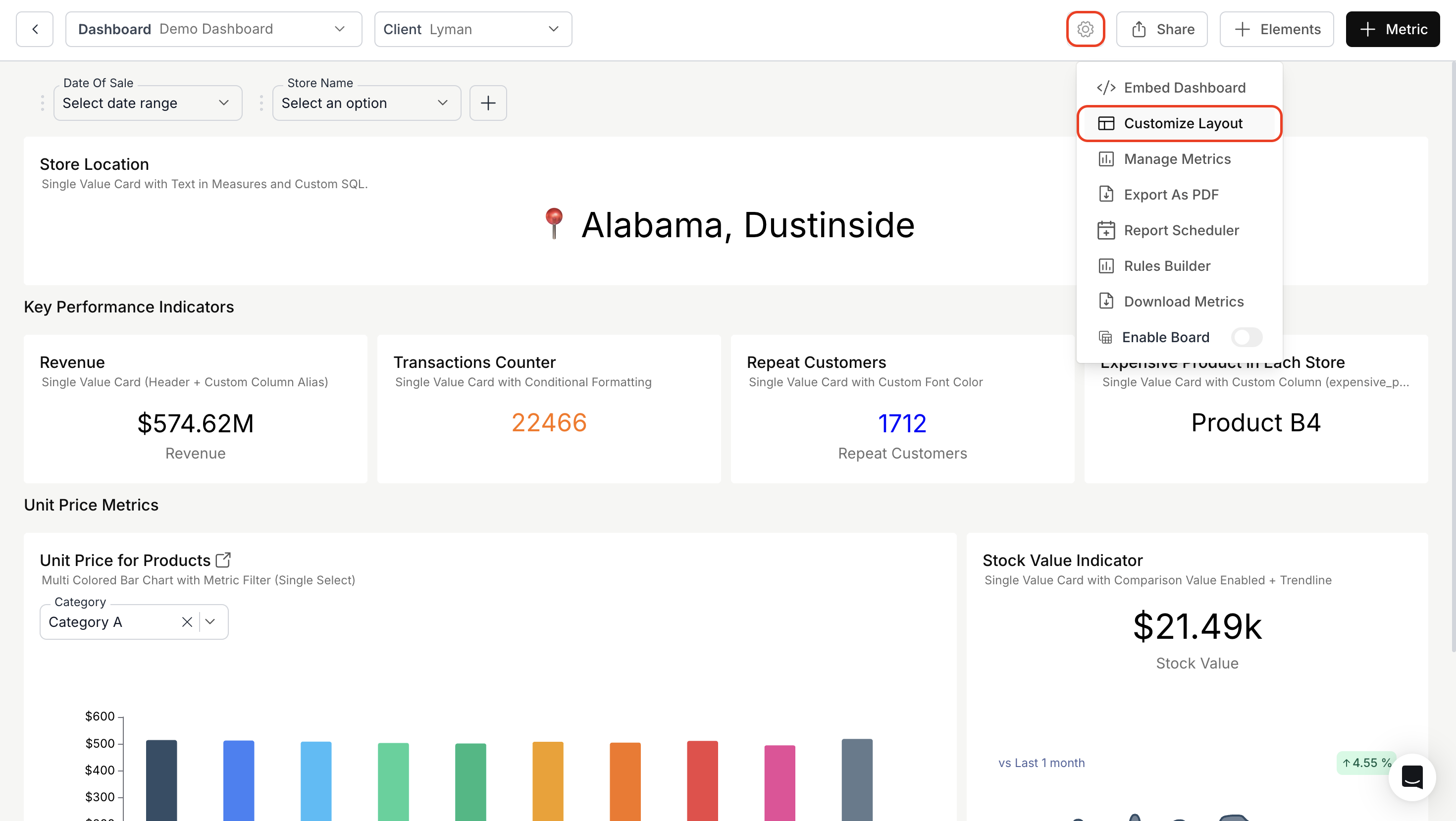
### 1. Access & Enable Customized Layout Setting:
* Click on the **"Settings"** icon located near the **"Elements"** button
* From the dropdown menu, select **"Customize Layout"** option.
 ### 2. Adjust Metric Cards:
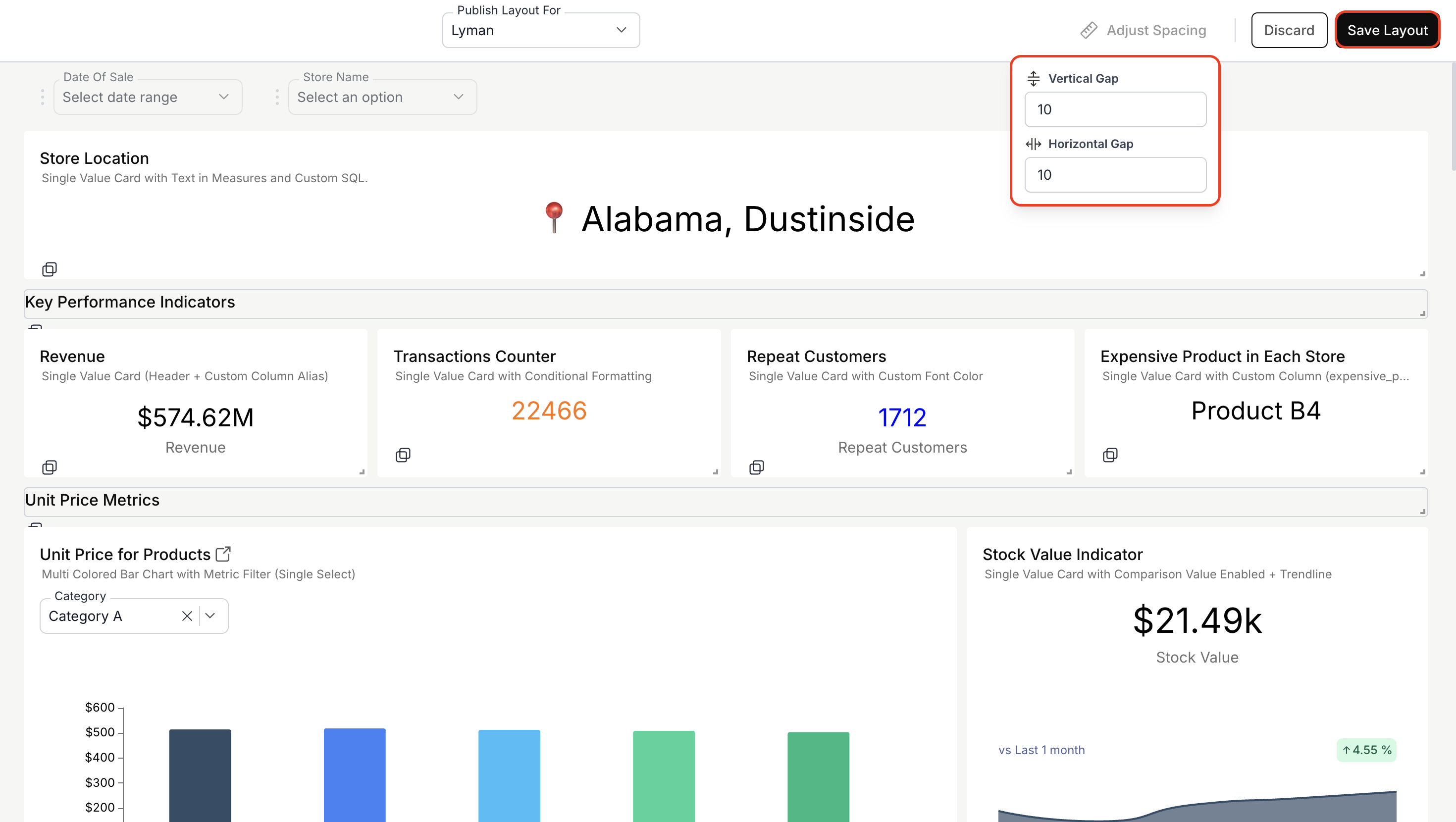
* With this mode enabled, all metric cards become movable.
* Drag and position them to your preferred spots.
* Adjust their sizes as needed for an optimal view.
### 3. Customize and Save:
Set the value for vertical and horizontal gap between the metrics.
Finally, click on **"Save Layout"** button to store your modifications.
### 2. Adjust Metric Cards:
* With this mode enabled, all metric cards become movable.
* Drag and position them to your preferred spots.
* Adjust their sizes as needed for an optimal view.
### 3. Customize and Save:
Set the value for vertical and horizontal gap between the metrics.
Finally, click on **"Save Layout"** button to store your modifications.
 You’ve successfully customized your dashboard layout.\
Your metrics are now arranged exactly the way you prefer, improving navigation and analysis efficiency.
You’ve successfully customized your dashboard layout.\
Your metrics are now arranged exactly the way you prefer, improving navigation and analysis efficiency.