> ## Documentation Index
> Fetch the complete documentation index at: https://docs.usedatabrain.com/llms.txt
> Use this file to discover all available pages before exploring further.
# Edit a Dashboard
> This guide provides essential instructions for efficiently managing your dashboard, allowing you to customize it to better suit your needs.
1. Navigate to the dashboard you want to edit.
2. **Managing Dashboards**:
* Click on the three-dot icon next to the dashboard name to access options to **"Rename"**, **"Export"** or **"Delete"** your dashboard
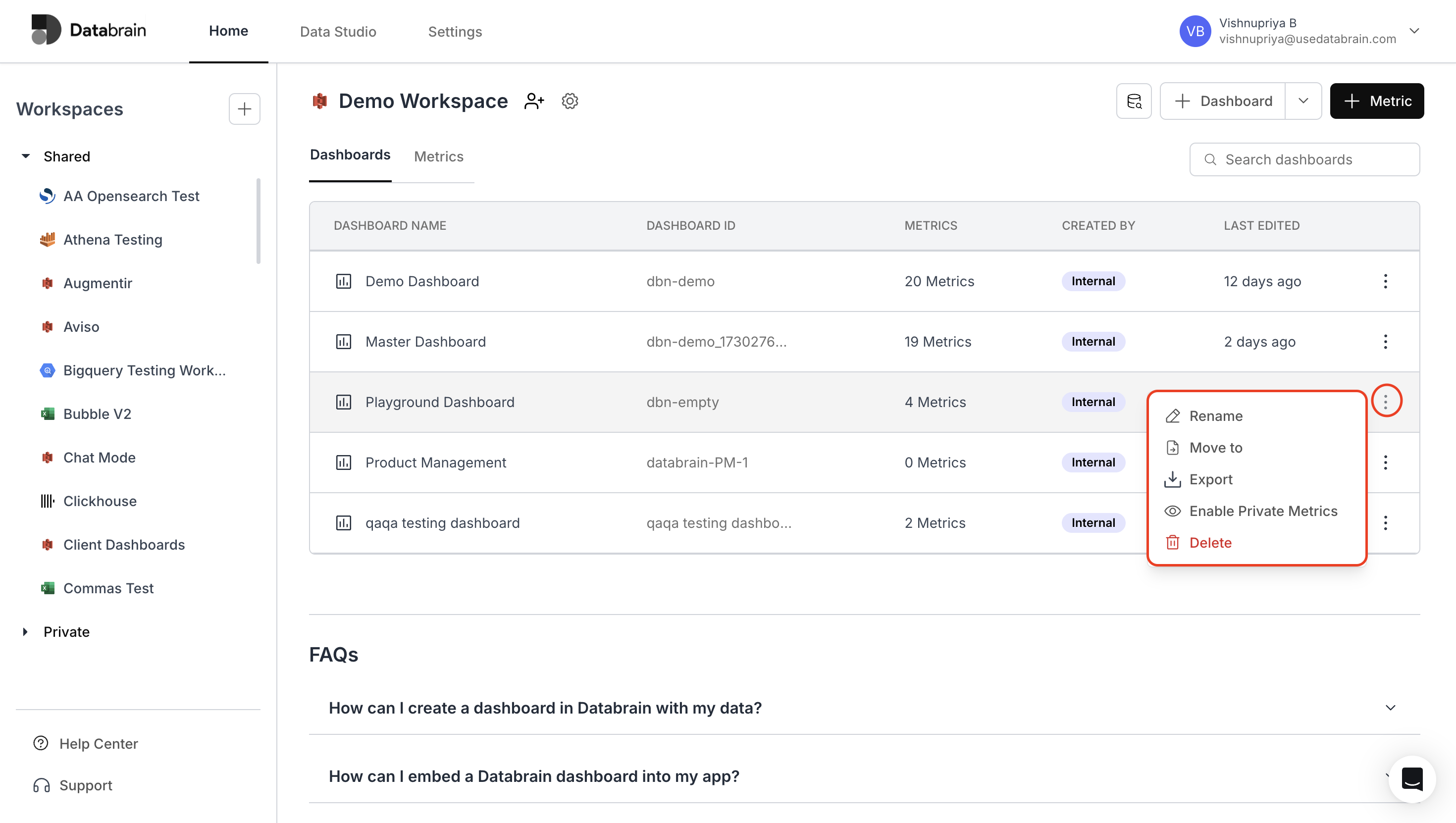 * Use the **"Move to"** option to transfer your dashboard to another workspace.
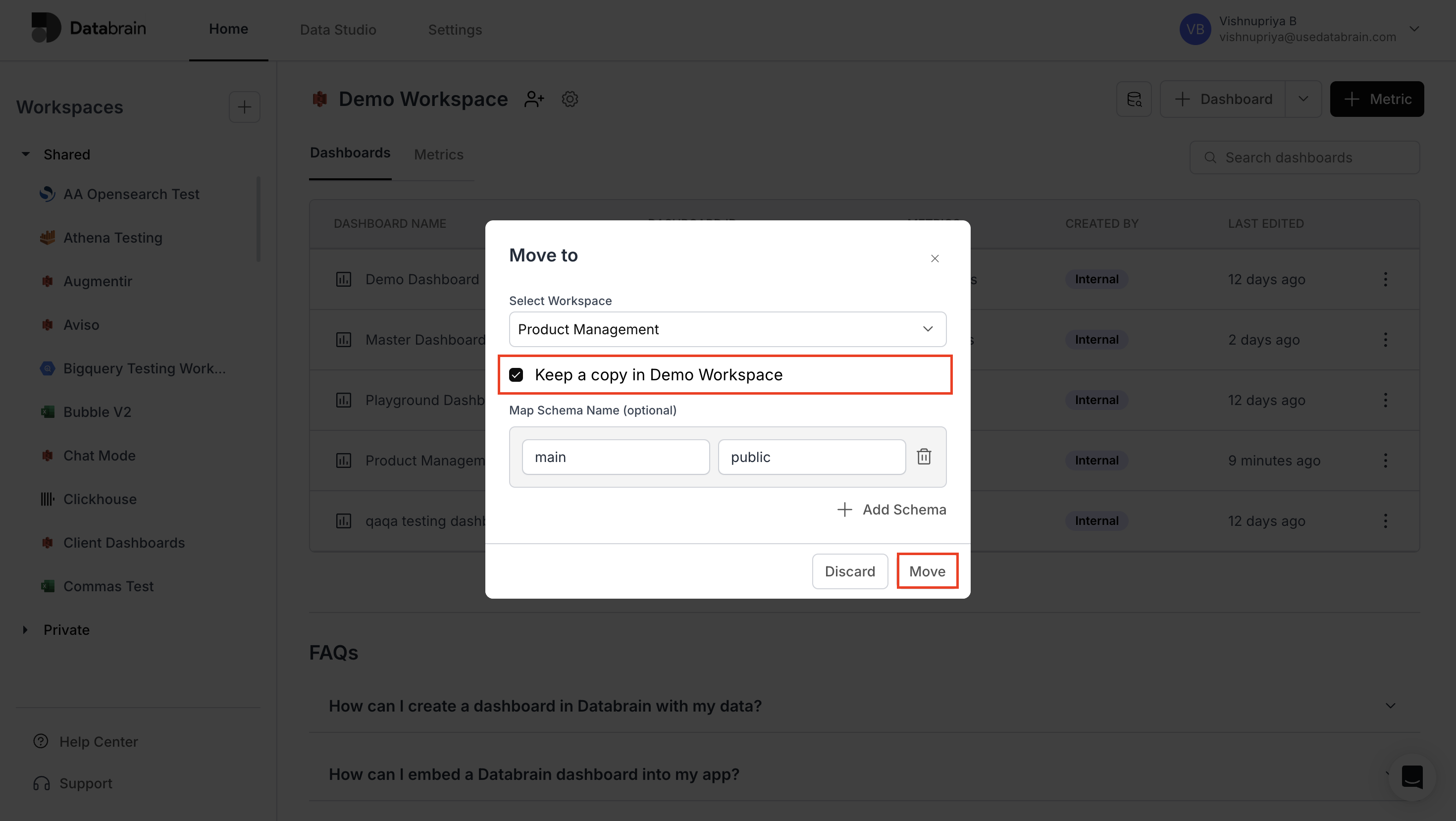
* Check the box to **keep a copy** of the dashboard in the current or testing workspace, if needed.
* Use the **"Move to"** option to transfer your dashboard to another workspace.
* Check the box to **keep a copy** of the dashboard in the current or testing workspace, if needed.
 Dashboard update completed. Your dashboard configuration changes are now applied and ready for use.