> ## Documentation Index
> Fetch the complete documentation index at: https://docs.usedatabrain.com/llms.txt
> Use this file to discover all available pages before exploring further.
# Configure Tenants
> After setting up a data source, the next step is to configure the organization details to tailor the analytics experience for your clients.
* Determine your organization’s **Tenancy Level**. Options include **Database** or **Table**.
* Select the appropriate tenancy for your customer information, ensuring a personalized analytics experience.\
Choose between:
* **Database**: Choose this when your client data is stored at the database level (each client has its own database).
* **Table**: Choose this when your client data is stored as rows identified by an ID column in a single table.
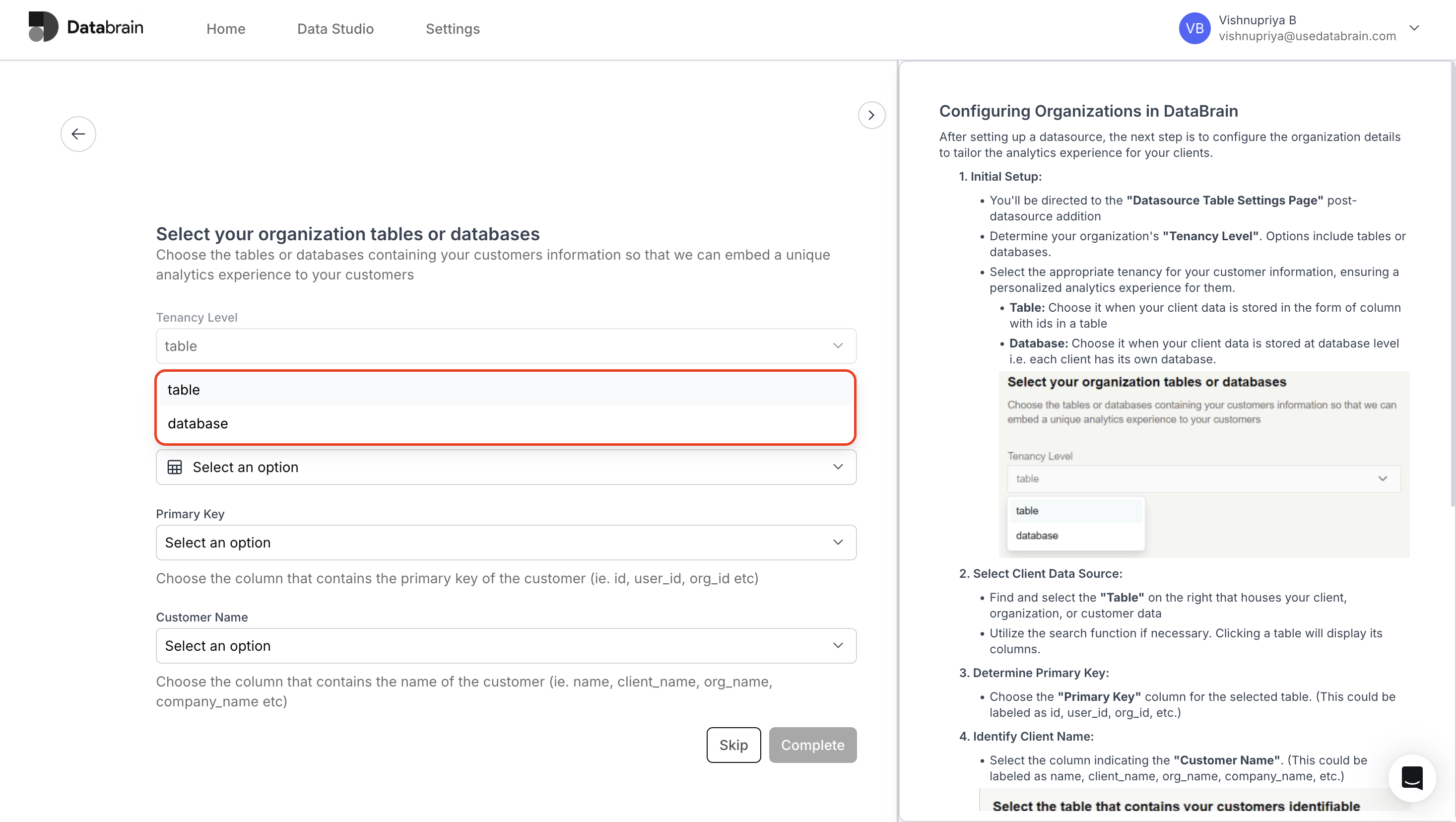 Select the tenancy level as **Database** if your client data is stored in separate databases for each customer.
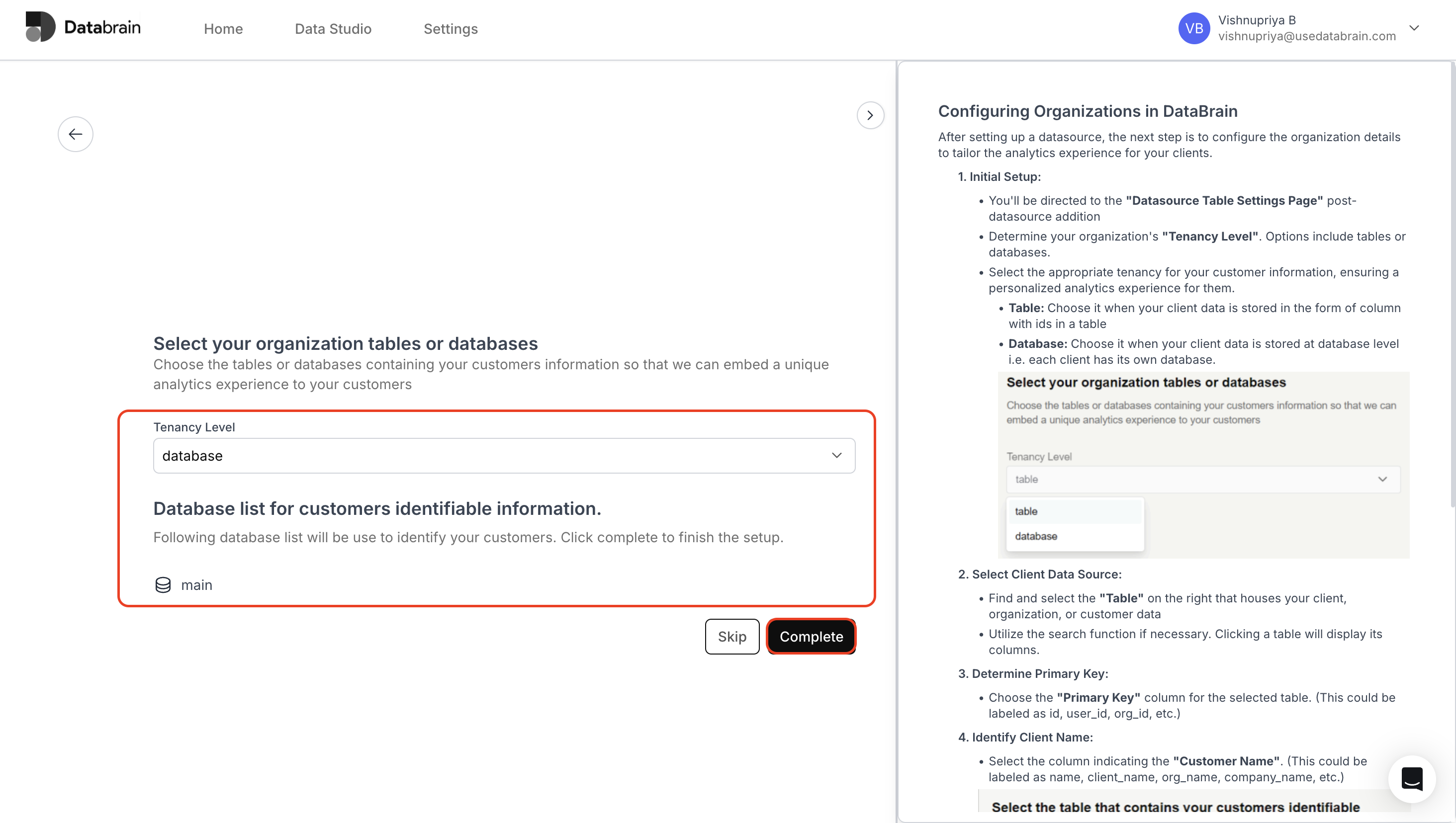 Select Client Data Source and Determine Primary Key:
* Find and select the **Table** that houses your client, organization, or customer data.
* Use the search function if necessary. Clicking a table displays its columns.
* Choose the **Primary Key** column (e.g., `id`, `user_id`, `org_id`).
* Select the column indicating the **Customer Name**\
(e.g., `name`, `client_name`, `org_name`, `company_name`).
* After designating both the primary key and customer name columns, press **Complete** to finalize the configuration.
Select Client Data Source and Determine Primary Key:
* Find and select the **Table** that houses your client, organization, or customer data.
* Use the search function if necessary. Clicking a table displays its columns.
* Choose the **Primary Key** column (e.g., `id`, `user_id`, `org_id`).
* Select the column indicating the **Customer Name**\
(e.g., `name`, `client_name`, `org_name`, `company_name`).
* After designating both the primary key and customer name columns, press **Complete** to finalize the configuration.
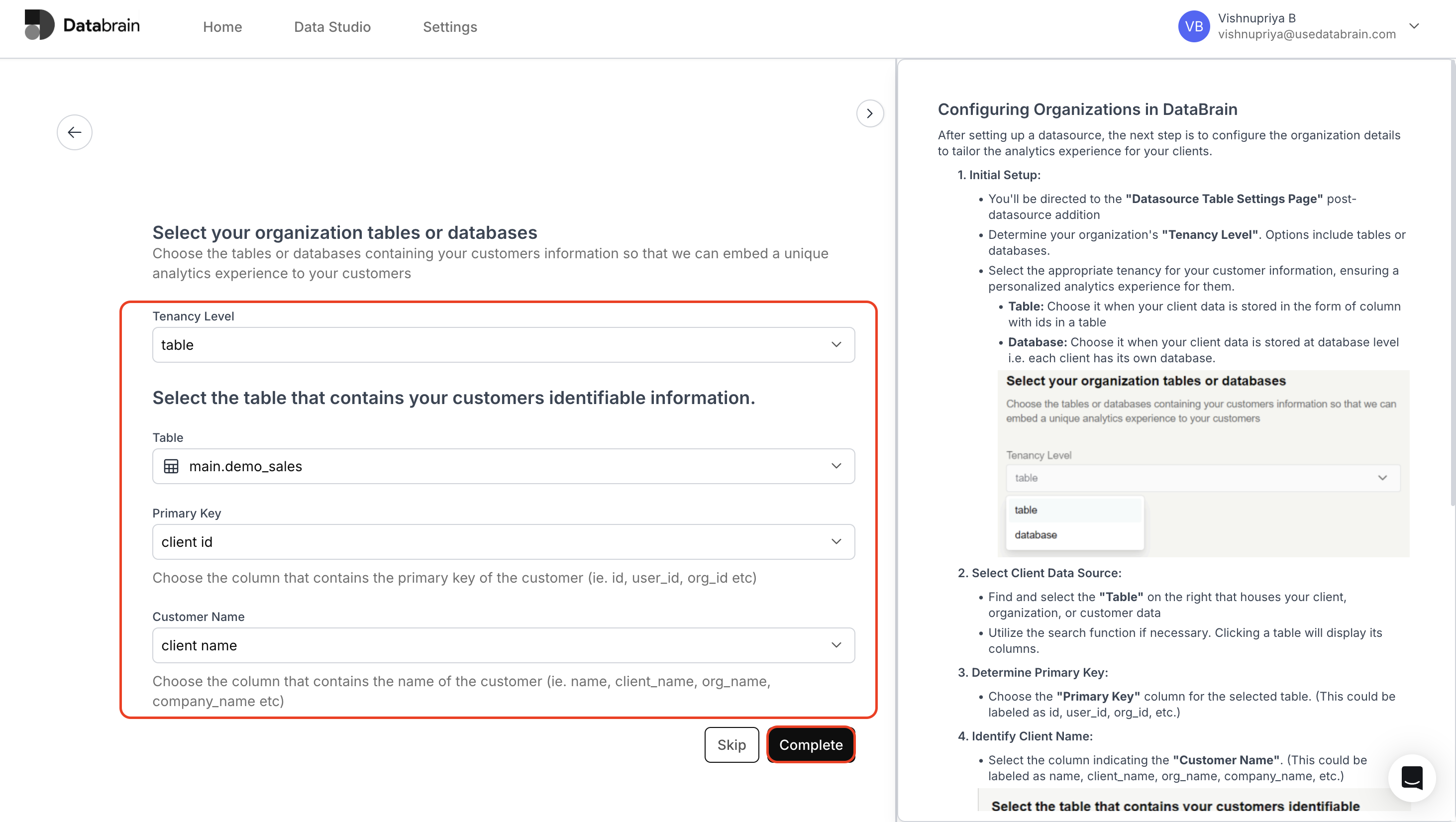 With these steps, you've successfully added customer organizations of your company to Databrain.