> ## Documentation Index
> Fetch the complete documentation index at: https://docs.usedatabrain.com/llms.txt
> Use this file to discover all available pages before exploring further.
# Create Data App
> This guide provides a straightforward process for creating a Data App, catering to various integration needs such as demonstration, embedded applications, and popular collaboration platforms
**Data App**
A Data App is a data application designed to visualize, analyze, or interact with data. It can serve various purposes, including demonstrations or integration with collaboration platforms.
**Integration Types**
Demo, Embedded, Microsoft Teams Integration, Slack Integration
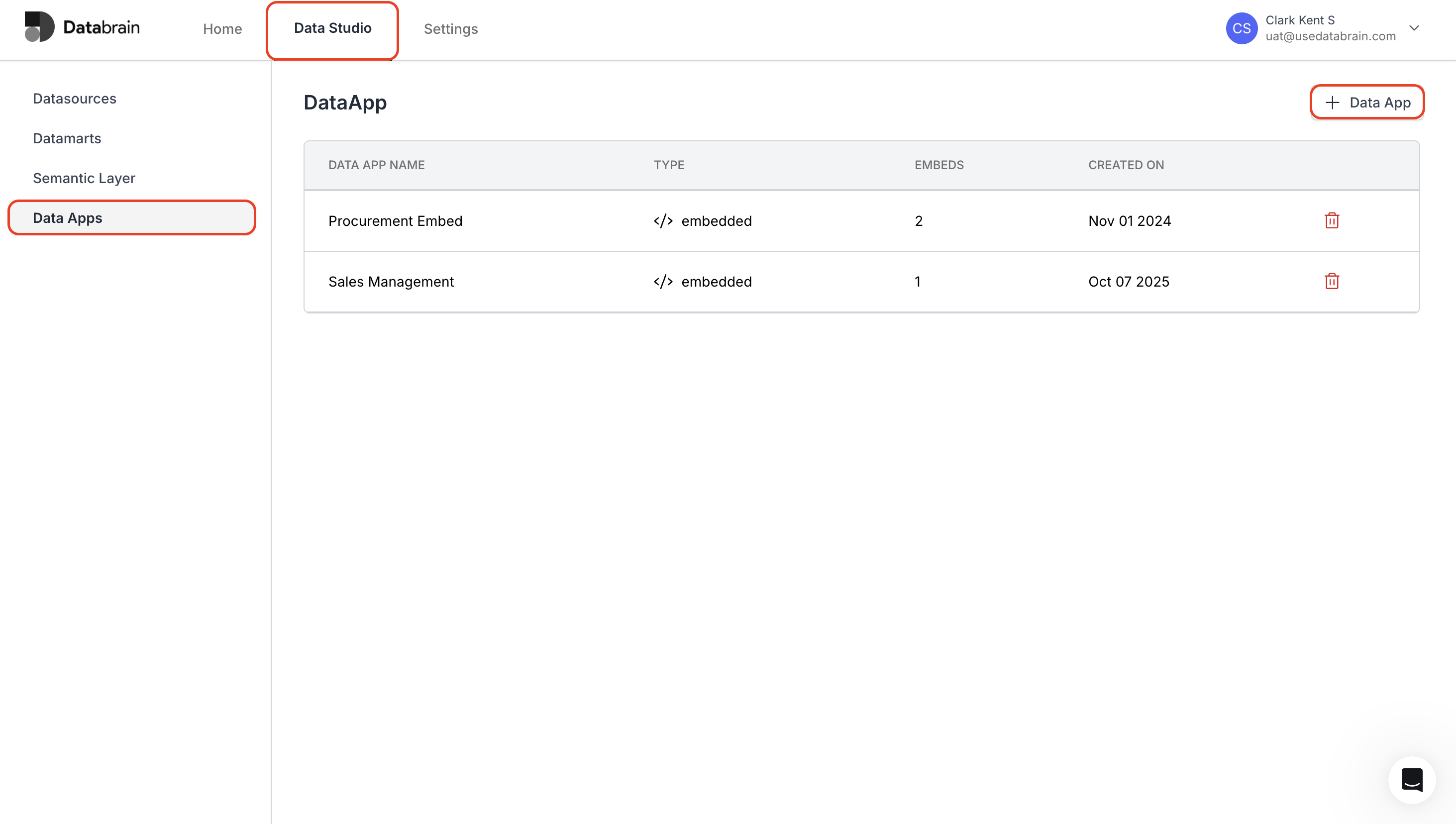
In the "Data Studio" page, navigate to the "Data Apps" section and click on the "+ New Data App".
 * Enter the App Name in the provided field and select the type from:
* `embedded`: For embedded applications
* `msTeams`: For Microsoft Teams integration
* `slack`: For Slack integration
* Then, choose your workspace from the dropdown list.
* Finally, click on **"Save"** to create the data app.
* Enter the App Name in the provided field and select the type from:
* `embedded`: For embedded applications
* `msTeams`: For Microsoft Teams integration
* `slack`: For Slack integration
* Then, choose your workspace from the dropdown list.
* Finally, click on **"Save"** to create the data app.
.gif?s=8bf40a69260c8a5d49af9e49f17850ec) Your new app will appear in the main Data Apps table. You can view its:
* **App Name**
* **Type**
* **Embeds Count**
* **Creation Date**
Your new app will appear in the main Data Apps table. You can view its:
* **App Name**
* **Type**
* **Embeds Count**
* **Creation Date**
 Your Data App has been successfully created. You can now manage, embed, or integrate it with platforms like Microsoft Teams or Slack directly from the Data Apps dashboard.