> ## Documentation Index
> Fetch the complete documentation index at: https://docs.usedatabrain.com/llms.txt
> Use this file to discover all available pages before exploring further.
# Create Embed
> Learn how to create embeds for your Data App so you can integrate Databrain into your product experience.
You need at least one existing Data App before you can create embeds.
Navigate to **Data Studio → Data Apps** and select the Data App you want to create an embed for.
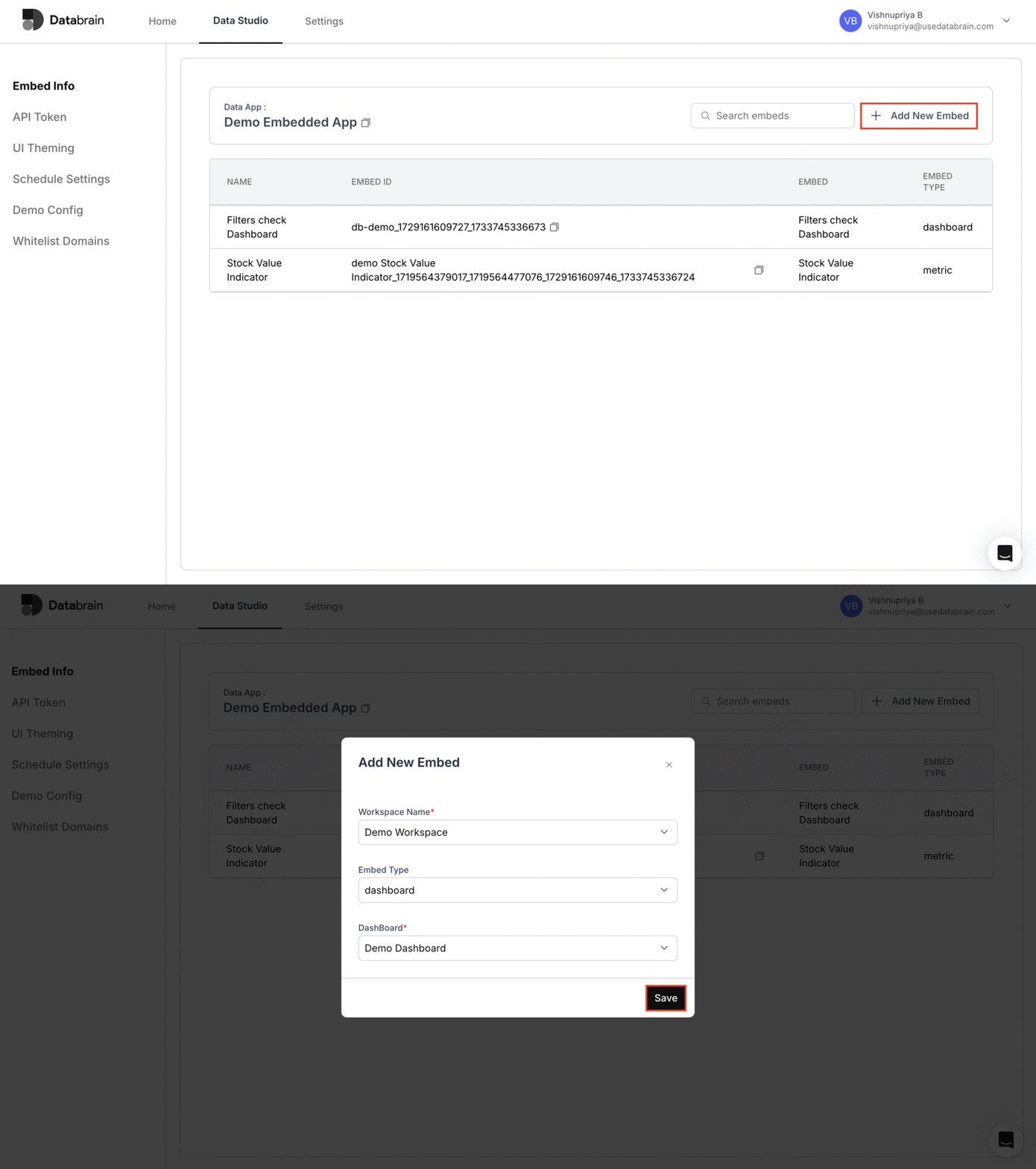
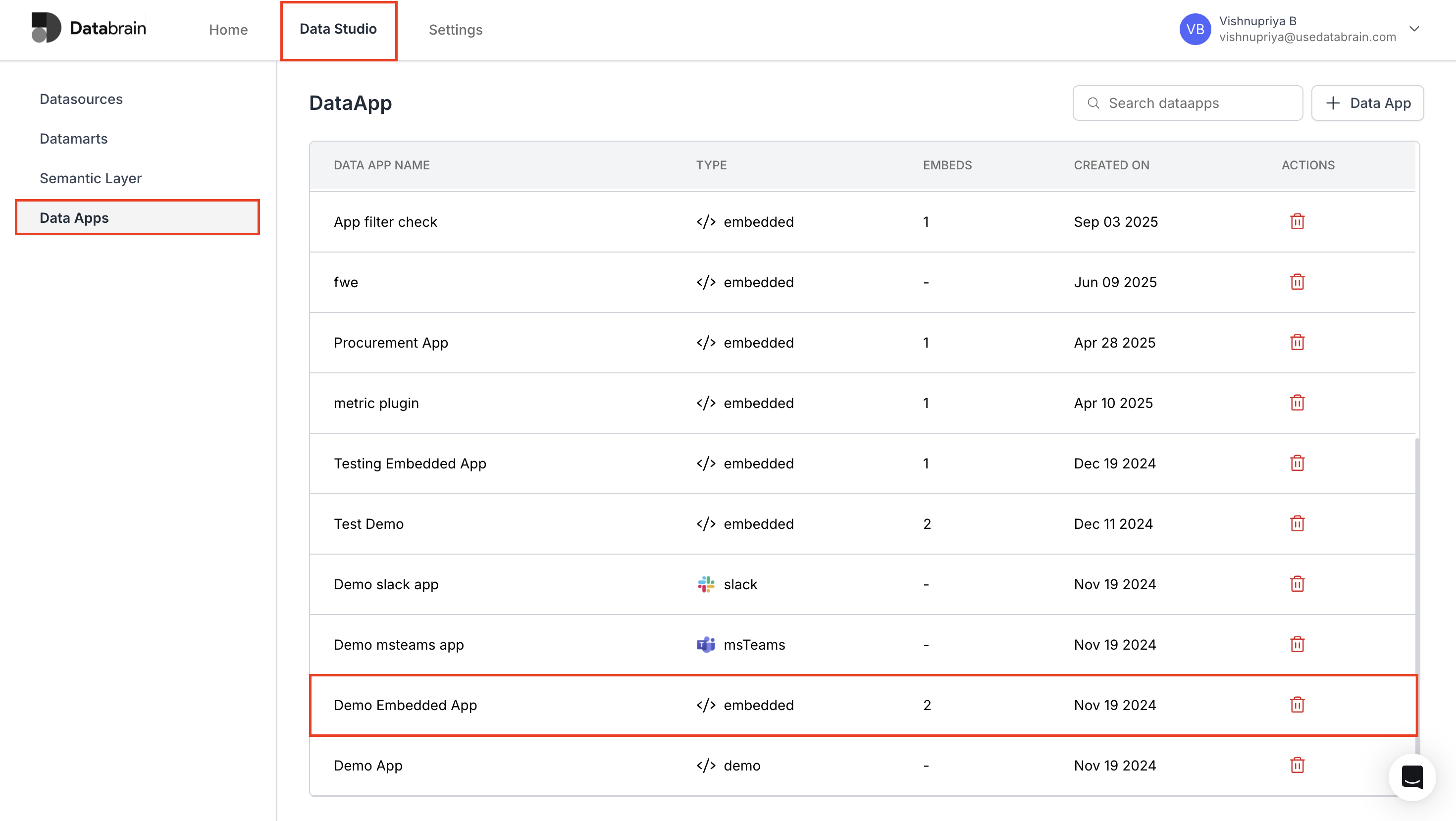 In the **Embed Info** section:
* Click the **+ Add New Embed** button.
* Select the **Workspace** where the embed should point.
* Choose the **Embed type** (Dashboard or Metric).
* Select the specific **Dashboard** or **Metric** to embed.
* Click **Save** to create the embed.
In the **Embed Info** section:
* Click the **+ Add New Embed** button.
* Select the **Workspace** where the embed should point.
* Choose the **Embed type** (Dashboard or Metric).
* Select the specific **Dashboard** or **Metric** to embed.
* Click **Save** to create the embed.
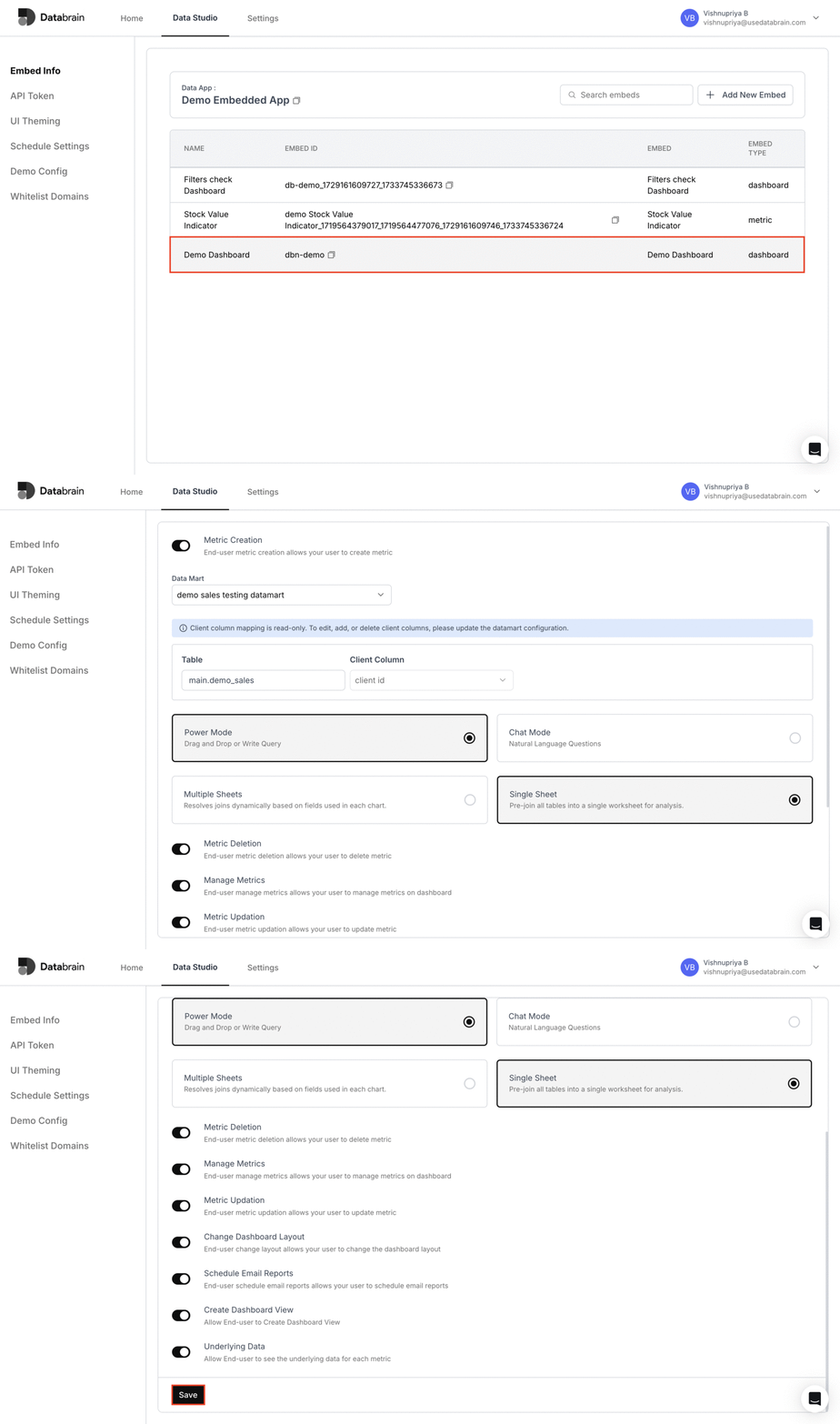
 Once the embed is created, it appears in the **Embed Info** table. Click the embed name to open its settings, where you can configure:
* Security and access controls
* UI behavior and layout
* Other embed preferences before using it in your application
Once the embed is created, it appears in the **Embed Info** table. Click the embed name to open its settings, where you can configure:
* Security and access controls
* UI behavior and layout
* Other embed preferences before using it in your application
 Your embed is now ready to be used in your application. Use the embed configuration details on this page when integrating Databrain into your frontend.