> ## Documentation Index
> Fetch the complete documentation index at: https://docs.usedatabrain.com/llms.txt
> Use this file to discover all available pages before exploring further.
# Generate API Key
> Learn how to generate API keys for your Data App so you can authenticate API requests securely.
You need at least one existing Data App before you can generate an API key.
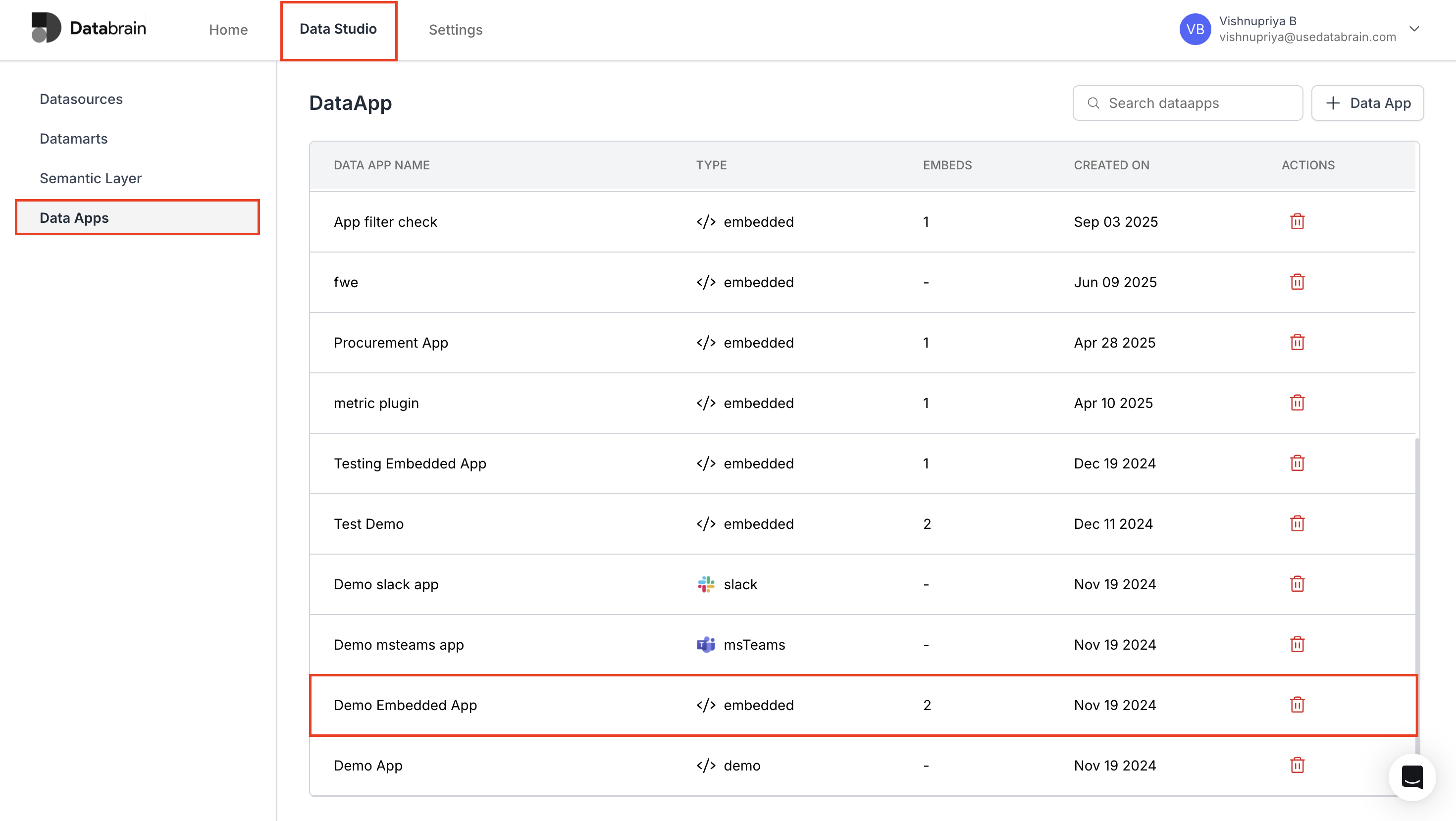
Navigate to **Data Studio → Data Apps** and select the Data App for which you want to create an API key.
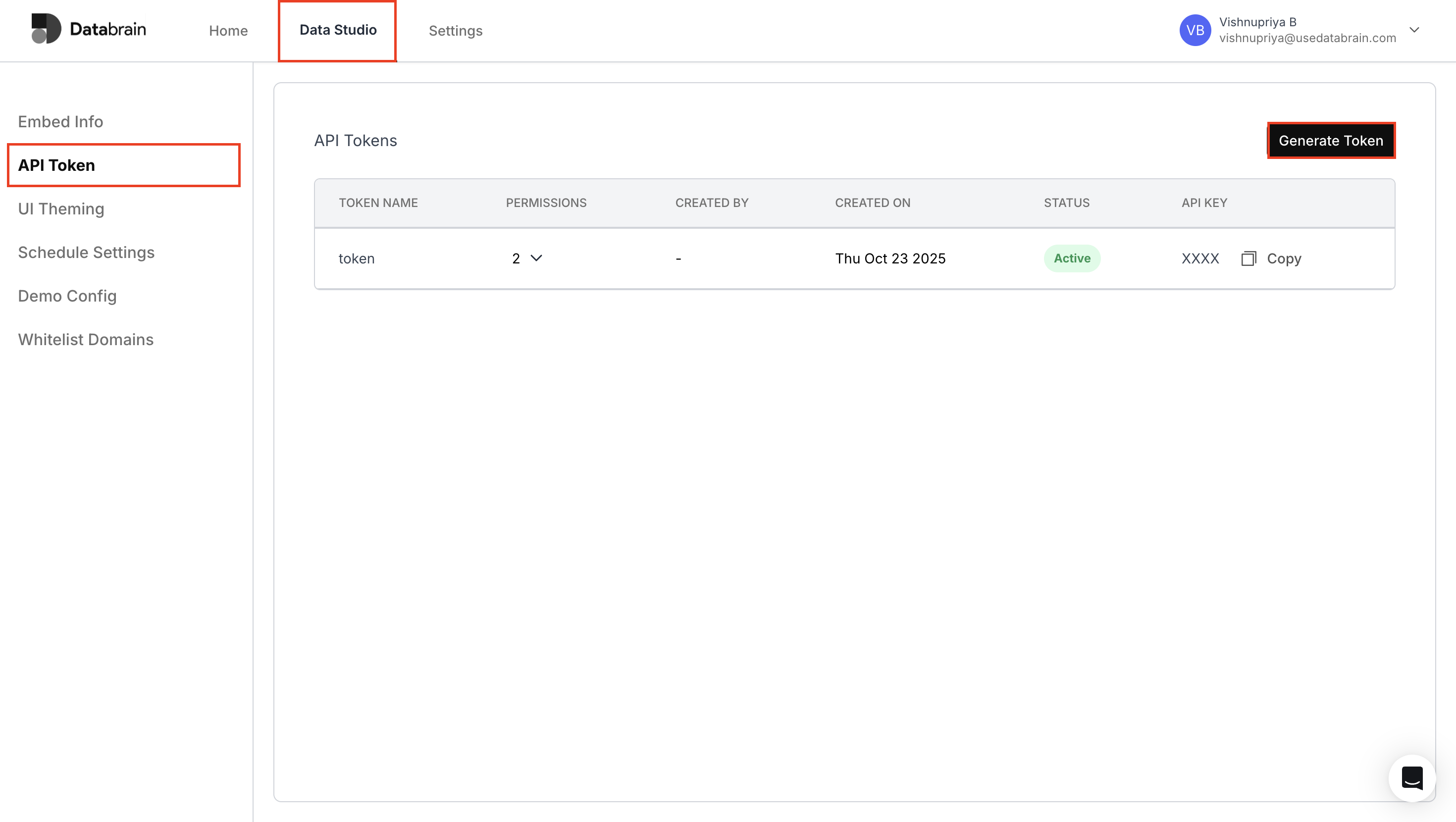
 In the left sidebar, select **API Token**, then click **Generate Token** in the top-right corner of the API Tokens table.
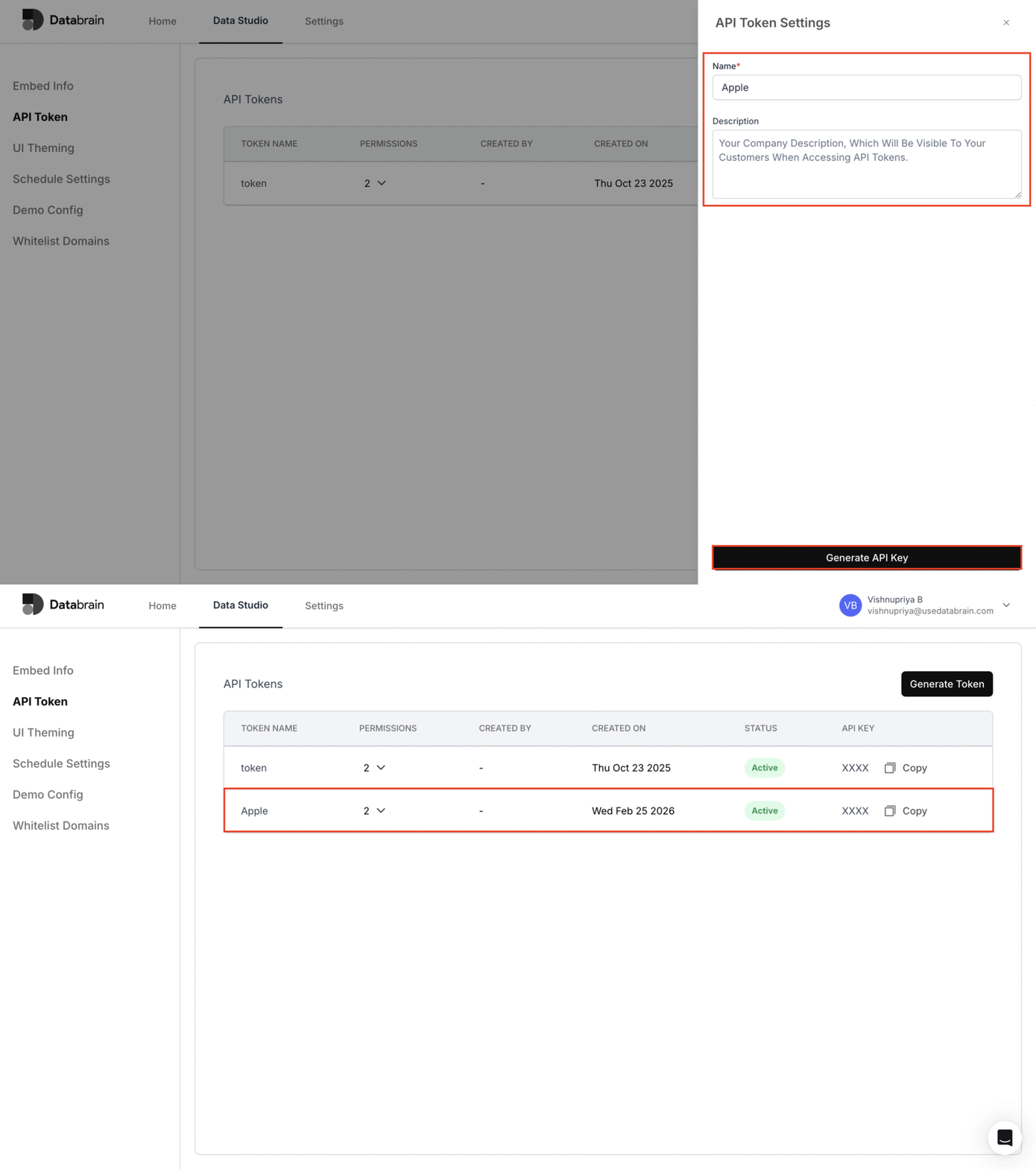
 In the **API Token Settings** panel:
* Enter your **Token name** (for example, your company or integration name).
* Optionally add a **description** to clarify how this key will be used.
* Click **Generate API Key** to create the key for this Data App.
After the key is created, it appears in the API Tokens table. Use the **Copy** action to copy the API key and store it securely.
In the **API Token Settings** panel:
* Enter your **Token name** (for example, your company or integration name).
* Optionally add a **description** to clarify how this key will be used.
* Click **Generate API Key** to create the key for this Data App.
After the key is created, it appears in the API Tokens table. Use the **Copy** action to copy the API key and store it securely.
 Your API key is now active for this Data App. Use it in your backend services to authenticate API requests on behalf of this Data App.