> ## Documentation Index
> Fetch the complete documentation index at: https://docs.usedatabrain.com/llms.txt
> Use this file to discover all available pages before exploring further.
# How to Sync a Data Source
> This guide provides a straightforward, step-by-step approach to syncing a data source, ensuring users can efficiently manage their data connections.
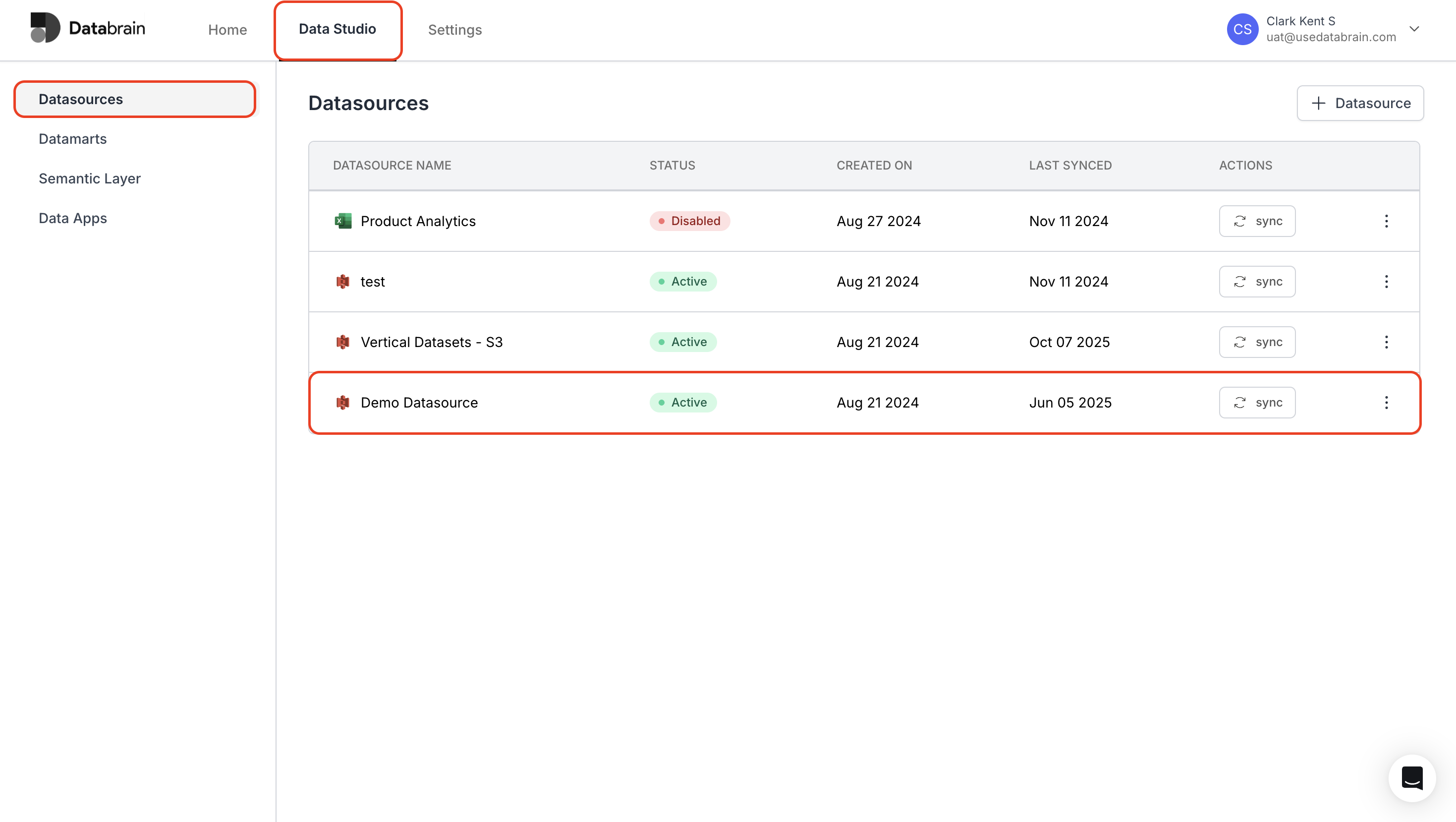
* Navigate to the **"Data Studio"** tab in the top menu and click on **"Datasources"** in the left sidebar.
* Select the data source you want to sync.
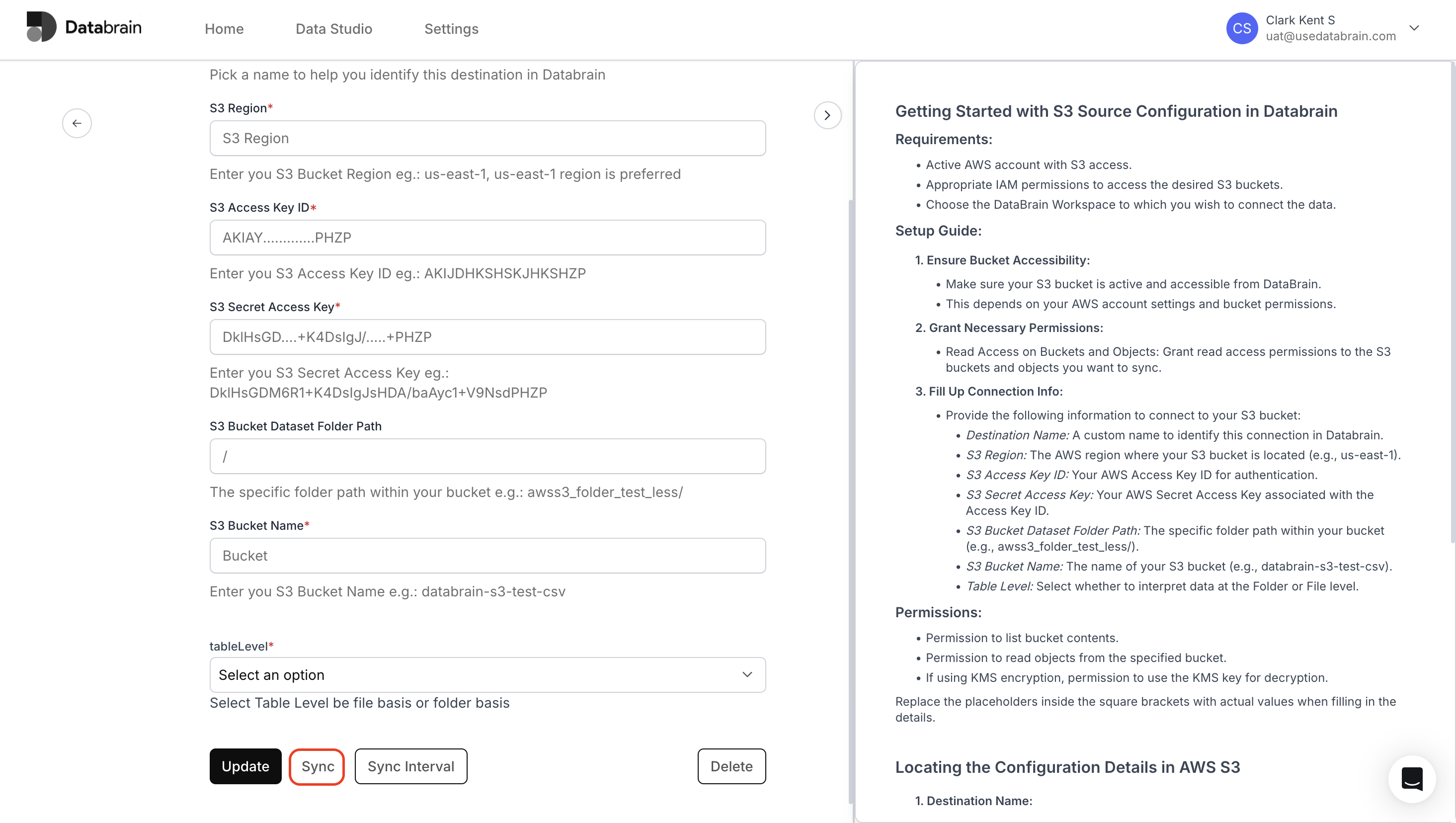
 * Click on **"Sync"** button to save and synchronize the connection.
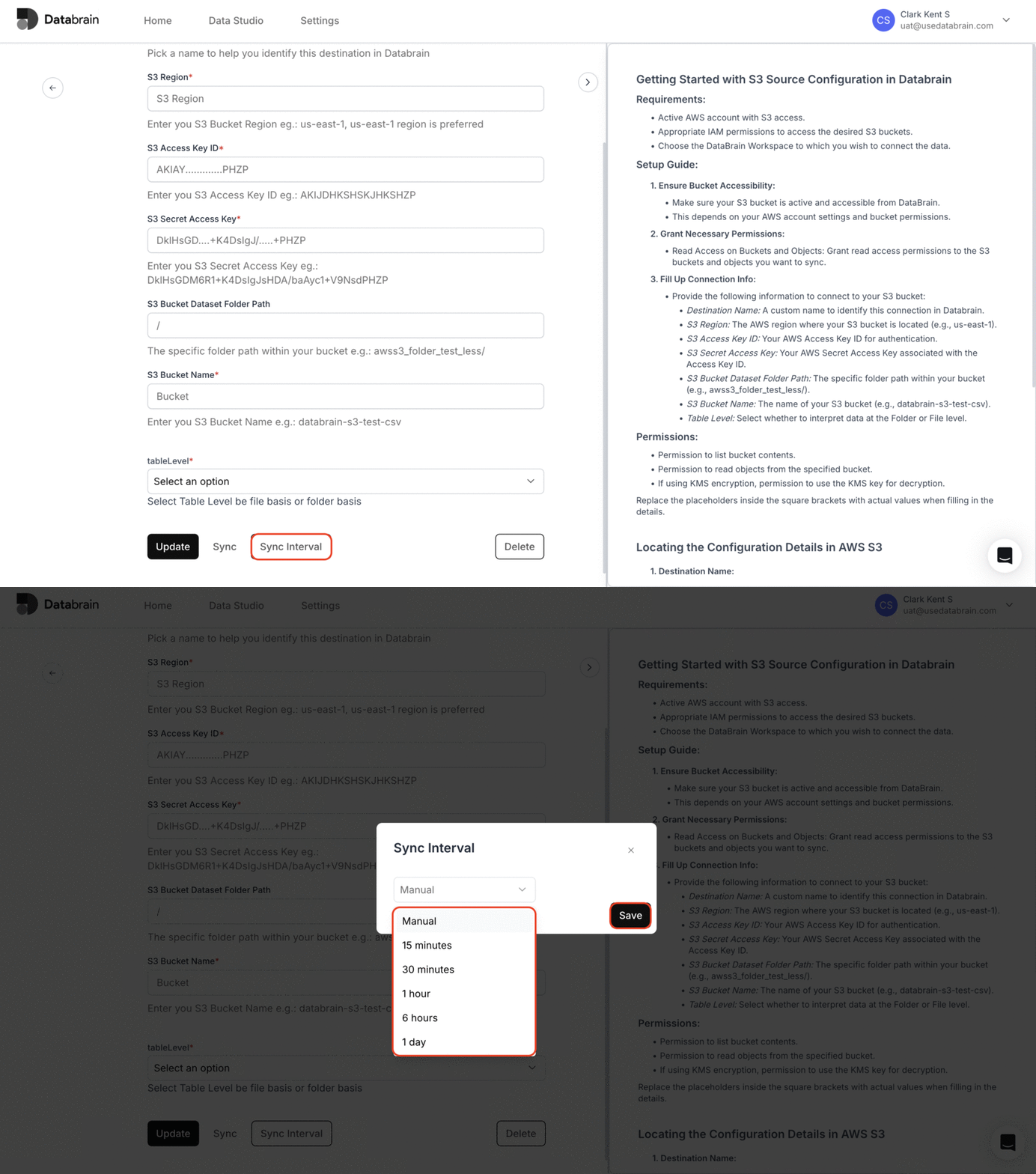
 If you are using the AWS3 data source, click the "Sync Interval" button and specify the time duration to automatically sync your files.
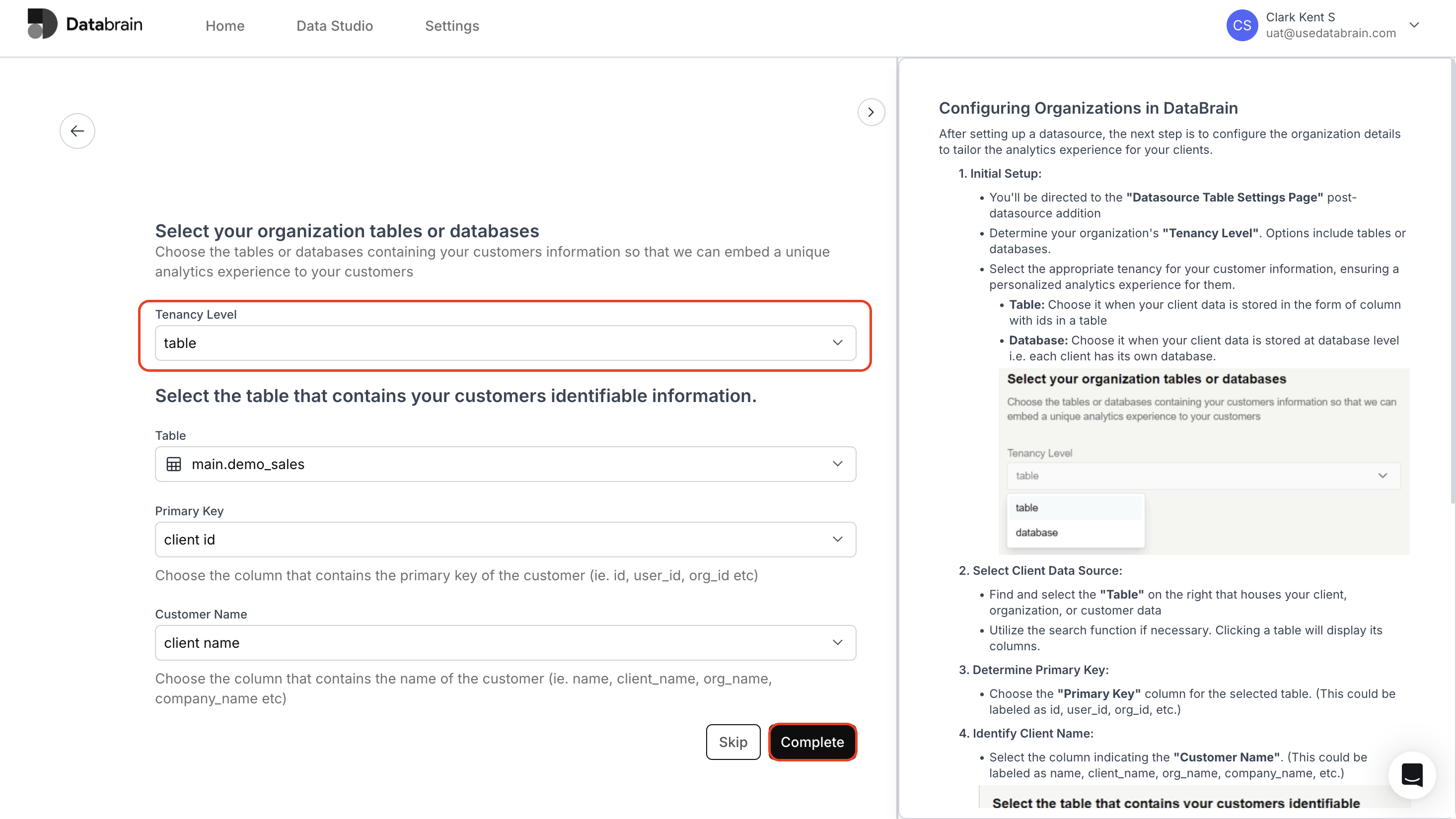
 * Make the necessary changes in **"Tenancy Level"**.
* Click **"Complete"** to finish the setup.
* Make the necessary changes in **"Tenancy Level"**.
* Click **"Complete"** to finish the setup.
 Your data source has been successfully synced and configured. Databrain will now automatically keep your data updated based on your selected sync interval.