> ## Documentation Index
> Fetch the complete documentation index at: https://docs.usedatabrain.com/llms.txt
> Use this file to discover all available pages before exploring further.
# Dashboard Filter
> In this page we will explain you how you can create filters for the dashboard metrics
### Creating a Dashboard Filter in DataBrain
To add a dashboard filter, click on the **"+"** sign located below the dashboard's name. Start by selecting the datatype for the filter, which will influence the available filter option types—auto, manual, or custom. Note that the option type may vary based on the selected datatype.
#### Customizations Based on Datatype:
* **Filter Variant**: Choose between single select, multi-select, or search options for how users can interact with the filter.
* **Select Default Value**: Automatically select a default value or allow users to choose one. This setting depends on the datatype.
* **Scope to Client**: Filter options will be tailored based on the client. This ensures that filter choices are relevant to a specific client’s data context.
* **Label Column Setup**: Configure a label column that displays descriptive labels for the values being filtered. This enhances readability and user understanding of what each filter value represents.
***
### Dependent Filters
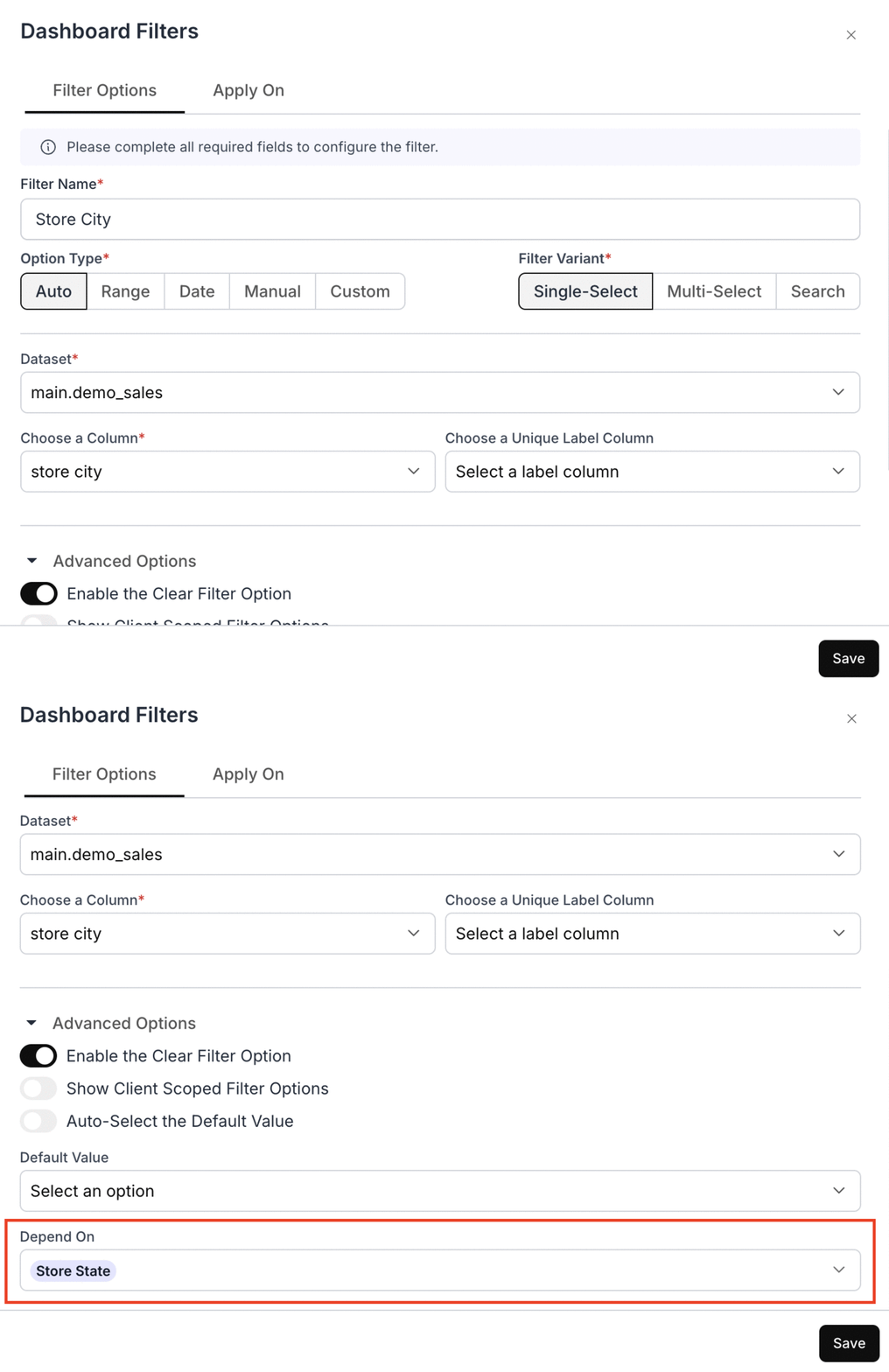
Use dependent filters when the available options in one filter should be constrained by the selection in another filter (for example, **Store City** depending on **Store State**).
#### Columns from Same Table
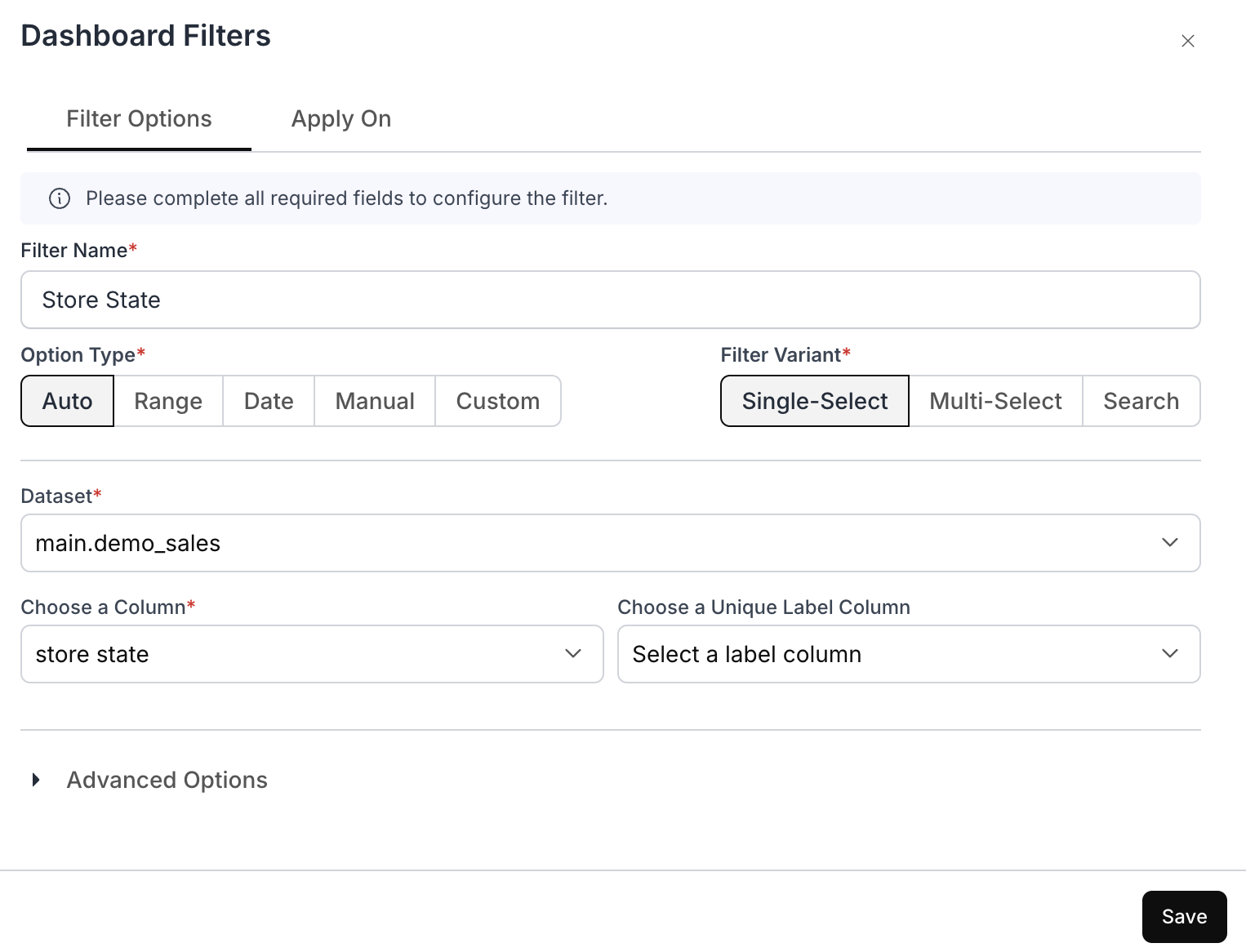
Create two filters (**Store State** and **Store City**) on the same dataset, and configure **Store City** to depend on **Store State**.
**Store State**
 **Store City depends on Store State**
 #### Columns from Different Tables
When the top-level and dependent filters use columns from different tables, configure the dependency using a custom SQL query that joins the tables.
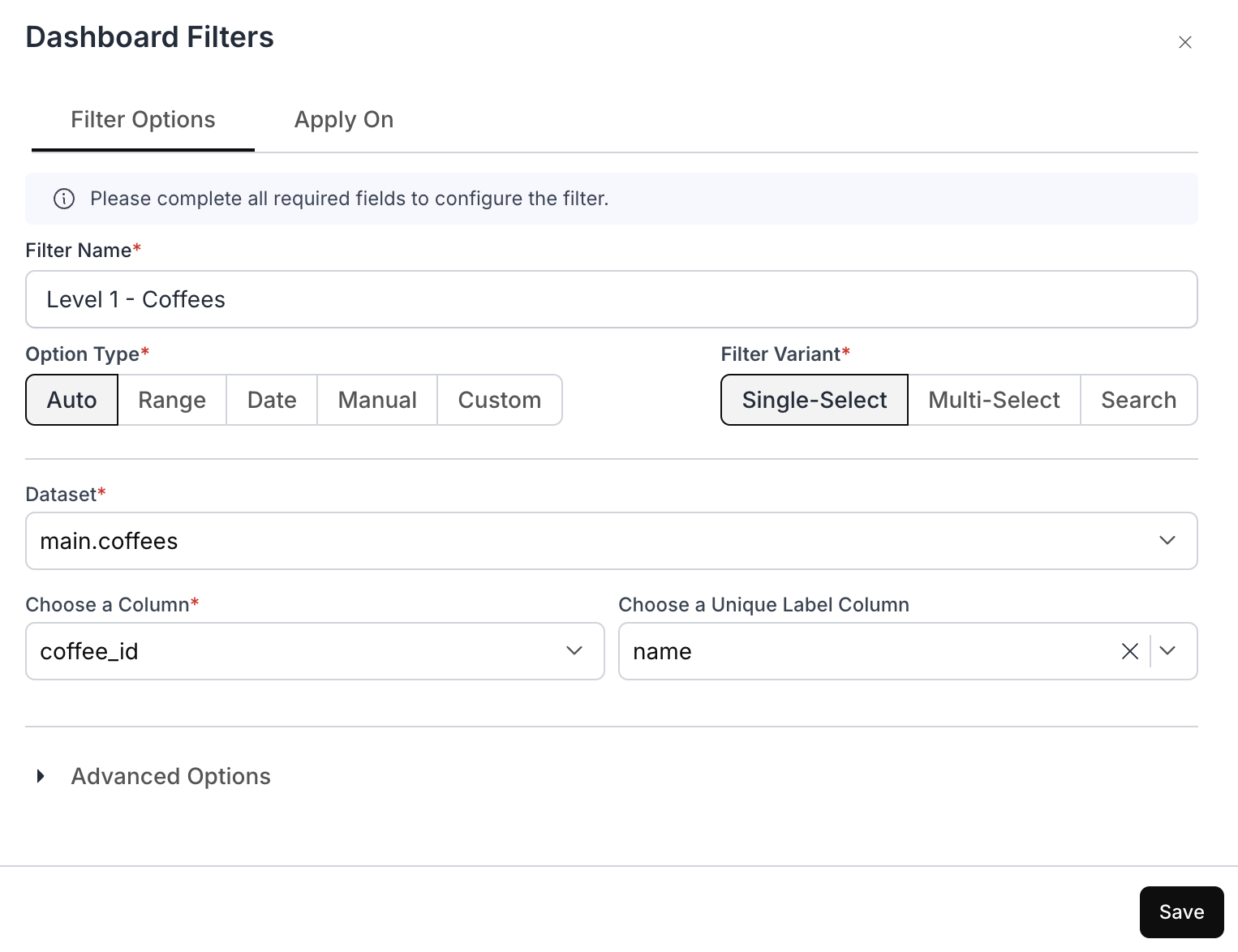
**Step 1: Configure the Top-Level Filter**
Set up the first-level filter as you normally would.
#### Columns from Different Tables
When the top-level and dependent filters use columns from different tables, configure the dependency using a custom SQL query that joins the tables.
**Step 1: Configure the Top-Level Filter**
Set up the first-level filter as you normally would.
 **Step 2: Configure the Dependent (Second-Level) Filter**
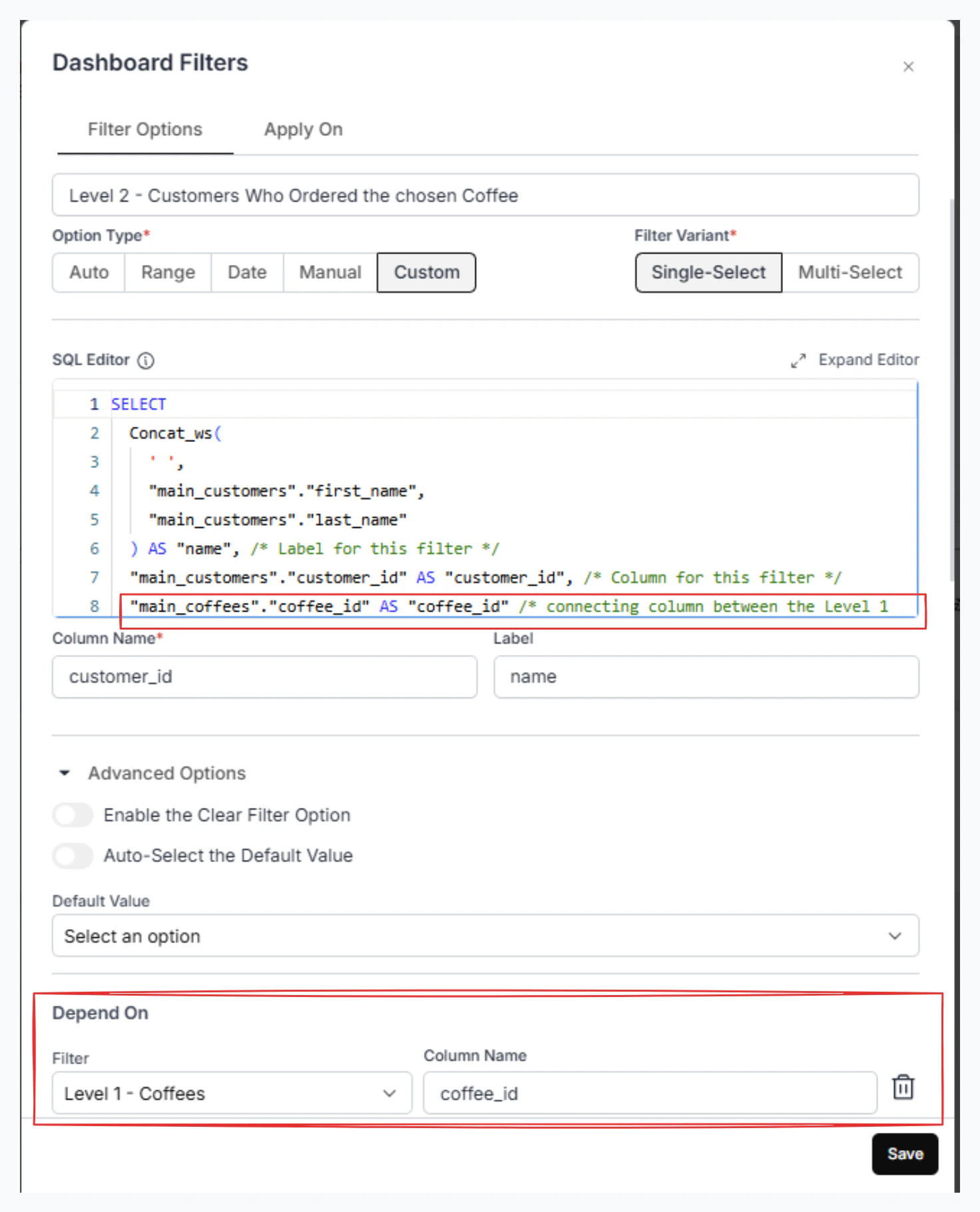
For the second-level filter (which needs to depend on the first filter), select **Custom** as the filter type and write the SQL in the following format:
```sql theme={"dark"}
SELECT
Concat_ws(
' ',
"main_customers"."first_name",
"main_customers"."last_name"
) AS "name", /* Label for this filter */
"main_customers"."customer_id" AS "customer_id", /* Column for this filter */
"main_coffees"."coffee_id" AS "coffee_id" /* Connecting column between Level 1 and Level 2 */
```
```sql theme={"dark"}
FROM
"main"."coffees" AS "main_coffees"
INNER JOIN "main"."orders" AS "main_orders"
ON "main_coffees"."coffee_id" = "main_orders"."coffee_id"
INNER JOIN "main"."customers" AS "main_customers"
ON "main_orders"."customer_id" = "main_customers"."customer_id"
```
Make sure the query includes the connecting column between Level 1 and Level 2.
The necessary joins are added to establish the relationship between the two filter tables.
**Step 3: Configure Dependency**
In the filter setup, you will see that the column from Level 1 is part of the above query.
* In **Advanced Options**, under **Depend On**, type the connecting column from Filter 1 to ensure linkage.
This ensures that Filter 2 is correctly dependent on Filter 1.
**Step 2: Configure the Dependent (Second-Level) Filter**
For the second-level filter (which needs to depend on the first filter), select **Custom** as the filter type and write the SQL in the following format:
```sql theme={"dark"}
SELECT
Concat_ws(
' ',
"main_customers"."first_name",
"main_customers"."last_name"
) AS "name", /* Label for this filter */
"main_customers"."customer_id" AS "customer_id", /* Column for this filter */
"main_coffees"."coffee_id" AS "coffee_id" /* Connecting column between Level 1 and Level 2 */
```
```sql theme={"dark"}
FROM
"main"."coffees" AS "main_coffees"
INNER JOIN "main"."orders" AS "main_orders"
ON "main_coffees"."coffee_id" = "main_orders"."coffee_id"
INNER JOIN "main"."customers" AS "main_customers"
ON "main_orders"."customer_id" = "main_customers"."customer_id"
```
Make sure the query includes the connecting column between Level 1 and Level 2.
The necessary joins are added to establish the relationship between the two filter tables.
**Step 3: Configure Dependency**
In the filter setup, you will see that the column from Level 1 is part of the above query.
* In **Advanced Options**, under **Depend On**, type the connecting column from Filter 1 to ensure linkage.
This ensures that Filter 2 is correctly dependent on Filter 1.
 ***
#### Applying the Filter:
Once the filter settings are configured, decide where to apply these filters within the dashboard:
* **Direct Apply**: Immediately apply the filter to the dashboard elements.
* **Variable for Custom SQL**: Obtain a variable that can be used in your custom SQL queries, allowing for more tailored data interactions.
For a detailed guide on Variable Apply On, kindly refer the below link:
View detailed guide on how to use Variable Apply On for filters.
* **Custom SQL**: Directly write the left-hand side (LHS) equals the right-hand side (RHS) condition in the WHERE clause of your SQL query.
After setting up the filters and their application, click 'Save' to finalize and activate them on the dashboard. This process enhances data interaction, making your dashboard more dynamic and suited to specific analytical needs.
***
#### Applying the Filter:
Once the filter settings are configured, decide where to apply these filters within the dashboard:
* **Direct Apply**: Immediately apply the filter to the dashboard elements.
* **Variable for Custom SQL**: Obtain a variable that can be used in your custom SQL queries, allowing for more tailored data interactions.
For a detailed guide on Variable Apply On, kindly refer the below link:
View detailed guide on how to use Variable Apply On for filters.
* **Custom SQL**: Directly write the left-hand side (LHS) equals the right-hand side (RHS) condition in the WHERE clause of your SQL query.
After setting up the filters and their application, click 'Save' to finalize and activate them on the dashboard. This process enhances data interaction, making your dashboard more dynamic and suited to specific analytical needs.