> ## Documentation Index
> Fetch the complete documentation index at: https://docs.usedatabrain.com/llms.txt
> Use this file to discover all available pages before exploring further.
# Metric Filter
> A metric-level filter is a metric-specific filter that can be applied to a particular metric only and cannot reuse for other metrics.
### Creating a Metric Filter in DataBrain
To add a filter to a specific metric card, navigate to the create/update metric page. Click on the **"+"** sign located below the icons for grouping, sorting, and funneling. This process will initiate the setup for applying a filter directly to an individual metric card.
#### Setup Process:
The setup for a metric filter follows the same guidelines as setting up a dashboard filter, with the primary difference being the scope of application—here, the filter is applied to a single metric card instead of the entire dashboard.
#### Customizations Based on Datatype:
* **Filter Variant**: Choose from single select, multi-select, or search options to define how users interact with the filter.
* **Select Default Value**: Optionally auto-select a default value based on the datatype, or allow manual selection.
* **Scope to Client**: Ensure filter options are tailored based on the client, making them relevant to the specific data context.
* **Label Column Setup**: Set up a label column to display descriptive labels for the values being filtered, enhancing user understanding.
***
### Dependent Filters
**Dependent Filters**: Create dependencies between filters, such as linking a ‘State’ filter to a ‘Country’ filter, to maintain contextual relevance.
#### Columns from Same Table
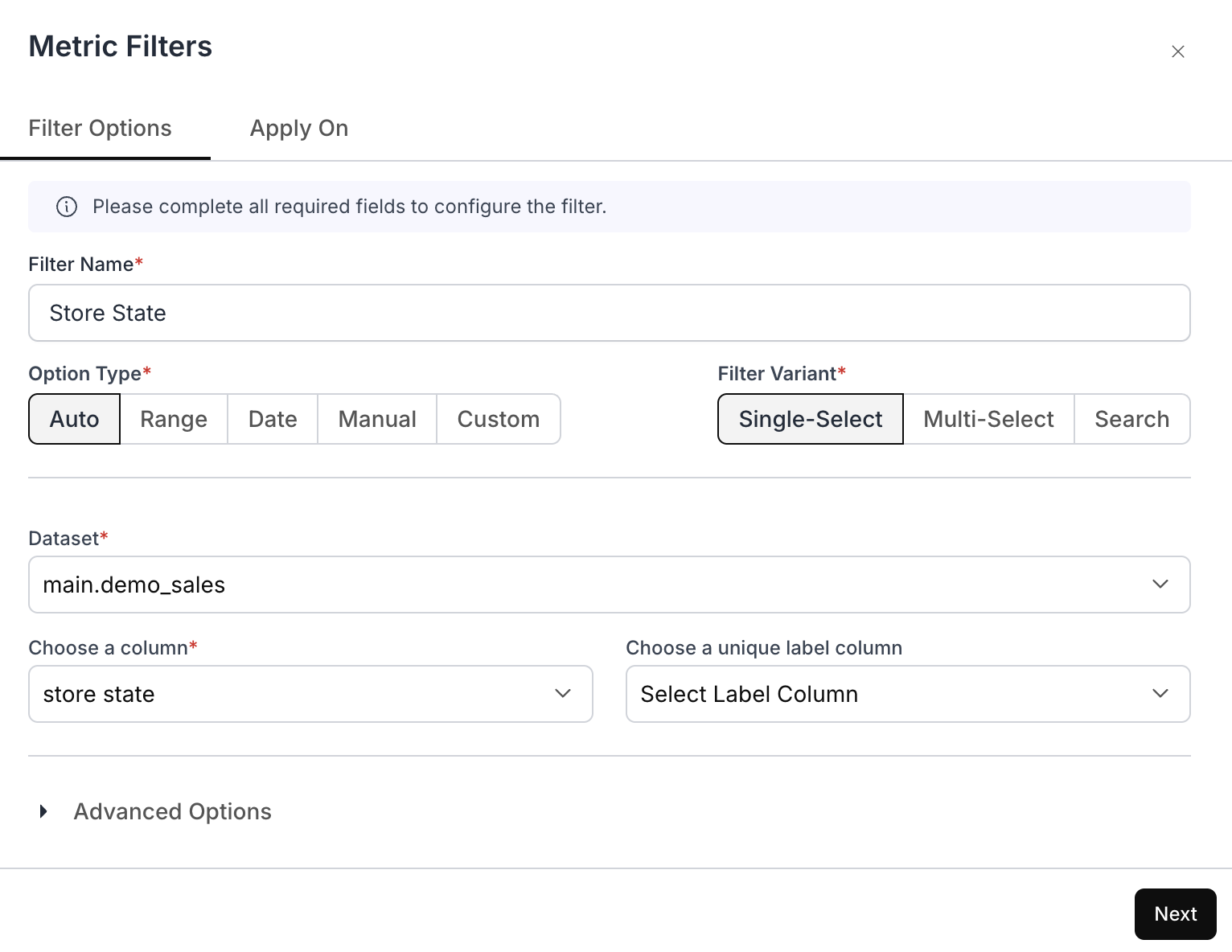
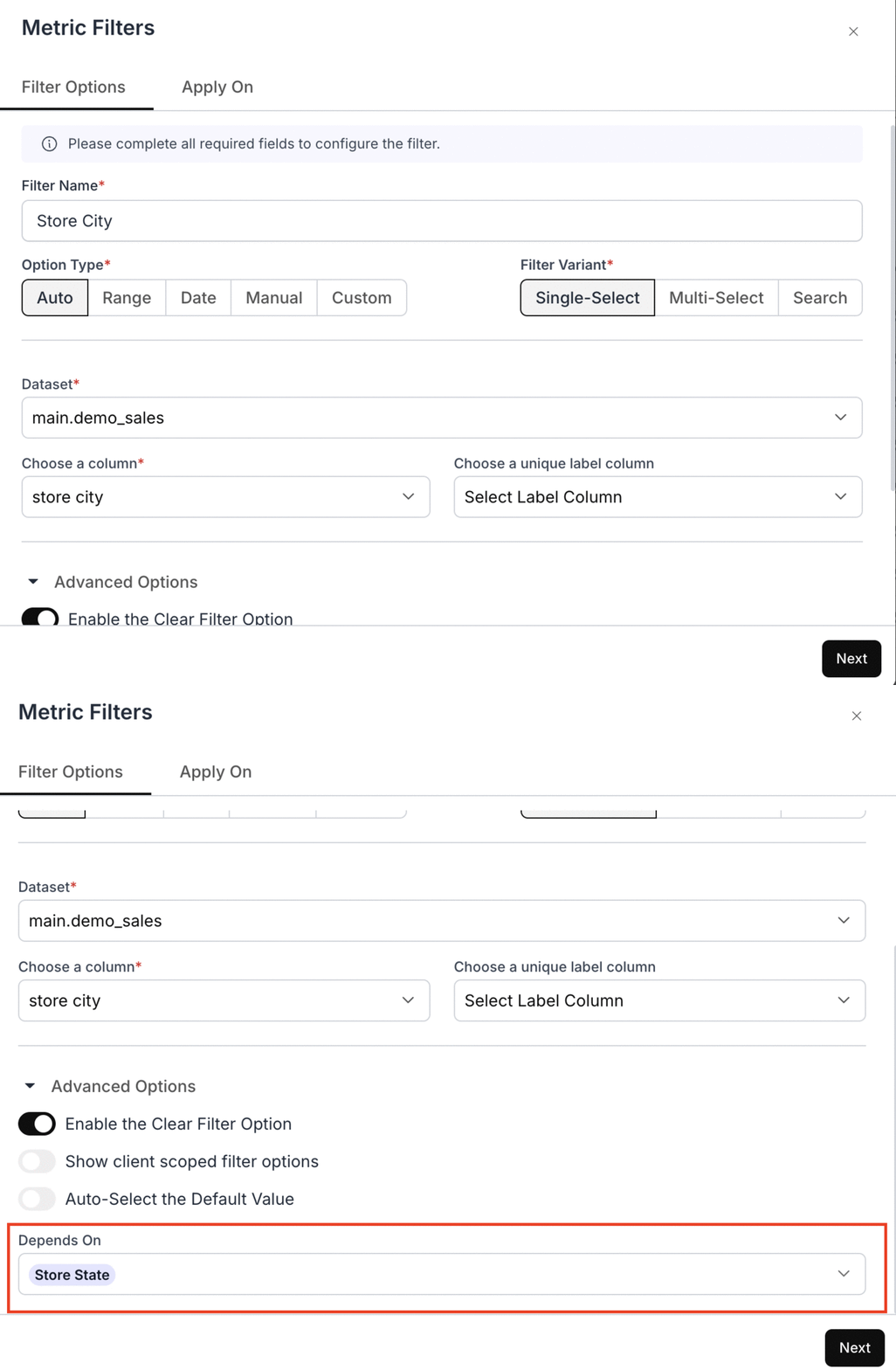
Create two filters (**Store State** and **Store City**) and configure **Store City** to depend on **Store State**.
**Store State**
 **Store City depends on Store State**
 #### Columns from Different Tables
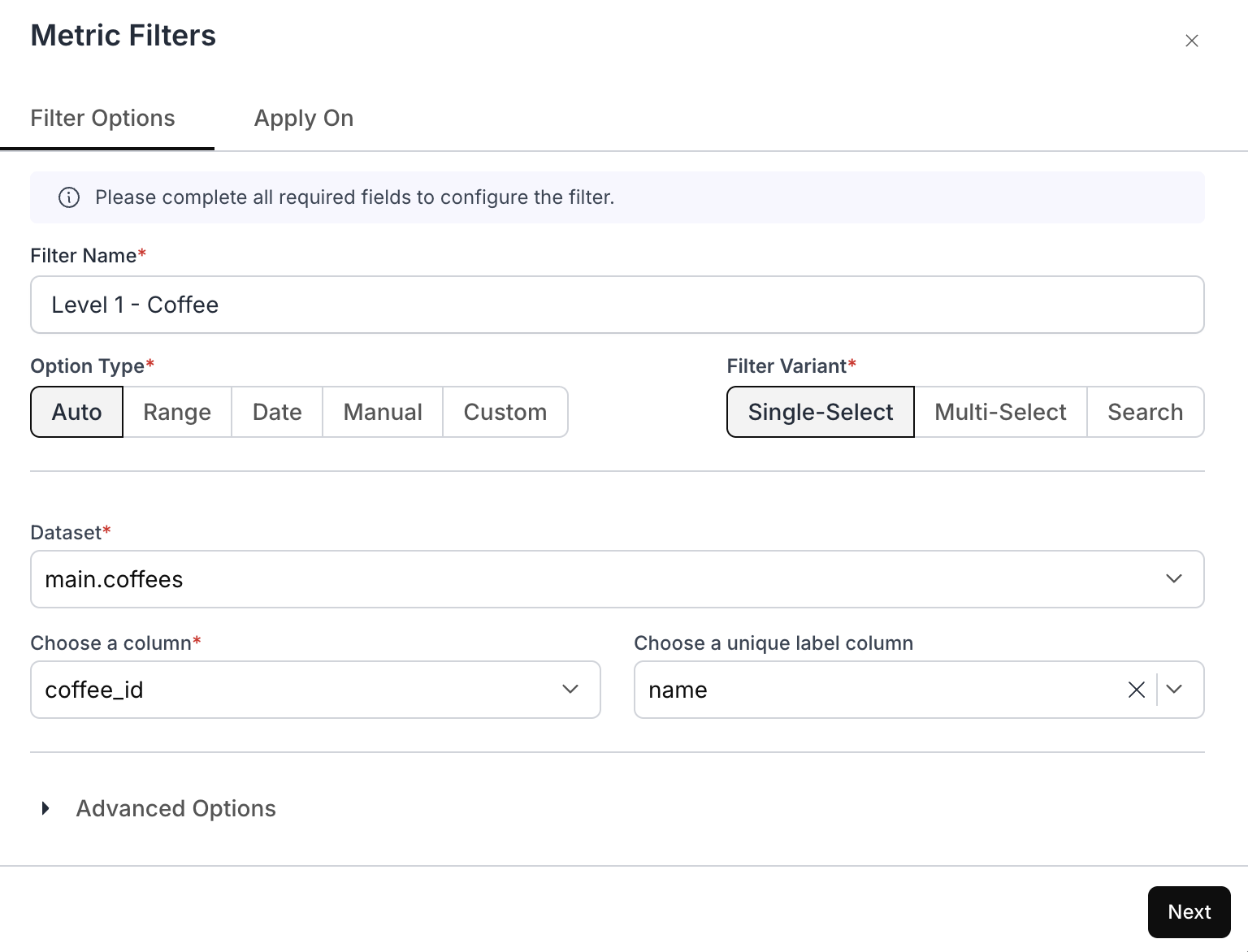
**Step 1: Configure the Top-Level Filter**
Set up the first-level filter as you normally would.
#### Columns from Different Tables
**Step 1: Configure the Top-Level Filter**
Set up the first-level filter as you normally would.
 **Step 2: Configure the Dependent (Second-Level) Filter**
For the second-level filter (which needs to depend on the first filter), select the appropriate option type and write the SQL in the following format:
```sql theme={"dark"}
SELECT
Concat_ws(
' ',
"main_customers"."first_name",
"main_customers"."last_name"
) AS "name", /* Label for this filter */
"main_customers"."customer_id" AS "customer_id", /* Column for this filter */
"main_coffees"."coffee_id" AS "coffee_id" /* Connecting column between Level 1 and Level 2 */
```
```sql theme={"dark"}
FROM
"main"."coffees" AS "main_coffees"
INNER JOIN "main"."orders" AS "main_orders"
ON "main_coffees"."coffee_id" = "main_orders"."coffee_id"
INNER JOIN "main"."customers" AS "main_customers"
ON "main_orders"."customer_id" = "main_customers"."customer_id"
```
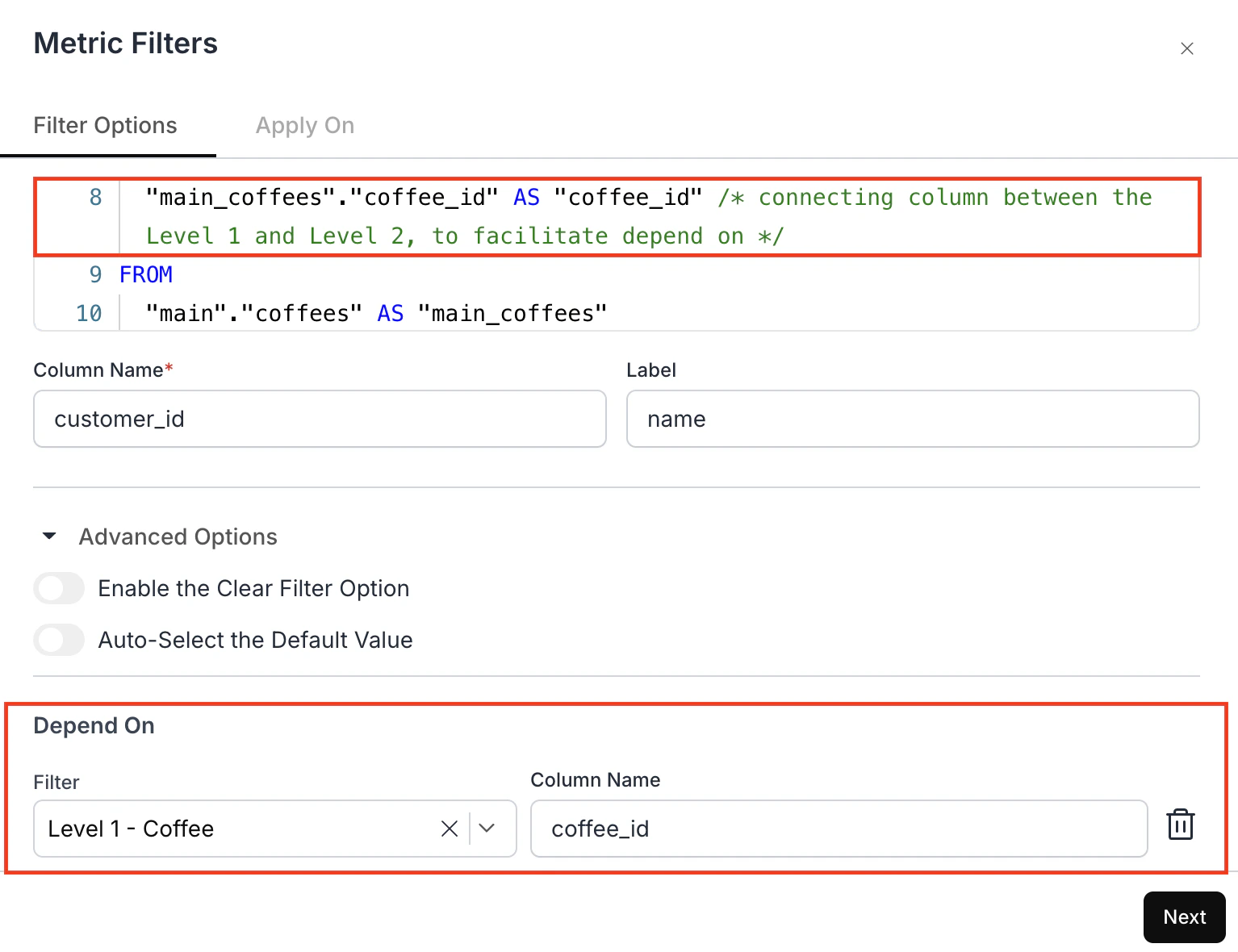
Make sure the query includes the connecting column between Level 1 and Level 2 to facilitate the Depends On configuration.
The necessary joins are added to establish the relationship between the two filter tables.
**Step 3: Configure Dependency**
In the filter setup, you will see that the column from Level 1 is part of the above query.
* In **Advanced Options**, under **Depends On**, choose the Level 1 filter and specify the connecting column from Filter 1 to ensure linkage.
Now, this should ensure that Filter 2 is dependent on Filter 1.
**Step 2: Configure the Dependent (Second-Level) Filter**
For the second-level filter (which needs to depend on the first filter), select the appropriate option type and write the SQL in the following format:
```sql theme={"dark"}
SELECT
Concat_ws(
' ',
"main_customers"."first_name",
"main_customers"."last_name"
) AS "name", /* Label for this filter */
"main_customers"."customer_id" AS "customer_id", /* Column for this filter */
"main_coffees"."coffee_id" AS "coffee_id" /* Connecting column between Level 1 and Level 2 */
```
```sql theme={"dark"}
FROM
"main"."coffees" AS "main_coffees"
INNER JOIN "main"."orders" AS "main_orders"
ON "main_coffees"."coffee_id" = "main_orders"."coffee_id"
INNER JOIN "main"."customers" AS "main_customers"
ON "main_orders"."customer_id" = "main_customers"."customer_id"
```
Make sure the query includes the connecting column between Level 1 and Level 2 to facilitate the Depends On configuration.
The necessary joins are added to establish the relationship between the two filter tables.
**Step 3: Configure Dependency**
In the filter setup, you will see that the column from Level 1 is part of the above query.
* In **Advanced Options**, under **Depends On**, choose the Level 1 filter and specify the connecting column from Filter 1 to ensure linkage.
Now, this should ensure that Filter 2 is dependent on Filter 1.
 ***
#### Applying the Filter:
Choose how to implement the filter on the metric card:
* **Direct Apply**: Apply the filter directly to the metric card for immediate effect.
* **Variable for Custom SQL**: Use a variable from the filter setup in your custom SQL queries for more tailored interactions within the metric.
For a detailed guide on how to use Variable Apply for metric filters.
* **Custom SQL**: Write custom SQL directly, specifying conditions in the WHERE clause to integrate the filter into data queries.
For a detailed guide on applying metric filters using Custom SQL.
After configuring the filter settings, finalize by clicking 'Save'. This action applies the filter to the selected metric card, enhancing its interactivity and relevance to specific data insights. This targeted approach allows for precise data filtering on individual metrics, optimizing the analytical capabilities of each metric card within the dashboard.
***
#### Applying the Filter:
Choose how to implement the filter on the metric card:
* **Direct Apply**: Apply the filter directly to the metric card for immediate effect.
* **Variable for Custom SQL**: Use a variable from the filter setup in your custom SQL queries for more tailored interactions within the metric.
For a detailed guide on how to use Variable Apply for metric filters.
* **Custom SQL**: Write custom SQL directly, specifying conditions in the WHERE clause to integrate the filter into data queries.
For a detailed guide on applying metric filters using Custom SQL.
After configuring the filter settings, finalize by clicking 'Save'. This action applies the filter to the selected metric card, enhancing its interactivity and relevance to specific data insights. This targeted approach allows for precise data filtering on individual metrics, optimizing the analytical capabilities of each metric card within the dashboard.