> ## Documentation Index
> Fetch the complete documentation index at: https://docs.usedatabrain.com/llms.txt
> Use this file to discover all available pages before exploring further.
# Overview
> Metric filters refine the data displayed on your metric cards, offering a more focused analysis.
### 1. **Access Metric Filter Settings:**
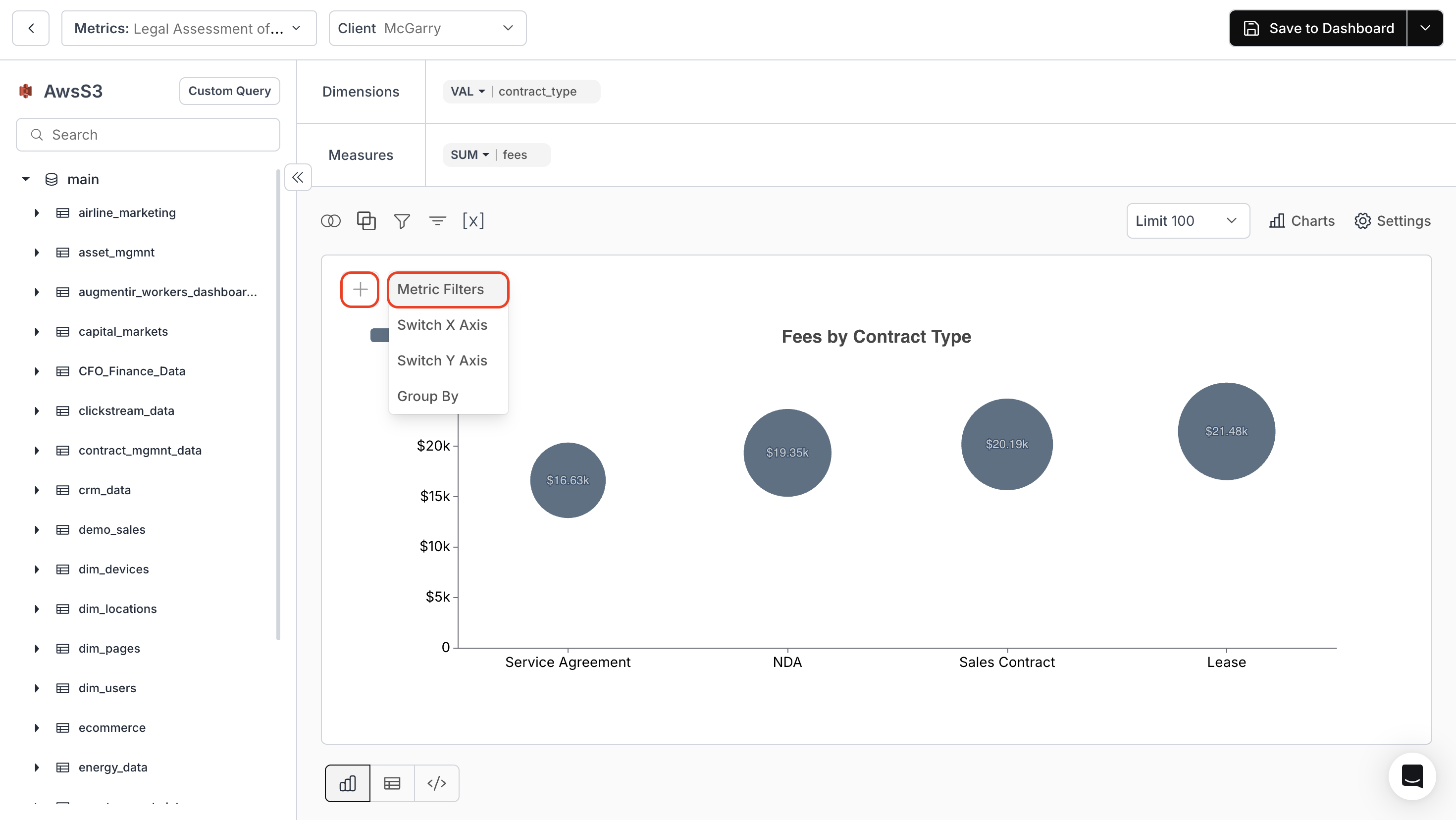
Inside the metric page, click on the **"+"** button located above the chart.
 ### 2. **Metric Filters:**
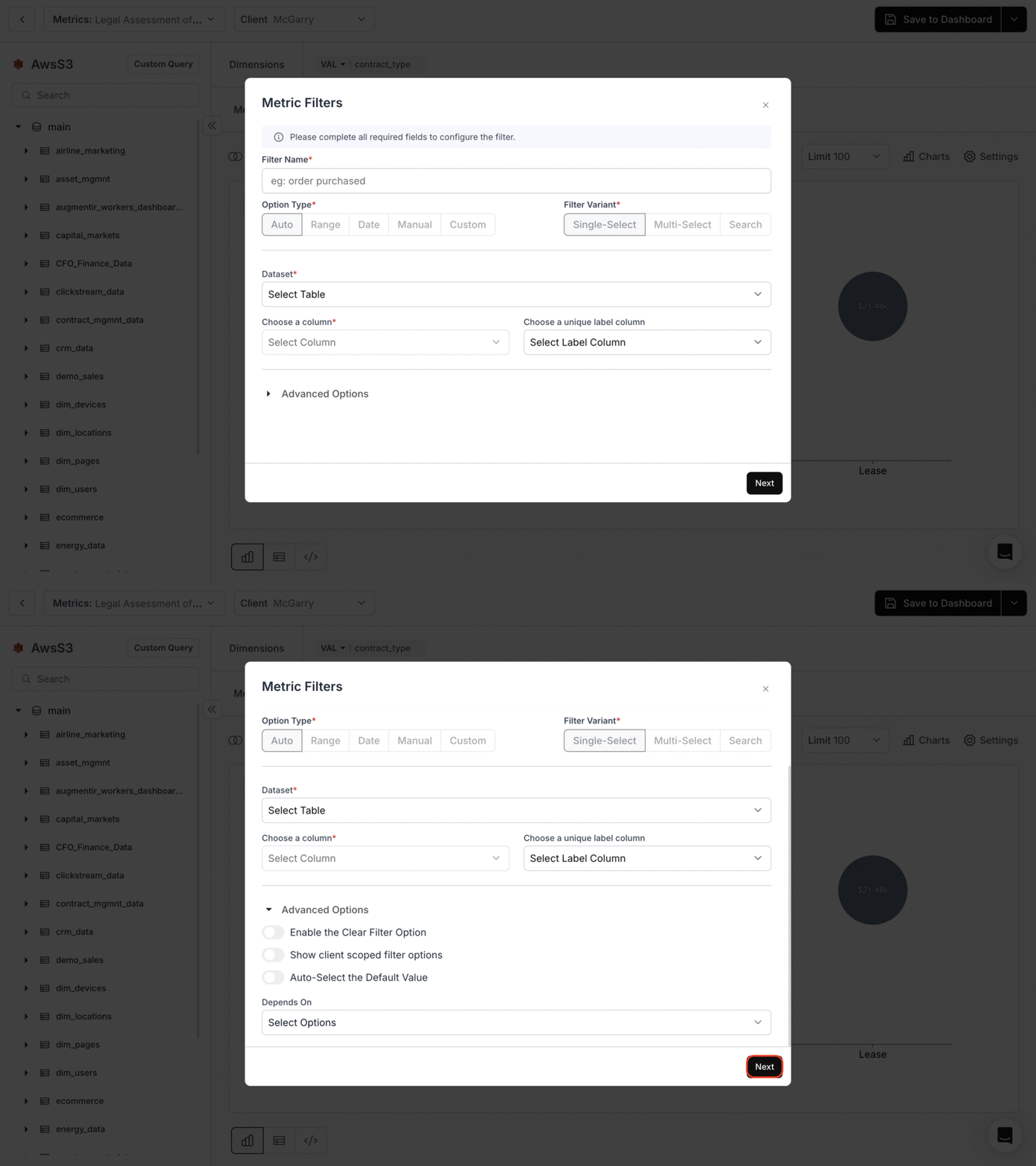
* Set the **"Filter Name"** and choose the **"Filter Type"** from the dropdown.
* Specify the **"Datatype"**.
* Choose the **"Filter Variant"** from the dropdown.
* Select the desired table and column.
* If required, save the filter as a **"Variable Filter"**. This captures a variable's value for use in your SQL query.
### 2. **Metric Filters:**
* Set the **"Filter Name"** and choose the **"Filter Type"** from the dropdown.
* Specify the **"Datatype"**.
* Choose the **"Filter Variant"** from the dropdown.
* Select the desired table and column.
* If required, save the filter as a **"Variable Filter"**. This captures a variable's value for use in your SQL query.
 **By integrating metric filters, you can ensure a more precise and tailored data representation in Databrain.**
You’ve successfully configured a Metric Filter in Databrain!\
Your visualization is now refined, enabling sharper, more targeted insights across your dataset.
**By integrating metric filters, you can ensure a more precise and tailored data representation in Databrain.**
You’ve successfully configured a Metric Filter in Databrain!\
Your visualization is now refined, enabling sharper, more targeted insights across your dataset.