> ## Documentation Index
> Fetch the complete documentation index at: https://docs.usedatabrain.com/llms.txt
> Use this file to discover all available pages before exploring further.
# Archive/Unarchive Metric Card
> Manage your dashboard by archiving unused metric cards and retrieving them when needed.
#### 1. Archiving a Metric Card
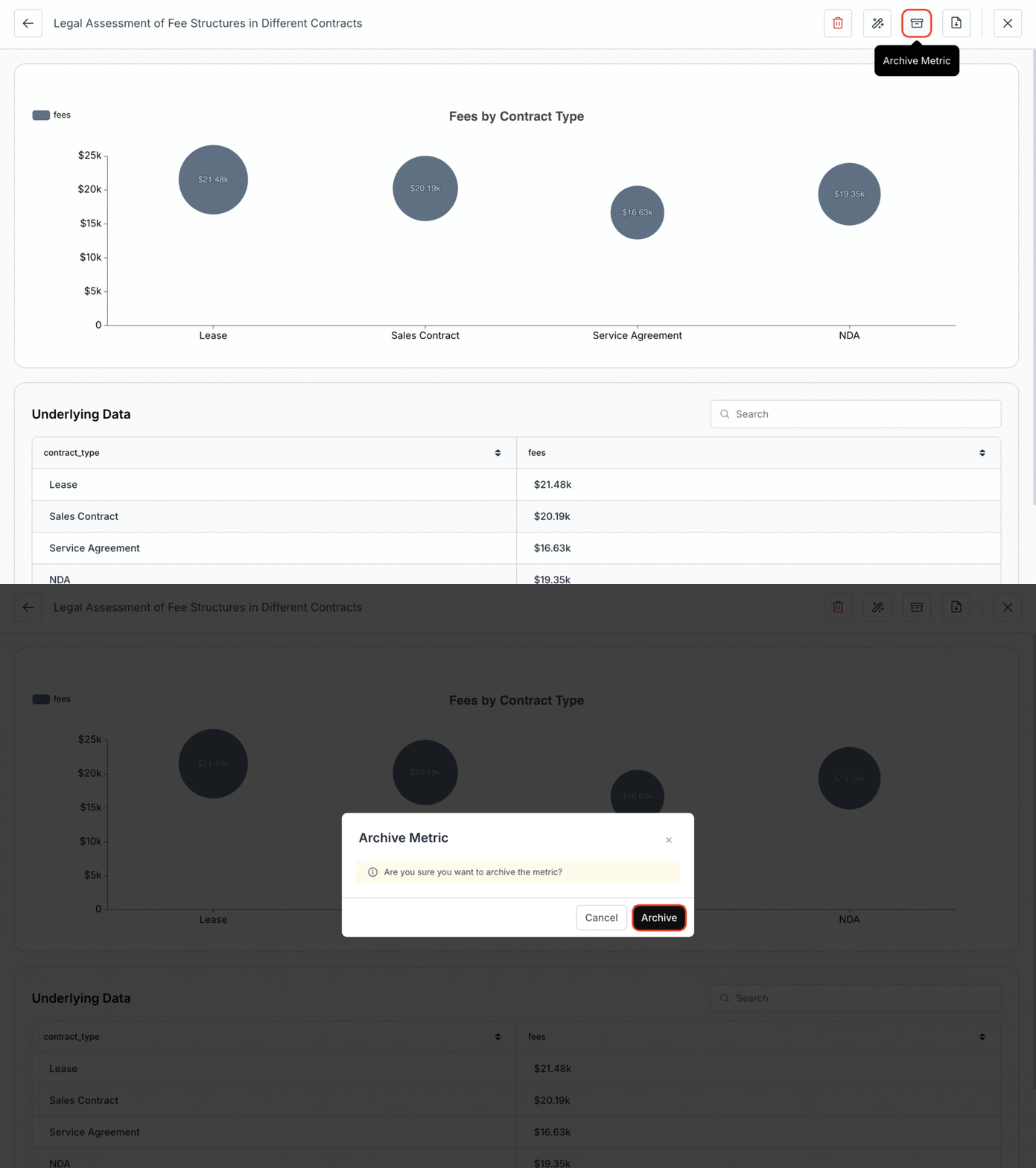
* **Open Full Screen:** Access the metric card in Full Screen Mode.
* **Archive the Card:** Click the `Archive` icon in the top right, next to the download icon, then select the **"Archive"** button to complete the archiving process.
 #### 2. Unarchiving a Metric Card
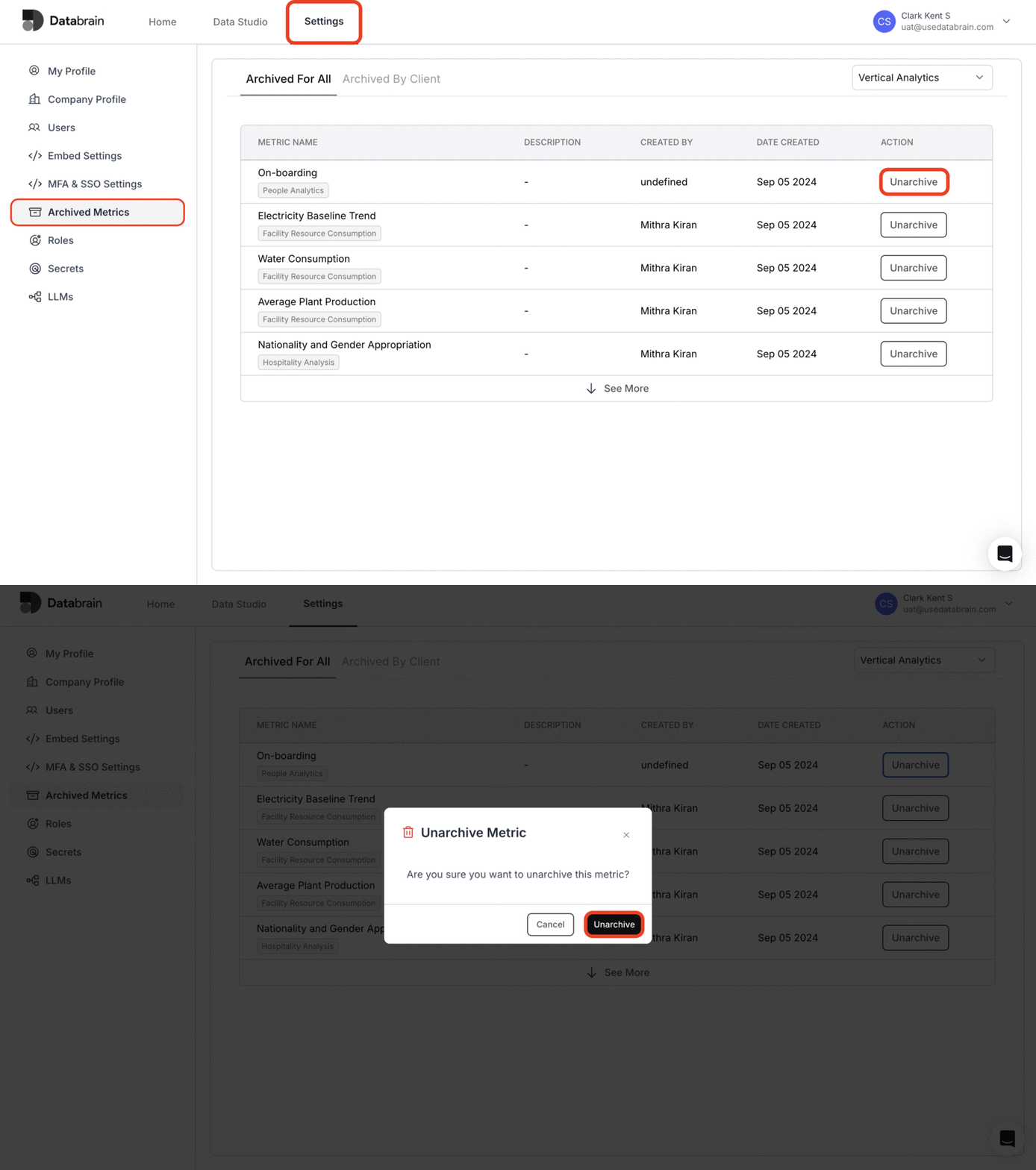
* **Access Archived Metrics:** Go to the **"Settings"** page from the home screen and select **"Archived Metrics"**.
* **Select Workspace:** Use the dropdown at the top right to choose your desired workspace.
* **Restore Metric Card:** Find the archived card you want, then click **"Unarchive"** to return it to its original dashboard.
#### 2. Unarchiving a Metric Card
* **Access Archived Metrics:** Go to the **"Settings"** page from the home screen and select **"Archived Metrics"**.
* **Select Workspace:** Use the dropdown at the top right to choose your desired workspace.
* **Restore Metric Card:** Find the archived card you want, then click **"Unarchive"** to return it to its original dashboard.
 Archiving helps keep your dashboard organized, while the unarchive feature allows you to easily restore important metrics in Databrain.
You’ve successfully learned how to archive and unarchive metric cards!\
Your dashboards can now stay organized, streamlined, and clutter-free—while giving you full flexibility to restore metrics whenever needed.
Archiving helps keep your dashboard organized, while the unarchive feature allows you to easily restore important metrics in Databrain.
You’ve successfully learned how to archive and unarchive metric cards!\
Your dashboards can now stay organized, streamlined, and clutter-free—while giving you full flexibility to restore metrics whenever needed.