> ## Documentation Index
> Fetch the complete documentation index at: https://docs.usedatabrain.com/llms.txt
> Use this file to discover all available pages before exploring further.
# Dynamic Property
> This guide explains the process of using dynamic properties in metric creation. These properties can fetch dynamic values directly from the database, with dependencies on dashboard or metric filters.
### 1. Access Dynamic Property:
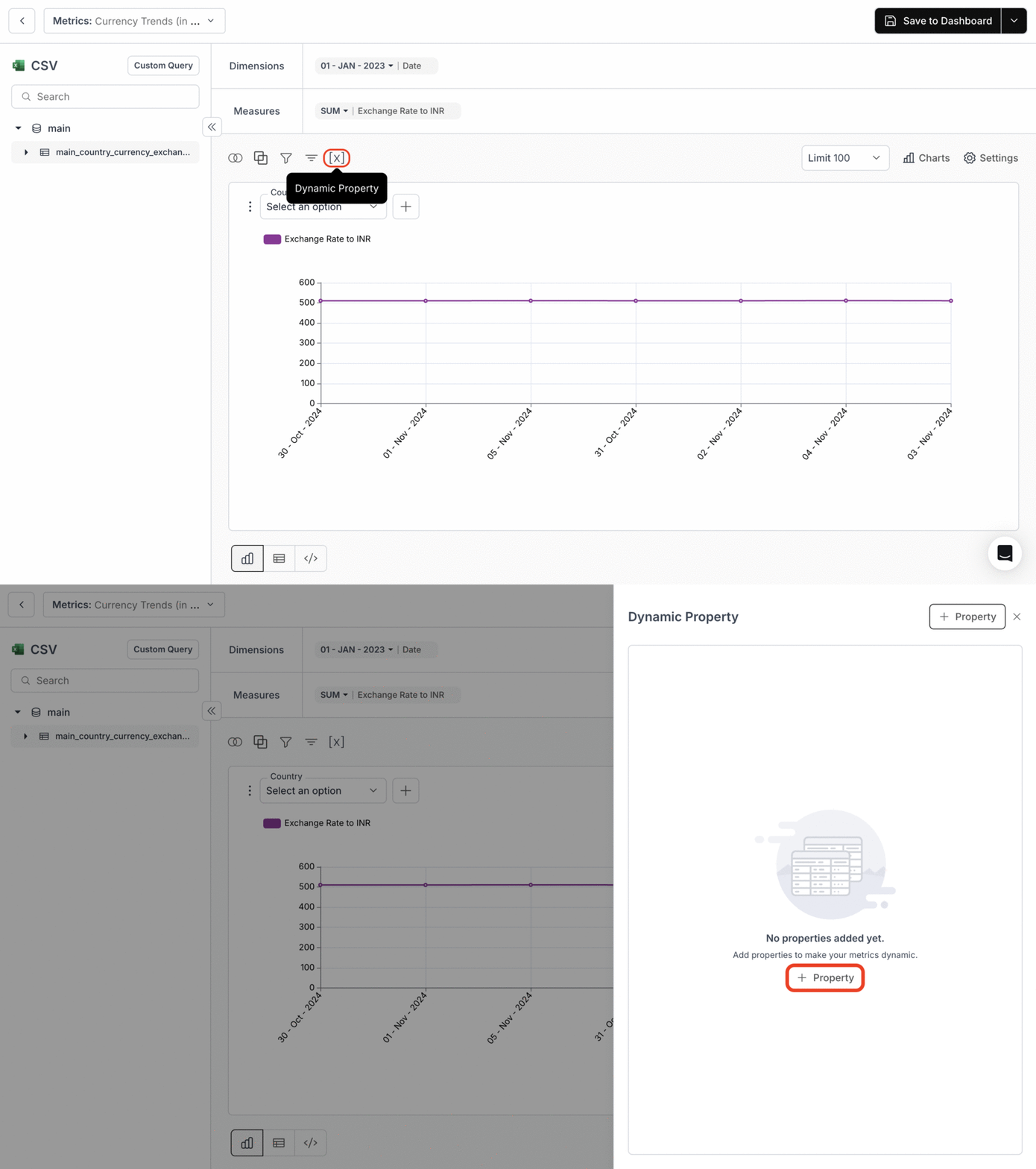
* In the metric creation page, click on **"\[X]"** icon near the sort icon.
* This will open the **"Dynamic Property"** panel on the right side of the screen.
* Then, click on **"+Property"** to add a dynamic property to your metric.
 ### 2. Configure Dynamic Property
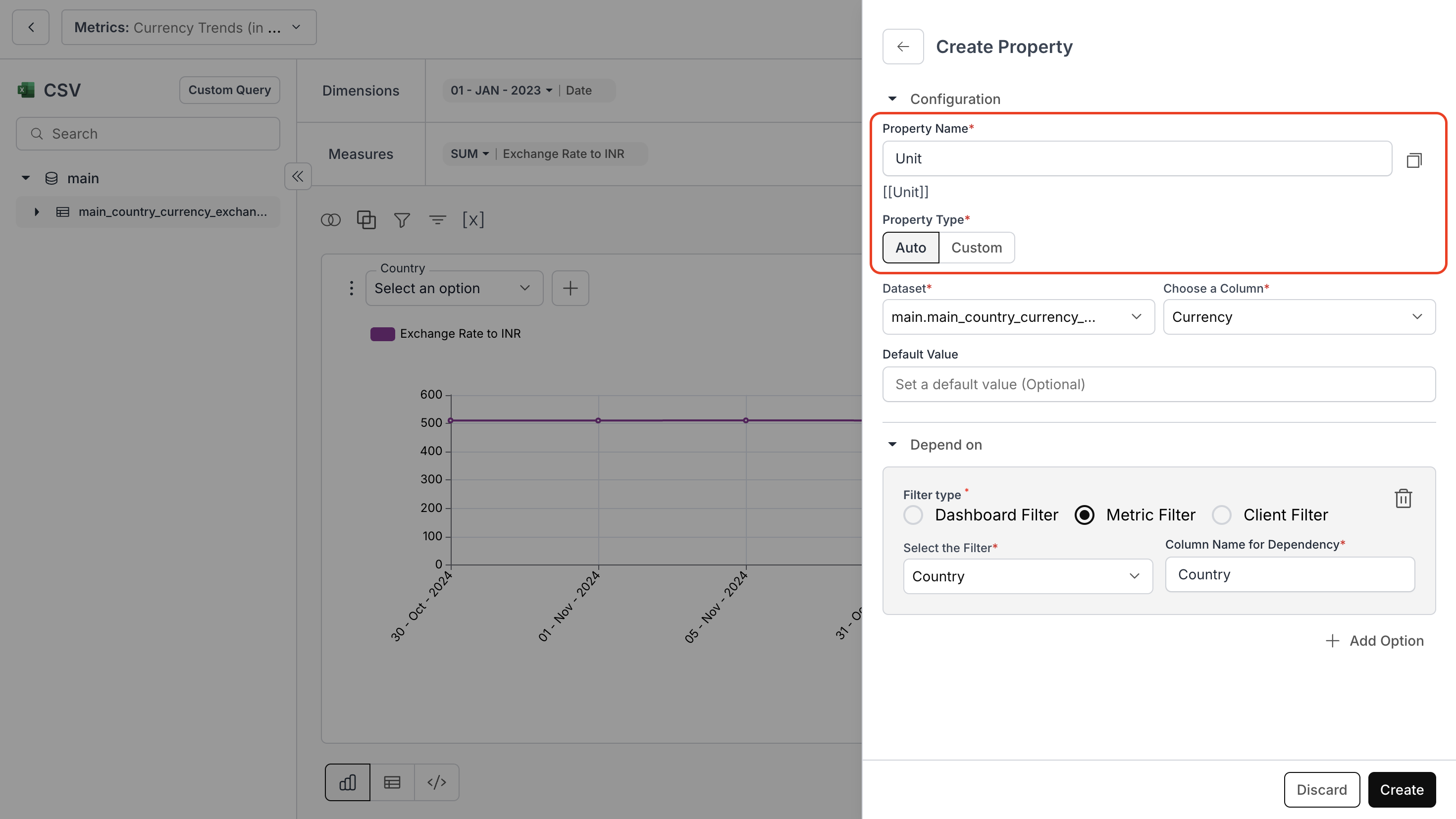
Enter the Property Name and choose between the two Property Types: **"Auto"** or **"Custom"**
### 2. Configure Dynamic Property
Enter the Property Name and choose between the two Property Types: **"Auto"** or **"Custom"**
 #### For Auto Property Type
* Choose the dataset and the column you want to consider.
* Then, select the dependencies: dashboard or metric filter type. *(Optional)*
* Finally, click on **"Create"**.
#### For Auto Property Type
* Choose the dataset and the column you want to consider.
* Then, select the dependencies: dashboard or metric filter type. *(Optional)*
* Finally, click on **"Create"**.
 #### For Custom Property Type
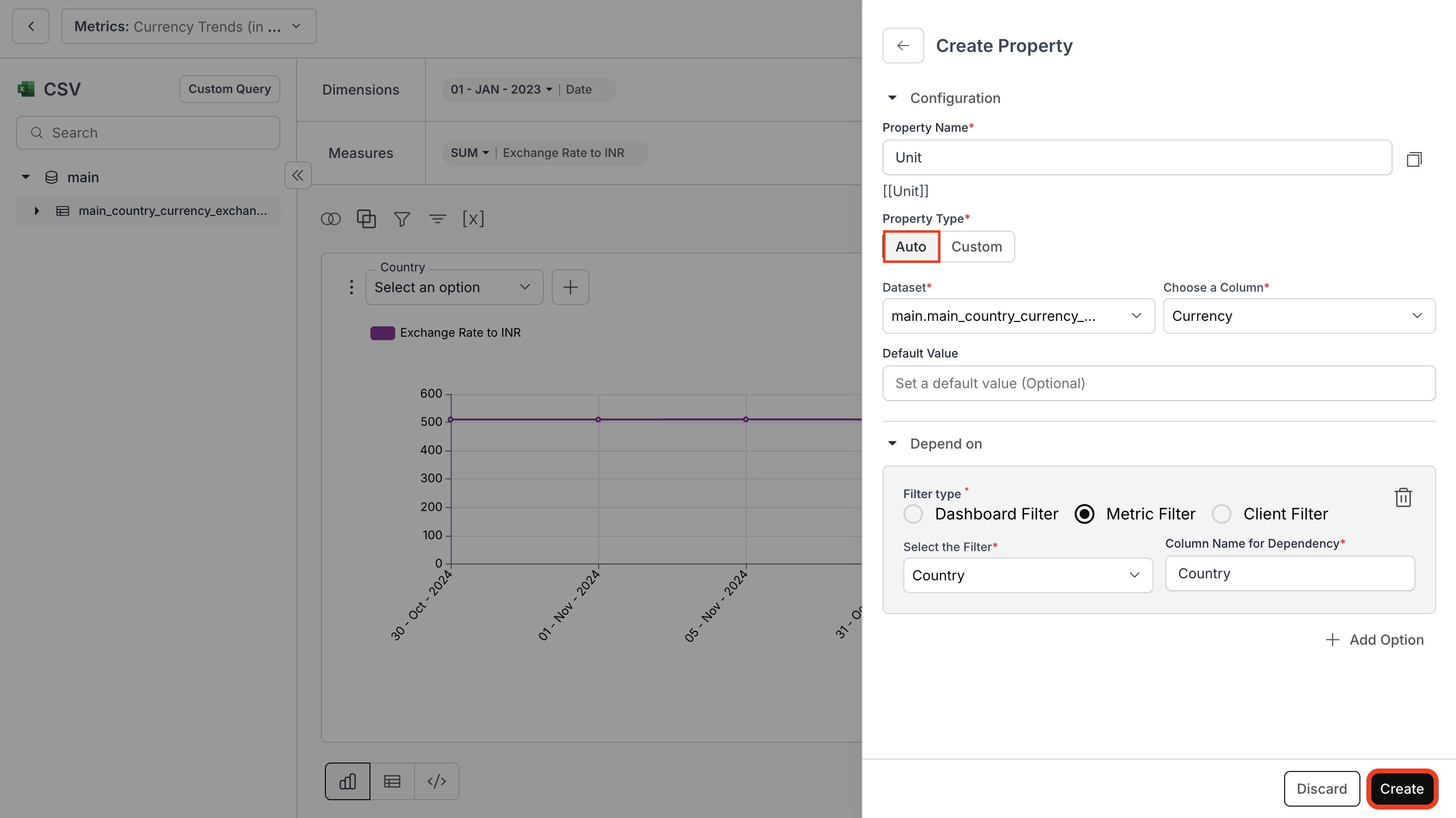
* Enter your SQL query to choose your dynamic value and dependent columns, and select the column name.
* Then, select the dependencies: dashboard or metric filter type. *(Optional)*
* Finally, click on **"Create"**.
#### For Custom Property Type
* Enter your SQL query to choose your dynamic value and dependent columns, and select the column name.
* Then, select the dependencies: dashboard or metric filter type. *(Optional)*
* Finally, click on **"Create"**.
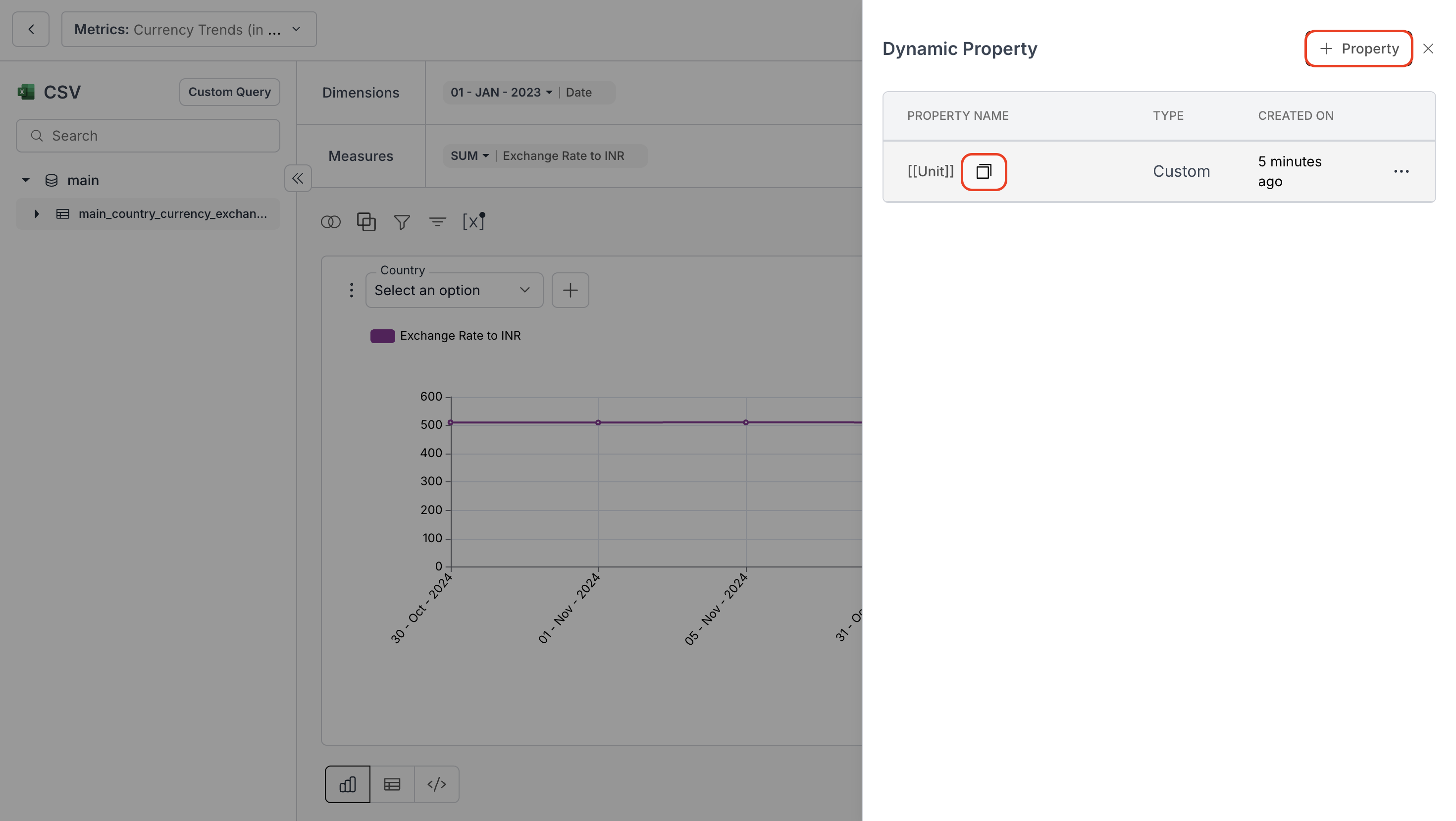
 #### 3. Verify Property Creation
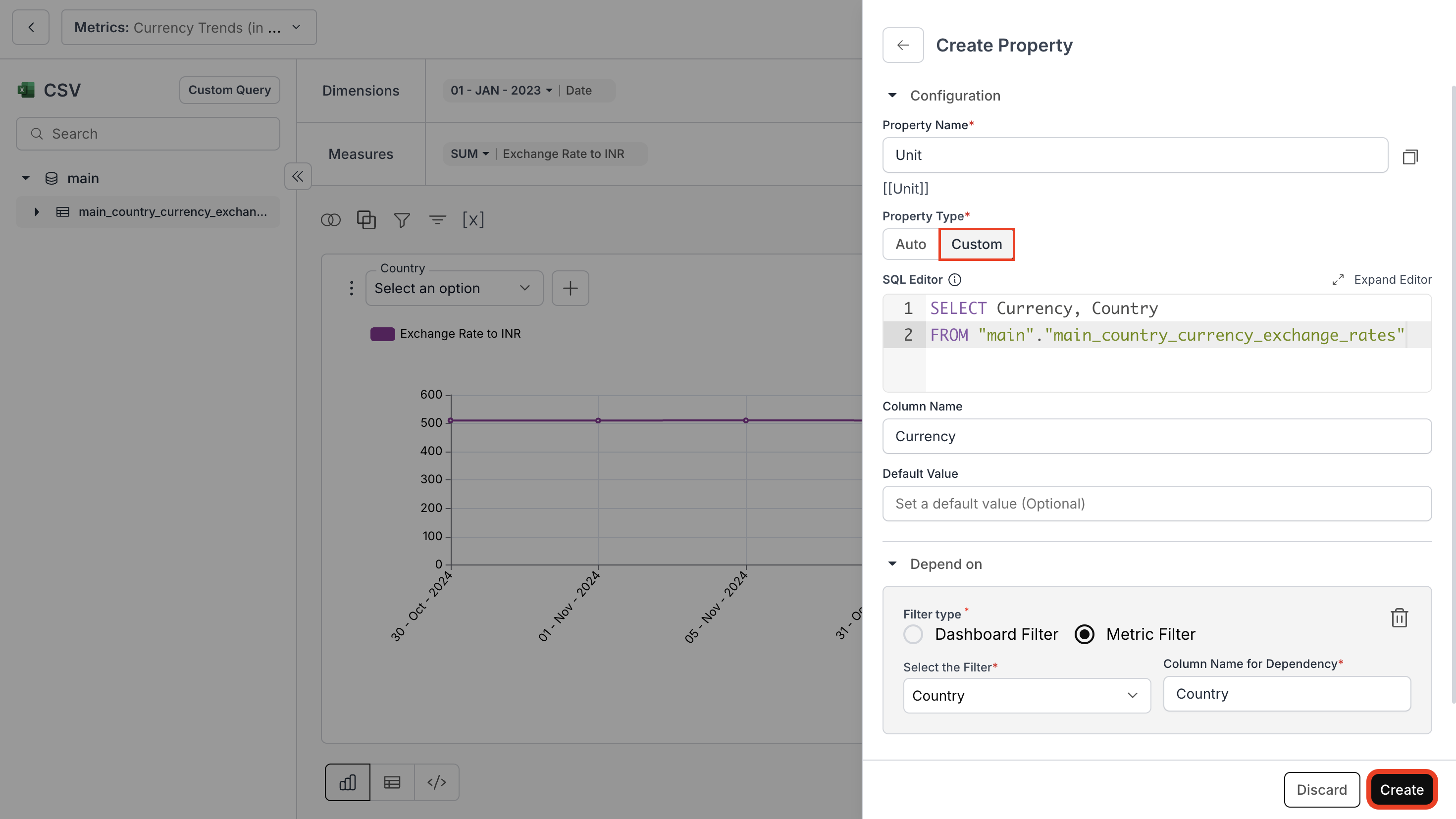
* Check the property listed in the **Dynamic Property** panel.
* Copy the property name format: `[[PropertyName]]` and close the panel.
#### 3. Verify Property Creation
* Check the property listed in the **Dynamic Property** panel.
* Copy the property name format: `[[PropertyName]]` and close the panel.
 #### 4. Use Dynamic Property in Metrics
In the **Formatting Options** of a metric, use the `[[PropertyName]]` format in:
* **Prefix**
* **Suffix**
This will dynamically update values based on selected inputs.
For more details, kindly refer the below link:
This guide provides a practical approach for utilizing Dynamic Property to dynamically display revenue in multiple currencies for different countries.
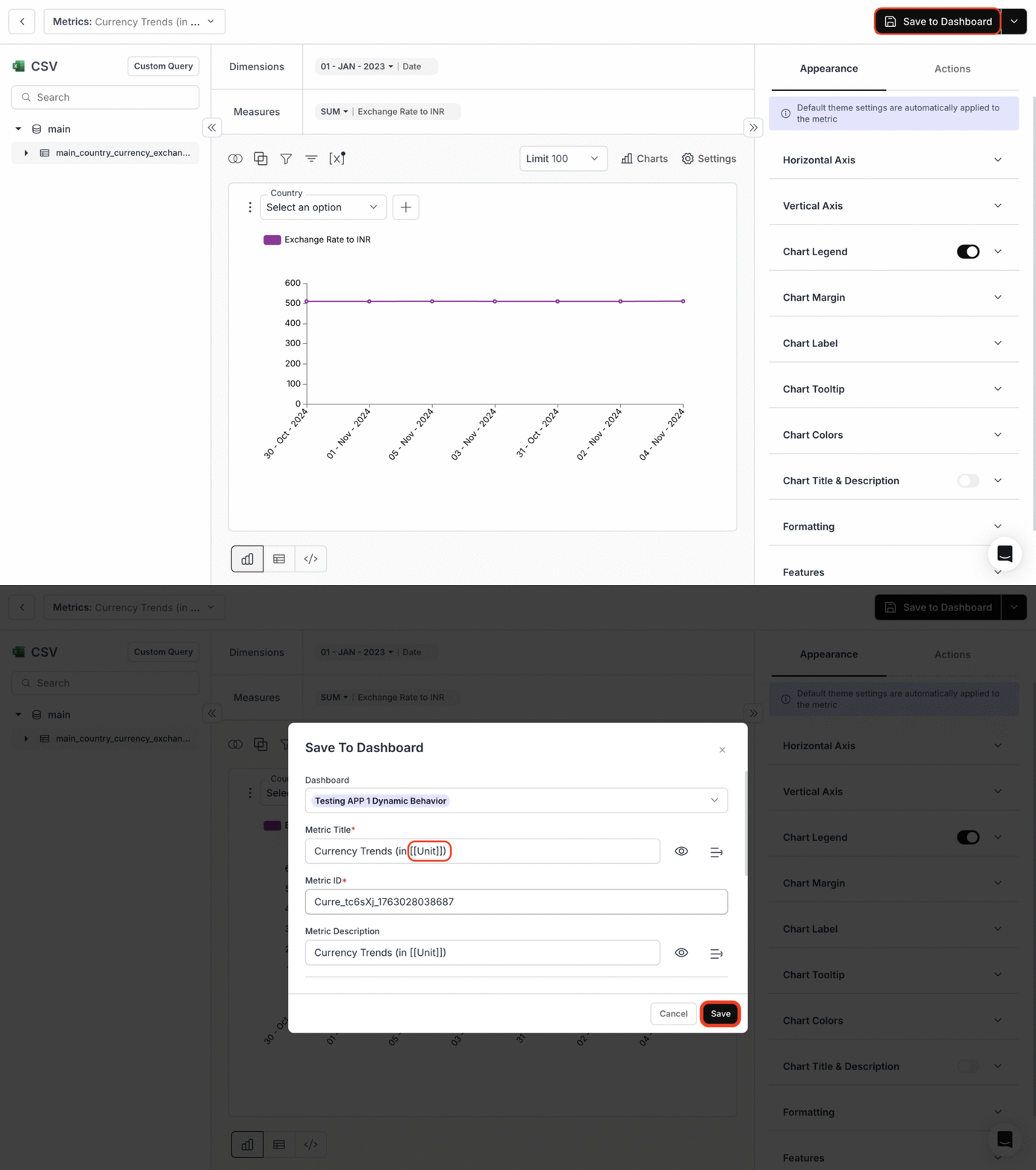
#### 5. Save Metric to Dashboard
* Click the **"Save to Dashboard"** button.
* Then, use the `[[PropertyName]]` format in:
* **Metric Title**
* **Metric Description**
* **Metric Long Description**, and
* **Footnote**
#### 4. Use Dynamic Property in Metrics
In the **Formatting Options** of a metric, use the `[[PropertyName]]` format in:
* **Prefix**
* **Suffix**
This will dynamically update values based on selected inputs.
For more details, kindly refer the below link:
This guide provides a practical approach for utilizing Dynamic Property to dynamically display revenue in multiple currencies for different countries.
#### 5. Save Metric to Dashboard
* Click the **"Save to Dashboard"** button.
* Then, use the `[[PropertyName]]` format in:
* **Metric Title**
* **Metric Description**
* **Metric Long Description**, and
* **Footnote**
 #### 6. View Dynamic Property
The dynamic property `[[Unit]]` shows different currency units based on the selected country.
#### 6. View Dynamic Property
The dynamic property `[[Unit]]` shows different currency units based on the selected country.
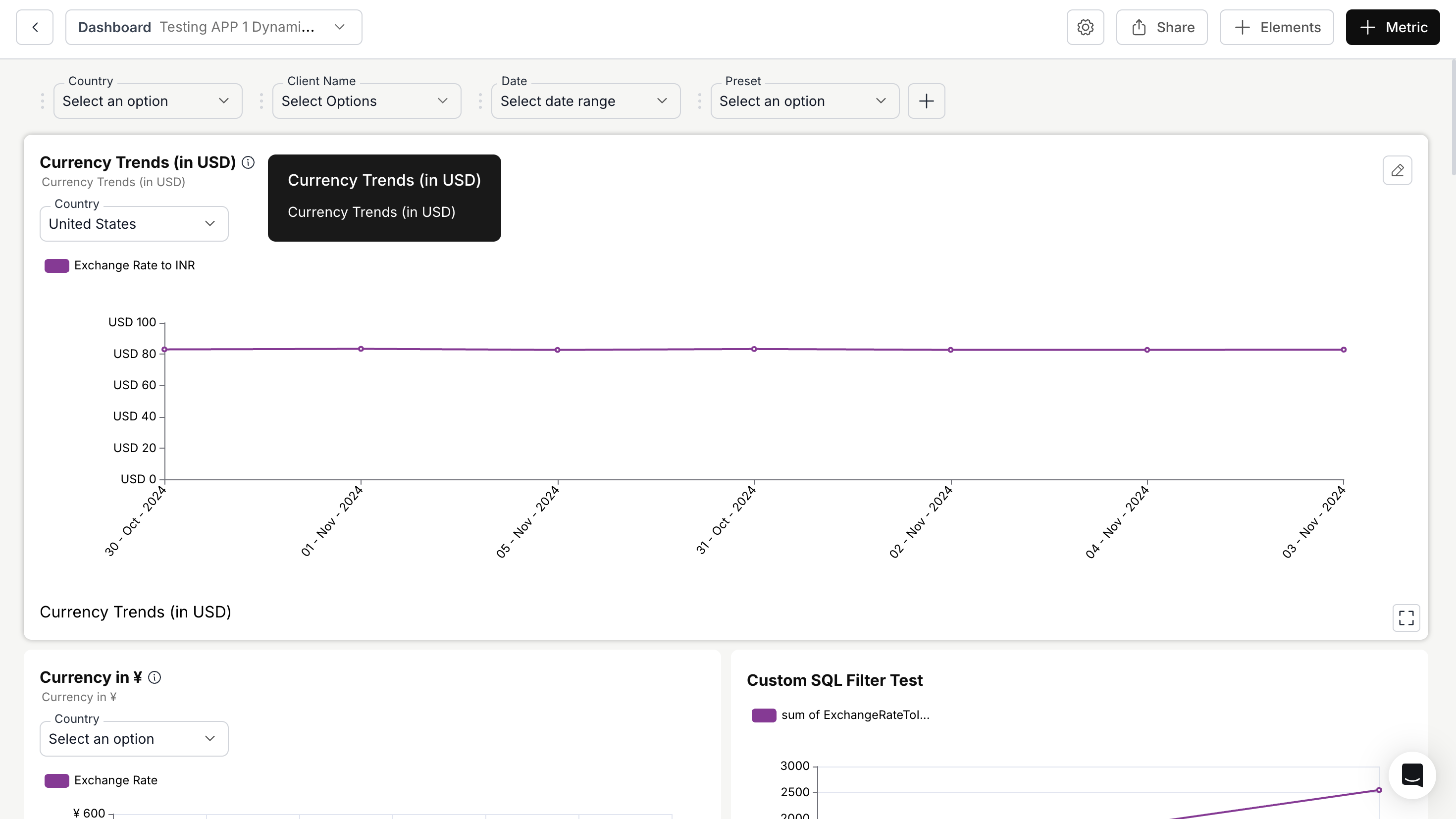 You’ve successfully configured and applied Dynamic Properties in your metric!\
Your metrics now respond intelligently to filters and user selections, enabling dynamic, context-aware values across your dashboards.
You’ve successfully configured and applied Dynamic Properties in your metric!\
Your metrics now respond intelligently to filters and user selections, enabling dynamic, context-aware values across your dashboards.