> ## Documentation Index
> Fetch the complete documentation index at: https://docs.usedatabrain.com/llms.txt
> Use this file to discover all available pages before exploring further.
# Metric Expression for Single Value Card
> This guide is essential to enhance dashboards by leveraging Metric Expressions for single-value cards.
> Metric Expressions allow you to perform calculations using single-value card metrics by referencing their values with their **Metric IDs**.
> **Example:**
> We have two single value cards:
>
> * Sales with Metric ID `{{Sales_hwPED}}`, valued at **\$2.89B**
> * Profit with Metric ID `{{Profi_qjvSWB}}`, valued at **\$2.84B**
> To calculate the Sales Profitability Ratio, we can use a Metric Expression:
>
> * `ROUND({{Sales_hwPED}}/{{Profi_qjvSWB}}, 2)`\
> Output: A single-value card displaying **1.02**
> Alternatively using,\
> `{{Sales_hwPED}}` / `{{Profi_qjvSWB}}`\
> Output: A single-value card displaying\
> **2891075848.0202847 / 2840122818.152845**
***
### 1. **Access Elements**
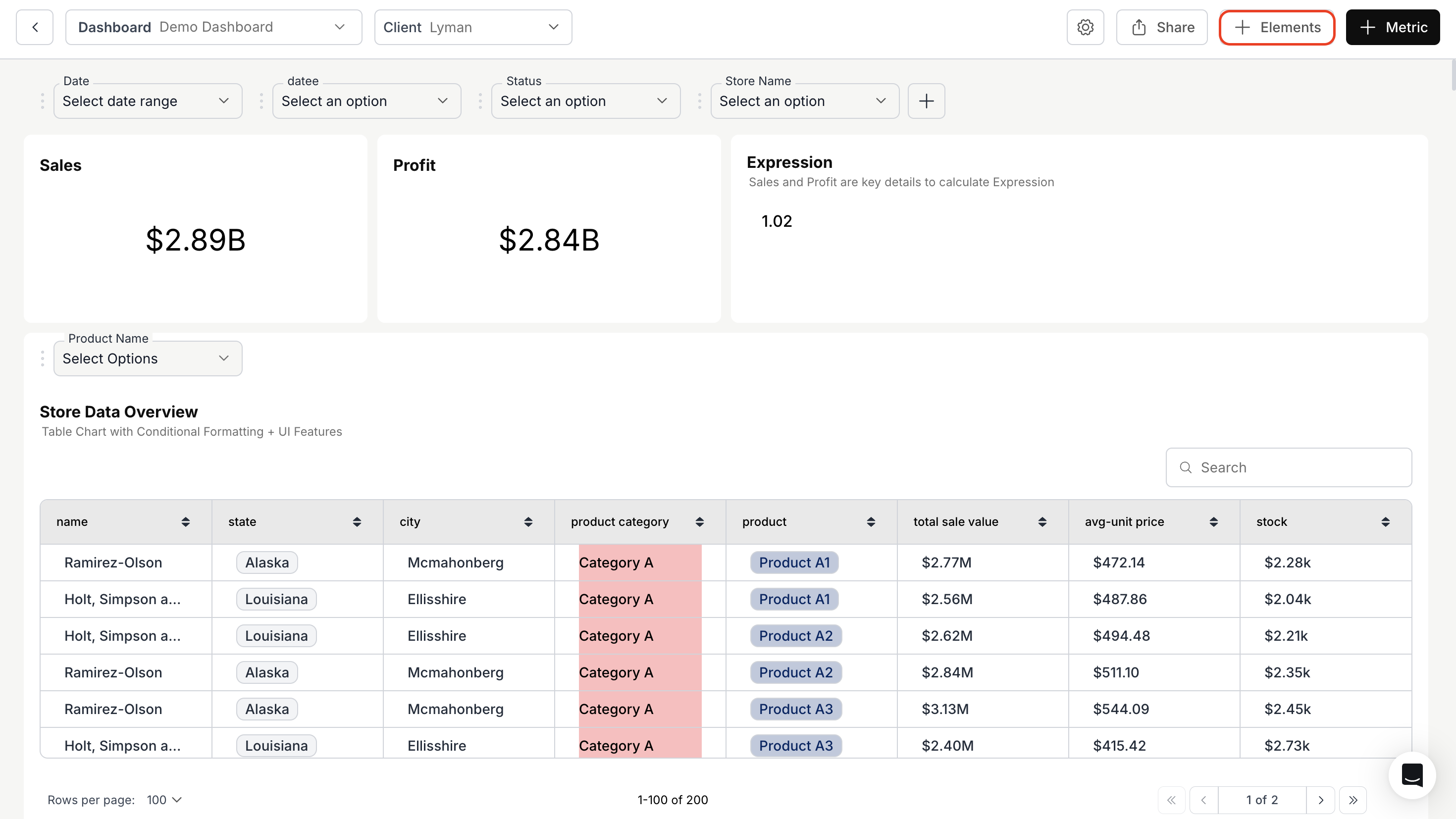
Navigate to your dashboard and click on **"+ Elements"** button near the create metric button.
 ### 2. **Configure Metric Expression**
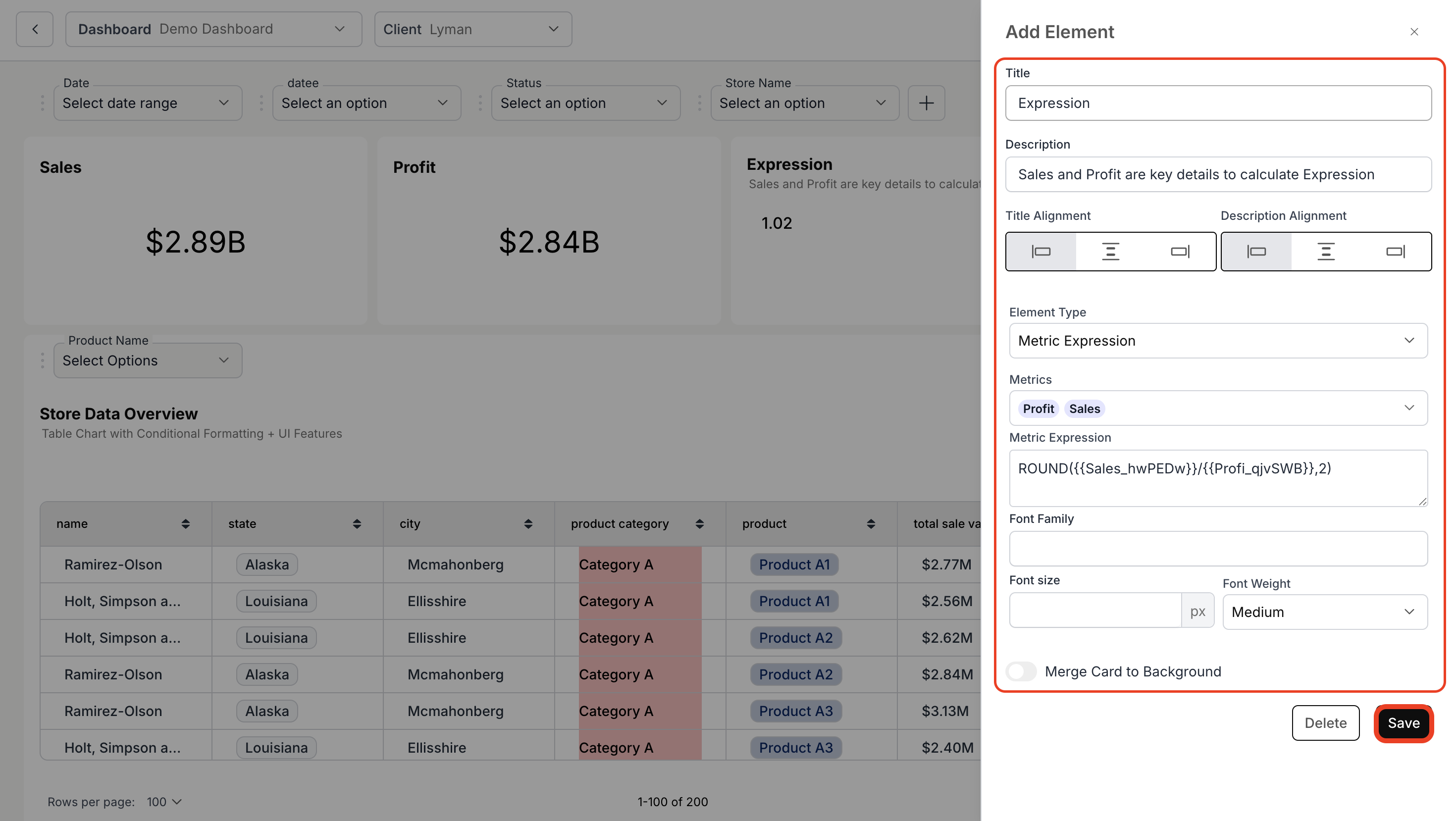
* Enter your suitable title and description for the metric expression.
* Choose the Element Type as **"Metric Expression"**.
* Select the metrics you want to include in the computation.
* In the **"Metric Expression"** text box, write the formula to be applied to the chosen single-value cards.
> Reference the value of a single-value card using its **Metric ID** like `{{metricid}}`
* Customize the appearance of the single-value card using font options such as **font family**, **font size**, and **font weight**.
* (Optional) Enable **"Merge Card to Background"** if you want to blend the metric into the dashboard background.
* Click **"Save"** to complete the setup.
### 2. **Configure Metric Expression**
* Enter your suitable title and description for the metric expression.
* Choose the Element Type as **"Metric Expression"**.
* Select the metrics you want to include in the computation.
* In the **"Metric Expression"** text box, write the formula to be applied to the chosen single-value cards.
> Reference the value of a single-value card using its **Metric ID** like `{{metricid}}`
* Customize the appearance of the single-value card using font options such as **font family**, **font size**, and **font weight**.
* (Optional) Enable **"Merge Card to Background"** if you want to blend the metric into the dashboard background.
* Click **"Save"** to complete the setup.
 ### 3. **View the Metric Expression**
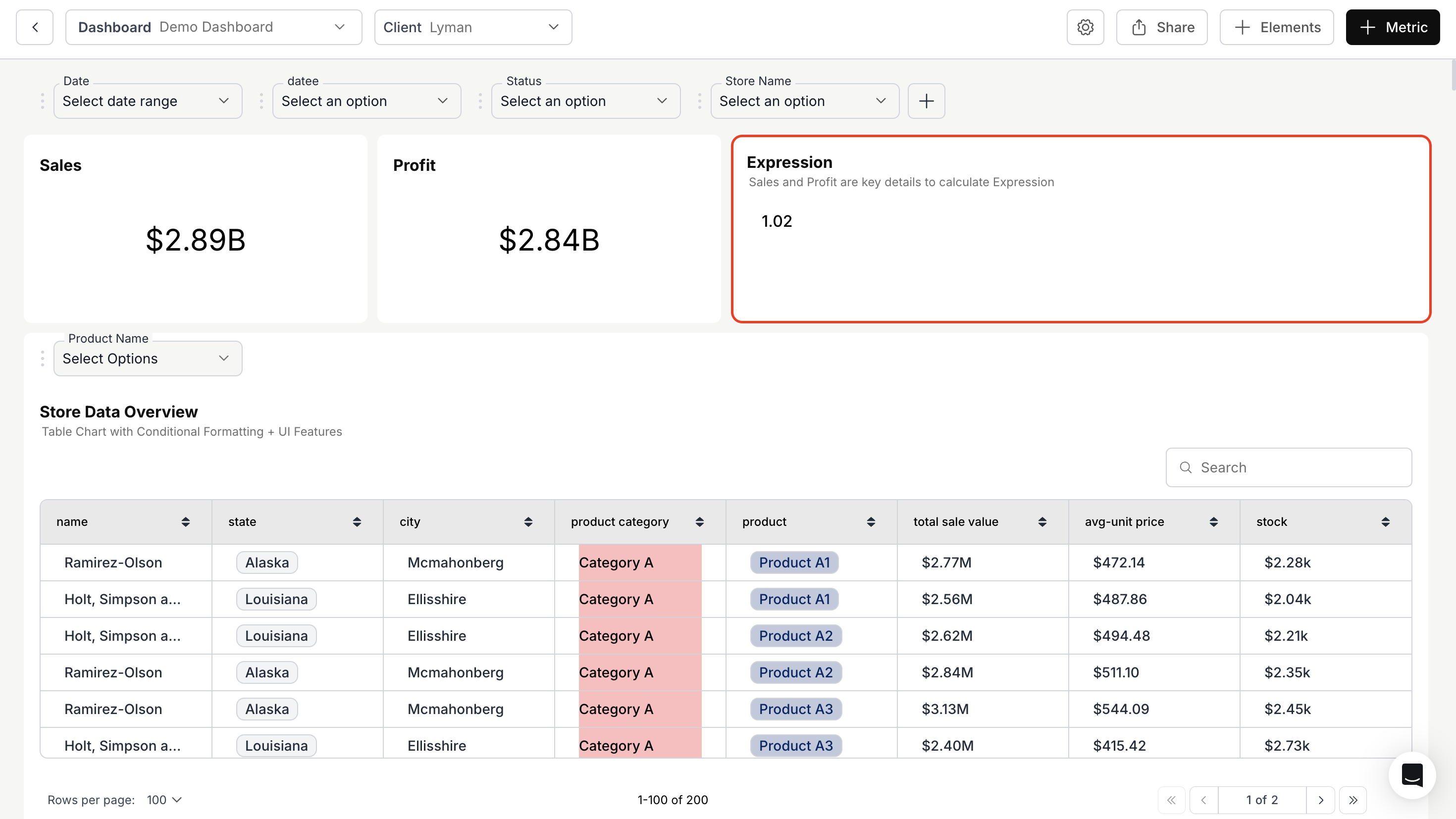
Once saved, your Metric Expression will be displayed on the dashboard, reflecting the computed value based on the selected metrics.
### 3. **View the Metric Expression**
Once saved, your Metric Expression will be displayed on the dashboard, reflecting the computed value based on the selected metrics.
 Metric Expression works only for single value cards!
You’ve successfully created a Metric Expression for your dashboard!\
Your single-value cards can now perform real-time calculations, enabling smarter comparisons and deeper analytical insights.
Metric Expression works only for single value cards!
You’ve successfully created a Metric Expression for your dashboard!\
Your single-value cards can now perform real-time calculations, enabling smarter comparisons and deeper analytical insights.