> ## Documentation Index
> Fetch the complete documentation index at: https://docs.usedatabrain.com/llms.txt
> Use this file to discover all available pages before exploring further.
# Section Filters
> This guide provides a straightforward approach to customizing your dashboard layout with section filters, allowing for a more tailored data analysis experience.
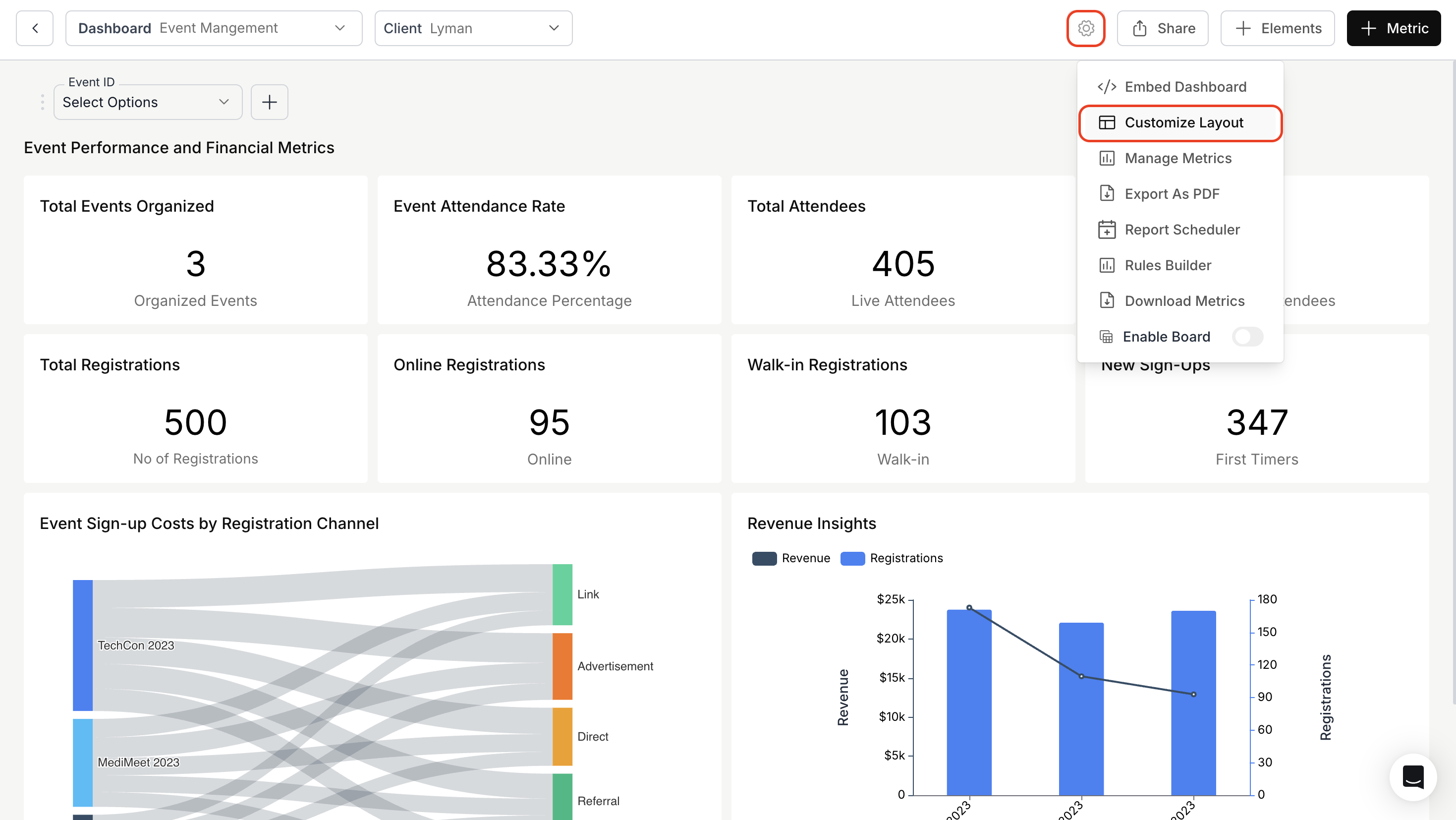
1. **Access Layout Customization:**
In the Dashboard page, click on **"Dashboard Settings"** in the top-right corner and select **"Customize Layout"** from the dropdown menu.
 2. **Section Filters:**
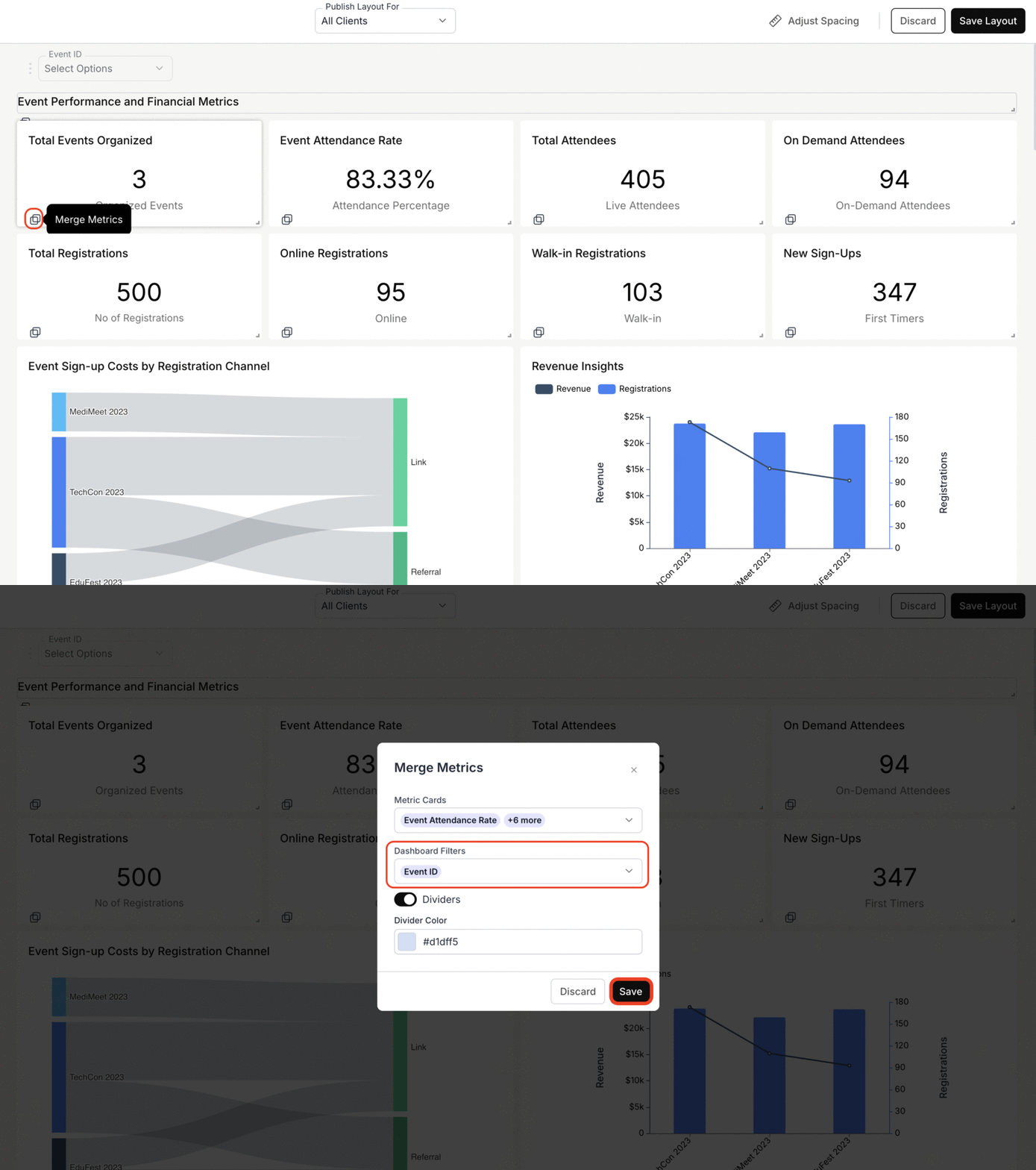
* Then, click on the **"Merge Metrics"** button located at the bottom left corner of the metric card.
* In the **"Merge Metrics"** dialog box, choose the **"Dashboard Filters"** you want to add to the section.
* Finally, click **"Save"** to confirm the selection.
2. **Section Filters:**
* Then, click on the **"Merge Metrics"** button located at the bottom left corner of the metric card.
* In the **"Merge Metrics"** dialog box, choose the **"Dashboard Filters"** you want to add to the section.
* Finally, click **"Save"** to confirm the selection.
 When you add dashboard filters to a section, they are automatically scoped to that section, meaning they will only affect the data within that specific section. This ensures a more focused and relevant view for your users.
3. **Publish the Layout:**
* Click **"Save Layout"** to save your changes, then click **"Publish"** to finalize them.
* After publishing, you can view the section filters in the dashboard.
When you add dashboard filters to a section, they are automatically scoped to that section, meaning they will only affect the data within that specific section. This ensures a more focused and relevant view for your users.
3. **Publish the Layout:**
* Click **"Save Layout"** to save your changes, then click **"Publish"** to finalize them.
* After publishing, you can view the section filters in the dashboard.
 You’ve successfully applied Section Filters to your dashboard!\
Your users can now interact with more targeted and context-specific filters, improving clarity and analytical precision.
You’ve successfully applied Section Filters to your dashboard!\
Your users can now interact with more targeted and context-specific filters, improving clarity and analytical precision.