> ## Documentation Index
> Fetch the complete documentation index at: https://docs.usedatabrain.com/llms.txt
> Use this file to discover all available pages before exploring further.
# Create Calculated Fields
> This guide offers a straightforward approach to creating custom columns by utilizing calculated fields and SQL queries, enabling users to tailor their data analysis to specific needs.
**Purpose of Custom Columns:**
**Custom columns** in Databrain enable users to create and save new data fields derived from their existing data. These columns are mathematically calculated, transformed, or altered to suit specific business needs. Once created, they can be reused across all metrics and analyses.
**Example Use Cases:**
* **Combining fields:** Merge first and last names into a "Full Name" column for consistent use across datasets.
* **Standardizing calculations:** Create a "Net Revenue" column by subtracting refunds and discounts from total sales, ensuring consistent formulas across reports.
* **Defining business-specific KPIs:** Calculate "Customer Lifetime Value" based on purchase frequency, average order value, and customer lifespan to track business performance.
### 1. Access Calculated Field
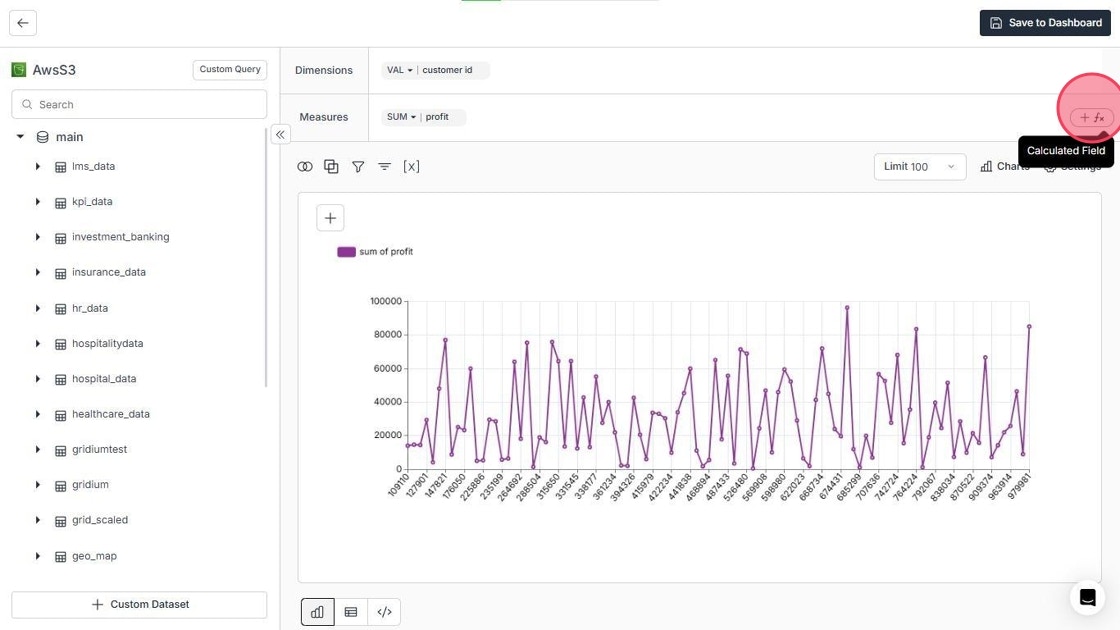
In the metric creation page, hover over the **"Measures"** area and click on the **"+fx"** icon.
 ### Databrain offers two methods for creating custom columns
#### Quick Field — for simple calculations
**Use Cases:**
* Simple mathematical operations (e.g., addition, subtraction)
* Basic business metrics (e.g., profit margins, conversion rates)
* Standardized calculations across reports
### Method 1: Quick Field

* **Column Selection**: Choose your input columns.
* **Data Configuration**: Set data type and then choose aggregate function.
* **Operation Selection**: Pick a mathematical operator (`+`, `-`, `*`, `/`).
* Assign an alias for the calculated field and click on **"Save"** to save the calculated field.
### Databrain offers two methods for creating custom columns
#### Quick Field — for simple calculations
**Use Cases:**
* Simple mathematical operations (e.g., addition, subtraction)
* Basic business metrics (e.g., profit margins, conversion rates)
* Standardized calculations across reports
### Method 1: Quick Field
* **Column Selection**: Choose your input columns.
* **Data Configuration**: Set data type and then choose aggregate function.
* **Operation Selection**: Pick a mathematical operator (`+`, `-`, `*`, `/`).
* Assign an alias for the calculated field and click on **"Save"** to save the calculated field.
 ### Method 2: Complex Field

* In the **Metric Creation** page, hover over the **Measures** area and click on the **"+fx"** icon.
* Select the target table name, then enter your SQL query in the code area.
* Follow the syntax:\
`“schemaName_tableName”.“columnName”`
* Replace `"schemaName_tableName"` with your actual schema and table names.
* (Optional) Use the **“Format Query with AI”** option to align with Databrain’s best practices.
* Assign an alias to the query in the \*\*"Query Name" \*\*field and click **"Add"**.
* Finally, click **"Save to Dashboard"**.
### Method 2: Complex Field
* In the **Metric Creation** page, hover over the **Measures** area and click on the **"+fx"** icon.
* Select the target table name, then enter your SQL query in the code area.
* Follow the syntax:\
`“schemaName_tableName”.“columnName”`
* Replace `"schemaName_tableName"` with your actual schema and table names.
* (Optional) Use the **“Format Query with AI”** option to align with Databrain’s best practices.
* Assign an alias to the query in the \*\*"Query Name" \*\*field and click **"Add"**.
* Finally, click **"Save to Dashboard"**.
 Once saved, the custom column is added to the specified table (e.g., `demo_sales`) and is ready for use in any metric or analysis.
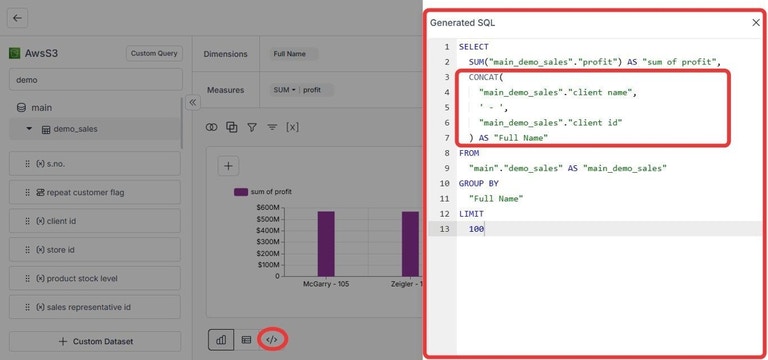
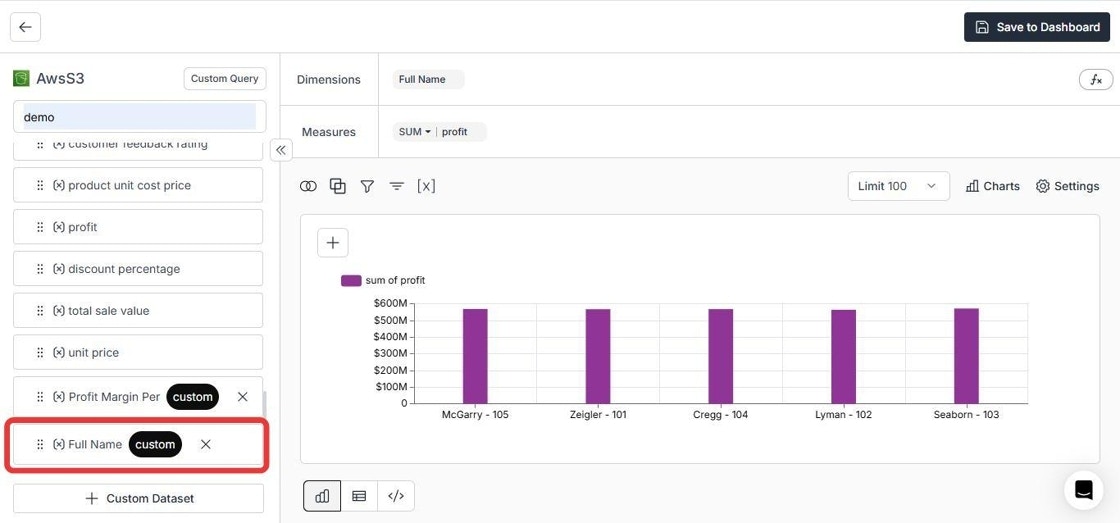 Here is an illustration of generated SQL after adding the Custom SQL Column: