> ## Documentation Index
> Fetch the complete documentation index at: https://docs.usedatabrain.com/llms.txt
> Use this file to discover all available pages before exploring further.
# Create a Private Workspace
> This guide provides a straightforward process for creating a private workspace. This feature enhances privacy and allows for focused work without visibility constraints.
* **Enhanced Security:** Only invited members can access the workspace
* **Controlled Visibility:** Your work remains hidden from the general organization
* **Focused Environment:** Work on sensitive projects
* **Testing Ground:** Safely experiment with metrics before making them public
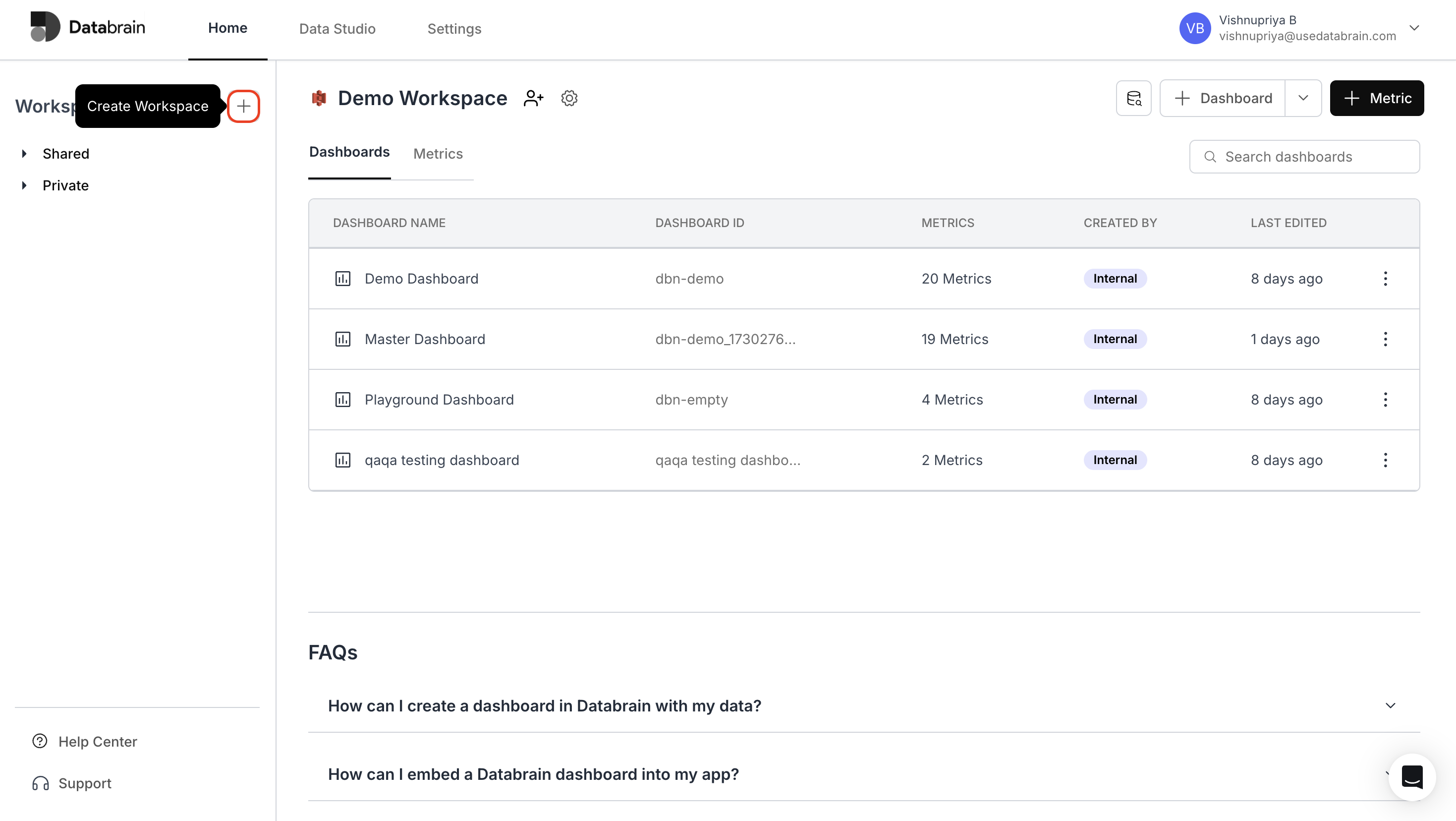
On the Home page, click the + button located near the Workspaces drop-down menu.
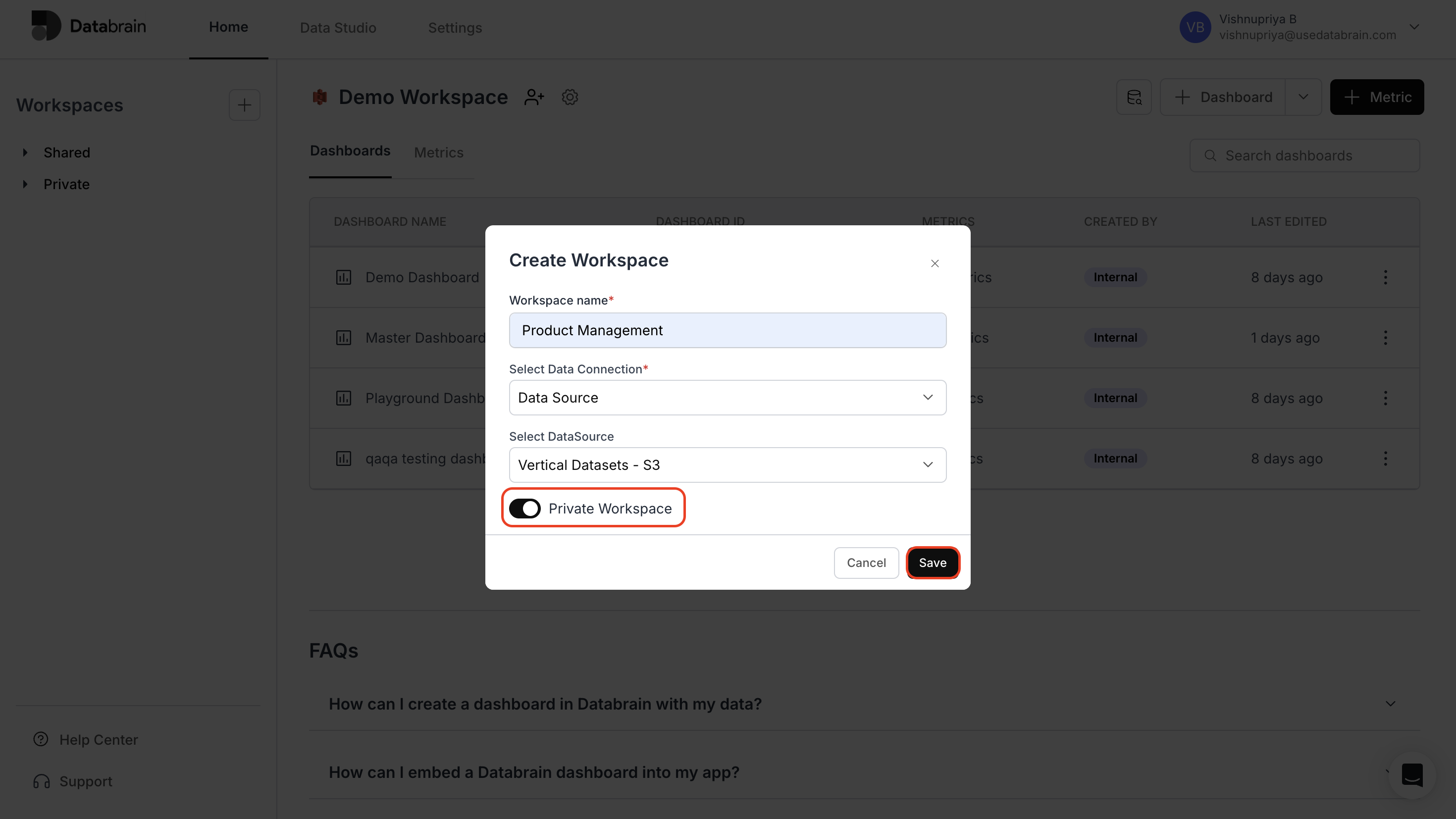
- Enter a title in the Workspace Name field.
- Under Select Data Connection, choose either Data Source or Data Mart.
- In the Select Data Mart or Select Data Source field, pick the appropriate option.
- Toggle on the Private Workspace setting.
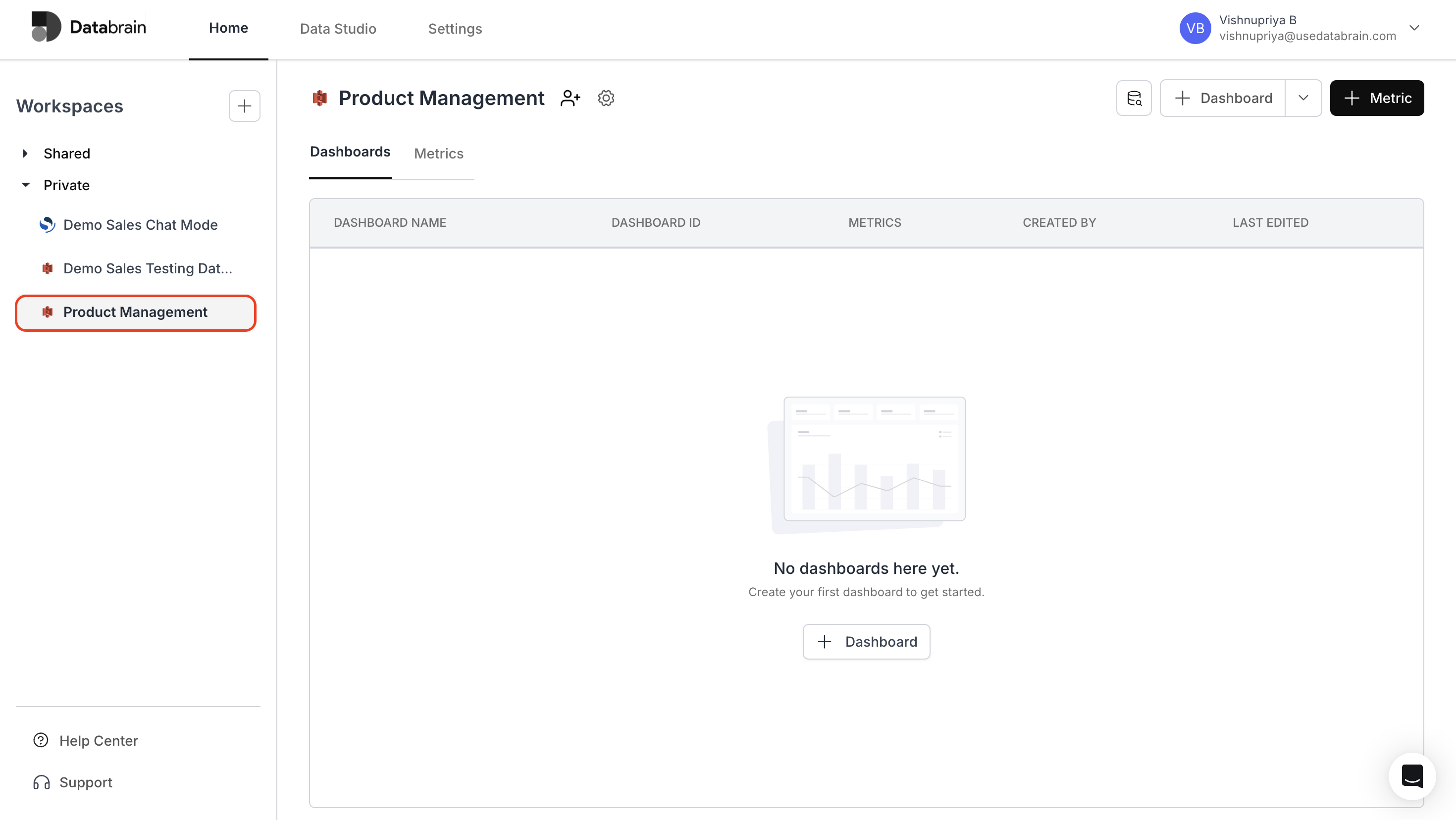
 Your private workspace will now appear in the Private section of the Home page.
 You’ve successfully created a Private Workspace in Databrain!\
Your workspace is now secure and visible only to invited members, providing a safe environment to experiment, analyze, and collaborate on sensitive projects.
You’ve successfully created a Private Workspace in Databrain!\
Your workspace is now secure and visible only to invited members, providing a safe environment to experiment, analyze, and collaborate on sensitive projects.