> ## Documentation Index
> Fetch the complete documentation index at: https://docs.usedatabrain.com/llms.txt
> Use this file to discover all available pages before exploring further.
# Create a Workspace
> This guide provides a detailed process for creating a new workspace within the application. Follow these steps to set up a workspace tailored to your specific needs.
> A **workspace** in Databrain is a dedicated environment where teams can organize and manage their data analytics projects. It serves as a collaborative space where team members can create, share, and analyze metrics specific to their department or project needs.
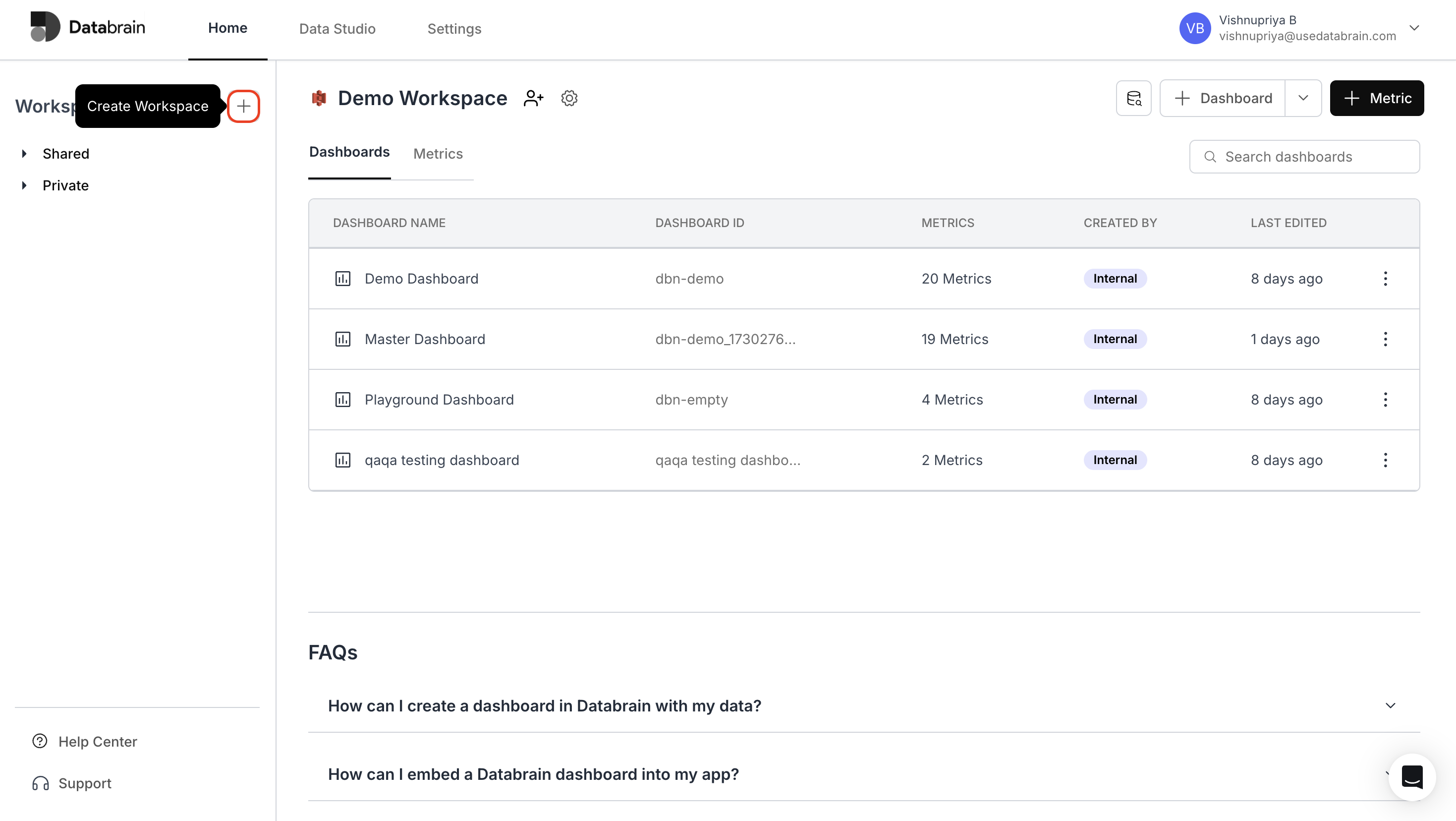
On the Home page, click the + button located near the Workspaces drop-down menu.
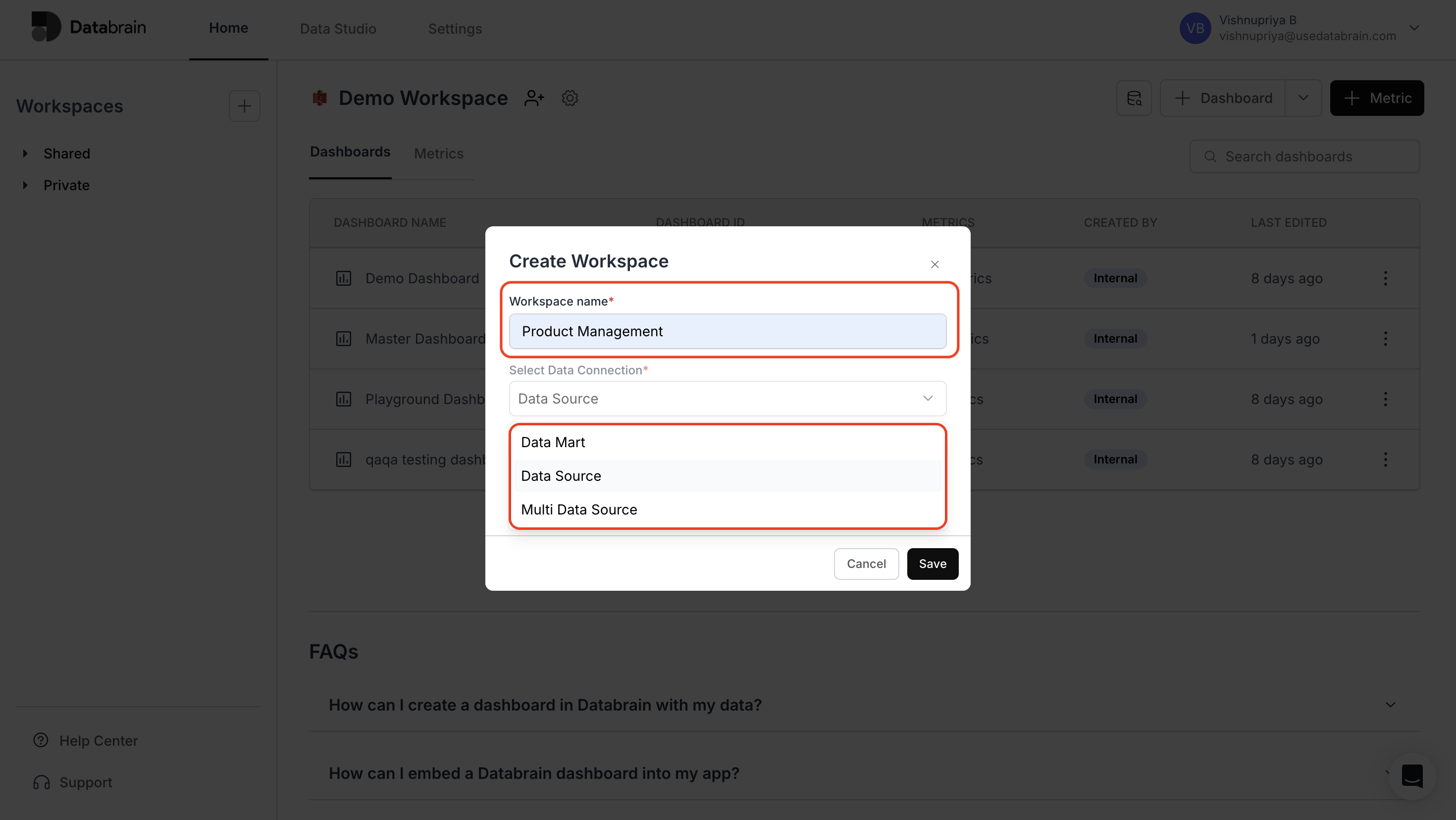
 In the Workspace name field, input a title such as
 Product Management.\
Under Select Data Connection, choose from the available options: Data Mart, Data Source, or Multi Data Source.
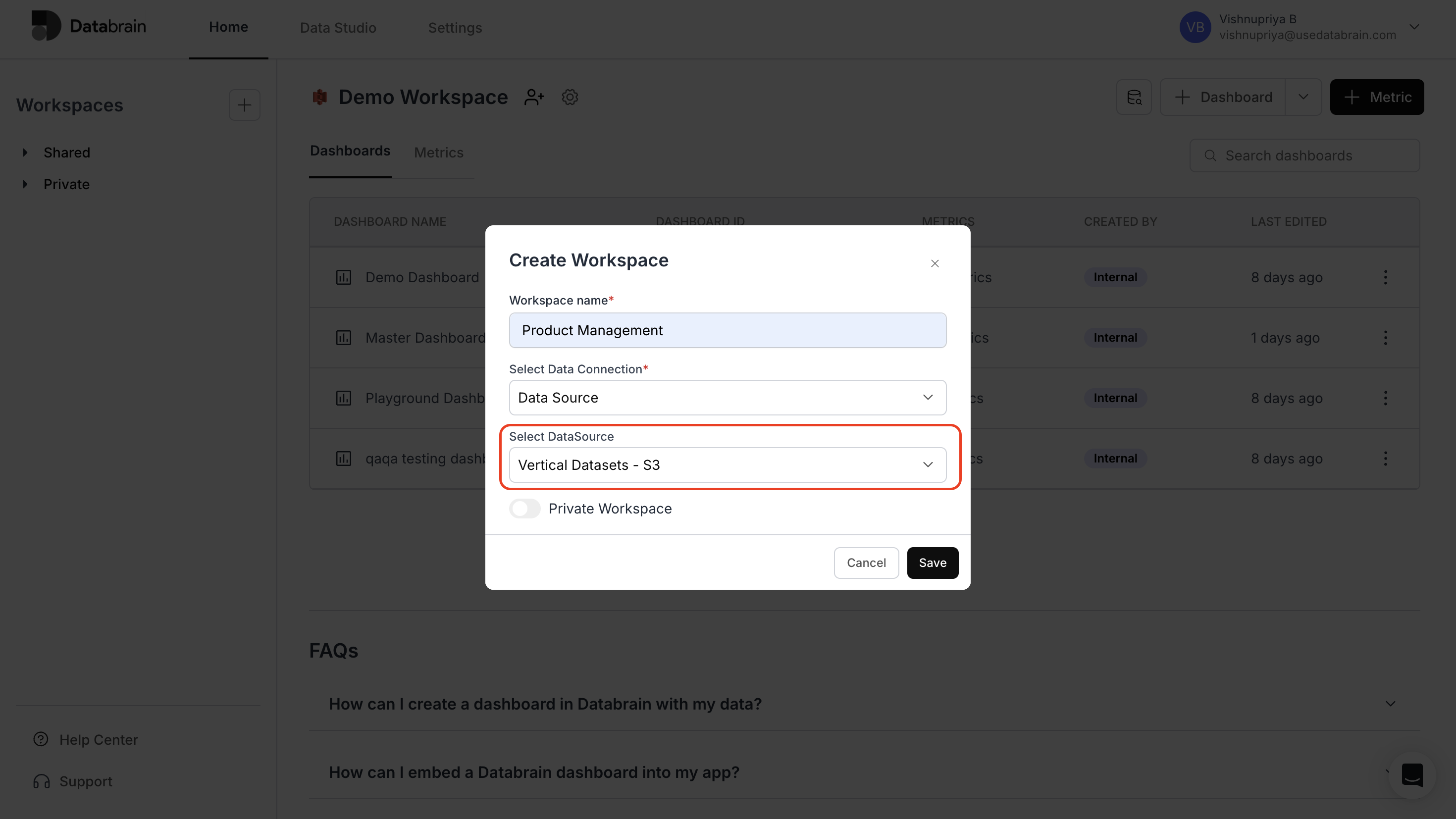
 In Select DataSource/DataMart, select the relevant Data Source or Data Mart name from the dropdown.\
Then, click Save to create the workspace.
In Select DataSource/DataMart, select the relevant Data Source or Data Mart name from the dropdown.\
Then, click Save to create the workspace.
 Once saved, your workspace is successfully created and listed under Workspaces on the left navigation panel.
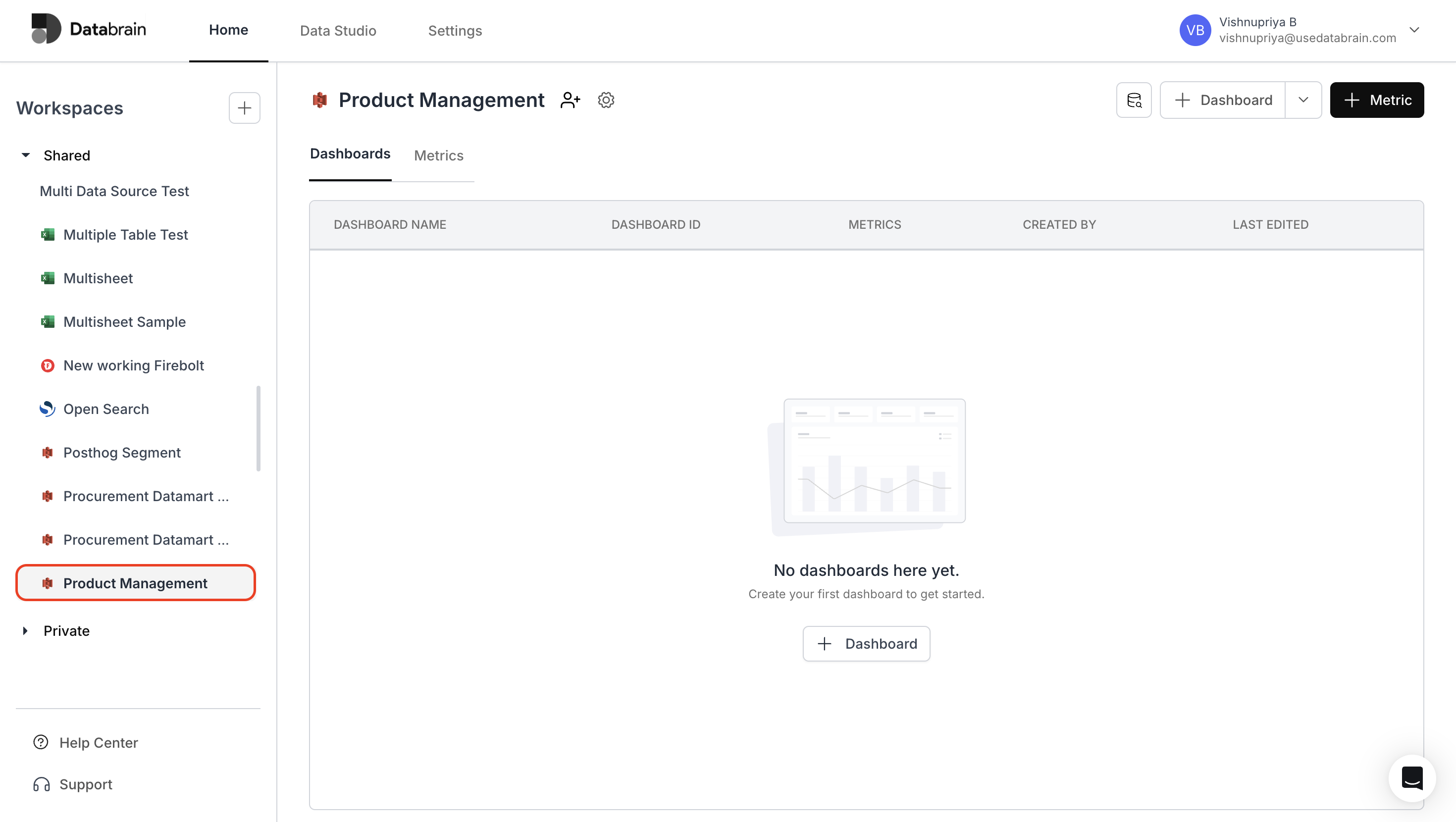 You’ve successfully created a new workspace in Databrain!\
Your workspace is now ready for use — start adding dashboards, metrics, and visualizations to collaborate and analyze data efficiently with your team.
You’ve successfully created a new workspace in Databrain!\
Your workspace is now ready for use — start adding dashboards, metrics, and visualizations to collaborate and analyze data efficiently with your team.