> ## Documentation Index
> Fetch the complete documentation index at: https://docs.usedatabrain.com/llms.txt
> Use this file to discover all available pages before exploring further.
# Access Control Settings
### Configure Access Control
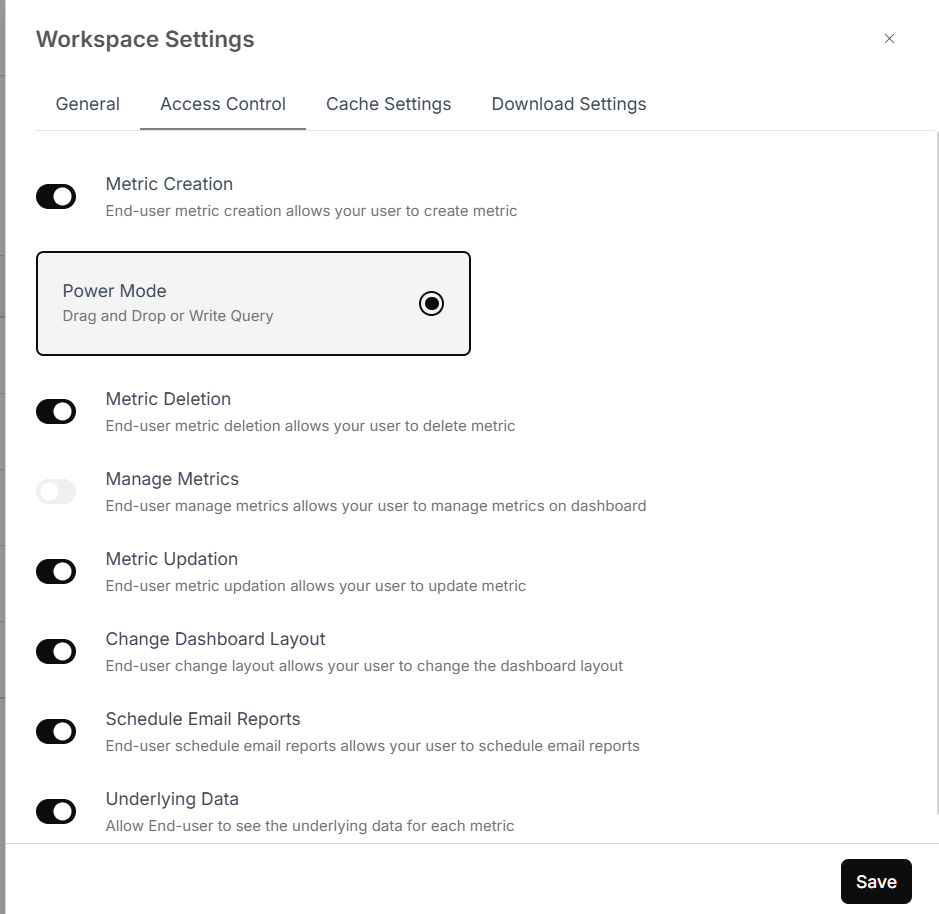
In the **"Access Control"** section, you can set access permissions for your end users by toggling the following options:
* **Metric Creation** – Allows users to create metrics.
* **Metric Deletion** – Allows users to delete metrics.
* **Manage Metrics** – Enables management of metrics on the dashboard.
* **Metric Updation** – Lets users update existing metrics.
* **Change Dashboard Layout** – Grants permission to rearrange dashboard elements.
* **Schedule Email Reports** – Allows users to schedule report emails.
* **Underlying Data** – Provides access to raw data behind the metric.
* You can also choose between **Power Mode** and **Chat Mode** based on user experience preference.
 ### Metric Permissions Breakdown
* **"Metric Creation"**: Lets users create metrics.
* **"Metric Deletion"**: Grants users the capability to erase metrics.
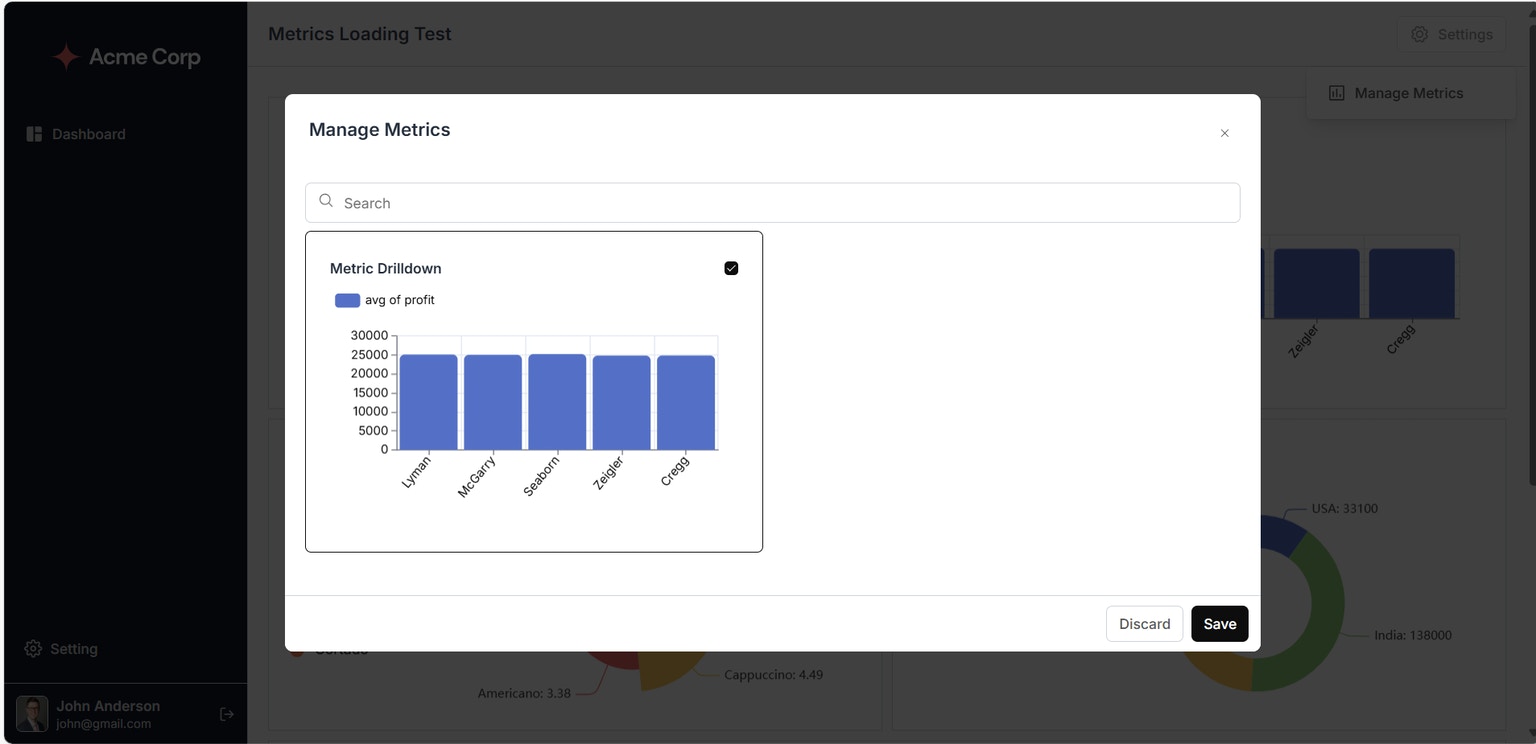
* **"Manage Metrics"**: Enables users to manage the metrics displayed on your dashboard. They can archive/unarchive metrics from Manage Metric in embedded dashboard settings.
### Metric Permissions Breakdown
* **"Metric Creation"**: Lets users create metrics.
* **"Metric Deletion"**: Grants users the capability to erase metrics.
* **"Manage Metrics"**: Enables users to manage the metrics displayed on your dashboard. They can archive/unarchive metrics from Manage Metric in embedded dashboard settings.
 * **"Metric Updation"**: Enables users to update metrics.
* **"Change Dashboard Layout"**: Permits users to alter the dashboard's layout.
* **"Schedule Email Reports"**: Enables users to schedule automated email reports for your metrics.
* **"Underlying Data"**: Grants you access to view the raw data that supports each metric.
By default, all metrics are marked as mandatory to dashboard.\
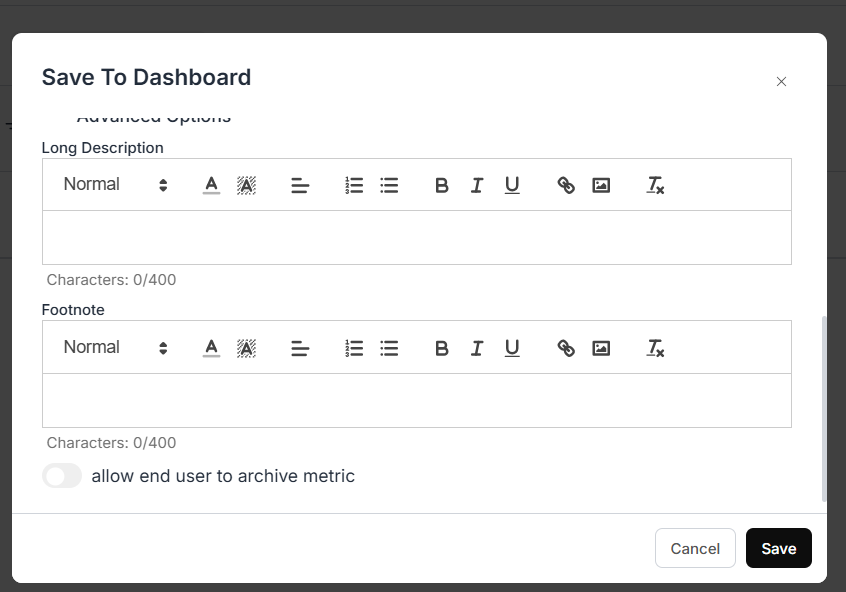
To allow an end user to archive a metric from the dashboard, mark the allowed metric on the **Save to Dashboard** form and save it.
* **"Metric Updation"**: Enables users to update metrics.
* **"Change Dashboard Layout"**: Permits users to alter the dashboard's layout.
* **"Schedule Email Reports"**: Enables users to schedule automated email reports for your metrics.
* **"Underlying Data"**: Grants you access to view the raw data that supports each metric.
By default, all metrics are marked as mandatory to dashboard.\
To allow an end user to archive a metric from the dashboard, mark the allowed metric on the **Save to Dashboard** form and save it.