> ## Documentation Index
> Fetch the complete documentation index at: https://docs.usedatabrain.com/llms.txt
> Use this file to discover all available pages before exploring further.
# Cache Settings
## Cache Settings
DataBrain supports query result caching to reduce database load and improve dashboard performance. You can either use **DataBrain's managed cache** or **bring your own Redis/Elasticache** instance.
Cache is configured per workspace. Each workspace can independently choose its caching mode and settings.
***
## Caching Modes
**Best for:** Teams that want fast setup without managing Redis infrastructure.
DataBrain provides a managed Redis instance. You only need to enable it and set a TTL — no host, port, or password configuration required.
**How it works:**
1. Toggle **"Cache Settings"** to enable caching
2. Enable the **"Databrain Caching"** option
3. Set your desired cache expiration (in seconds)
4. Click **Save**
With DataBrain Caching, cached query results are stored in DataBrain's managed Redis instance. If data residency is a concern, consider using Bring Your Own Cache instead.
**Best for:** Teams with data residency requirements, or who want full control over their caching infrastructure.
Connect your own Redis or AWS Elasticache instance. Cached query results stay in **your** infrastructure — DataBrain never stores them.
**How it works:**
1. Toggle **"Cache Settings"** to enable caching
2. Leave the **"Databrain Caching"** option **disabled**
3. Enter your Redis connection details (host, port, password)
4. Set your desired cache expiration (in seconds)
5. Click **Save** — DataBrain will validate the connection before saving
DataBrain validates your Redis credentials by writing and reading a test key. If validation fails, double-check your host, port, password, and network accessibility.
***
## Configuration Reference
Navigate to **Workspace Settings → Cache Settings** to configure caching.
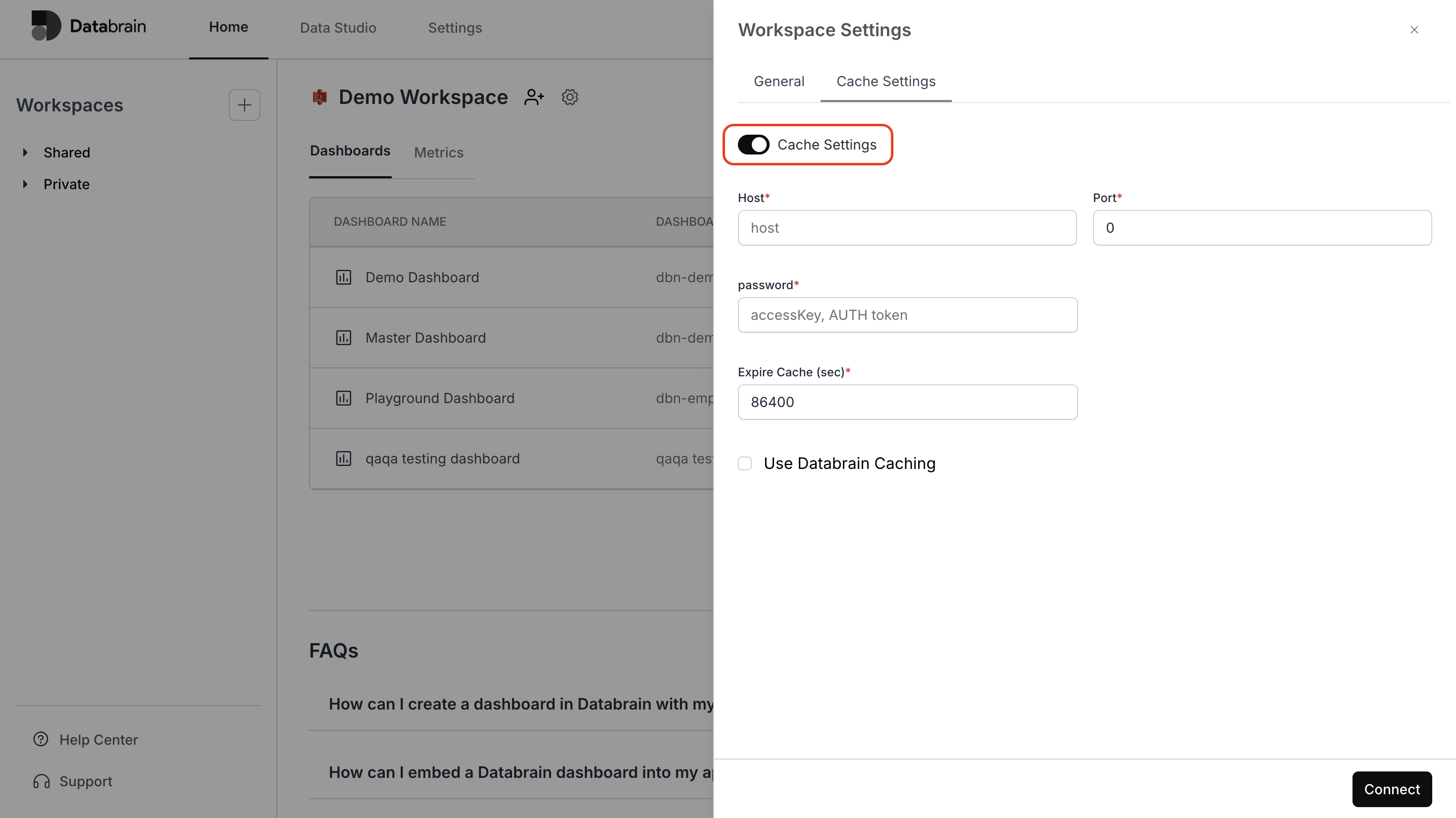 ### Settings
| Setting | Description | Required | Default |
| --------------------------- | -------------------------------------------- | --------- | ------------------ |
| **Cache Settings toggle** | Enable or disable caching for this workspace | Yes | Disabled |
| **Databrain Caching** | Use DataBrain's managed Redis instance | No | Disabled |
| **Host** | Redis/Elasticache endpoint (BYOC only) | BYOC only | — |
| **Port** | Redis port (BYOC only) | BYOC only | `6379` |
| **Access Key / AUTH Token** | Redis password or AUTH token (BYOC only) | BYOC only | — |
| **Cache Expiration** | Time-to-live for cached results, in seconds | Yes | `86400` (24 hours) |
***
## How Caching Works
When caching is enabled, this is the query execution flow:
A query is generated based on the metric definition, applied filters, and row-level security rules.
DataBrain checks the configured Redis instance for a cached result matching the query.
The **cache key** includes:
* Database name
* Datasource ID
* Generated SQL query
* Applied filters
* Workspace ID
This ensures that different tenants, filters, and queries produce separate cache entries.
If a matching cached result exists and has not expired, it is returned immediately — no database query is executed.
If no cache entry exists (or it has expired), DataBrain executes the query against your database. Successful results are cached with the configured TTL for future requests.
### Graceful Degradation
If the Redis connection fails or times out (5-second connection timeout), DataBrain **does not block the query**. The query executes directly against your database and results are returned without caching. Cache errors are logged but never prevent dashboard functionality.
***
## TTL Recommendations
Choose a cache expiration based on your data freshness requirements:
| Use Case | Recommended TTL | Notes |
| ---------------------------- | ---------------------- | ----------------------------------------- |
| **Real-time dashboards** | `60` – `300` (1–5 min) | For data that changes frequently |
| **Hourly reporting** | `3600` (1 hour) | Good balance of freshness and performance |
| **Daily reporting** | `86400` (24 hours) | Default. Best for data updated nightly |
| **Static / historical data** | `604800` (7 days) | For data that rarely changes |
Start with a higher TTL (e.g., 1 hour) and reduce it only if users report stale data. Higher cache hit rates significantly reduce database load.
***
## BYOC Setup Guide
### Prerequisites
* A running Redis 5.0+ or AWS Elasticache (Redis) instance
* Network connectivity from DataBrain's cloud to your Redis instance
* Redis AUTH password (recommended for security)
### Network Requirements
Your Redis instance must be accessible from DataBrain's cloud over the network. DataBrain connects directly to the host and port you provide — there is no SSH tunneling or special proxy for Redis connections.
Never expose Redis on a public endpoint without AUTH enabled. Always use a strong password.
**To allow connectivity:**
* Whitelist DataBrain's IP address in your Redis instance's security group (see [Allow Access to our IP](/guides/datasources/allow-access-to-our-ip) for the current IP)
* Ensure your Redis port (default `6379`) is open for inbound connections from DataBrain's IP
* If your Redis is in a private network that is not reachable from the public internet, contact DataBrain support to discuss connectivity options
**TLS/SSL:** The Redis client currently connects without TLS encryption. If your Redis instance requires encryption in transit, contact DataBrain support to discuss options.
### Step-by-Step Setup
Set up a Redis instance that is reachable from DataBrain's cloud. This could be:
* **Redis Cloud** (publicly accessible by default)
* **Self-managed Redis** on a public-facing server (e.g., EC2 with a public IP)
* **AWS Elasticache** (requires network configuration — contact support if your instance is in a private subnet)
Note the **host**, **port**, and **AUTH password**.
Whitelist DataBrain's IP address in your Redis instance's security group or firewall rules:
* **Inbound rule**: Allow TCP on your Redis port (default `6379`) from DataBrain's IP
* See [Allow Access to our IP](/guides/datasources/allow-access-to-our-ip) for the current IP address
1. Go to **Workspace Settings → Cache Settings**
2. Toggle **Cache Settings** to enabled
3. Leave **Databrain Caching** disabled
4. Enter your **Host** (e.g., `my-redis.example.com`)
5. Enter your **Port** (e.g., `6379`)
6. Enter your **Access Key / AUTH Token**
7. Set **Cache Expiration** in seconds
8. Click **Save**
DataBrain will automatically validate the connection by writing and reading a test key. If the save succeeds, your BYOC cache is active.
Load a dashboard and check that subsequent loads are faster — the response metadata will show `"cached": true` for cache hits.
***
## Cache Invalidation
DataBrain provides several ways to manage cached data:
| Method | Scope | How |
| -------------------------- | ------------------------ | ----------------------------------------------------------------------------- |
| **TTL expiration** | Per key | Automatic — keys expire based on your configured TTL |
| **Reset cache** | Entire workspace | Use the **Reset Cache** option in Workspace Settings to flush all cached data |
| **Pattern-based deletion** | Per datasource/workspace | Automatic when datasource configuration changes |
If you update your underlying data (e.g., a nightly ETL load), you can reset the cache to ensure users see fresh data immediately. Otherwise, the TTL will handle expiration automatically.
***
## Self-Hosted Deployment
For self-hosted DataBrain deployments, Redis is configured via environment variables:
```bash theme={"dark"}
# Redis Configuration
REDIS_HOST=your-redis-host # Required: Redis server hostname
REDIS_PORT=6379 # Required: Redis server port (default: 6379)
REDIS_PASSWORD=your-password # Optional: Redis AUTH password
```
These environment variables configure the DataBrain-managed cache mode. Workspaces that enable "Databrain Caching" will use this Redis instance. Workspaces using BYOC will connect to their own specified Redis instance regardless of these environment variables.
Complete self-hosted deployment guide
***
## Security
| Concern | How it's addressed |
| ---------------------------- | -------------------------------------------------------------------------------------------- |
| **Credential storage** | Your Redis host, port, and AUTH token are stored AES-256 encrypted in DataBrain's PostgreSQL |
| **Data residency (BYOC)** | Cached query results are stored in **your** Redis instance, not DataBrain's infrastructure |
| **Data residency (Managed)** | Cached query results are stored in DataBrain's managed Redis instance |
| **Connection security** | Redis AUTH password is used for authentication |
| **Failure handling** | Cache failures never block queries — DataBrain falls back to direct database execution |
Full security and data residency documentation
***
## Frequently Asked Questions
**DataBrain Caching** uses a Redis instance managed by DataBrain. You don't need to provision or manage any infrastructure — just enable it and set a TTL.
**Bring Your Own Cache (BYOC)** lets you connect your own Redis or Elasticache instance. Cached data stays in your infrastructure, giving you full control over data residency, eviction policies, and scaling.
Only **query results** (JSON format) are cached. Cache keys include the query hash, datasource ID, filters, and workspace ID — ensuring tenant isolation. Dashboard definitions, metric configurations, and user data are never stored in Redis.
DataBrain degrades gracefully. If the Redis connection fails or times out, queries execute directly against your database. Users will experience slightly slower load times (no cache hits) but dashboards will continue to work. Cache errors are logged for monitoring.
Yes. Each workspace has independent cache settings. One workspace can use DataBrain Caching while another uses BYOC with a different Redis instance.
Load a dashboard, then reload it. The second load should be noticeably faster. The API response metadata includes a `"cached"` field that indicates whether results came from cache.
DataBrain uses the `ioredis` client and is compatible with Redis 5.0 and above, including AWS Elasticache (Redis mode) and Redis Cloud.
Yes. Cache keys include the full query (which already has RLS applied) plus filters and workspace ID. Different tenants with different RLS rules will have separate cache entries.
### Settings
| Setting | Description | Required | Default |
| --------------------------- | -------------------------------------------- | --------- | ------------------ |
| **Cache Settings toggle** | Enable or disable caching for this workspace | Yes | Disabled |
| **Databrain Caching** | Use DataBrain's managed Redis instance | No | Disabled |
| **Host** | Redis/Elasticache endpoint (BYOC only) | BYOC only | — |
| **Port** | Redis port (BYOC only) | BYOC only | `6379` |
| **Access Key / AUTH Token** | Redis password or AUTH token (BYOC only) | BYOC only | — |
| **Cache Expiration** | Time-to-live for cached results, in seconds | Yes | `86400` (24 hours) |
***
## How Caching Works
When caching is enabled, this is the query execution flow:
A query is generated based on the metric definition, applied filters, and row-level security rules.
DataBrain checks the configured Redis instance for a cached result matching the query.
The **cache key** includes:
* Database name
* Datasource ID
* Generated SQL query
* Applied filters
* Workspace ID
This ensures that different tenants, filters, and queries produce separate cache entries.
If a matching cached result exists and has not expired, it is returned immediately — no database query is executed.
If no cache entry exists (or it has expired), DataBrain executes the query against your database. Successful results are cached with the configured TTL for future requests.
### Graceful Degradation
If the Redis connection fails or times out (5-second connection timeout), DataBrain **does not block the query**. The query executes directly against your database and results are returned without caching. Cache errors are logged but never prevent dashboard functionality.
***
## TTL Recommendations
Choose a cache expiration based on your data freshness requirements:
| Use Case | Recommended TTL | Notes |
| ---------------------------- | ---------------------- | ----------------------------------------- |
| **Real-time dashboards** | `60` – `300` (1–5 min) | For data that changes frequently |
| **Hourly reporting** | `3600` (1 hour) | Good balance of freshness and performance |
| **Daily reporting** | `86400` (24 hours) | Default. Best for data updated nightly |
| **Static / historical data** | `604800` (7 days) | For data that rarely changes |
Start with a higher TTL (e.g., 1 hour) and reduce it only if users report stale data. Higher cache hit rates significantly reduce database load.
***
## BYOC Setup Guide
### Prerequisites
* A running Redis 5.0+ or AWS Elasticache (Redis) instance
* Network connectivity from DataBrain's cloud to your Redis instance
* Redis AUTH password (recommended for security)
### Network Requirements
Your Redis instance must be accessible from DataBrain's cloud over the network. DataBrain connects directly to the host and port you provide — there is no SSH tunneling or special proxy for Redis connections.
Never expose Redis on a public endpoint without AUTH enabled. Always use a strong password.
**To allow connectivity:**
* Whitelist DataBrain's IP address in your Redis instance's security group (see [Allow Access to our IP](/guides/datasources/allow-access-to-our-ip) for the current IP)
* Ensure your Redis port (default `6379`) is open for inbound connections from DataBrain's IP
* If your Redis is in a private network that is not reachable from the public internet, contact DataBrain support to discuss connectivity options
**TLS/SSL:** The Redis client currently connects without TLS encryption. If your Redis instance requires encryption in transit, contact DataBrain support to discuss options.
### Step-by-Step Setup
Set up a Redis instance that is reachable from DataBrain's cloud. This could be:
* **Redis Cloud** (publicly accessible by default)
* **Self-managed Redis** on a public-facing server (e.g., EC2 with a public IP)
* **AWS Elasticache** (requires network configuration — contact support if your instance is in a private subnet)
Note the **host**, **port**, and **AUTH password**.
Whitelist DataBrain's IP address in your Redis instance's security group or firewall rules:
* **Inbound rule**: Allow TCP on your Redis port (default `6379`) from DataBrain's IP
* See [Allow Access to our IP](/guides/datasources/allow-access-to-our-ip) for the current IP address
1. Go to **Workspace Settings → Cache Settings**
2. Toggle **Cache Settings** to enabled
3. Leave **Databrain Caching** disabled
4. Enter your **Host** (e.g., `my-redis.example.com`)
5. Enter your **Port** (e.g., `6379`)
6. Enter your **Access Key / AUTH Token**
7. Set **Cache Expiration** in seconds
8. Click **Save**
DataBrain will automatically validate the connection by writing and reading a test key. If the save succeeds, your BYOC cache is active.
Load a dashboard and check that subsequent loads are faster — the response metadata will show `"cached": true` for cache hits.
***
## Cache Invalidation
DataBrain provides several ways to manage cached data:
| Method | Scope | How |
| -------------------------- | ------------------------ | ----------------------------------------------------------------------------- |
| **TTL expiration** | Per key | Automatic — keys expire based on your configured TTL |
| **Reset cache** | Entire workspace | Use the **Reset Cache** option in Workspace Settings to flush all cached data |
| **Pattern-based deletion** | Per datasource/workspace | Automatic when datasource configuration changes |
If you update your underlying data (e.g., a nightly ETL load), you can reset the cache to ensure users see fresh data immediately. Otherwise, the TTL will handle expiration automatically.
***
## Self-Hosted Deployment
For self-hosted DataBrain deployments, Redis is configured via environment variables:
```bash theme={"dark"}
# Redis Configuration
REDIS_HOST=your-redis-host # Required: Redis server hostname
REDIS_PORT=6379 # Required: Redis server port (default: 6379)
REDIS_PASSWORD=your-password # Optional: Redis AUTH password
```
These environment variables configure the DataBrain-managed cache mode. Workspaces that enable "Databrain Caching" will use this Redis instance. Workspaces using BYOC will connect to their own specified Redis instance regardless of these environment variables.
Complete self-hosted deployment guide
***
## Security
| Concern | How it's addressed |
| ---------------------------- | -------------------------------------------------------------------------------------------- |
| **Credential storage** | Your Redis host, port, and AUTH token are stored AES-256 encrypted in DataBrain's PostgreSQL |
| **Data residency (BYOC)** | Cached query results are stored in **your** Redis instance, not DataBrain's infrastructure |
| **Data residency (Managed)** | Cached query results are stored in DataBrain's managed Redis instance |
| **Connection security** | Redis AUTH password is used for authentication |
| **Failure handling** | Cache failures never block queries — DataBrain falls back to direct database execution |
Full security and data residency documentation
***
## Frequently Asked Questions
**DataBrain Caching** uses a Redis instance managed by DataBrain. You don't need to provision or manage any infrastructure — just enable it and set a TTL.
**Bring Your Own Cache (BYOC)** lets you connect your own Redis or Elasticache instance. Cached data stays in your infrastructure, giving you full control over data residency, eviction policies, and scaling.
Only **query results** (JSON format) are cached. Cache keys include the query hash, datasource ID, filters, and workspace ID — ensuring tenant isolation. Dashboard definitions, metric configurations, and user data are never stored in Redis.
DataBrain degrades gracefully. If the Redis connection fails or times out, queries execute directly against your database. Users will experience slightly slower load times (no cache hits) but dashboards will continue to work. Cache errors are logged for monitoring.
Yes. Each workspace has independent cache settings. One workspace can use DataBrain Caching while another uses BYOC with a different Redis instance.
Load a dashboard, then reload it. The second load should be noticeably faster. The API response metadata includes a `"cached"` field that indicates whether results came from cache.
DataBrain uses the `ioredis` client and is compatible with Redis 5.0 and above, including AWS Elasticache (Redis mode) and Redis Cloud.
Yes. Cache keys include the full query (which already has RLS applied) plus filters and workspace ID. Different tenants with different RLS rules will have separate cache entries.