> ## Documentation Index
> Fetch the complete documentation index at: https://docs.usedatabrain.com/llms.txt
> Use this file to discover all available pages before exploring further.
# Configure General Settings
### Configure General Settings
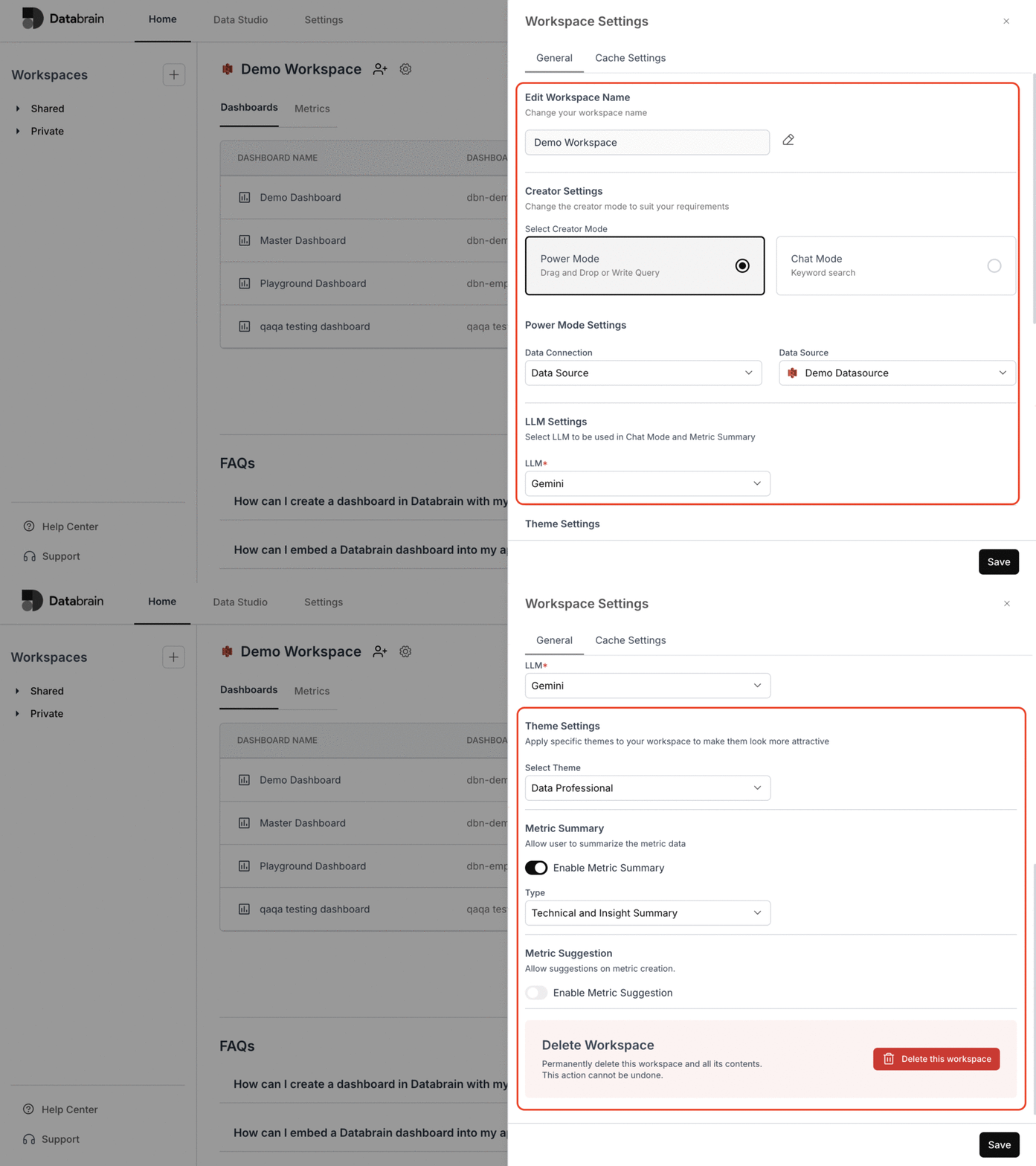
In the **General** section, you can update key workspace preferences.
#### Edit Workspace Name
Give your workspace a meaningful name that reflects your project or team.
#### Creator Settings
Choose your preferred creation mode:
* **Power Mode**: Enables drag-and-drop functionality or the option to write custom queries.\
Select your data connection type (**Data Source**) and choose the specific Data Source from the dropdown menu.
* **Chat Mode**: Allows users to explore data using keyword-based search. Select your preferred **Datamart**.
#### LLM Settings
Choose the preferred **LLM (Large Language Model)** to be used in Chat Mode and Metric Summary.\
You can also enable **Metric Suggestion**, which uses the LLM to suggest metrics during creation.
#### Theme Settings
Set specific themes for your workspace to personalize its appearance.
#### Delete the Workspace
If needed, you can delete the workspace.
Once configured, click **Save** to apply the changes.
 You’ve successfully configured your workspace settings in Databrain!\
Your preferences, creation modes, and themes are now applied — enabling a personalized and efficient workspace experience.
You’ve successfully configured your workspace settings in Databrain!\
Your preferences, creation modes, and themes are now applied — enabling a personalized and efficient workspace experience.