> ## Documentation Index
> Fetch the complete documentation index at: https://docs.usedatabrain.com/llms.txt
> Use this file to discover all available pages before exploring further.
# Scheduled Reports for End User
> This guide provides a straightforward process for setting up scheduled email reports, ensuring that users can easily automate their reporting needs
Please refer the below guide if email settings is not configured.
Please refer this guide if email settings are not configured.
### 1. Generate the preview link:
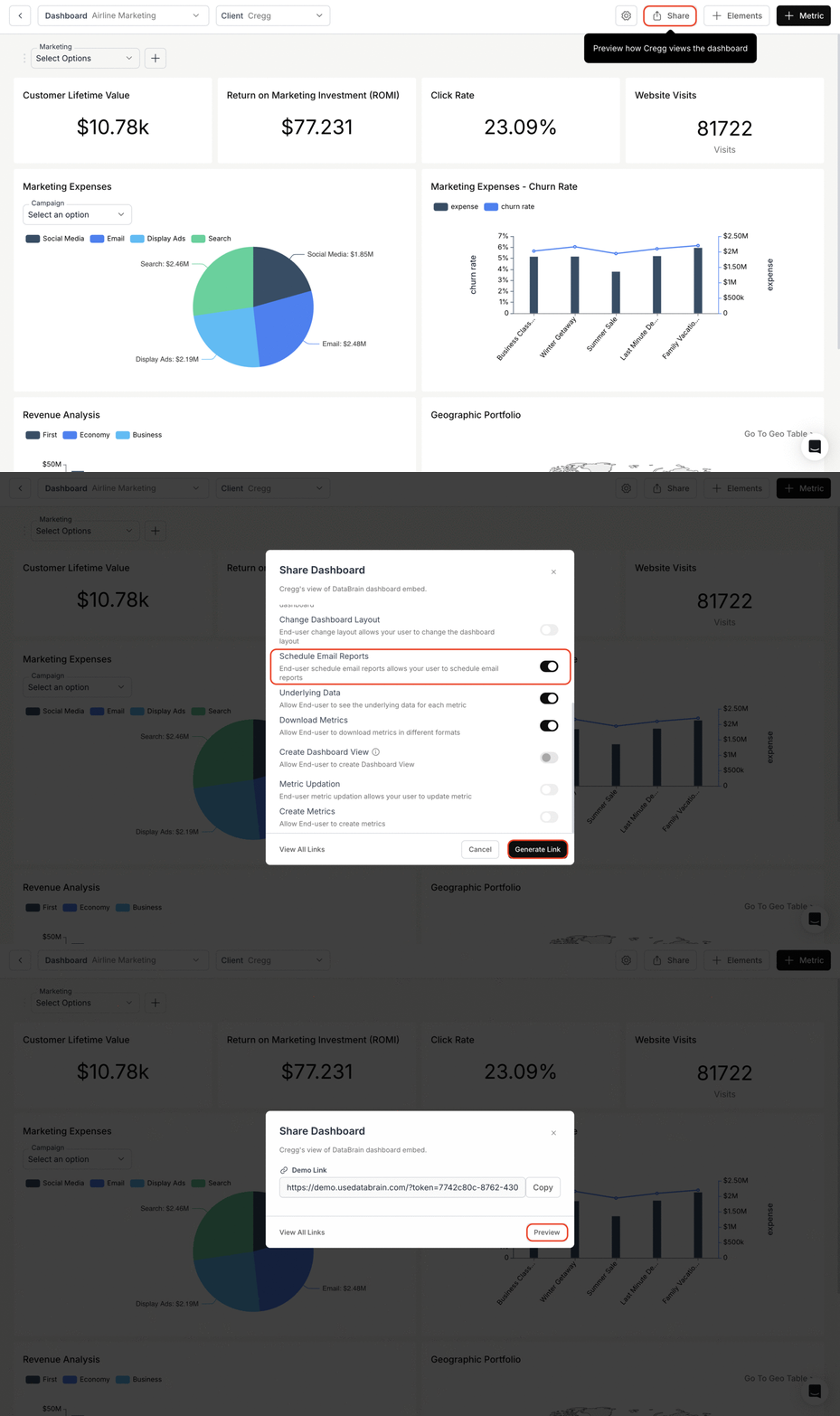
* Navigate to your dashboard and click on **"Share"** icon.
* Turn on the **"Schedule Email Reports"** toggle and click on the **"Generate Link"** button
* Click on **"Preview"** button.
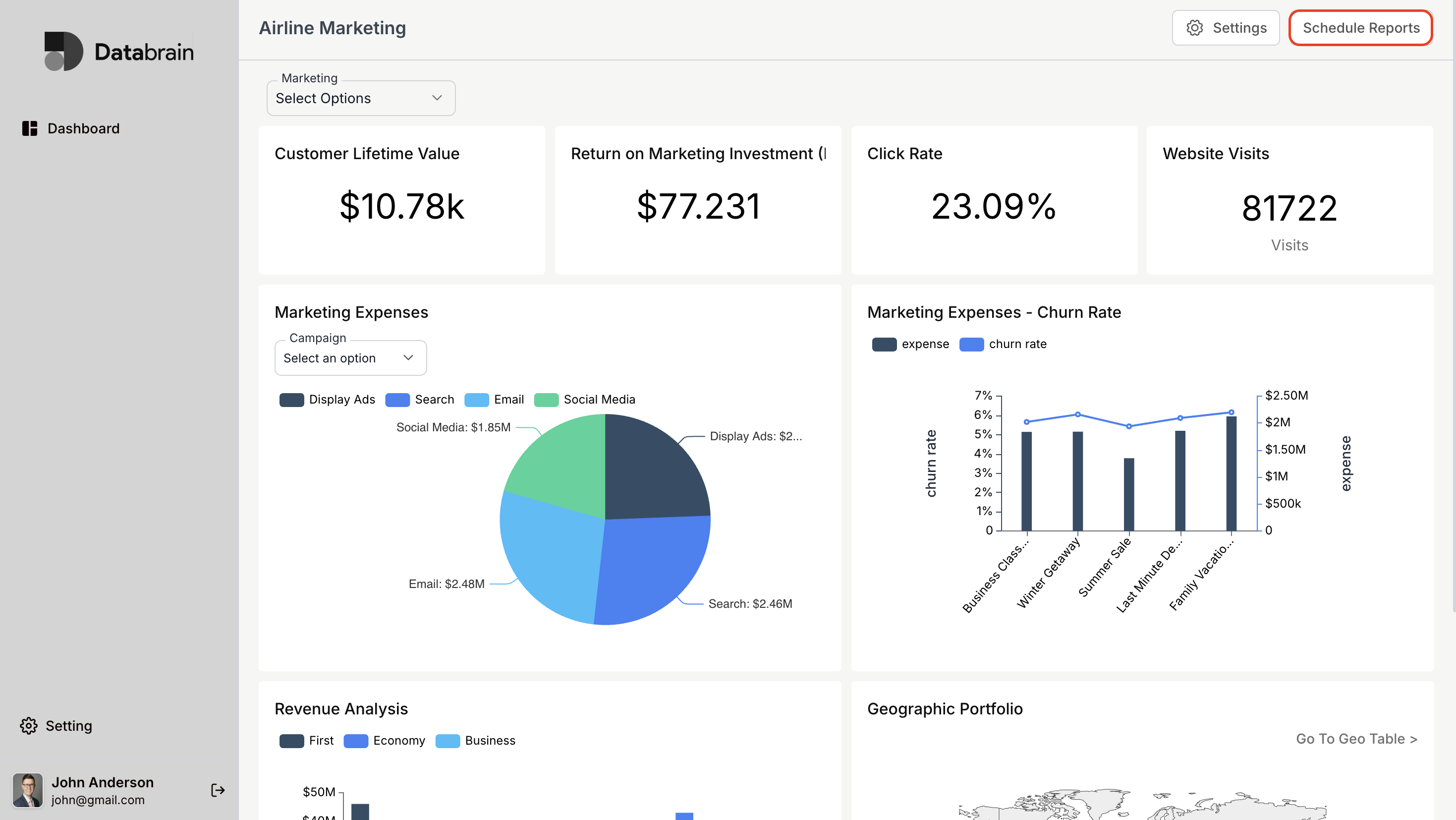
 ### 2. The dashboard will be displayed and click on **"Scheduled Reports"**
 ### 3. Create Schedule Email Reports:
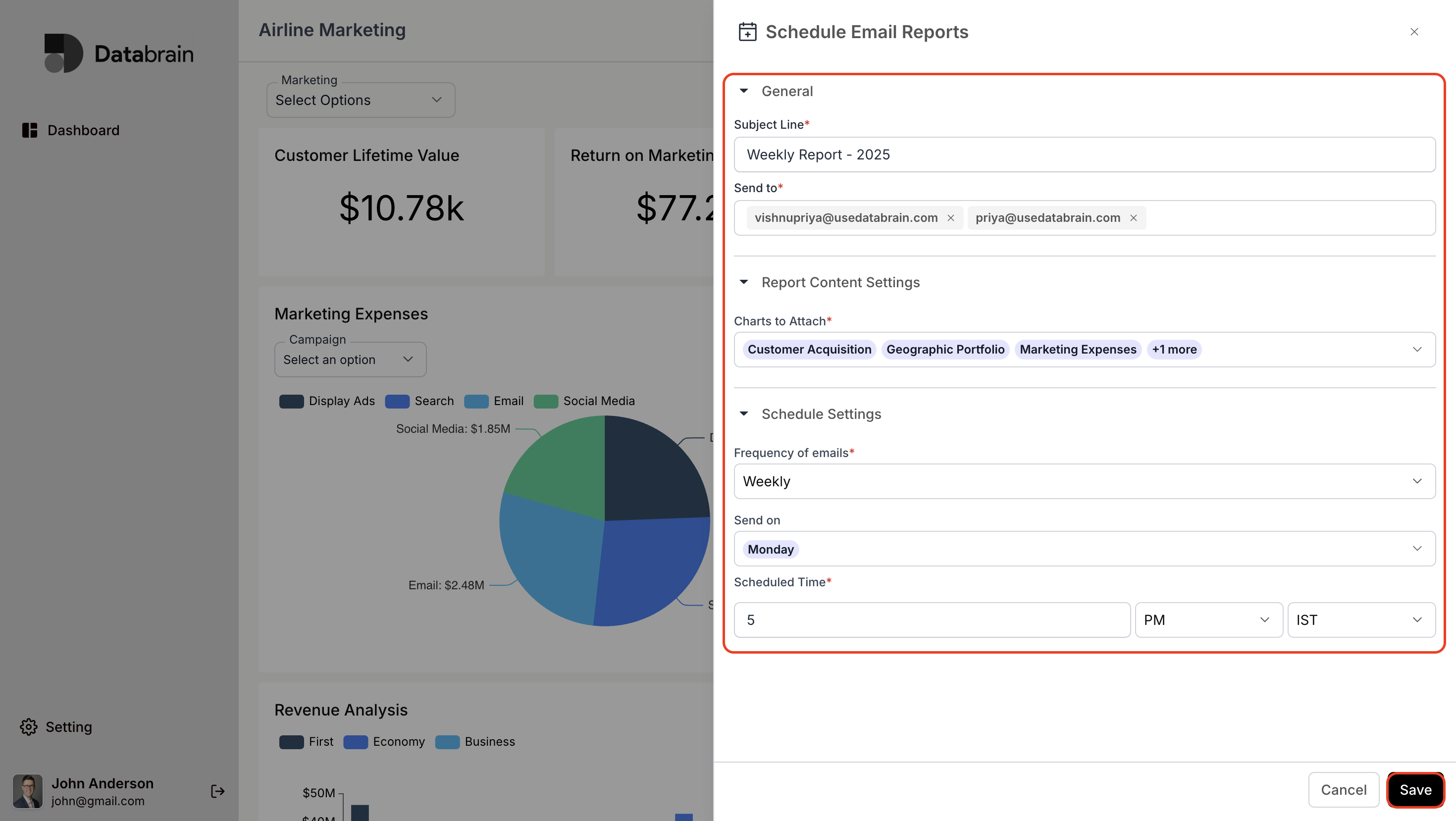
* Enter the required details and click on **"Save"**
* Finally, the schedule email reports will be shared to your email ID.
### 3. Create Schedule Email Reports:
* Enter the required details and click on **"Save"**
* Finally, the schedule email reports will be shared to your email ID.