> ## Documentation Index
> Fetch the complete documentation index at: https://docs.usedatabrain.com/llms.txt
> Use this file to discover all available pages before exploring further.
# Card Click Action
> This guide offers a process for configuring card click actions in a dashboard. By following these steps, you can set up and utilize the card click action to navigate users to the specified routes.
### 1. **Access & Configure Card Click Action**
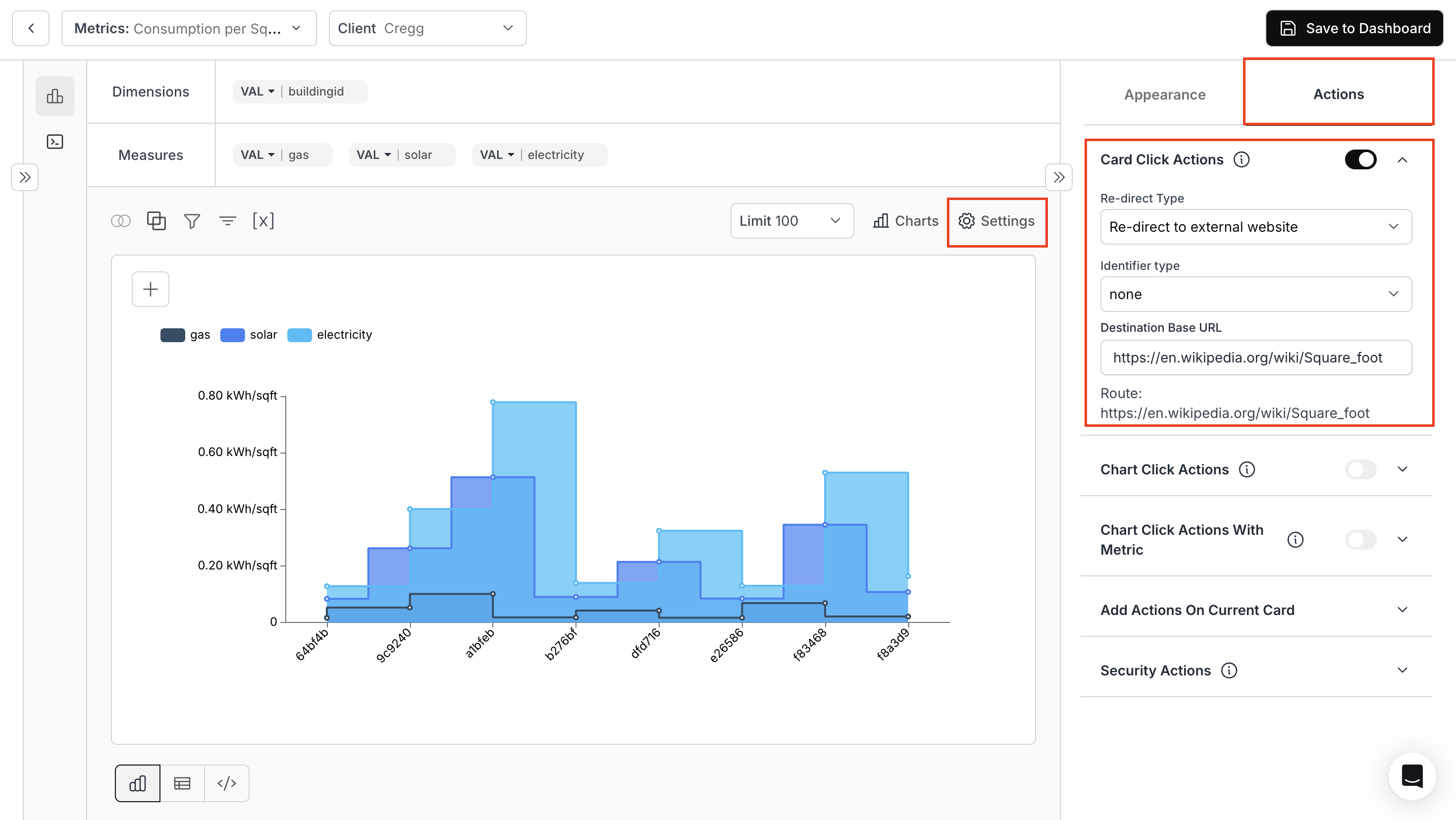
* Navigate to the **"Appearance and Actions"** section and toggle **"Card Click Action"**.
* **Re-Direct Type**: Specify the route for navigation: external or internal.
* **Identifier Type**: Choose the identifier for redirection.
* **Destination base url**: Use variable values for URL parameters.
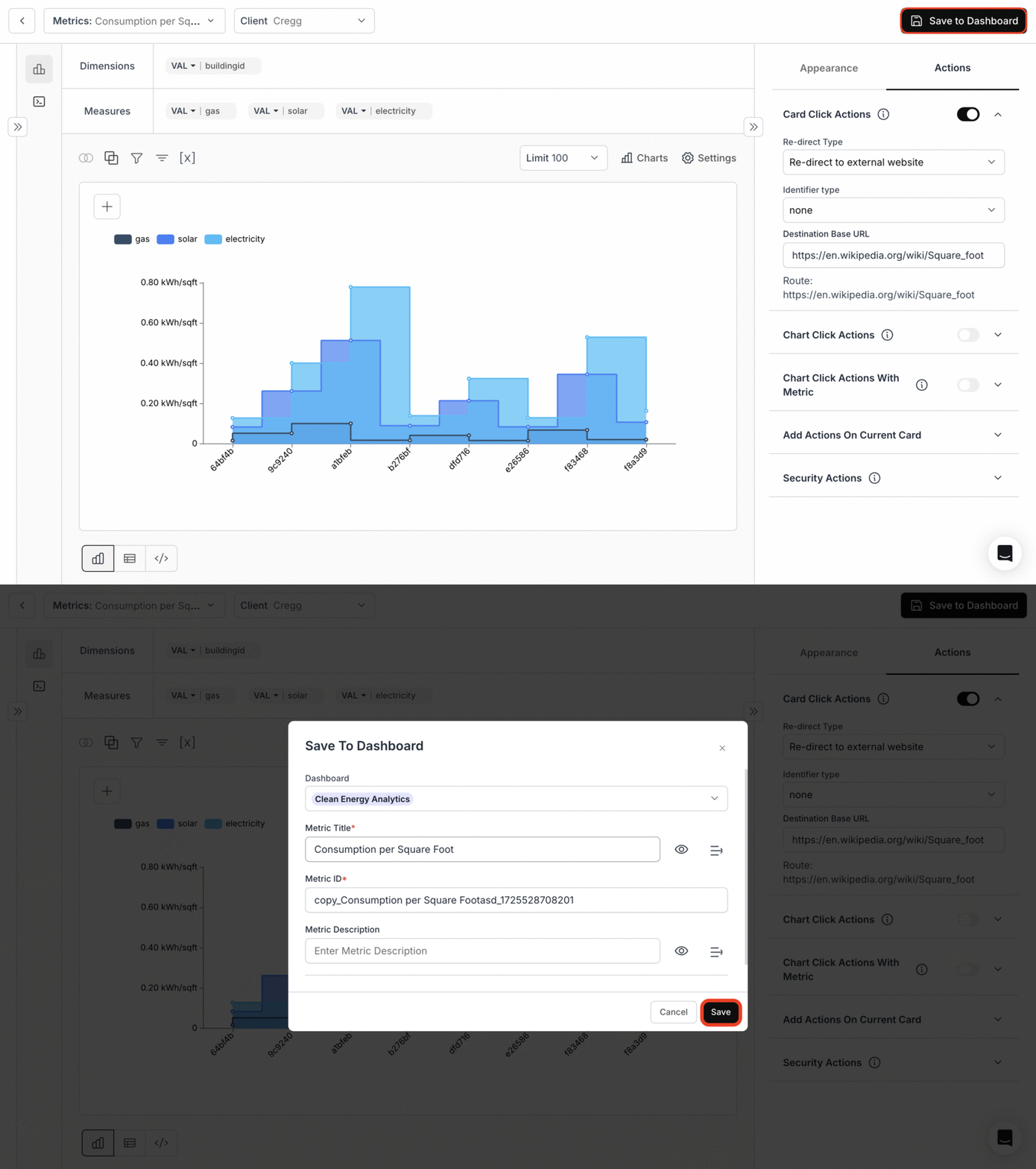
 ### 2. **Save metric to the Dashboard**
 ### 3. **Generate Preview link and access the dashboard**
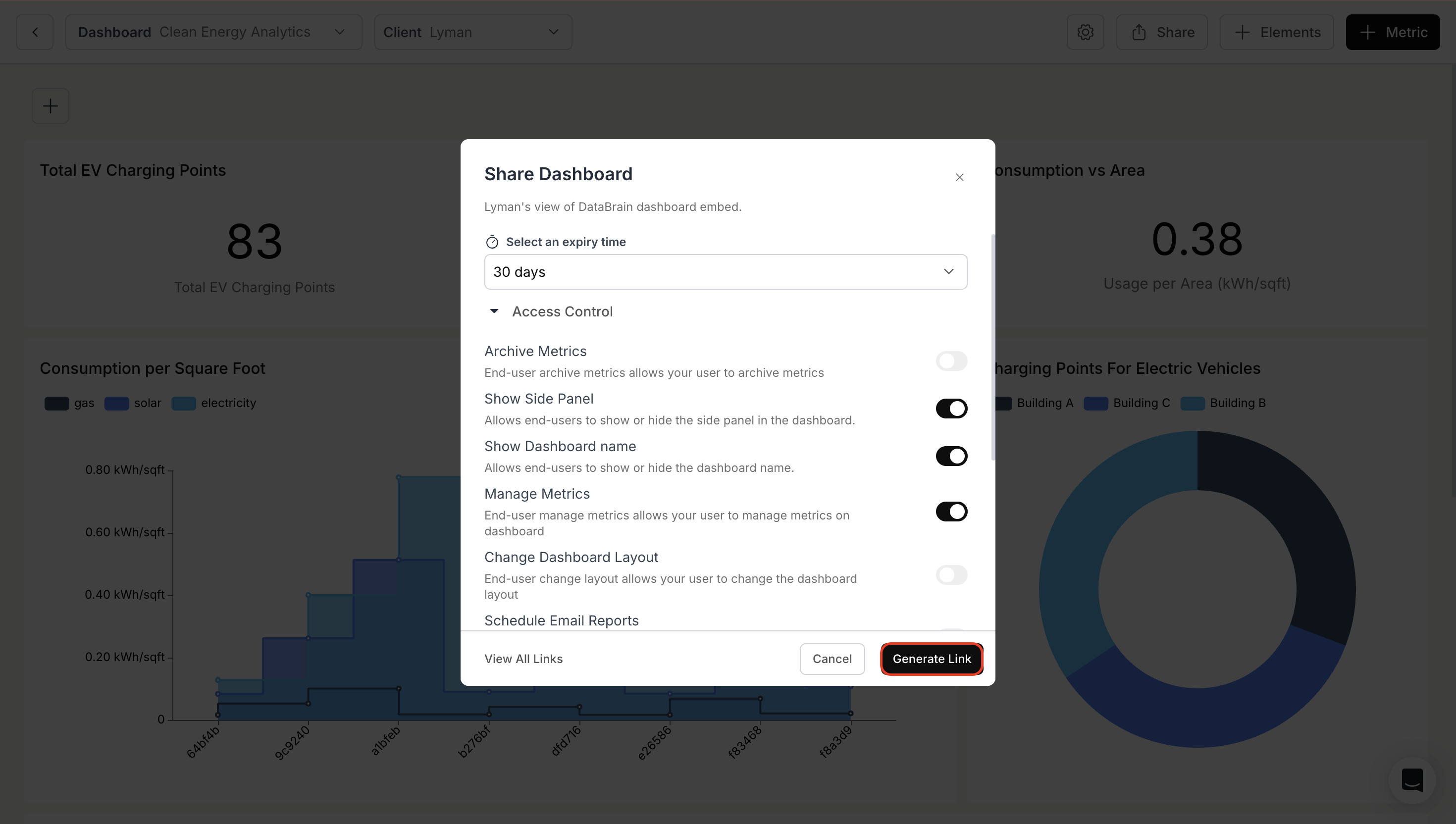
-Click on the **Share Button** near the dashboard settings icon\
-Configure the access control settings and, click on **Generate Link** and click on **"View Demo"** button.
### 3. **Generate Preview link and access the dashboard**
-Click on the **Share Button** near the dashboard settings icon\
-Configure the access control settings and, click on **Generate Link** and click on **"View Demo"** button.
 ### 4. **Card Click Action in Dashboard**
Clicking on the title of the card will lead you to the specified URL.
### 4. **Card Click Action in Dashboard**
Clicking on the title of the card will lead you to the specified URL.
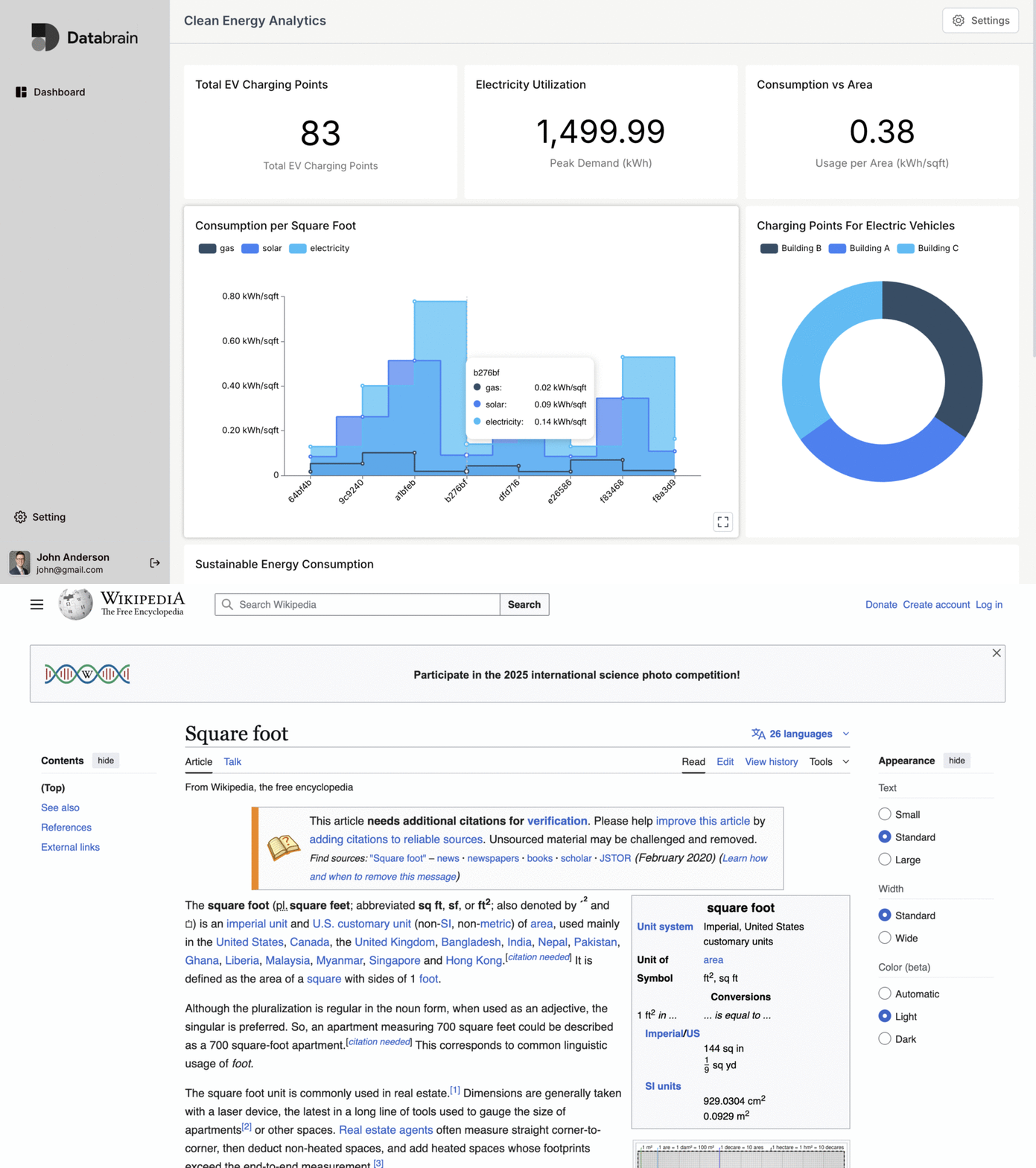 You’ve successfully enabled Card Click Action.\
Your dashboard cards can now redirect users seamlessly to the destinations you configure.
You’ve successfully enabled Card Click Action.\
Your dashboard cards can now redirect users seamlessly to the destinations you configure.