> ## Documentation Index
> Fetch the complete documentation index at: https://docs.usedatabrain.com/llms.txt
> Use this file to discover all available pages before exploring further.
# Cross Dashboard Drill Down
> Enable cross-dashboard drill-down to filter all metrics on a dashboard based on a drilled dimension, providing interconnected analysis across your entire dashboard.
## What is Cross Dashboard Drill Down?
Regular drill-down only affects the single metric you click on. **Cross Dashboard Drill Down** takes it further — when you click a data point, the selected dimension value is applied as a **filter across all other metrics** on the same dashboard.
For example, if you click "West" on a revenue-by-region bar chart, every other metric on the dashboard (customer count, order trends, product breakdown) automatically filters to show only data for the "West" region.
This is useful for:
* **Multi-metric correlation analysis** — see how a dimension selection impacts all KPIs simultaneously
* **Interactive executive dashboards** — let stakeholders click once and see the full picture
* **Customer-facing dashboards** — provide self-service exploration without building separate filtered views
***
## How It Works
When Cross Dashboard Drill Down is enabled on a metric:
1. You click a data point (e.g., a bar segment for "West")
2. The system extracts the drilled dimension and its value (e.g., `region = 'West'`)
3. This value is applied as a **row-level security (RLS) filter condition** to all other metrics on the dashboard
4. All metrics re-query their data with the additional filter applied
5. The entire dashboard updates to reflect the selected dimension value
Cross-dashboard drill-down filters work alongside existing dashboard filters. Both are applied simultaneously — the drill filter does not replace your dashboard filters, it adds to them.
***
## Setting Up Cross Dashboard Drill Down
### 1. Activate Cross Dashboard Drill Down
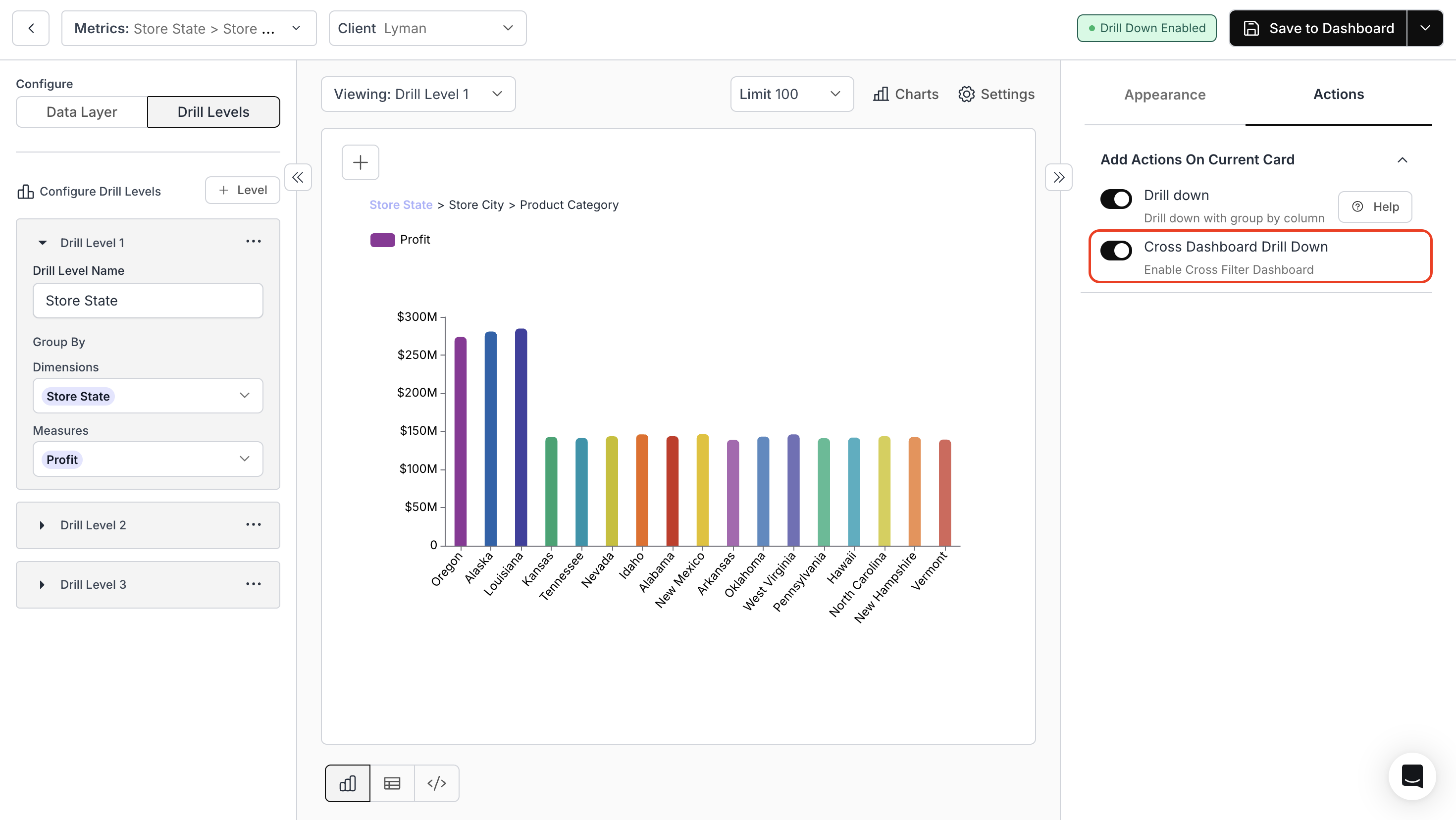
On the metric page, click the **"Settings"** icon, navigate to the **"Actions"** tab, and enable the **"Drill down"** toggle. Then activate **"Cross Dashboard Drill Down"** beneath it.
 ### 2. View Changes in the Dashboard
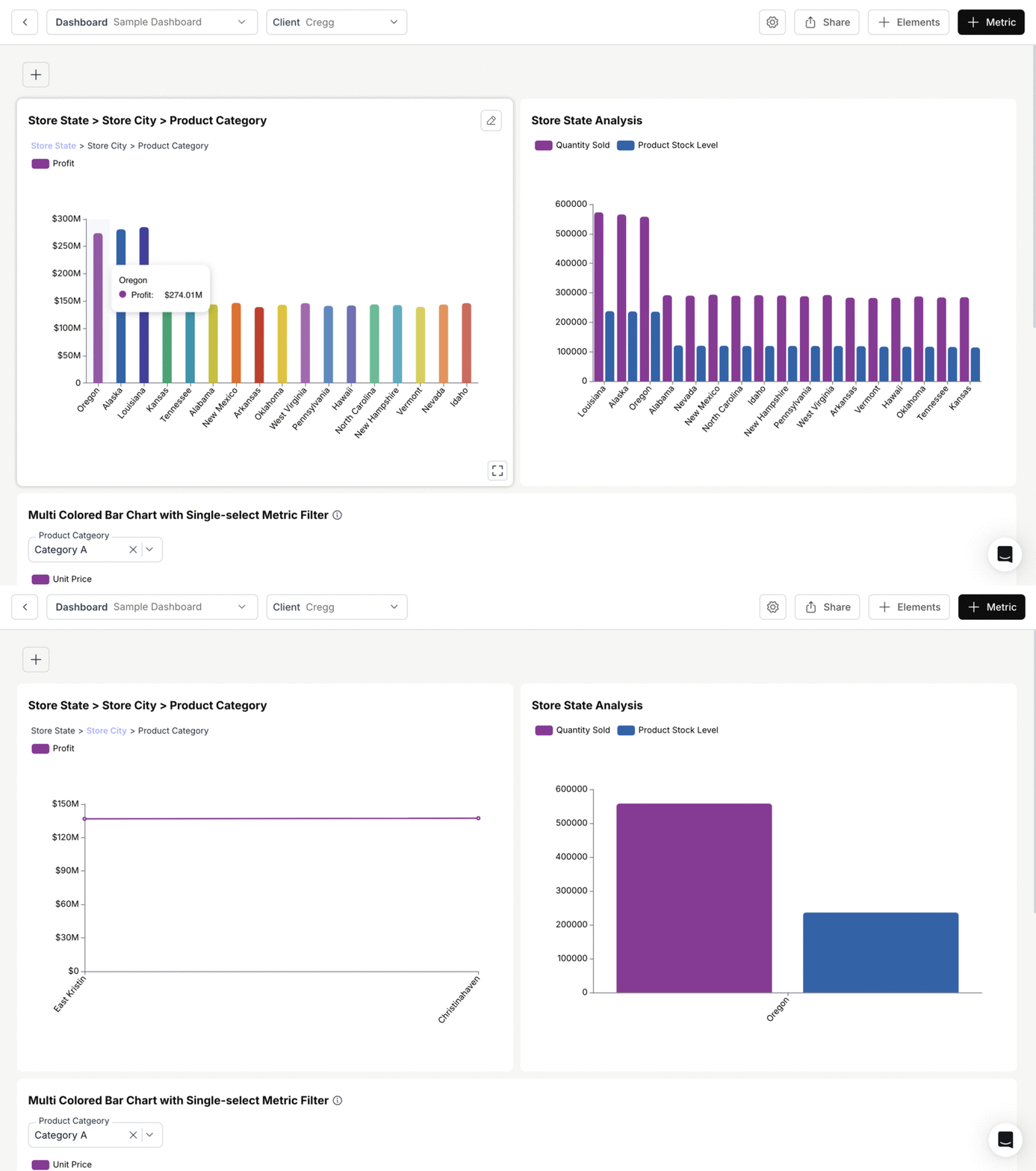
Click on a segment of the chart where drill down is enabled. All other metrics on the dashboard will update to reflect the selected value.
### 2. View Changes in the Dashboard
Click on a segment of the chart where drill down is enabled. All other metrics on the dashboard will update to reflect the selected value.
 ### 3. Clear the Cross-Dashboard Filter
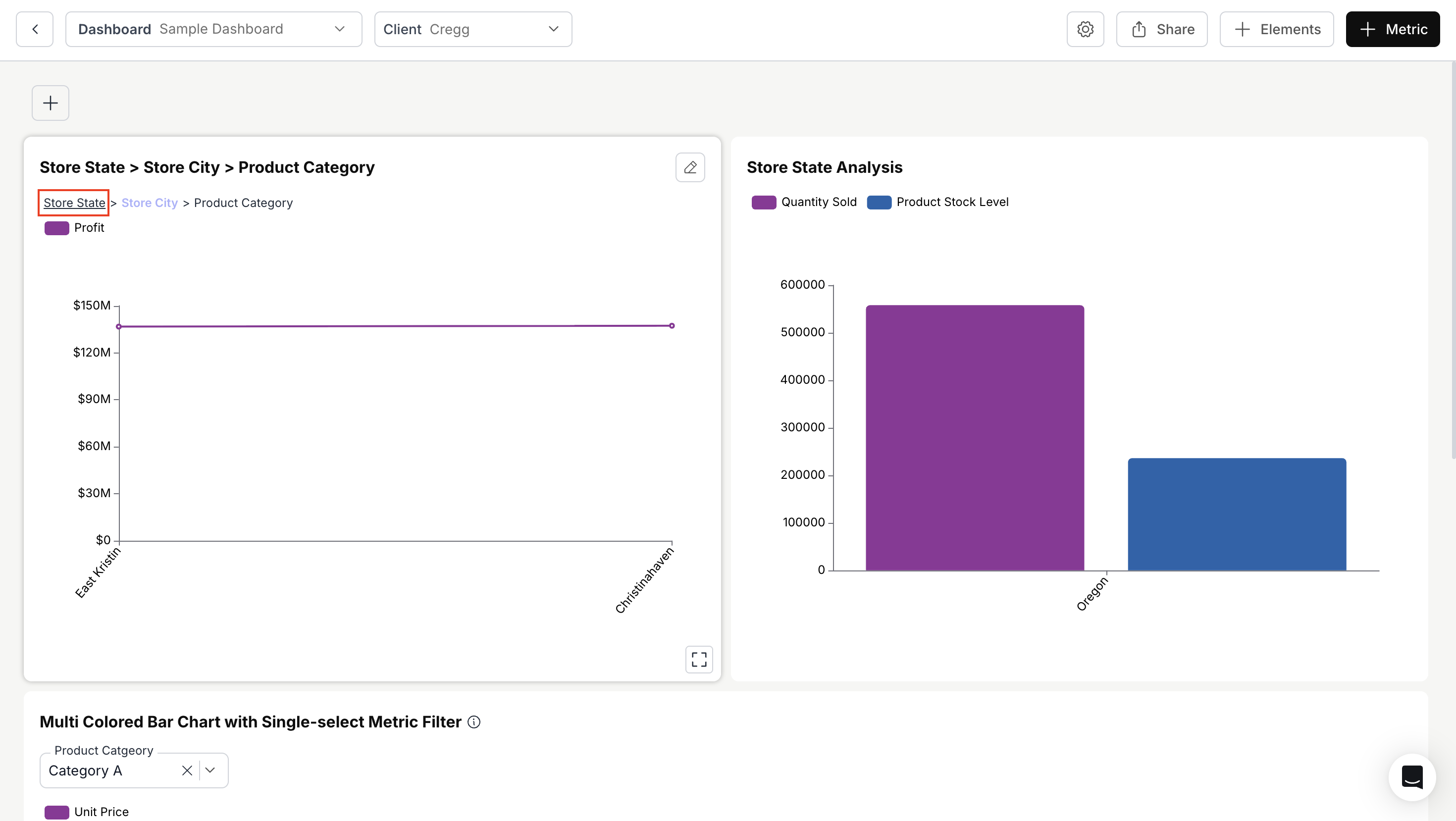
Click on the **same dimension** in the drilled-down chart to revert all changes and remove the cross-dashboard filter.
### 3. Clear the Cross-Dashboard Filter
Click on the **same dimension** in the drilled-down chart to revert all changes and remove the cross-dashboard filter.
 ***
## Which Metrics Are Affected?
When you trigger a cross-dashboard drill, the filter is applied to **all metrics on the same dashboard**. The drilled value is passed as an additional filter condition to every metric's query.
* Metrics whose underlying data **includes the drilled column** will filter their results accordingly.
* Metrics whose queries **do not reference that column** may show no change or may return an error depending on the SQL generated. For best results, ensure metrics on the same dashboard share common dimensions when using cross-dashboard drill.
* The filter uses the column name from the drilled metric, so consistent naming across metrics improves reliability.
***
## Cross Dashboard vs. Regular Drill Down
| Behavior | Regular Drill Down | Cross Dashboard Drill Down |
| --------------- | ------------------------- | ------------------------------------------- |
| Scope | Single metric only | Entire dashboard |
| Other metrics | Unaffected | Filtered by drilled value |
| Use case | Deep-dive into one metric | Correlated analysis across metrics |
| Clearing | Breadcrumb navigation | Click the drilled dimension again |
| Can be combined | Yes — enable both | Yes — cross-dashboard adds to regular drill |
You can enable both regular drill-down and cross-dashboard drill-down on the same metric. The cross-dashboard filter applies to other metrics while the originating metric drills into its own hierarchy.
***
## Troubleshooting
**Cause:** Cross Dashboard Drill Down is not enabled, or other metrics don't share the drilled column.
**Fix:**
* Verify **Cross Dashboard Drill Down** is enabled in the originating metric's **Settings > Actions** tab.
* Check that other metrics on the dashboard have the same dimension column (by name or alias) as the drilled value.
**Cause:** Both dashboard filters and the cross-dashboard drill filter are applied simultaneously.
**Fix:**
* This is expected behavior — both filters are additive. If the dashboard filter already restricts to a different value, the combined filter may return no data.
* Clear either the dashboard filter or the cross-dashboard drill to see results.
**Fix:** Click on the **same dimension value** in the originating chart (the one where you first drilled) to clear the cross-dashboard filter and restore all metrics.
You've successfully enabled Cross Dashboard Drill Down.
Your dashboard now responds dynamically to drilled dimensions, giving users deeper, interconnected analysis across views.
***
## Which Metrics Are Affected?
When you trigger a cross-dashboard drill, the filter is applied to **all metrics on the same dashboard**. The drilled value is passed as an additional filter condition to every metric's query.
* Metrics whose underlying data **includes the drilled column** will filter their results accordingly.
* Metrics whose queries **do not reference that column** may show no change or may return an error depending on the SQL generated. For best results, ensure metrics on the same dashboard share common dimensions when using cross-dashboard drill.
* The filter uses the column name from the drilled metric, so consistent naming across metrics improves reliability.
***
## Cross Dashboard vs. Regular Drill Down
| Behavior | Regular Drill Down | Cross Dashboard Drill Down |
| --------------- | ------------------------- | ------------------------------------------- |
| Scope | Single metric only | Entire dashboard |
| Other metrics | Unaffected | Filtered by drilled value |
| Use case | Deep-dive into one metric | Correlated analysis across metrics |
| Clearing | Breadcrumb navigation | Click the drilled dimension again |
| Can be combined | Yes — enable both | Yes — cross-dashboard adds to regular drill |
You can enable both regular drill-down and cross-dashboard drill-down on the same metric. The cross-dashboard filter applies to other metrics while the originating metric drills into its own hierarchy.
***
## Troubleshooting
**Cause:** Cross Dashboard Drill Down is not enabled, or other metrics don't share the drilled column.
**Fix:**
* Verify **Cross Dashboard Drill Down** is enabled in the originating metric's **Settings > Actions** tab.
* Check that other metrics on the dashboard have the same dimension column (by name or alias) as the drilled value.
**Cause:** Both dashboard filters and the cross-dashboard drill filter are applied simultaneously.
**Fix:**
* This is expected behavior — both filters are additive. If the dashboard filter already restricts to a different value, the combined filter may return no data.
* Clear either the dashboard filter or the cross-dashboard drill to see results.
**Fix:** Click on the **same dimension value** in the originating chart (the one where you first drilled) to clear the cross-dashboard filter and restore all metrics.
You've successfully enabled Cross Dashboard Drill Down.
Your dashboard now responds dynamically to drilled dimensions, giving users deeper, interconnected analysis across views.