> ## Documentation Index
> Fetch the complete documentation index at: https://docs.usedatabrain.com/llms.txt
> Use this file to discover all available pages before exploring further.
# Multi Datamart Workspace
> Steps to Set Up and Use Multi-Datamart Switching in Your Dashboard.
Navigate to the Data Studio page and add all the datamarts.
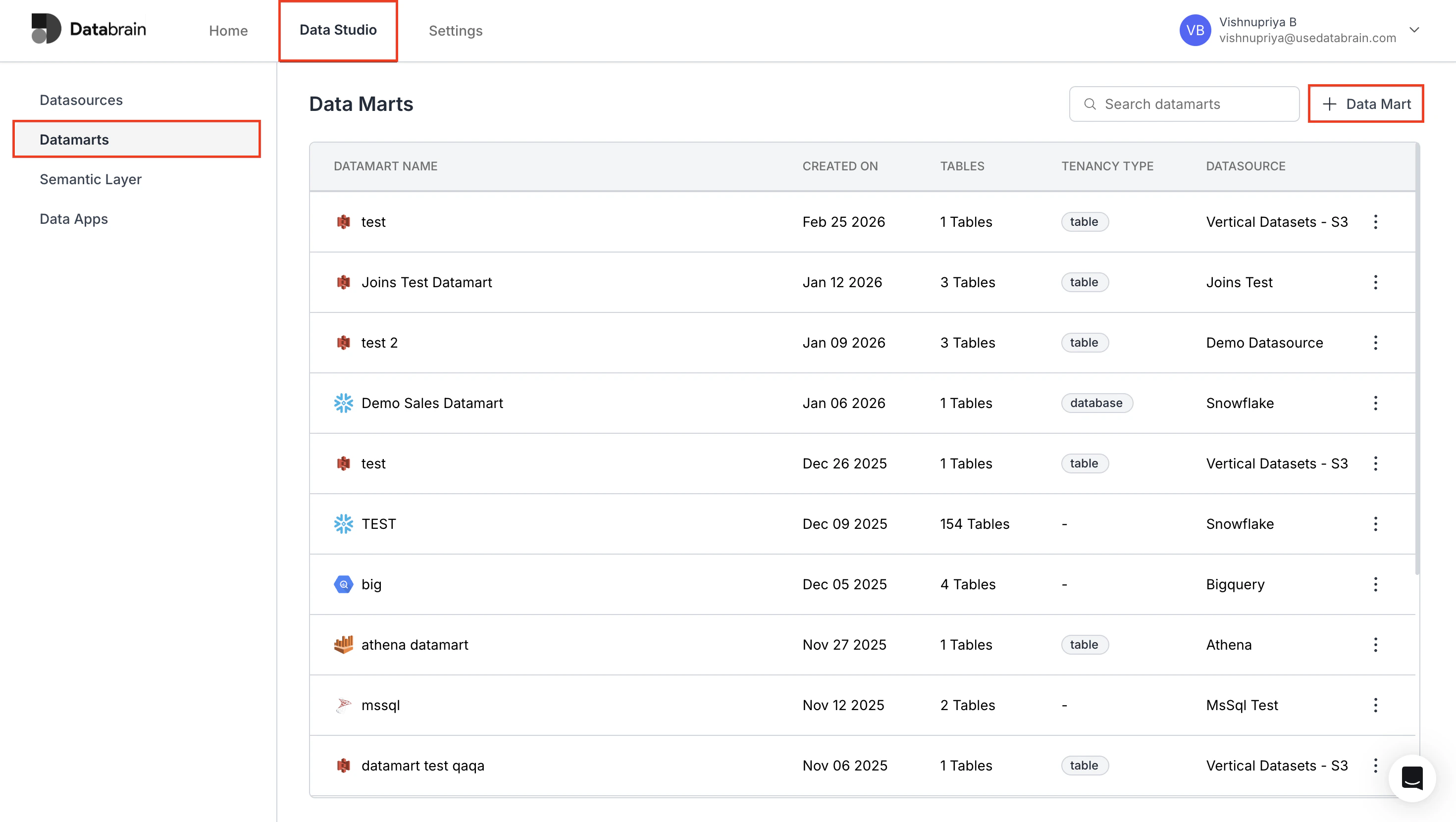 Follow the steps outlined in the link below to configure each datamart properly.
Step-by-step guide for creating and configuring your datamarts.
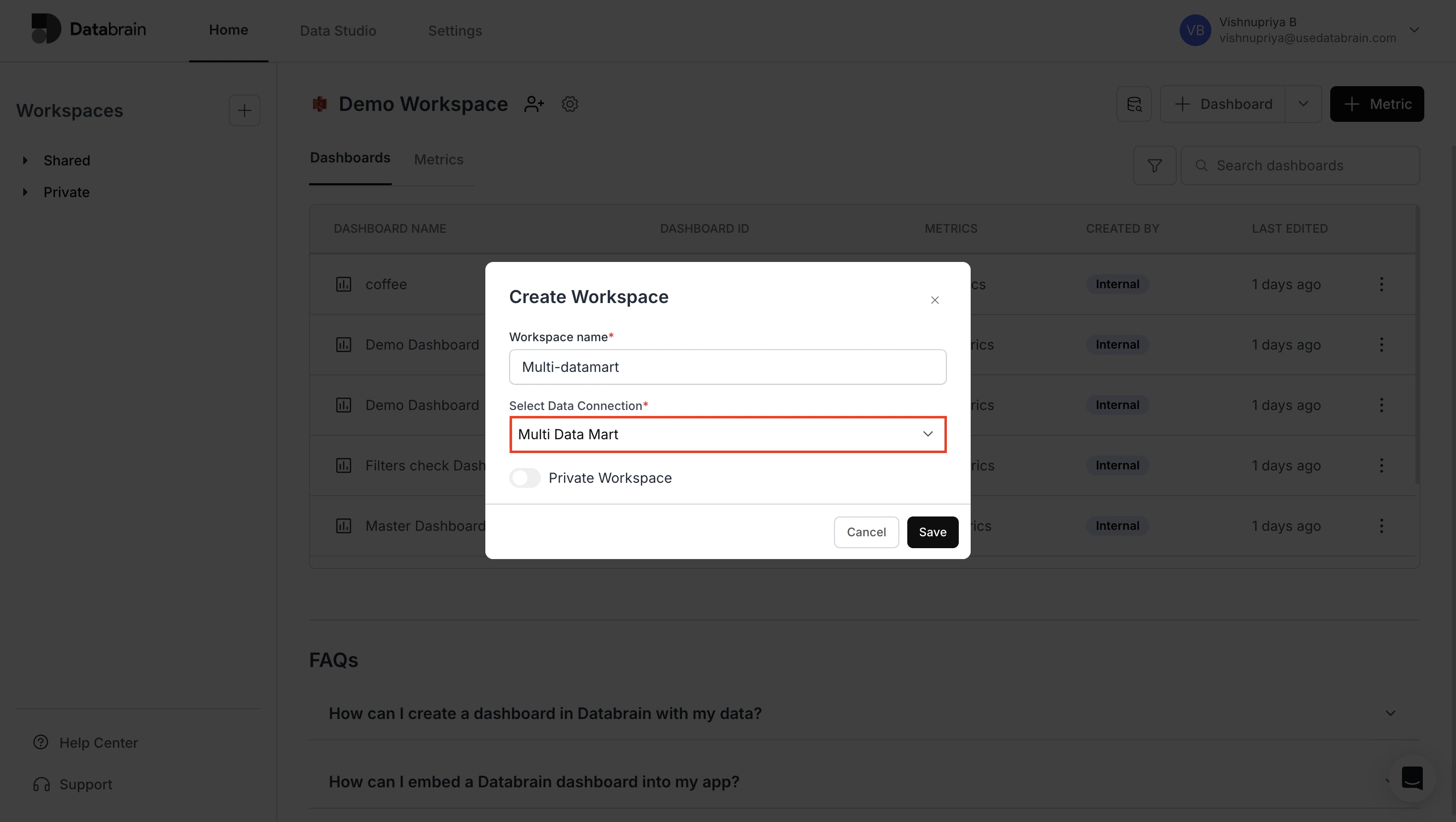
On the Home page, click to create a new workspace.
Select Multi Datamart under the "Select Data Connection" option.
Follow the steps outlined in the link below to configure each datamart properly.
Step-by-step guide for creating and configuring your datamarts.
On the Home page, click to create a new workspace.
Select Multi Datamart under the "Select Data Connection" option.
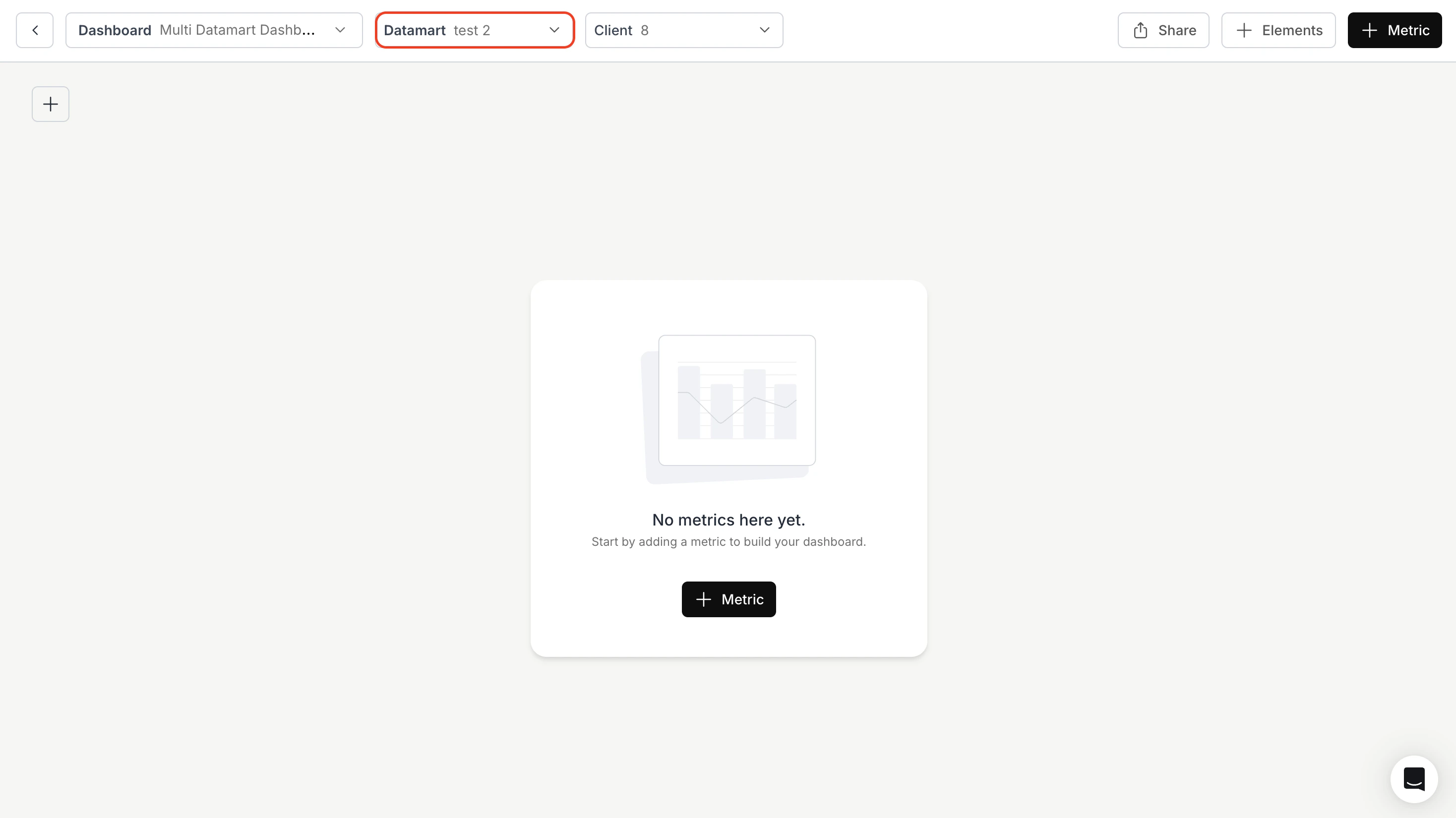
 Create a new dashboard.
Locate the dropdown dedicated to Datamart Switching in your dashboard interface.
Create a new dashboard.
Locate the dropdown dedicated to Datamart Switching in your dashboard interface.
 Add your desired metrics.
Enjoy seamless switching between datamarts within the same dashboard.
You’ve successfully set up your Multi-Datamart Workspace in Databrain!\
Your dashboards can now dynamically switch between multiple datamarts, allowing seamless comparison and unified insights across databases.
Add your desired metrics.
Enjoy seamless switching between datamarts within the same dashboard.
You’ve successfully set up your Multi-Datamart Workspace in Databrain!\
Your dashboards can now dynamically switch between multiple datamarts, allowing seamless comparison and unified insights across databases.