

Model
Review Bryn's changes
Control draft changes, answer business questions, and check Bryn's work before publishing.
Control draft changes and check Bryn’s work before publishing.
Choose how changes apply
-
Open your semantic model.
-
In the Bryn panel, select the Auto or Review chip next to the message box (Who applies changes).

The chip next to the message box sets who applies Bryn's changes. -
Select Auto or Review each change.
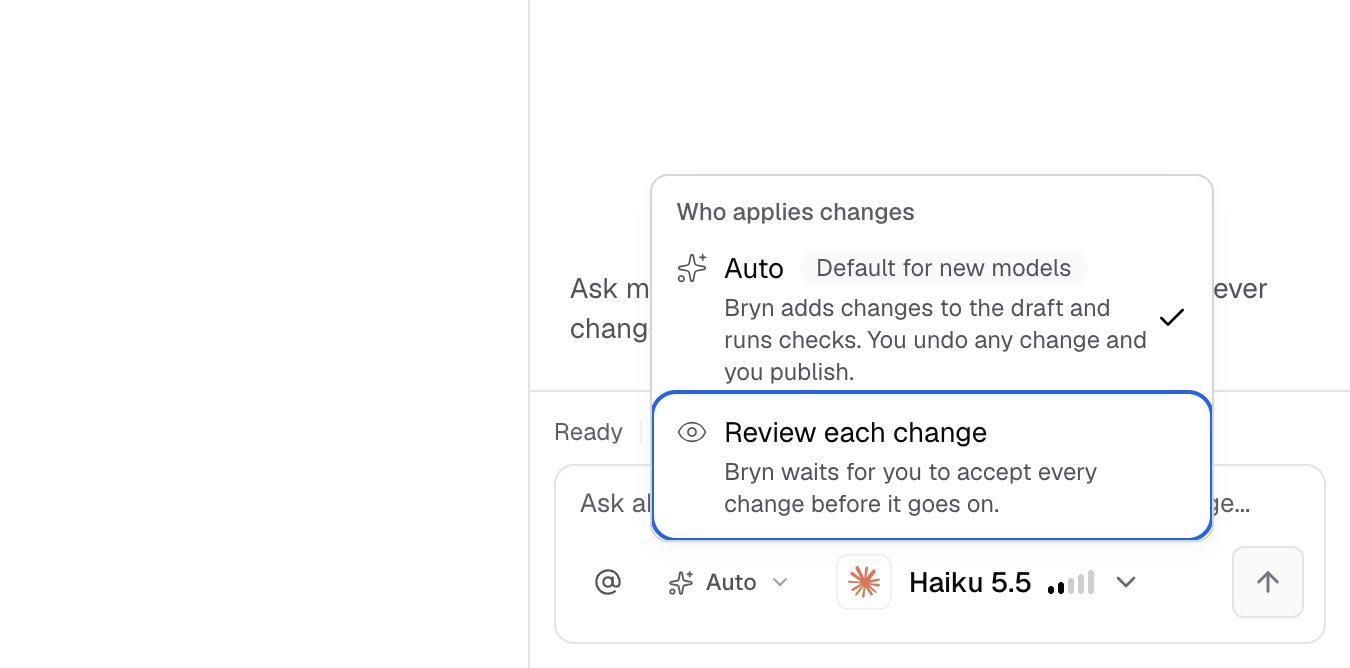
Review each change makes Bryn wait for your approval.
Auto adds changes to the draft and runs checks. New models use this default. Review each change waits for your acceptance. Existing models use this default. Neither setting publishes the model.
Review a proposed change
-
Select Review in Code in Bryn. With Auto, select Review one by one first.
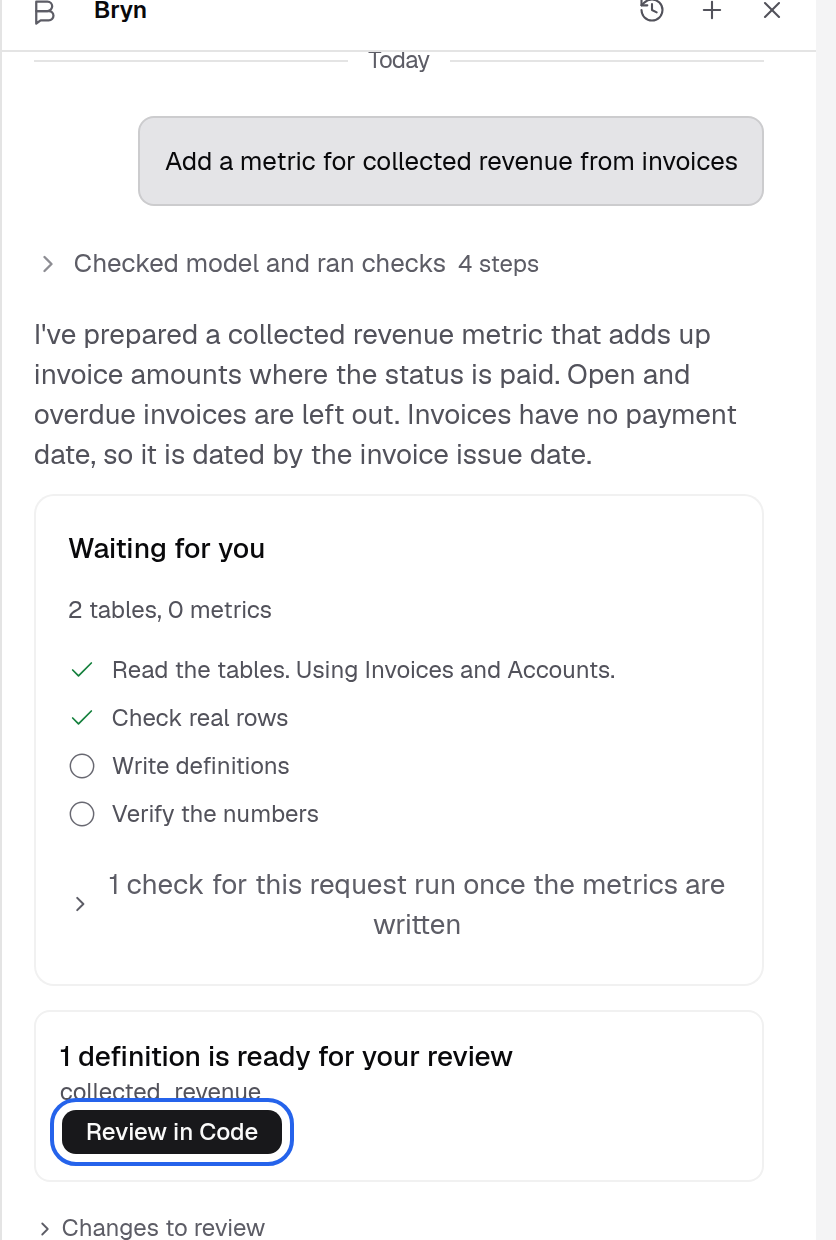
Bryn says what it prepared and why. With Review each change, nothing enters the draft yet. -
Read the change: its title, the changed files on the left, and the lines added or removed. Open Details for the reason and the evidence, for example the statuses Bryn found in the rows.
-
Inspect its checks and any business question.
-
Select Accept changes only when all included definitions match your business rule. To take one block of lines, select Apply on it, or Dismiss to skip it. To refuse the change, select Reject.
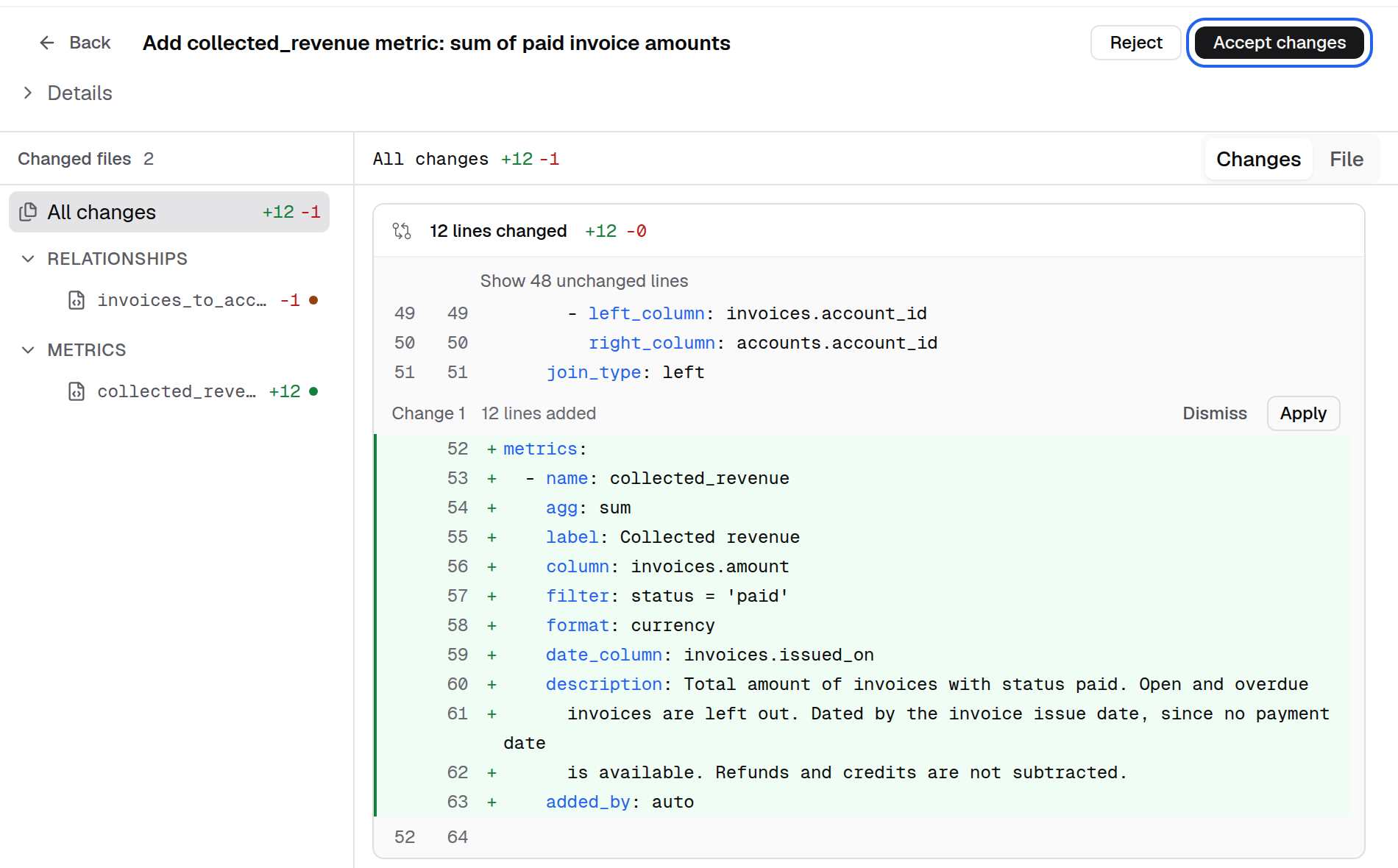
The review shows every changed file. Accept changes adds them all to the draft.
You see Bryn added 1 metric. with an Undo button.
Accepted changes enter the draft. They are available to publish after the required checks pass.
Use the change’s Undo action to reverse it. If newer edits depend on that change, resolve those edits before retrying Undo.
Answer a business question
When Bryn cannot decide a rule from the data, it asks before it writes anything. For example, Add a metric for churned accounts on data with no cancellation date gets a question.
-
Read the Question card in Bryn. It says why Bryn asks and what the answer changes.
-
Select the answer that matches your business rule. Bryn marks one Suggested. To write your own, select Reply in chat.
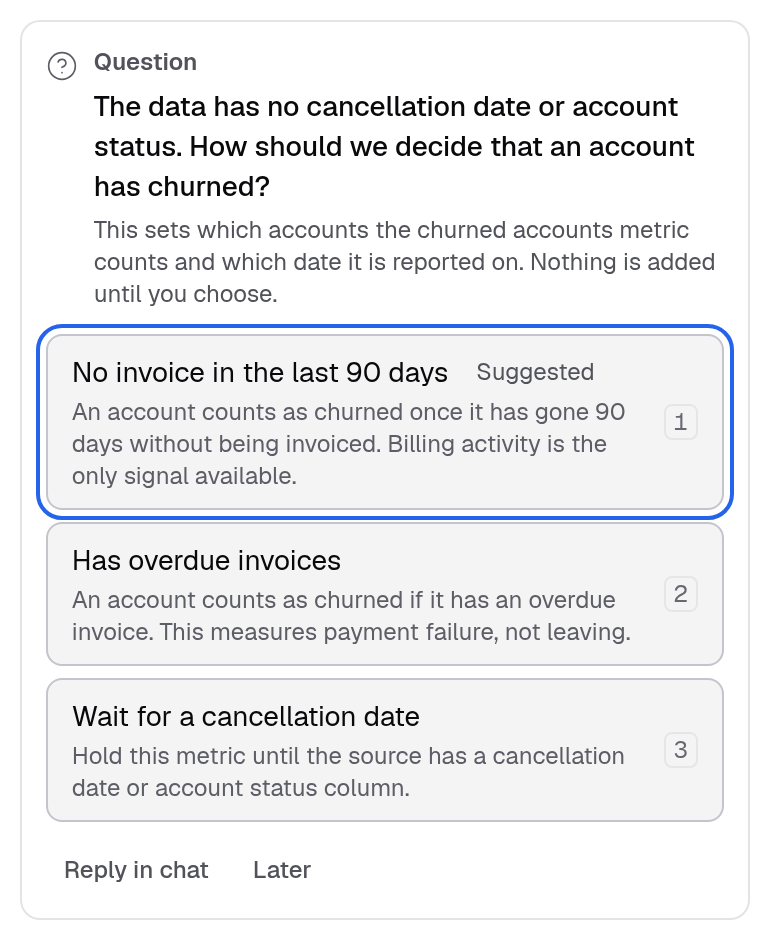
Each answer says what it counts. Nothing is added until you choose. -
Inspect the resulting draft change. Your answer stays in the thread with Change, so you can pick another one later.
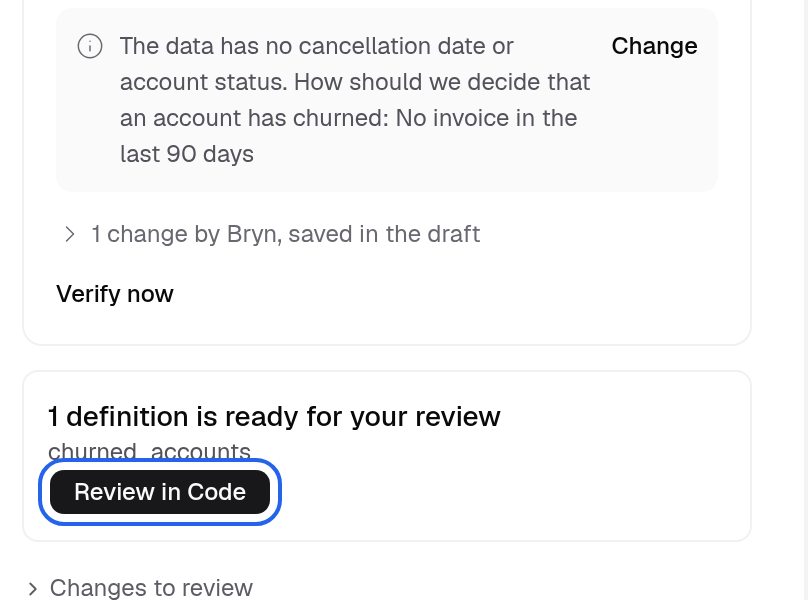
Bryn keeps your answer and prepares the change for your review.
Later keeps the question open and pauses changes that depend on it. Until you answer, Bryn shows Answer the linked business question before accepting. Do not choose an answer only to clear the status.
Correct a definition
-
Open the definition in Grid.

Grid lists every table, metric and join in the model. -
Correct its name, calculation, column, or date field.
-
Select Run in Preview.
-
Open Checks to inspect the new result.
You can also describe the correction to Bryn in plain words. Give the business rule, such as which status counts as a completed signup.
A successful query checks the current draft and customer scope. It does not prove every business rule. A result marked Ran on an older draft. Run again or Ran for a different customer. Run again needs a fresh run.
Ask from Claude or ChatGPT
Connect the hosted Databrain server with your own sign-in. Use your client’s setup instructions: Claude or ChatGPT. Your AI workspace may require an admin to add the connection.
-
Add a custom remote MCP connection with server URL
https://mcp.usedatabrain.com/mcp. Self-hosted Databrain uses your app address plus/mcp. Settings > MCP shows the URL for your deployment, with Copy next to Server URL.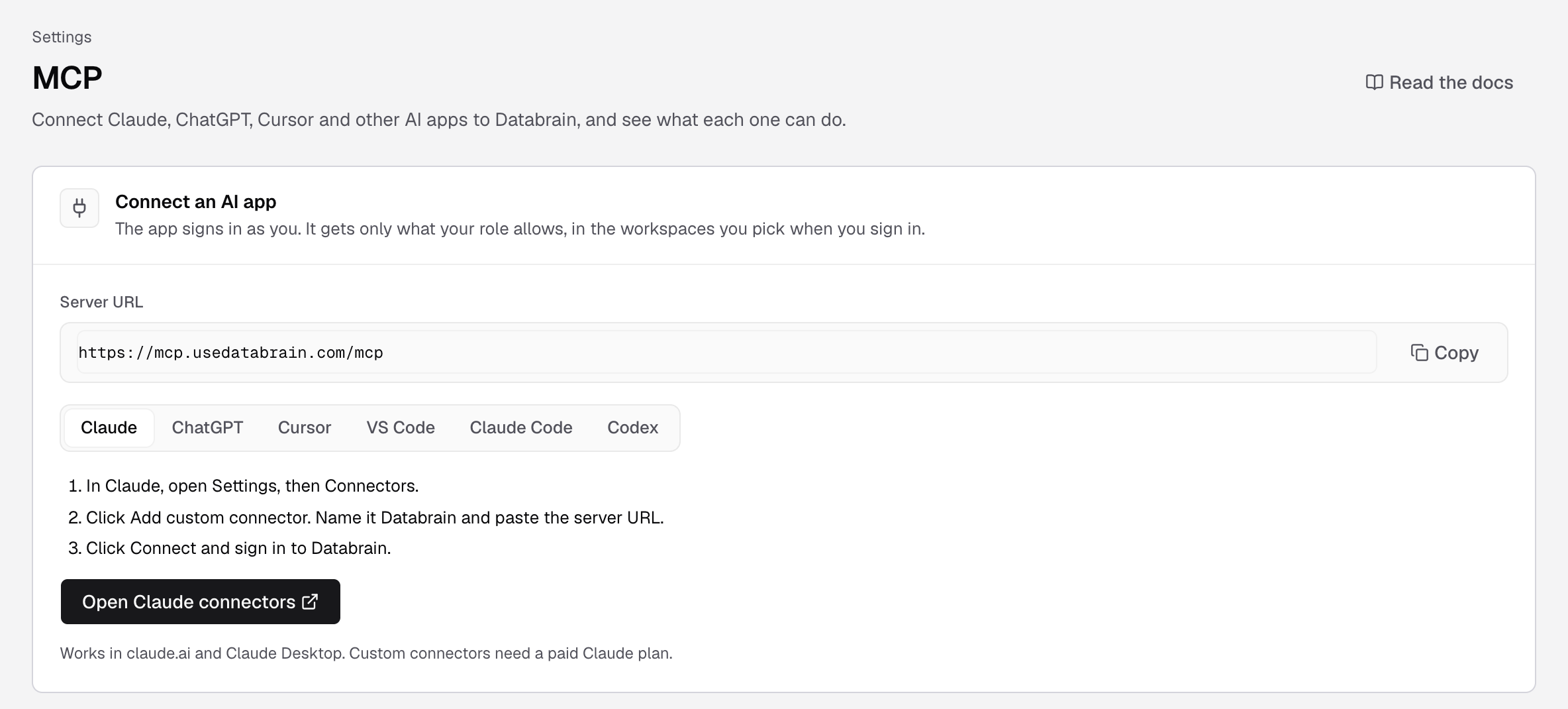
Settings > MCP shows the server URL for your deployment. -
Use OAuth authentication.
-
Sign in to Databrain when prompted.
-
Under Workspaces it can use, choose the workspaces to approve, or All workspaces I can access. Then select Allow access.
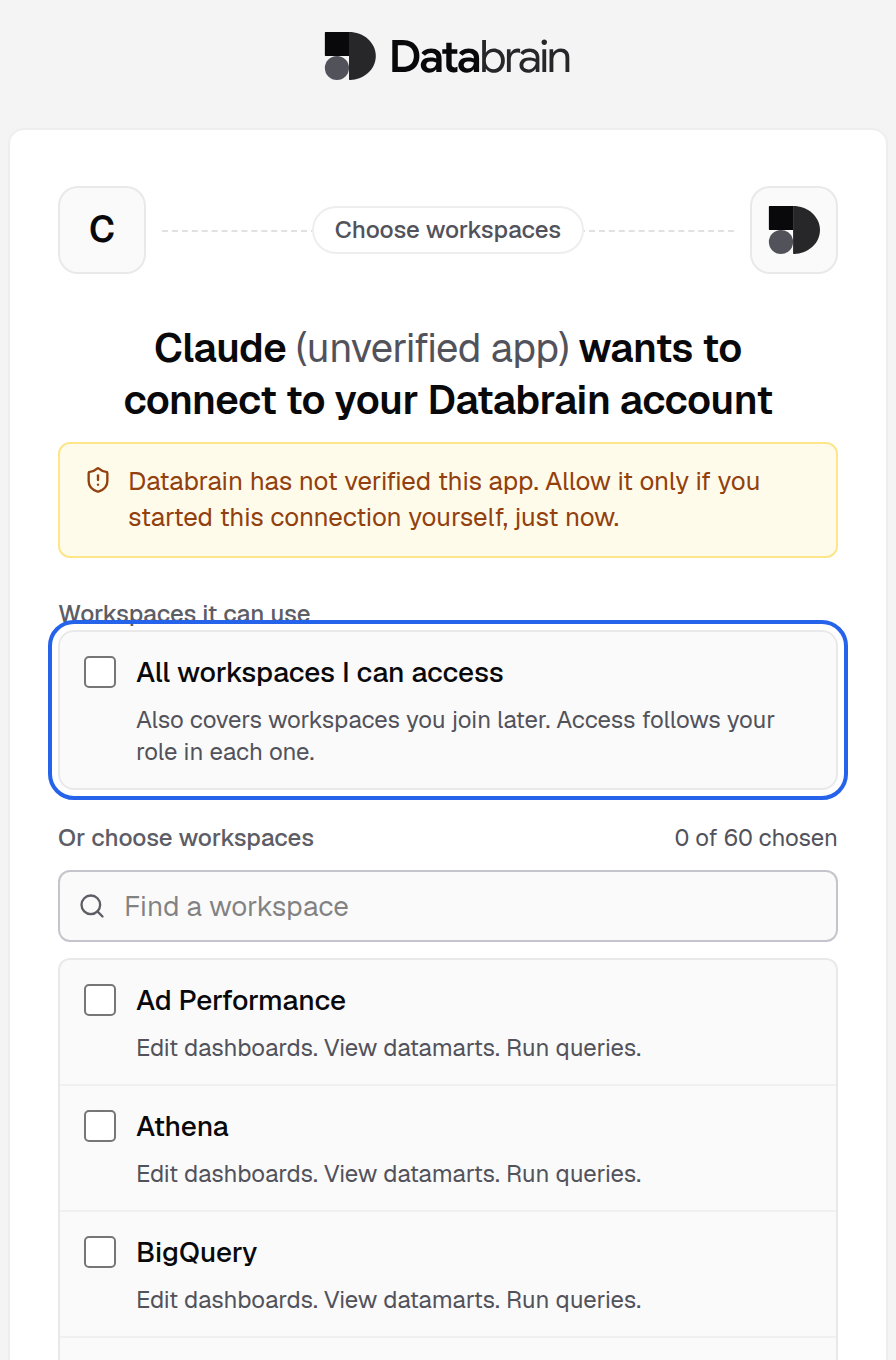
The Databrain sign-in page lists your workspaces and what your role allows in each. -
Enable the connection in your conversation.
-
Ask the client to call
whoamiand confirm your user ID and approved workspace.
If you approve several workspaces, name the workspace in each request. You can now ask the client to inspect your model, propose a correction, and explain the checks.
Use ask_bryn_semantic_model to ask Bryn about the model.
The semantic_model_draft tool manages drafts, review, Undo, and checks.
It requires a signed-in user and workspace permissions.
The semantic-model tools do not publish. Review the model in Databrain and select Publish model yourself.
Next, edit definitions yourself when you already know the required calculation.