

Organization
Protect sign-in with MFA and sessions
Turn on an authenticator app, require MFA for your company, and end sessions you do not use.
Settings > Security has two parts. Your sign-in changes only your own account. Organization changes sign-in for everyone and needs Admin rights.
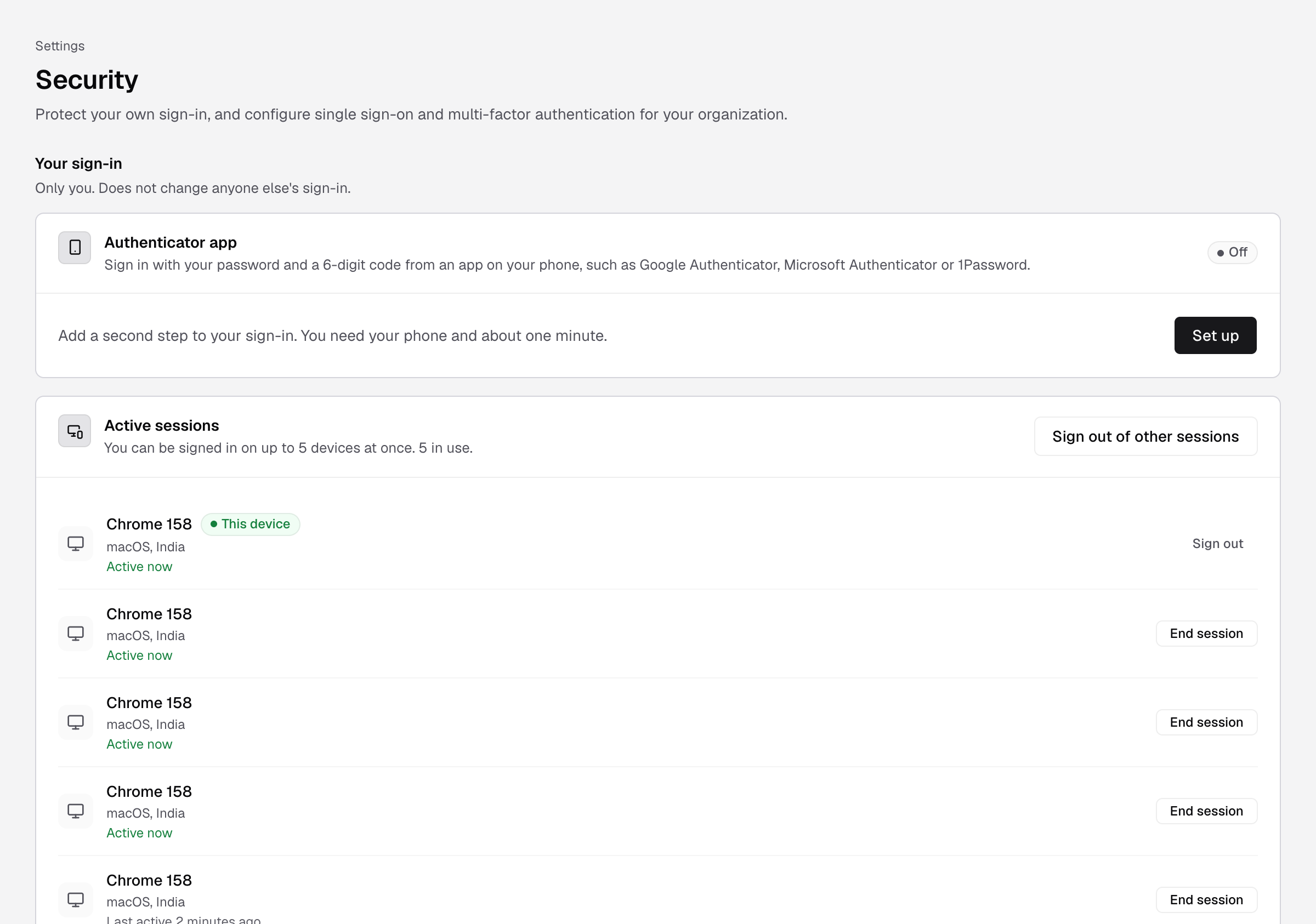
Turn on an authenticator app
Every plan includes this.
-
Go to Settings > Security.
-
On Authenticator app, select Set up.

Set up is on the Authenticator app card, under Your sign-in. -
In your authenticator app, add an account and scan the QR code. If you cannot scan, type the key shown.
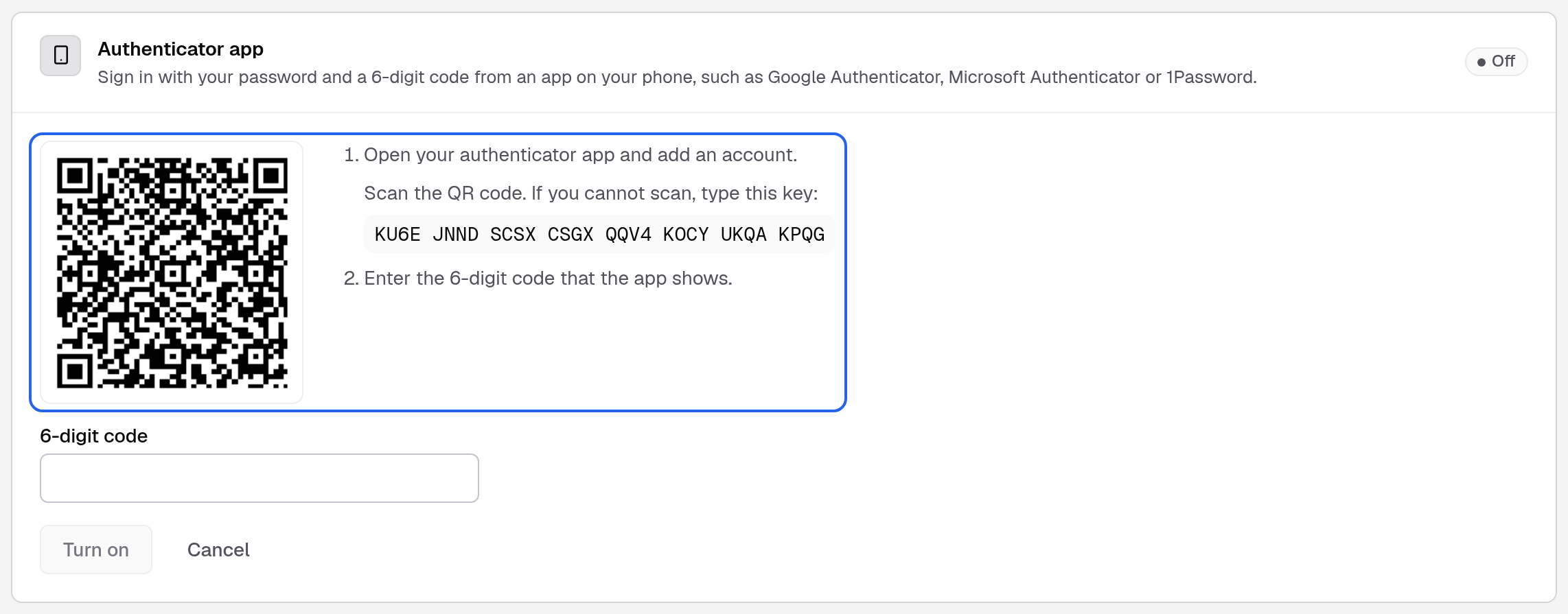
Scan the QR code, or type the key under it. -
Enter the 6-digit code from the app and select Turn on.
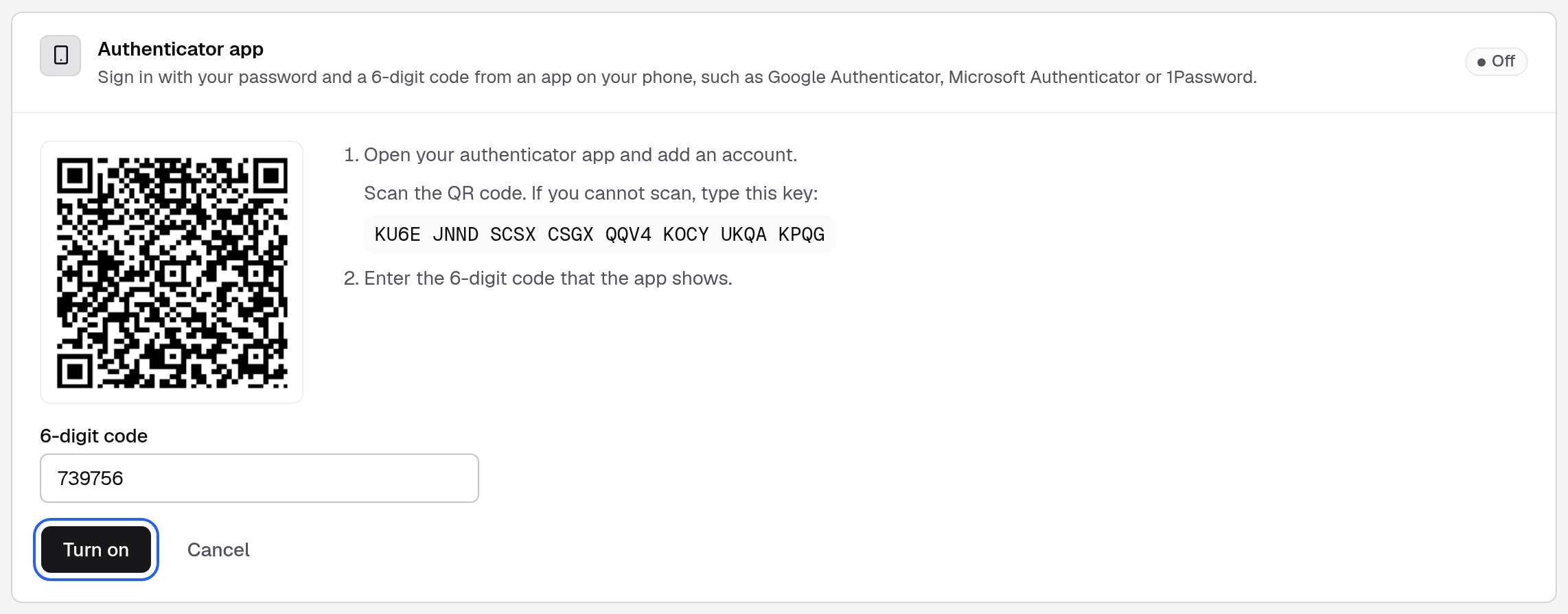
Turn on works once the code has 6 digits. -
Save the 10 recovery codes, then select I saved them.
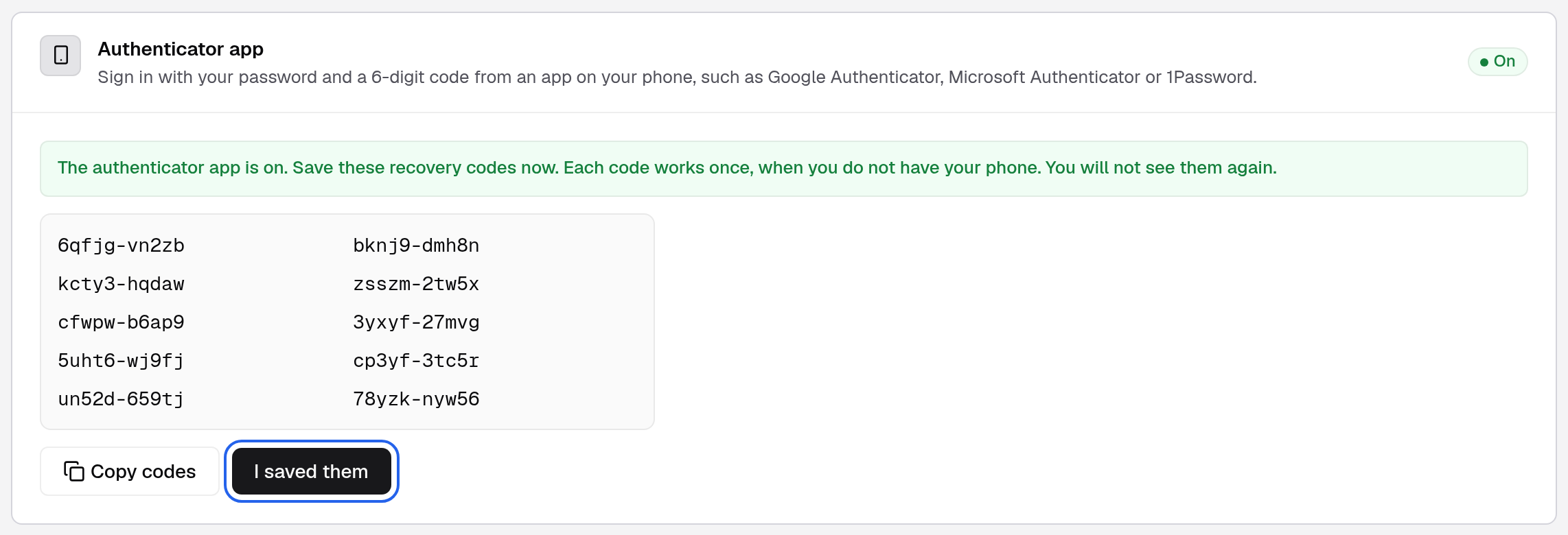
Copy or write down the codes. You see them only once.
The card shows On. At sign-in, Databrain now asks for a code from the app after your password. Each recovery code works once, when you do not have your phone. You do not see them again.
To turn it off, select Turn off and enter an app code or your password.

Require MFA for everyone
-
Go to Settings > Security and select the MFA tab.
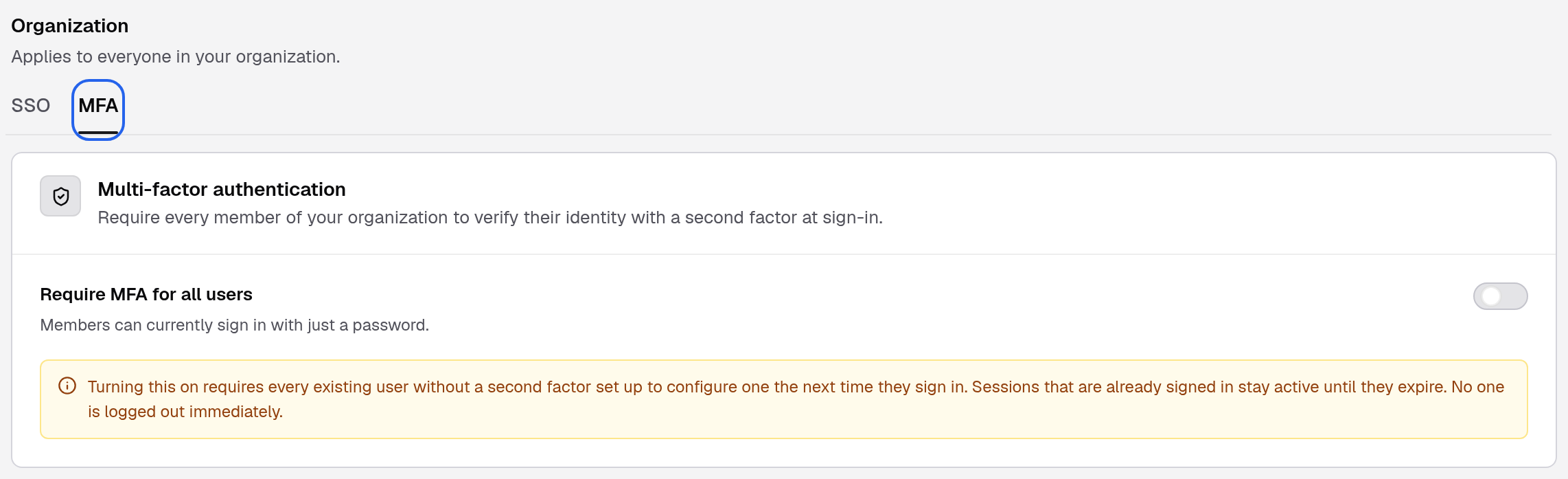
The MFA tab is under Organization, next to SSO. -
Turn on Require MFA for all users.
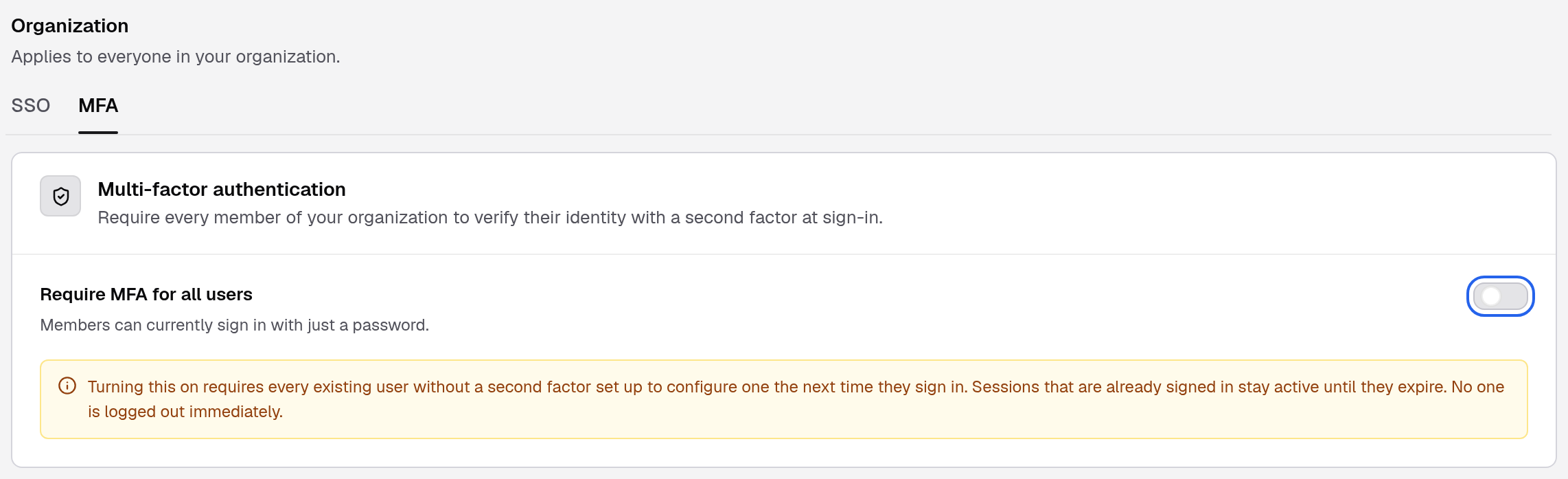
The note under the switch says what happens to people already signed in.
Everyone who signs in with a password now enters a 6-digit code. People with an authenticator app use the app. Everyone else gets the code by email. Sessions that are signed in stay signed in until they expire.
On a self-hosted install, emailed codes need email settings. SSO sign-ins skip this step.
End a session
You can be signed in on up to 5 devices at once. Each session shows its browser and operating system, for example Chrome on macOS. Use the sign-in time, last-active time and location, when shown, to tell sessions apart.
-
Go to Settings > Security.
-
Under Active sessions, find the device and select End session.
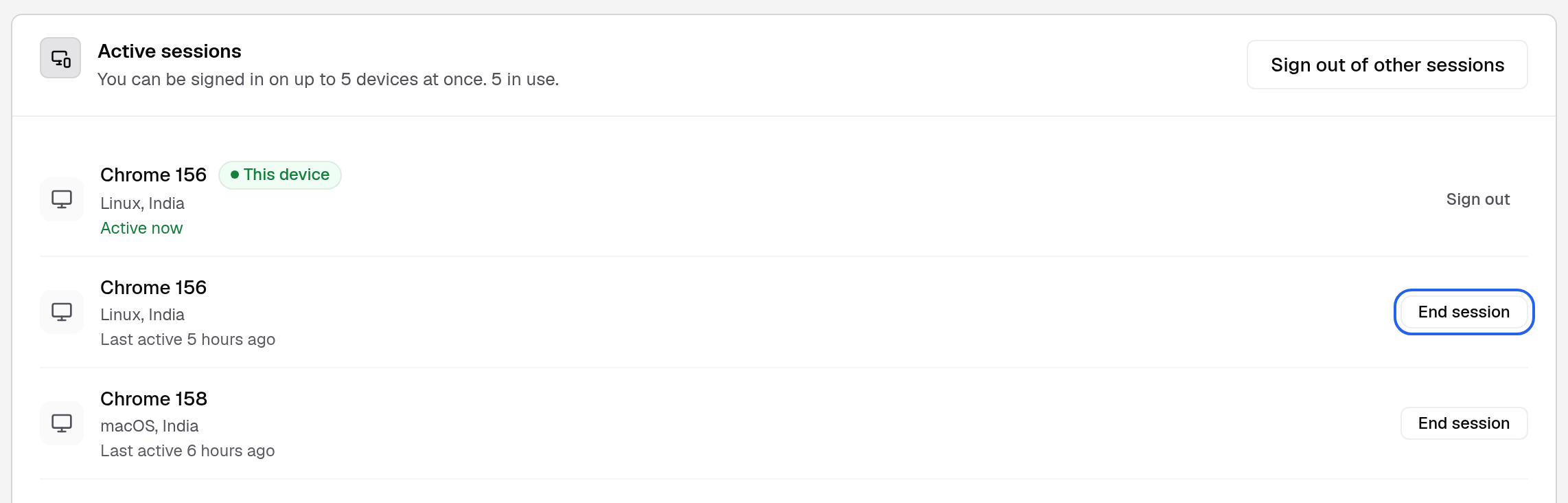
This device has Sign out. Every other device has End session.
To end every session except this one, select Sign out of other sessions, then Sign out others.
Lost phone
Use a recovery code at sign-in: select Use a recovery code. If you have none left, ask an Admin. They go to Settings > People & Access, open your row menu and select Reset authenticator app. Then set up the app again.
Single sign-on
The SSO tab is on the same page. See Set up single sign-on.