

MCP Server
Manage AI app connections
See which AI apps can act in Databrain, revoke one, and control who can connect.
Before you start
- To see and revoke your own connections, you need nothing extra.
- To see and revoke everyone’s connections, your role needs MCP > Manage all. Admins have it.
See connected apps
- Go to Settings > MCP.
- Find Connected AI apps. Mine lists the apps that signed in as you. Everyone lists every app in your company, if your role has Manage all.
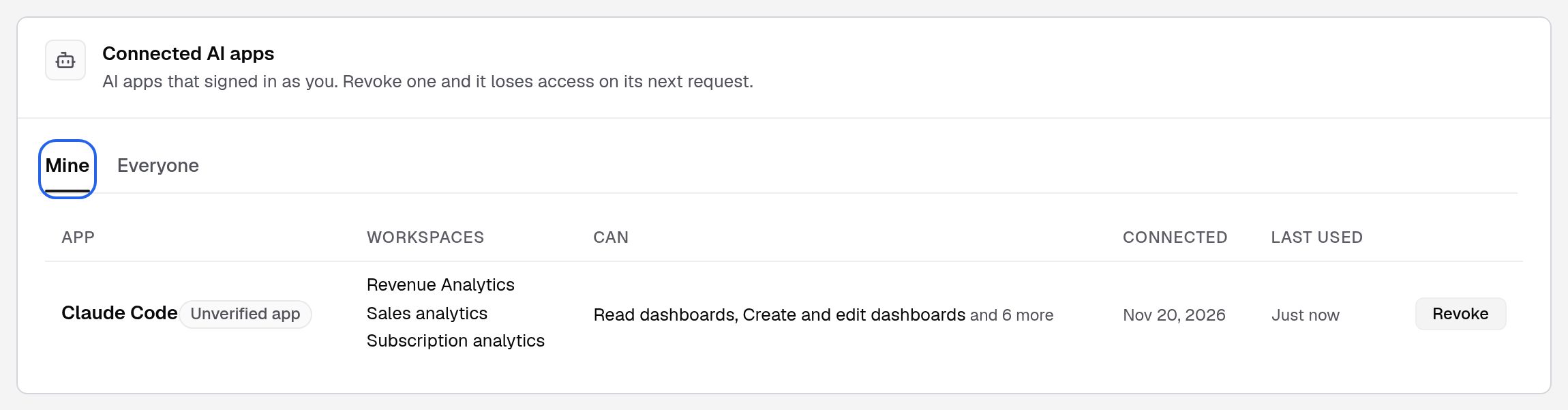
Each row shows:
| Column | What it shows |
|---|---|
| App | The app name. Unverified app means Databrain cannot confirm who made the app. |
| Person | Who connected it (only on Everyone). |
| Workspaces | The workspaces it can use. A workspace you lost access to is marked, and the app skips it. |
| Can | What it can do, for example “Read dashboards, Create and edit dashboards and 6 more”. |
| Connected and Last used | When it signed in, and its last call. |
Revoke an app
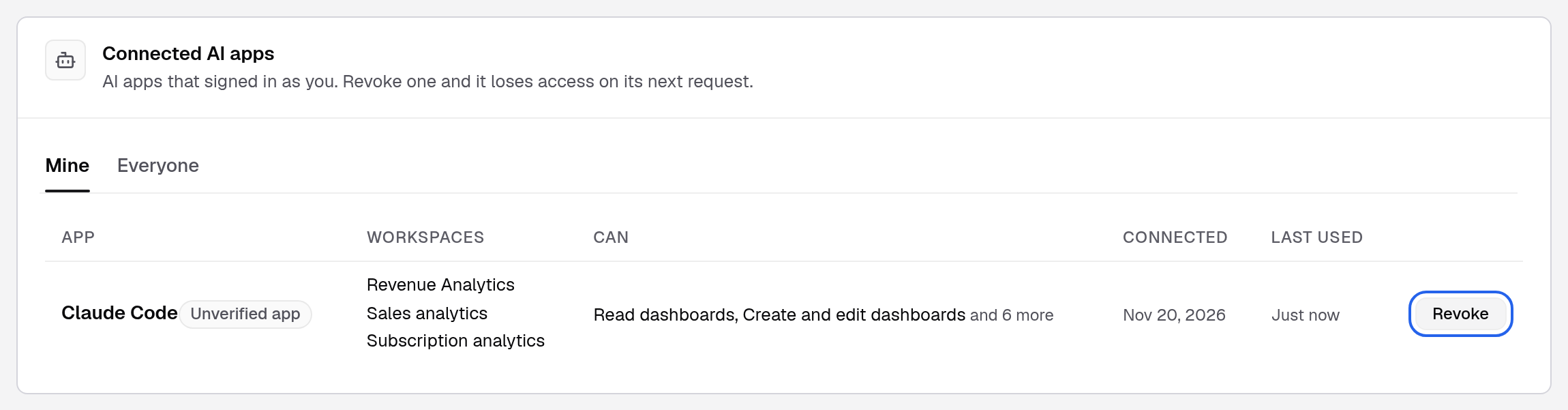
- In the app’s row, select Revoke.
- In the dialog, which names the app, select Revoke access.
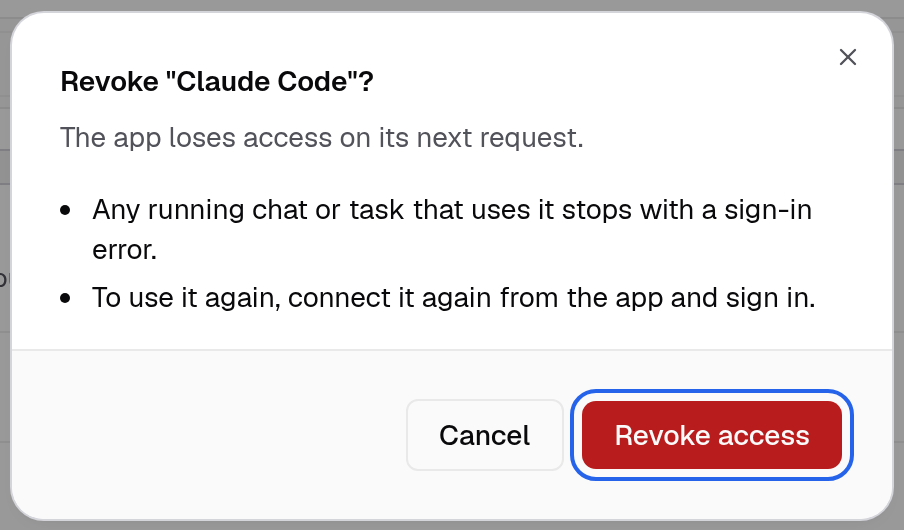
The row stays in the list with a Revoked badge, and Last used shows when it was revoked. The app loses access on its next request. A chat or task that uses it stops with a sign-in error. To use the app again, connect it again from the app. If you revoke someone else’s app, Databrain does not tell them.
Control who can connect
-
Go to Settings > People & Access > Roles and open a role.
-
Under MCP, select Connect or Manage all to turn it on or off. A check mark means on.
- Connect: connect AI apps like Claude or Cursor to Databrain. They can never do more than this role.
- Manage all: see and revoke every AI app connection in the company.
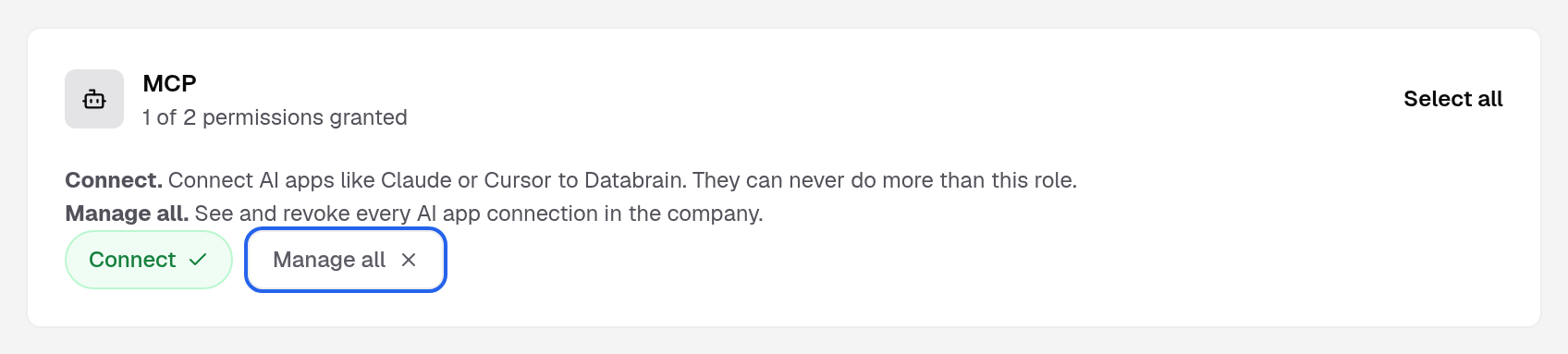
The MCP permissions of a role. Here Connect is on and Manage all is off. -
Select Save changes. Nothing is saved until you do, and Discard puts the old values back.
New roles have Connect on. The permission applies to the whole company, not to one workspace.
What an app can reach
An app never gets more than the person who connected it. Databrain checks the person’s role in each workspace on every call, so a role change takes effect on the next request.
| Access the app asks for | Lets it |
|---|---|
mcp:dashboards:read | List dashboards, data apps, embeds, widgets and reports |
mcp:dashboards:write | Create dashboards and add, edit or remove widgets |
mcp:datamarts:read | List datasources, datamarts and workspaces, and read the semantic model |
mcp:datamarts:write | Sync datasources, create datamarts and workspaces, and change the semantic model |
mcp:embeds:write | Create data apps, API tokens, embeds, themes and guest tokens |
mcp:query | Run queries and ask questions |
mcp:custom-charts:read | List and preview custom chart types |
mcp:custom-charts:write | Upload and publish custom chart types |
Custom chart types belong to the company, not to one workspace. The tools reference lists the access each tool needs.