

You need at least one existing Data App before you can generate an API key.
1
Open the Data App in Data Studio
Navigate to Data Studio → Data Apps and select the Data App for which you want to create an API key.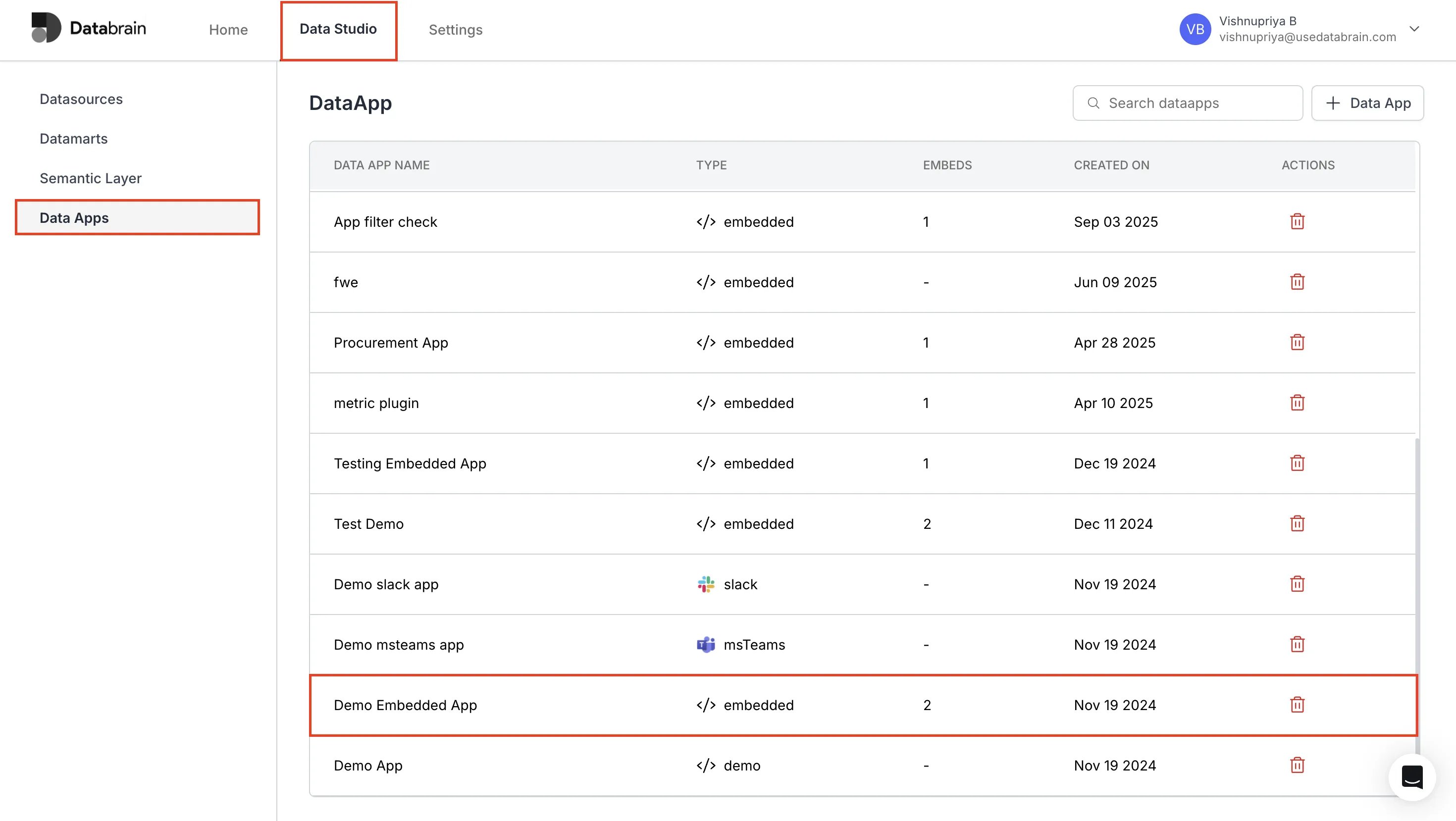
2
Go to the API Token section
In the left sidebar, select API Token, then click Generate Token in the top-right corner of the API Tokens table.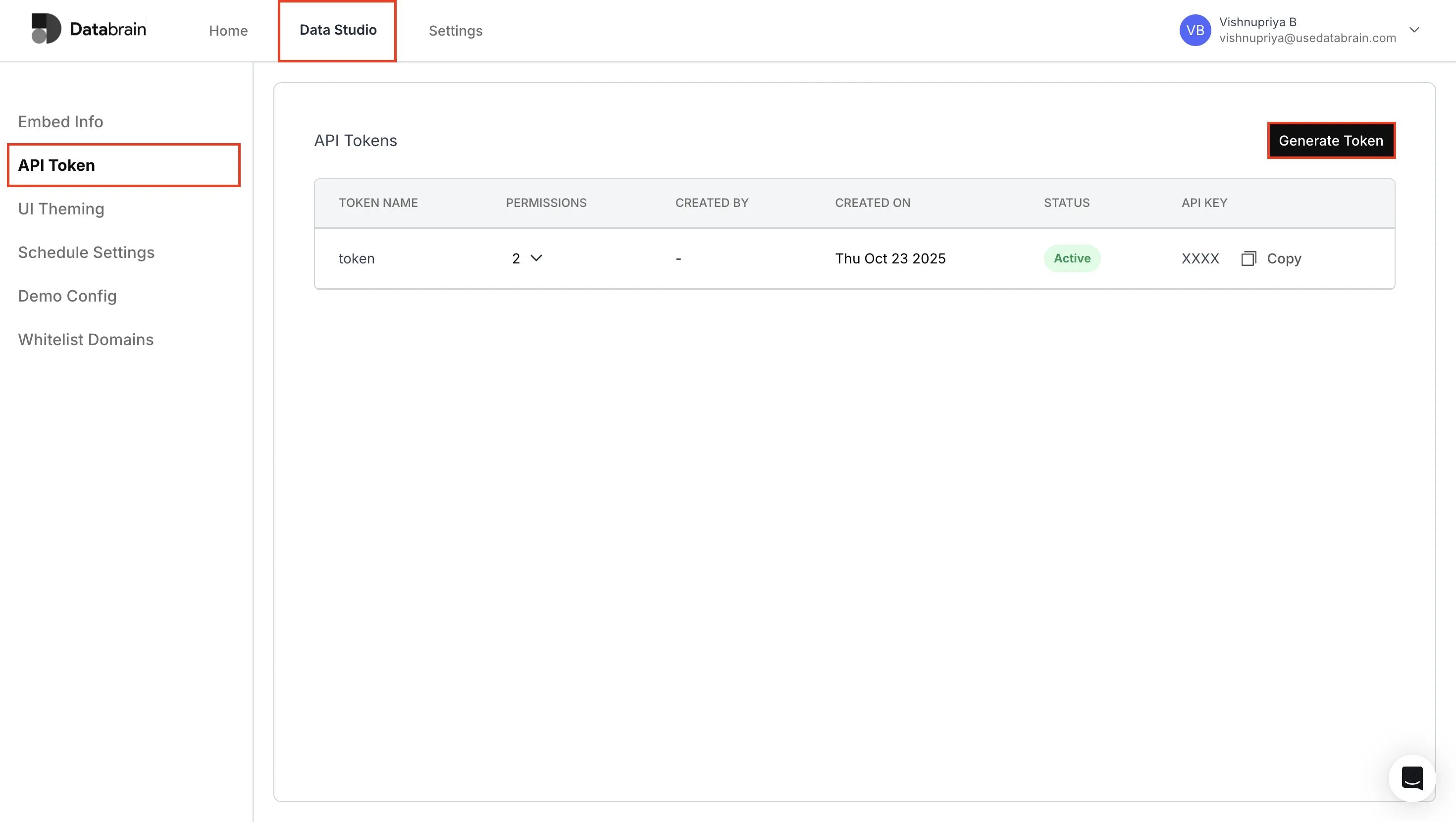
3
Configure and generate the API key
In the API Token Settings panel: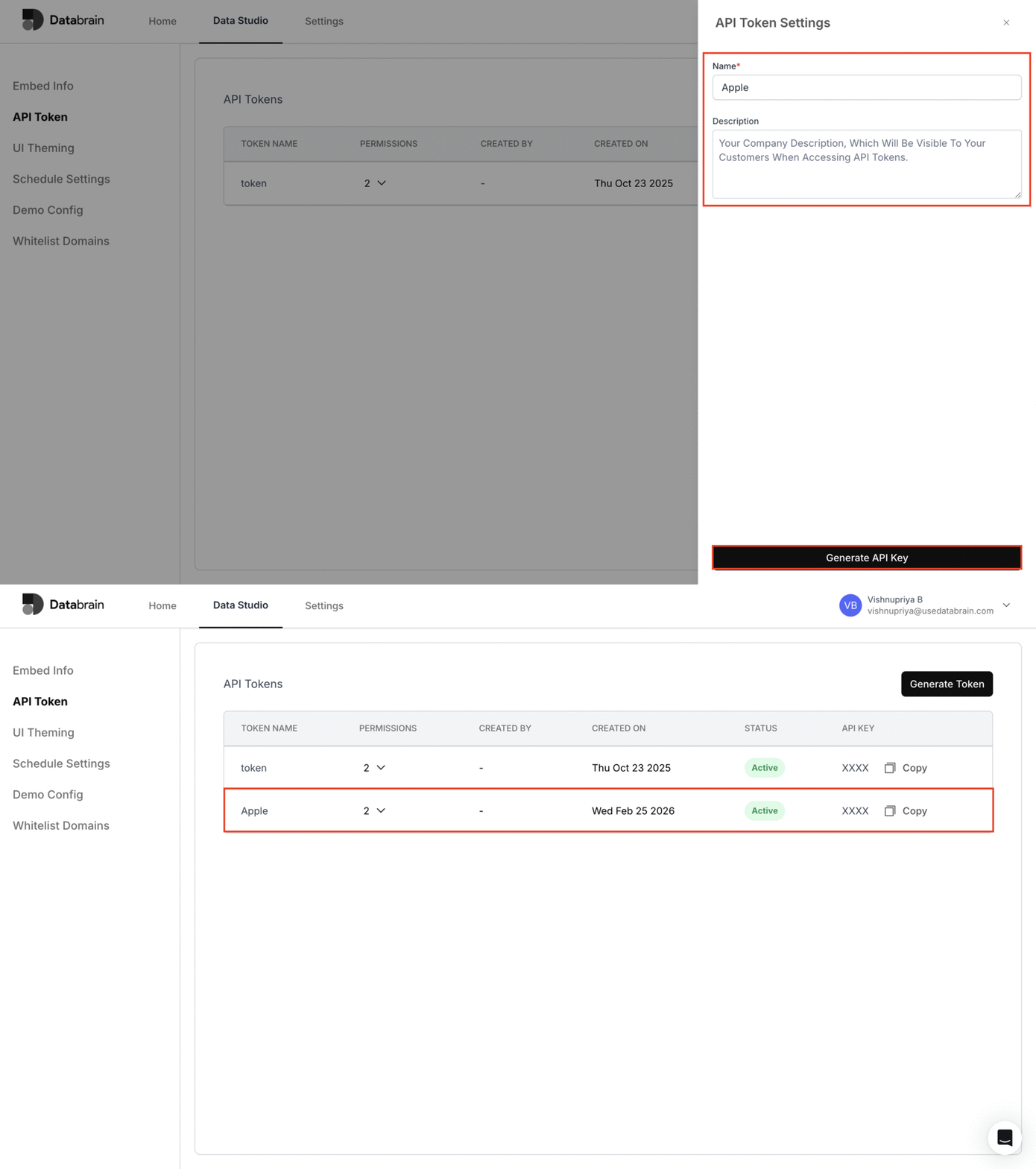
- Enter your Token name (for example, your company or integration name).
- Optionally add a description to clarify how this key will be used.
- Click Generate API Key to create the key for this Data App.
Your API key is now active for this Data App. Use it in your backend services to authenticate API requests on behalf of this Data App.