

1
Add Datamarts
Navigate to the Data Studio page and add all the datamarts.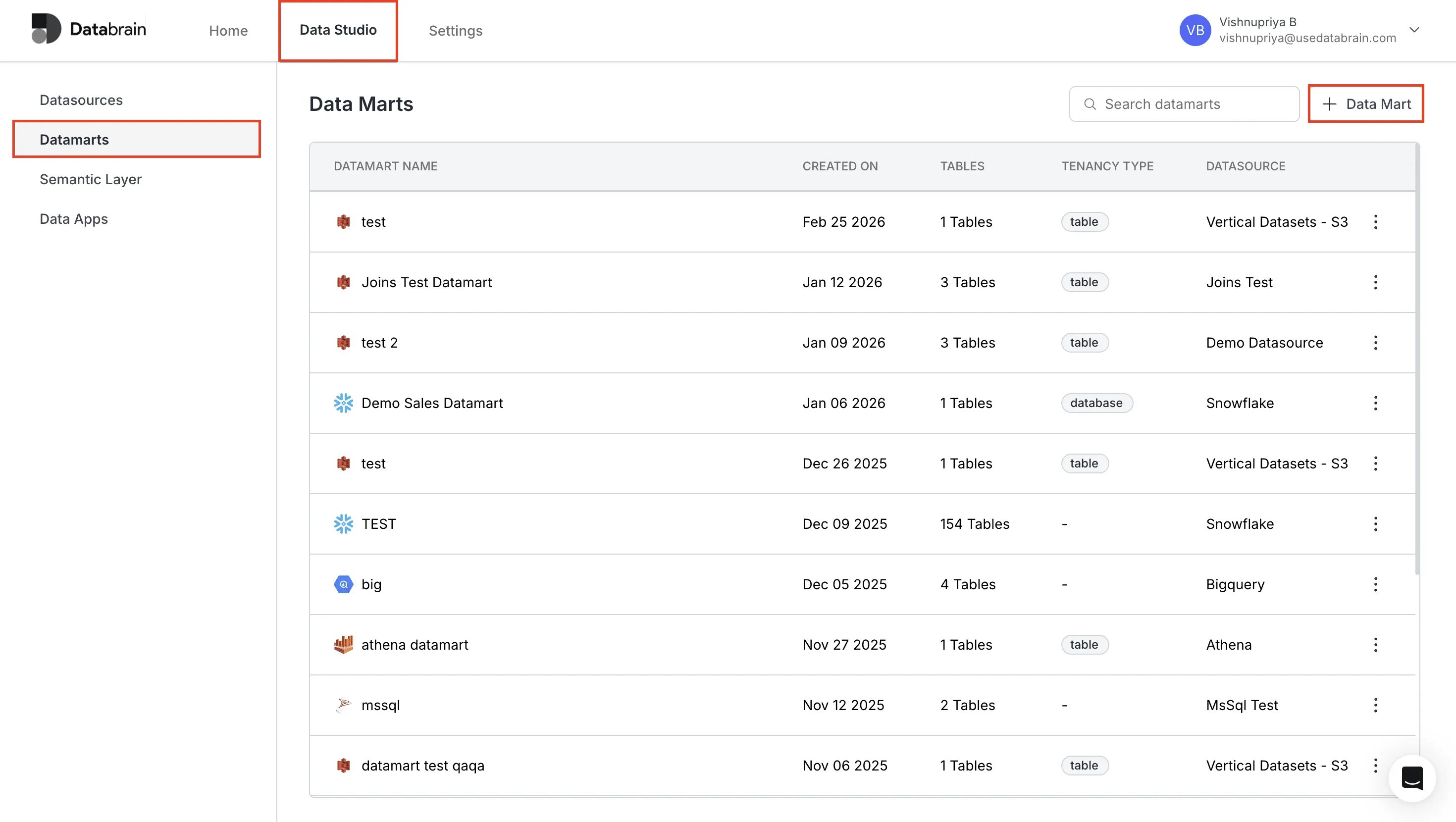
Add a Datamart
Step-by-step guide for creating and configuring your datamarts.
2
Create a Workspace
On the Home page, click to create a new workspace.Select Multi Datamart under the “Select Data Connection” option.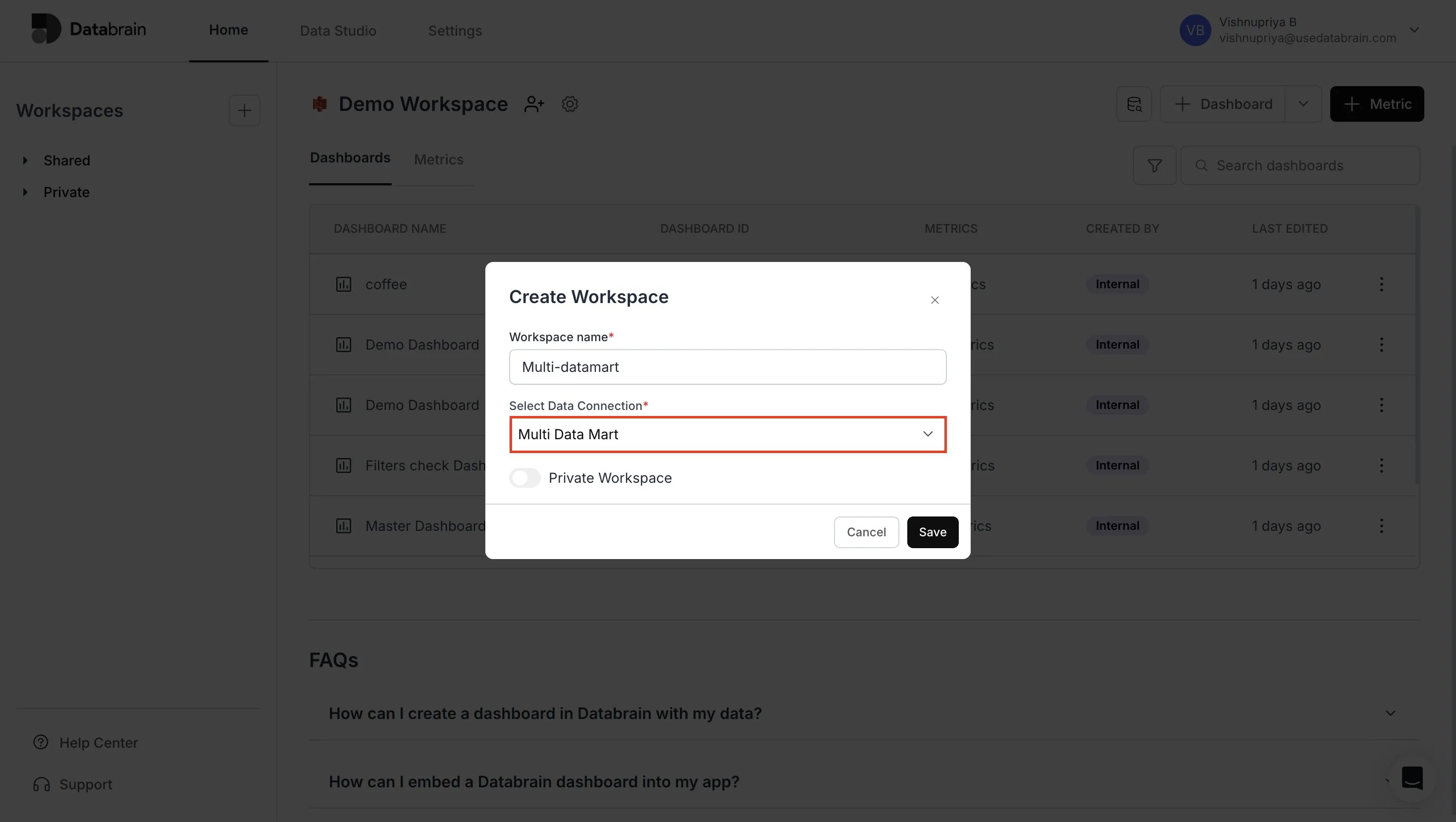
3
Build a Dashboard
Create a new dashboard.Locate the dropdown dedicated to Datamart Switching in your dashboard interface.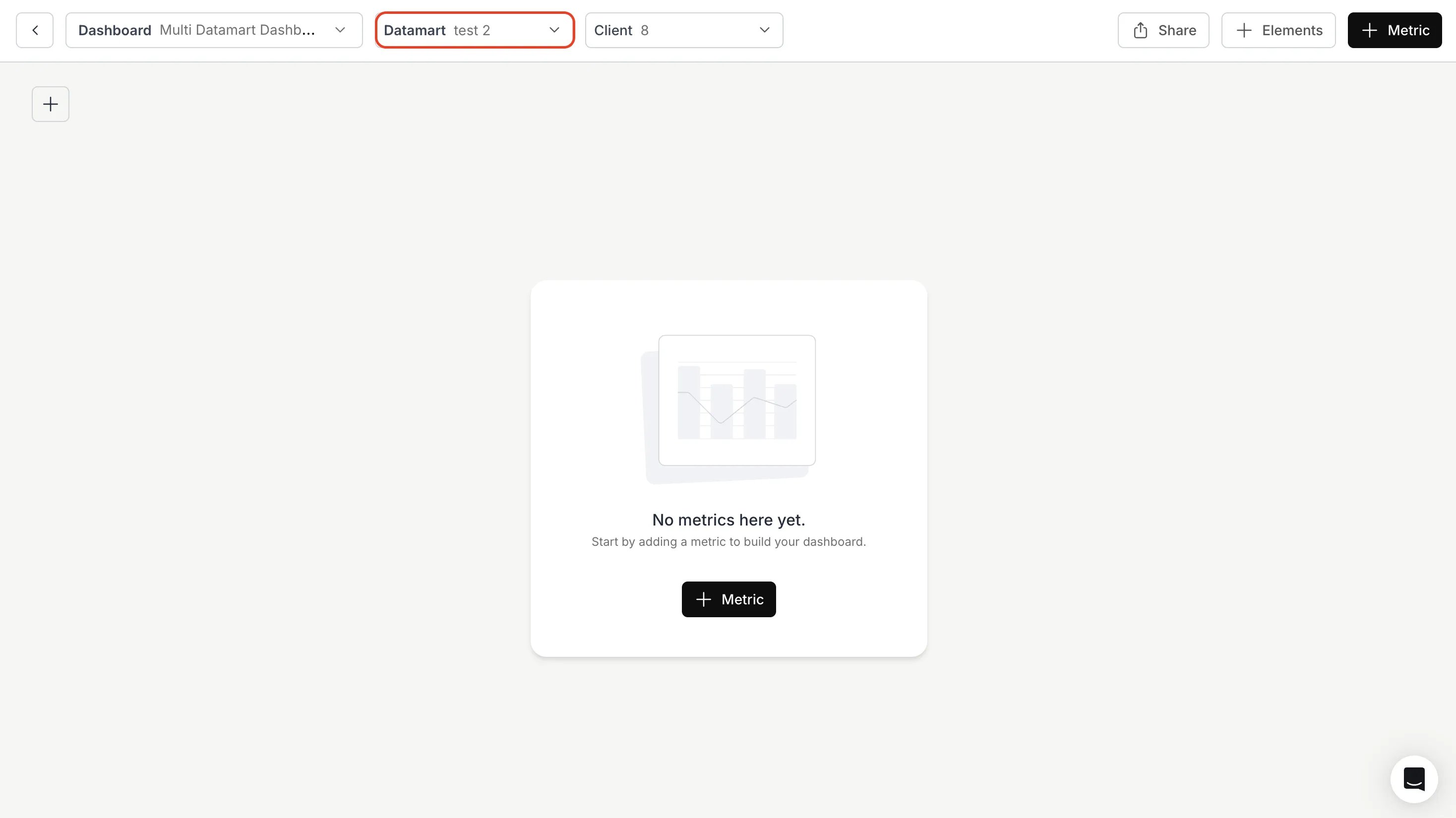
4
Create Metrics
Add your desired metrics.Enjoy seamless switching between datamarts within the same dashboard.
You’ve successfully set up your Multi-Datamart Workspace in Databrain!
Your dashboards can now dynamically switch between multiple datamarts, allowing seamless comparison and unified insights across databases.
Your dashboards can now dynamically switch between multiple datamarts, allowing seamless comparison and unified insights across databases.