

Prerequisites
Before using AI Copilot, make sure the workspace has:- A connected data source or datamart with schema access.
- At least one LLM configured in Databrain under Settings > LLMs > +LLM
- At least one model selected under Workspace Settings > AI Copilot LLM.
- Access to the metric creation page.
- Permission to update workspace settings, if you are configuring the feature.
Steps to setup AI Copilot:
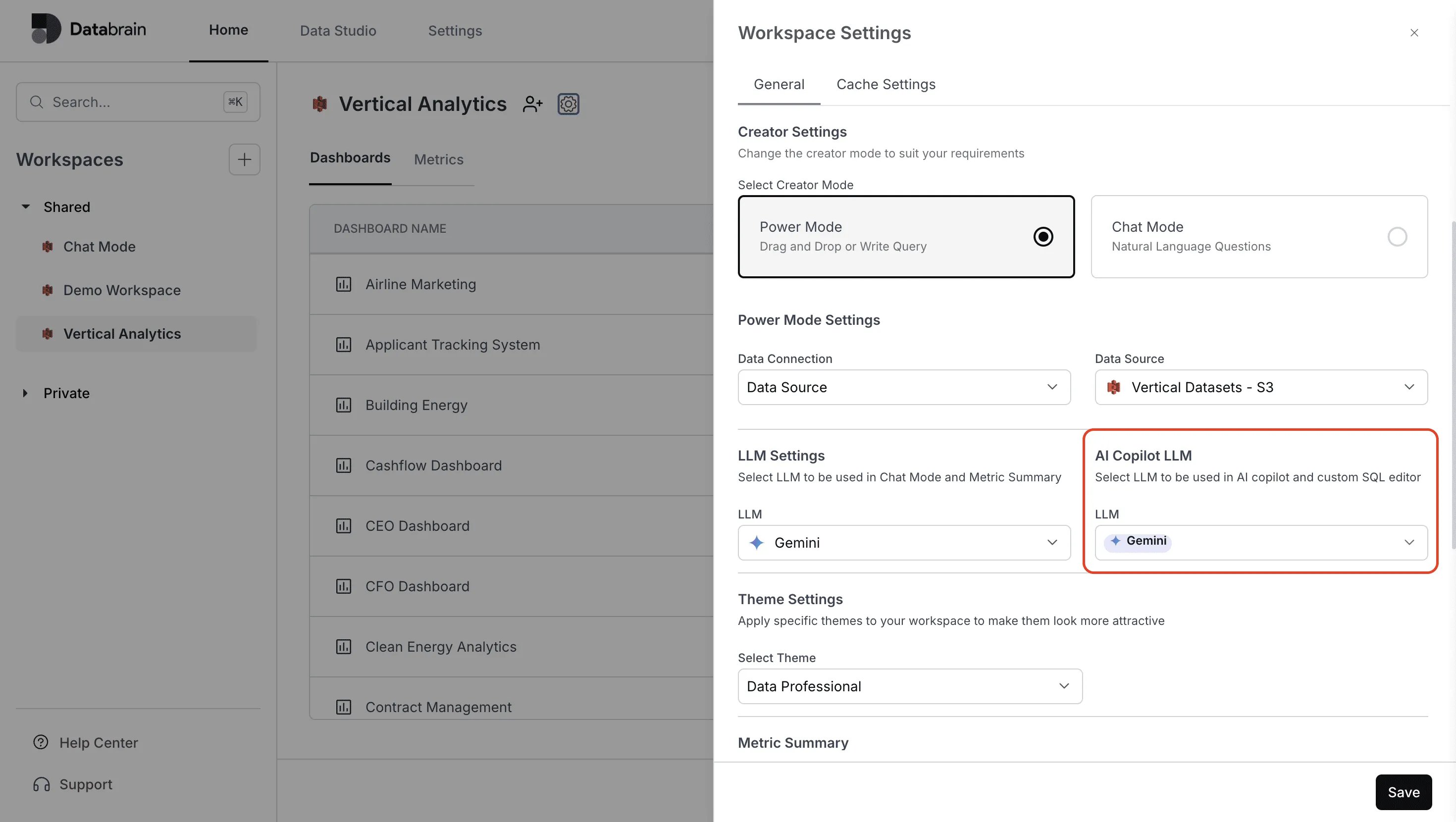
1. Enable AI Copilot
- Open the workspace where you want to use AI Copilot.
- Click the workspace settings icon.
- In Workspace Settings, open the General tab.
- Under Creator Settings, select Power Mode.
- In AI Copilot LLM, select one or more LLMs.
- Click Save.
2. Open AI Copilot
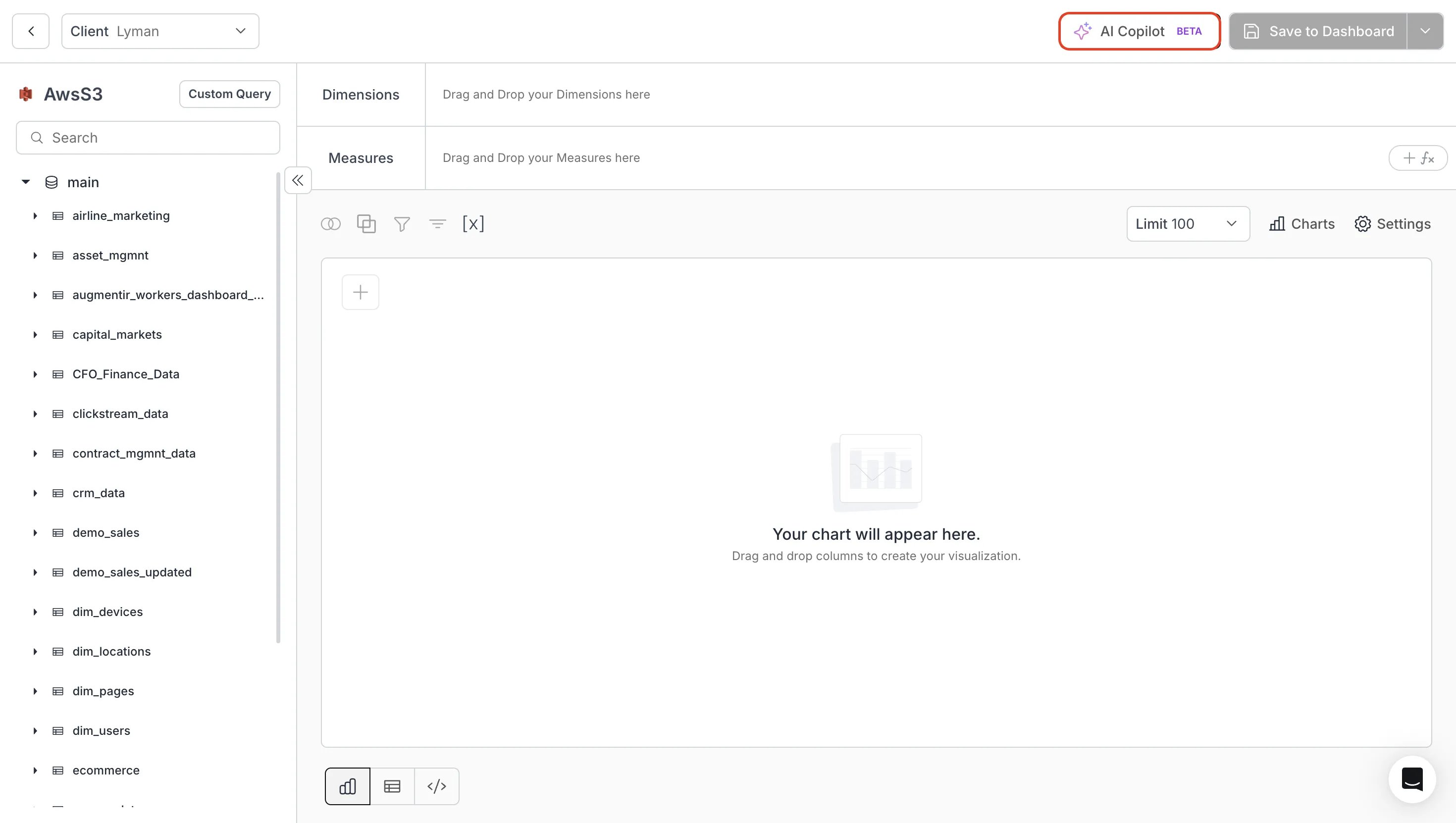
- Go to the metric creation page.
- Confirm the correct workspace, data source or datamart, and client context.
- Click AI Copilot in the top-right of the metric builder.
3. Ask a question
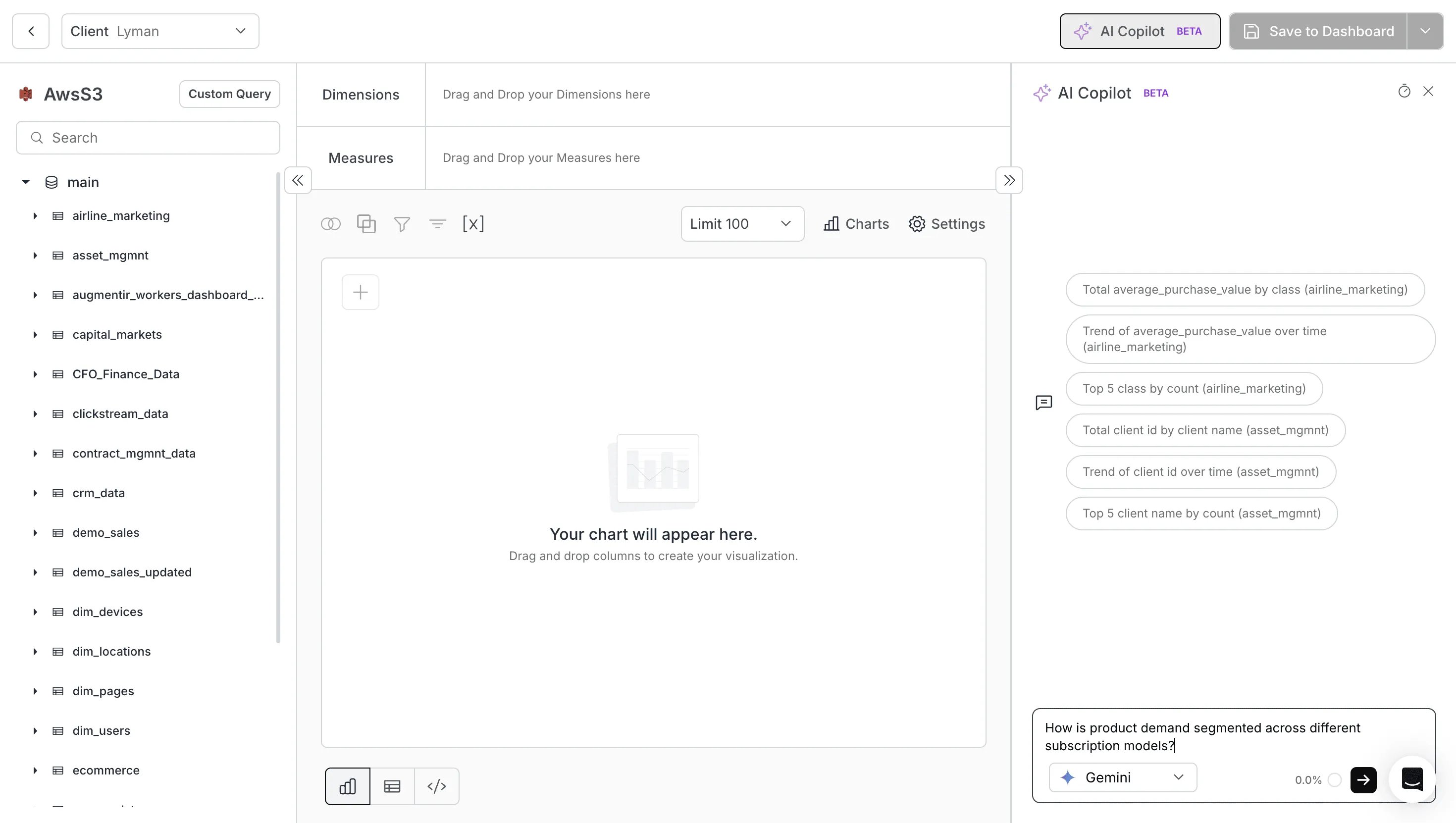
Type a business question in natural language. For best results, include the metric, grouping, filter, and time period when relevant. Examples:Show total users by subscription typeTrend of revenue by month for the last 6 monthsTop 5 customers by order valueHow is product demand segmented across different subscription models?
- Validates that the prompt is an analytics/data question.
- Uses the workspace or datamart schema, table relationships, examples, memory, and prior conversation context.
- Generates SQL through the selected LLM.
- Executes the SQL through Databrain.
- Returns a chart-ready response with SQL, metadata, reasoning, dimensions, and measures.
4. Review the result
AI Copilot displays the generated metric in the main chart area and shows the explanation in the Copilot panel.- Chart output: Confirms whether the generated result answers the question.
- Dimensions: Shows the grouping fields used in the metric.
- Measures: Shows the aggregated values used in the metric.
- Reasoning: Explains why Copilot selected the tables, columns, and aggregation.
- Tables Used: Lists the source tables used by the generated SQL.
- Columns Used: Lists the source columns used by the generated SQL.
- SQL Query: Shows the generated SQL. Expand this section to inspect the query.
Use the context window indicator
The context window indicator shows how much of the selected model’s context window has been used in the current Copilot session.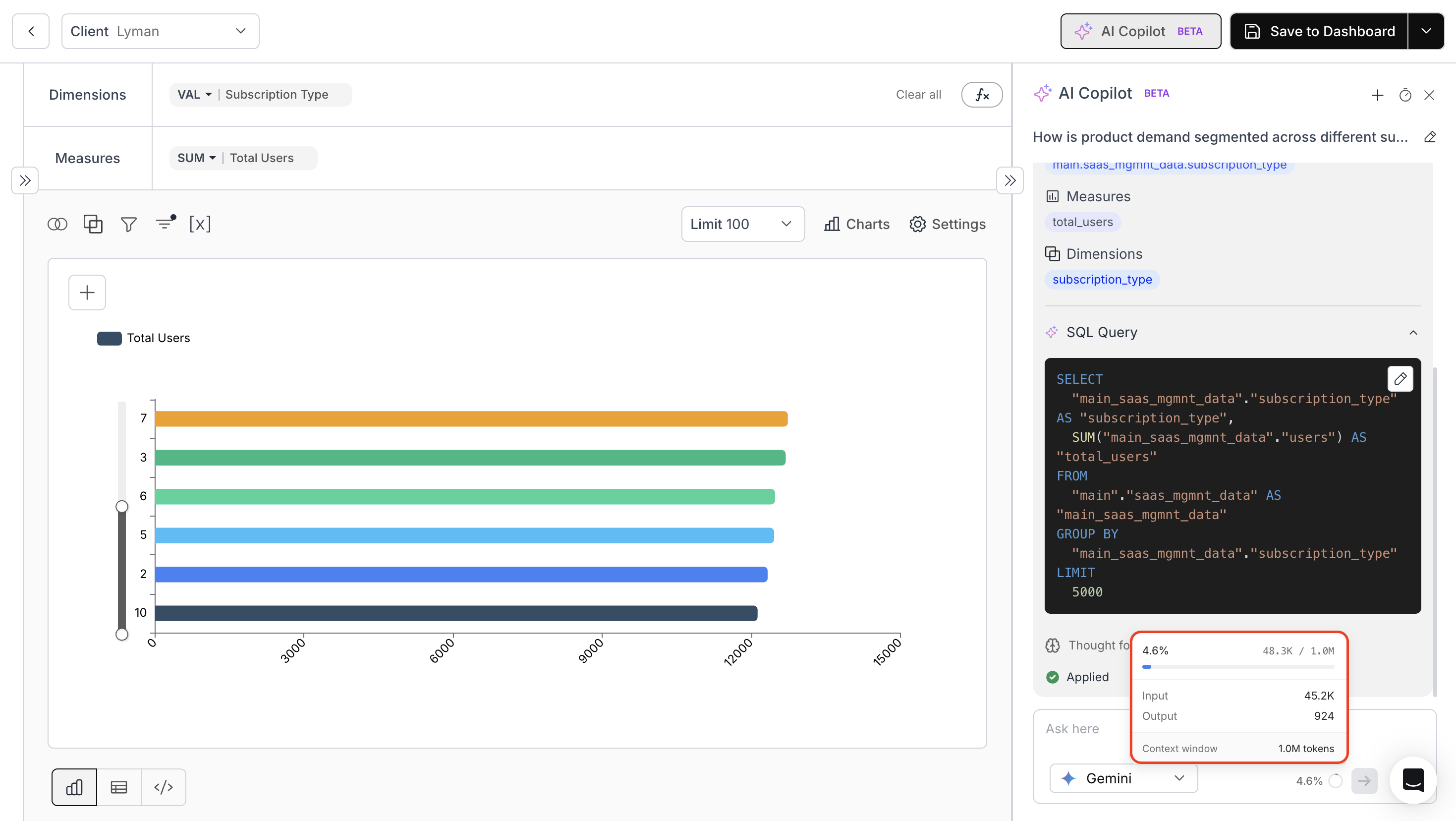
- Input tokens used by prompts and context.
- Output tokens used by model responses.
- The selected model’s total context window.
Use Copilot history
AI Copilot keeps session history so users can continue prior analysis without starting from scratch.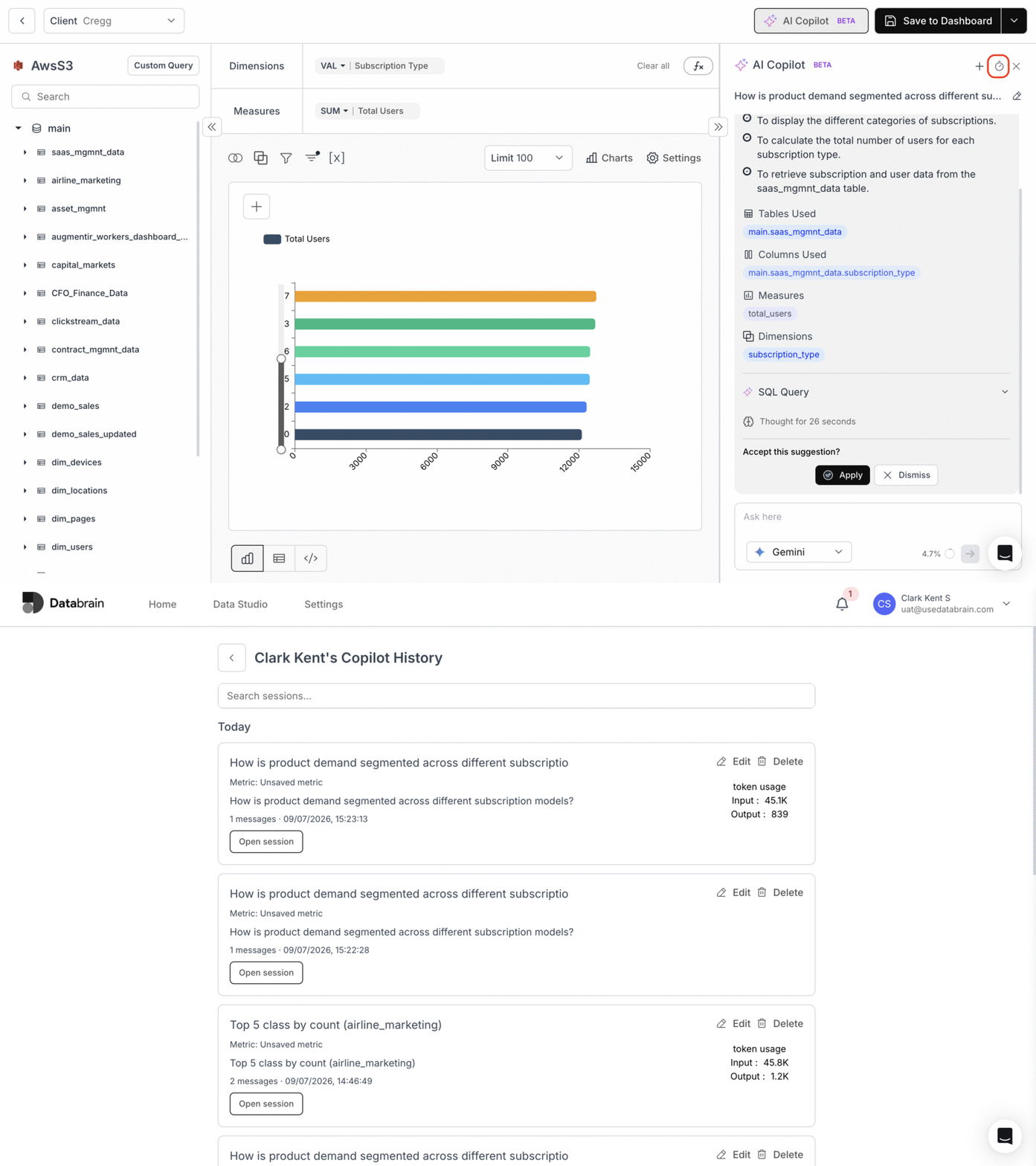
- Start a new session using the plus icon.
- Open history using the timer icon.
- Reopen a previous session.
- Rename a session.
- Archive a session you no longer need.
Best practices
- Use business-friendly but specific questions.
- Include dimensions, measures, filters, and date ranges when known.
- Review SQL before saving production metrics.
- Use separate sessions for unrelated analysis topics.